
Builder help
Using the builder
The parts every game shares: the map, the build tools, Cooper's chat, settings, levels and sharing.
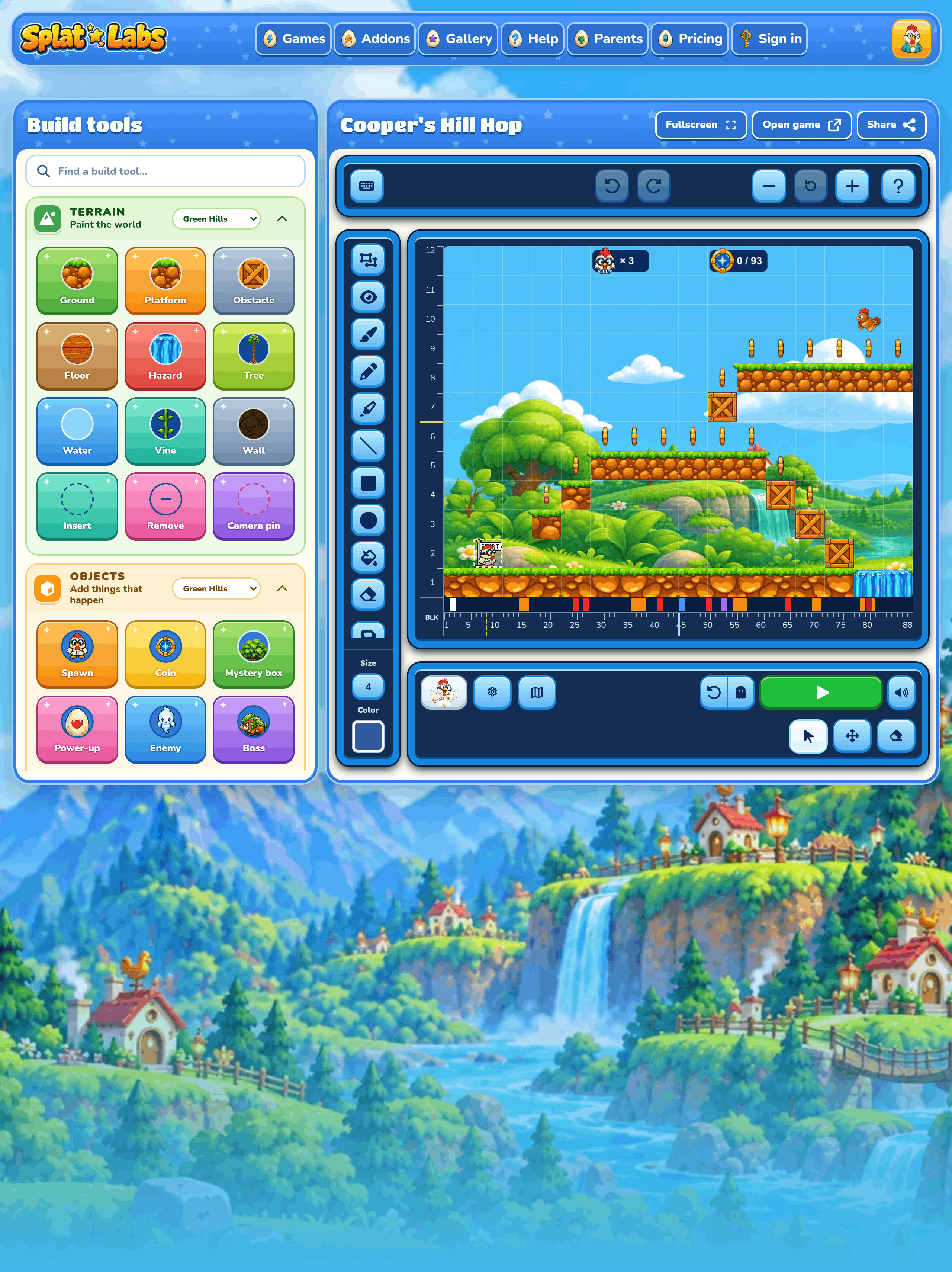
The builder is where you make your game. The map in the middle is your real game, so you can build a bit, press Play, and try it right away. Everything here works the same in every kind of game. Each game type then has its own page with its own brushes.
Starting a new game
Every new game starts in your Lab and then a quick setup wizard.
Create a game
In your Lab, press Create a Game. If your Lab already has as many games as it can hold, the button is greyed out. Delete an old game to make room. Your Lab has more about your games.
Set up your game
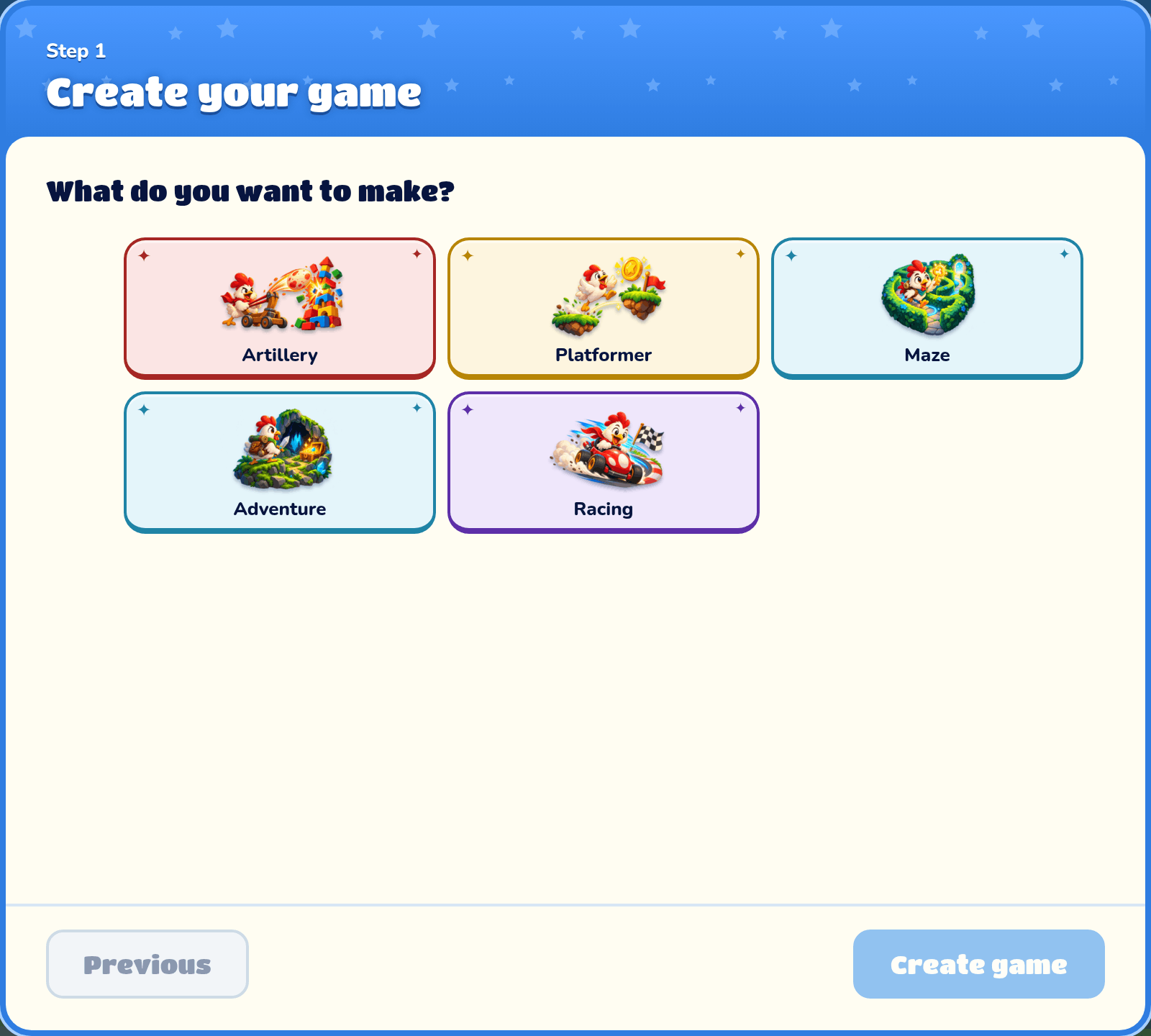
A setup wizard opens over your new game and stays open until you finish. Pick a picture or option, then press Next. Use Previous to return to an earlier question and change your answer. The questions slide between steps, and finishing opens your new game. Cooper chat is available afterward for requests:
- What do you want to make? Pick Platformer, Maze, Adventure, Artillery or Racing.
- What biome do you want? Pick one, like Green Hills or Space. Adventure skips this one.
- Ready-made or random map? A ready-made map is ready to play. A random map is new every time, and the wizard asks how long it should be. Platformer and Adventure skip this one: a Platformer always starts with an empty level.
- Pick your hero! Choose someone from the Splat Labs crew, or one of your own heroes from the Addon Lab. You can change the hero later in Game Settings.
- What should we call your game? Pick a name. You can change it later in Game Settings.
Racing and Adventure ask a couple of extra questions about the track or the story. Their pages explain them.
Open a saved game
Your games wait for you in your Lab. Click a game's picture to open it in the builder right where you left off, or press Play to play it. The ••• menu on a game card can Copy all of a game's levels and Paste them onto another game of the same type, or Delete the game. See Your Lab for more.
The top of the builder
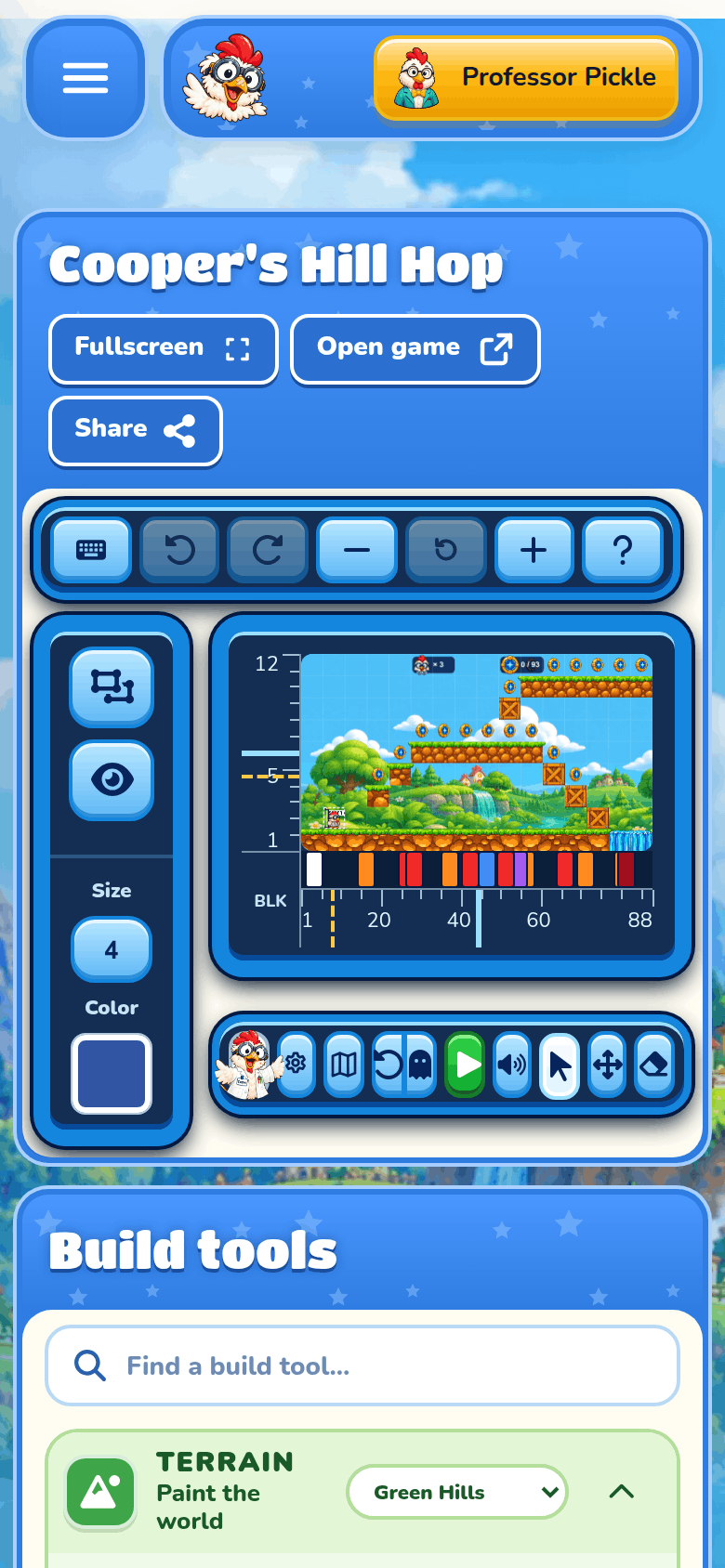
The top of the builder has your game's name and buttons for going fullscreen, opening, sharing, undoing and zooming.
Fullscreen, Open game and Share
Fullscreen fills the screen with just the build tools and your game. On phones and upright tablets the tools sit under the game. Press Escape or the button in the top-left corner to leave fullscreen.
Open game opens your game's play page in a new tab; the Play help explains that page. Share opens your game's play link. Both wait until your new game has saved for the first time.
Undo and Redo
Made a mistake? Undo steps back one change, and Redo steps forward again. You can also press Ctrl+Z to undo and Ctrl+Shift+Z or Ctrl+Y to redo.
Zoom
Zoom in and Zoom out make the map bigger or smaller on your screen. Reset zoom puts it back. Ctrl and the mouse wheel zoom too.
Help tips
Press the ? button at the top right of the builder to turn on help tips. Then click or tap any part of the builder to see what it does, with a link to the right help page. While tips are on, clicks show tips instead of building, so press ? again to get back to building.
Movement controls
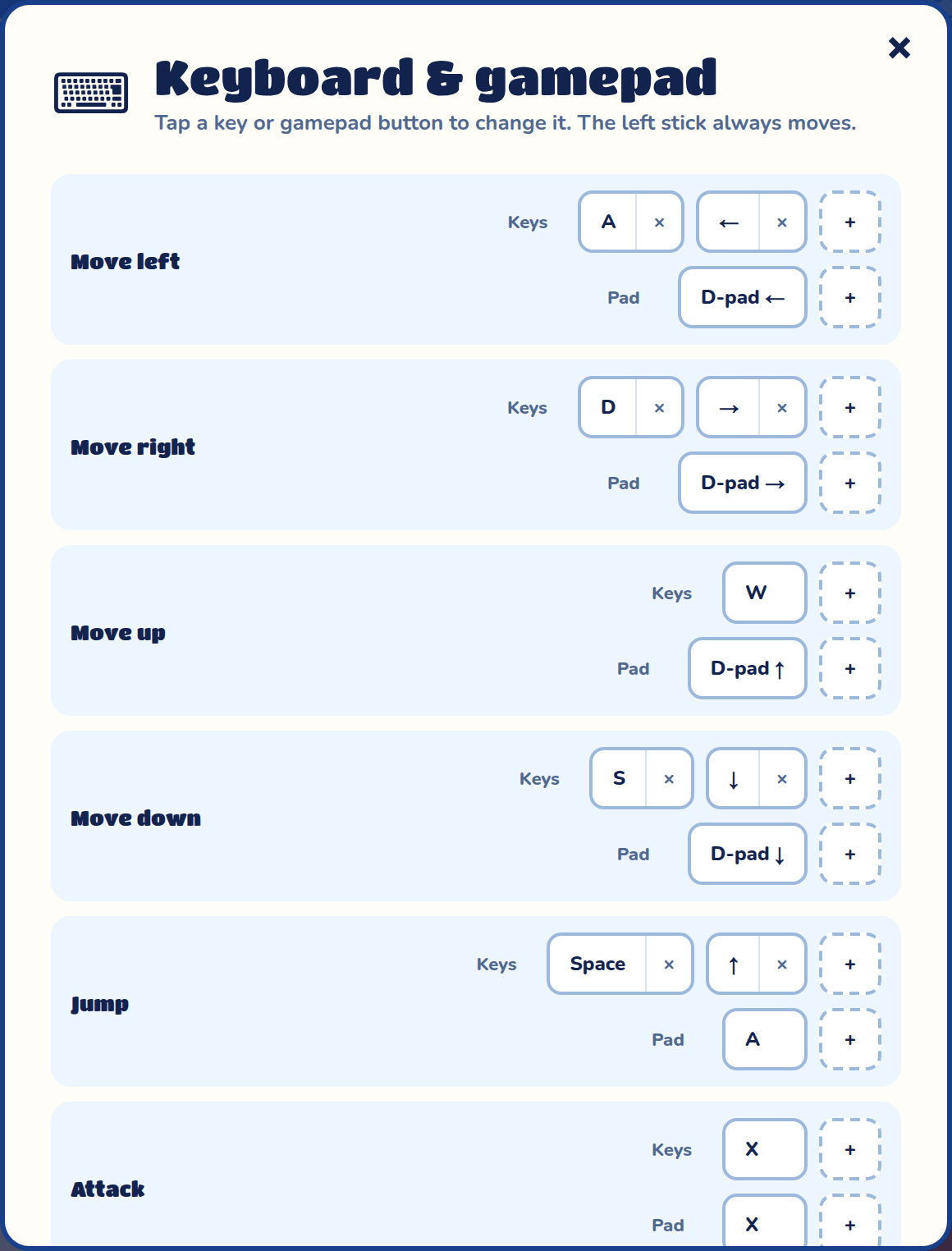
The keyboard button opens Settings, the same box the game's Options opens when you play. It has sound, accessibility, and pictures and videos of your game.
To change your keys, press Keyboard & gamepad in it. That opens a box where you choose which keys and gamepad buttons do each thing. Press + to add a key, click a key to change it, and press Reset defaults to put everything back.
Moving around the map
The map is your real game: build on it, look around it, and press Play to try it.
Look around
Drag with the right mouse button, or scroll the mouse wheel, to look at another part of the map. The Move tool drags the view too.
The rulers
The numbers below and beside the map count blocks. Columns count from 1 on the left, and rows count from 1 at the bottom, the same way scripts do with my row and my column.
When you point at a block on the map, each ruler marks it in yellow with its number, so you can read its column and row.
Click a ruler to jump your hero to that spot so you can test it. This is only for testing; it doesn't move where the game really starts.
The right-click menu
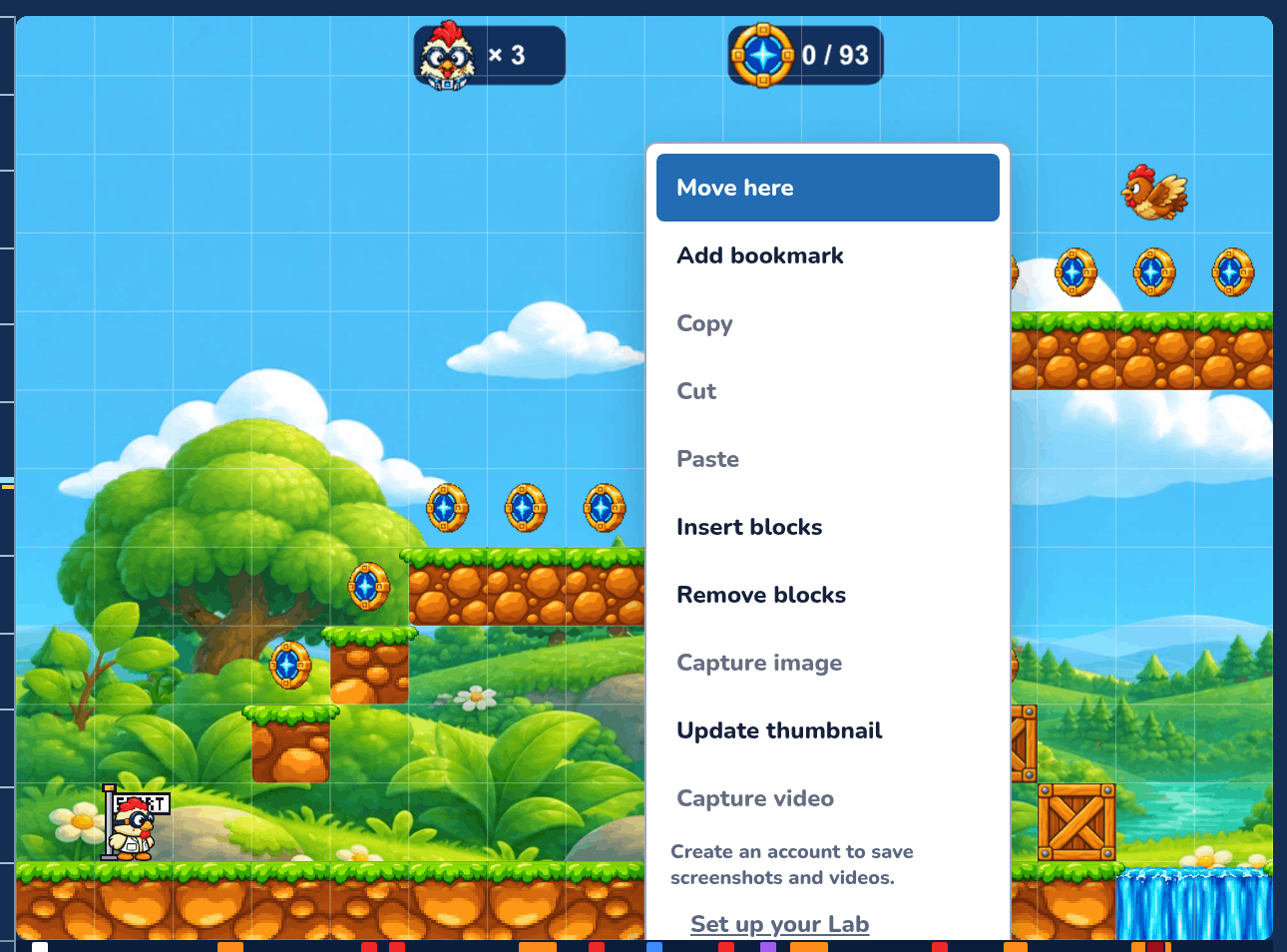
Right-click the map to open the Game actions menu:
- Move here puts your hero on the block you right-clicked, so you can test from there. It's there in the Platformer, Maze and Adventure builders while the game isn't playing. Like the rulers, it doesn't move where the game really starts.
- Capture image saves a picture of your game to My Media.
- Update thumbnail makes what you see now the picture on your game's card.
- Capture video records a video while the game plays.
- In most game types it also has Copy, Cut and Paste for things you've selected.
The buttons under the map
The row under the map has your settings, Play and Reset, sound, and the Select, Move and Erase tools.

Game and Map
The Game button (the gear) opens the Game Settings box, and the Map button (the folded map) opens the Map Settings box with your levels. They show only their pictures; hover one to see its name. Both are explained below. Cooper's button is just left of them.
Play, Pause and Reset
Play starts your game right on the map, and Pause stops it. You can't build while the game is playing. The Reset button has two halves. Full reset (the round arrow) puts everything back to the start. Enemy reset (the ghost) puts everything back except the hero, who stays where they are, and a running game keeps going, so you can try a fight again. Games without enemies only have Full reset. The keys are P to play or pause, Alt+R for a full reset and, in Platformer, Ctrl+Alt+R for an enemy reset.
Sound
Sound opens sliders for the music and the sound effects, and a button to mute everything. Press M to mute or unmute. The builder remembers your volume for every game.
Select, Move and Erase
- Select picks things on the map so you can change them (key S).
- Move drags the map around (key G).
- Erase removes whatever you drag over (key E).
Hover a button to see what it does in your kind of game. They are greyed out while the game plays. Racing has no S, G and E keys; there, Q and E turn the map.
Painting on your map
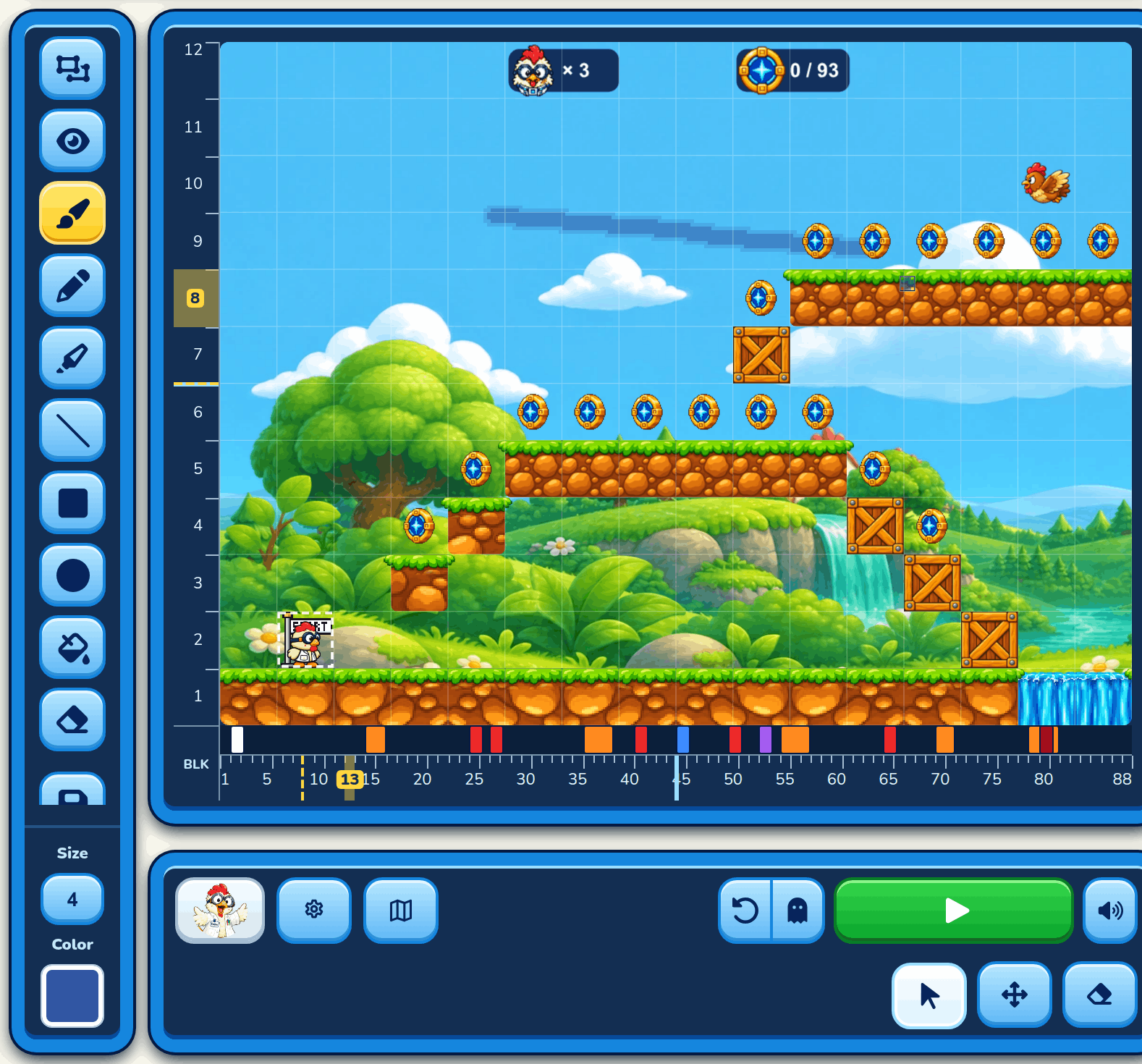
The toolbox on the left of your game has paint tools. Paint right on the map: draw clouds in the sky, a sun, signs, or anything you like. Paint is only a picture, so the hero walks straight through it. You can paint in a Platformer, a Maze and an Adventure.
Each level has its own paint, and so does each room and hidden world in an Adventure. The paint moves with the map, and it shows in your game when people play it.
The paint tools
Tap a tool to pick it up, then draw on the map. Picking a block brush puts the paint tool down again. Right-drag and the mouse wheel still move and zoom the map while you paint.
| Tool | What it does |
|---|---|
| Brush | A soft, see-through stroke with a fainter edge. |
| Pencil | A hard, solid line. |
| Crayon | A waxy, uneven line with see-through dots. |
| Line | Drag from one end to the other for a straight line. |
| Square | Drag from corner to corner. The size sets how thick the outline is. |
| Circle | Drag across the box the circle fits in. |
| Fill | Fills the paint you tap, up to where its color changes. |
| Eraser | Rubs your paint out. It never erases blocks. |
Size sets how thick the tools draw, and Color picks the color. A square outline under the mouse shows how big the brush is before you click.
Fill only looks at your paint, not at the game's own pictures. On a level with no paint yet, it fills the whole level, so press Undo if that wasn't what you wanted.
Select
Select picks up part of your paint to move it, make it bigger or smaller, turn it, or flip it. Drag a box round the paint you want. It lifts off the map, with a dotted line round it and a ball at each corner. A box with no paint in it stays up too, ready to paint inside.
| Do this | What happens |
|---|---|
| Drag inside the box | Moves it. Where it came from is left empty. |
| Drag a corner ball | Makes it bigger or smaller. It keeps its shape. |
| Drag the yellow ball on the stalk | Turns it, to any angle. |
| Press a Flip button | Flips it left to right, or top to bottom. |
| Press the tick | Puts it down. One Undo takes the whole change back. |
| Press the cross | Puts everything back as it was. |
| Press Select again | Puts it down and puts the Select tool away. |
| Press Delete or Backspace | Takes the paint in the box off the map, and lets the box go. |
Painting inside a box
With a box up, pick any paint tool and it paints only inside the box; the rest of the map is safe. Fill fills the whole box with your color, whatever was there, so a box and Fill make a solid rectangle. Pick Select again to pick up what you painted and move it. Press the tick to let the box go.
Clicking anywhere outside the game and the toolbox puts the paint tools away and lets the box go. So does picking a block brush.
Copy and paste paint
Right-click on a selection and choose Copy (or Cut, which also takes it off the map). Then right-click anywhere on the map, even in another level, and choose Paste. The paint appears there, already picked up with Select, so you can move it, size it and turn it before you put it down. Paste puts down whatever you copied last, paint or blocks.
Upload a picture
The disk button puts a picture of your own on the map: a PNG, WebP, GIF or JPEG. It appears where your mouse last was, already picked up with Select, so you can move it, size it and turn it before you put it down. A big picture is made smaller to fit.
Show and hide paint
The eye button hides your paint while you build, so you can see the blocks under it. Tap it again to show the paint. Your paint always shows when the game is played.
What paint covers
In a Platformer and a Maze, paint goes over the ground, blocks, walls and scenery. Everything that plays is on top of it: the hero, enemies, coins, keys, doors and power-ups.
In an Adventure, paint goes on the ground and water. Trees, houses and everyone who walks around stand on top of it.
Paint and blocks
The map's Erase leaves paint alone; use the paint Eraser for that. Undo and Redo work for paint, just like for blocks.
When you insert or remove columns in a Platformer, or make the level taller or shorter, the paint moves with the blocks.
The build tools
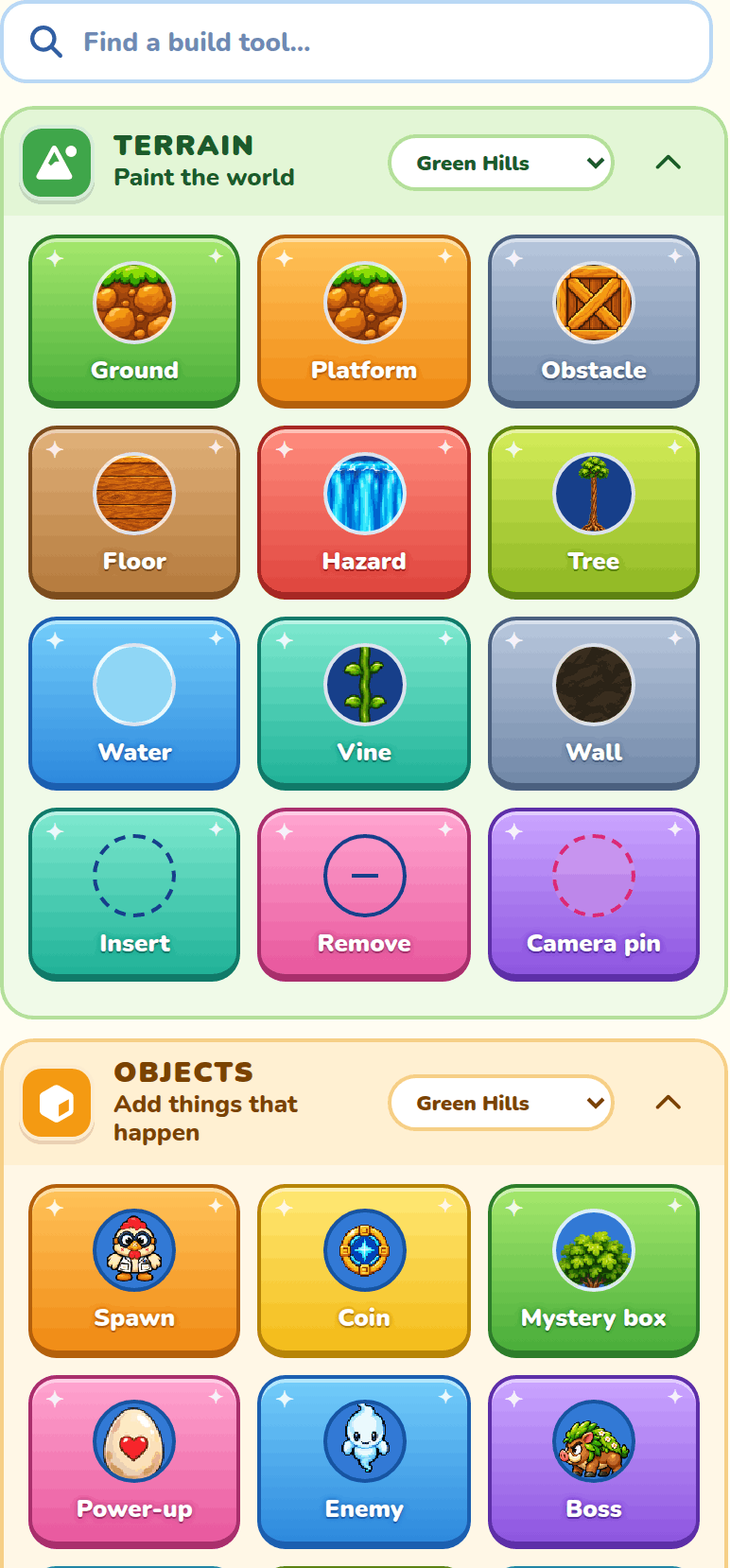
The build tools hold your brushes. Pick a brush, then click or drag on the map to place it. Each game type has its own brushes, so look at that game's page to see them all.
Find a brush
Type in Find a brush to show only the brushes whose name matches, like "coin" or "door".
Open and close sections
Click a colored section header to fold it up or open it again. The builder remembers which ones you closed.
Arrange your drawers
You can put the drawers, and the brushes in each drawer, in the order you like. Press Arrange at the top of Build tools. The brushes start to rock, as if to say "grab me".
Drag a brush to a new spot in its drawer. A brush stays in its own drawer, so you can't drag it into another one. To move a whole drawer up or down, drag it by its header. With the keyboard, move to a brush and press the arrow keys, or move to a drawer's header and press Up or Down.
While you arrange, a yellow note under the heading counts your changes. Click it to save. When you're done, use one of the three buttons at the top:
| Button | What it does |
|---|---|
| Save changes | Keeps your new order and stops arranging. |
| Undo changes | Puts everything back the way it was before you pressed Arrange. |
| Reset drawers | Asks first, then puts every drawer and brush back where it started. |
Your order belongs to you, not to one game. Every game you make of the same type uses it. If you try to leave the page before saving, the builder asks first.
Sprites and Sounds
The Sprites section shows pictures and backgrounds you've made in the Addon Lab, and the Sounds section shows your music and sound effects. Click one and press Yes, use it to add it to your level. Backgrounds only work in jumping games. In a Platformer, you pick them in Level settings instead.
Brush and Object settings
When you pick a brush, or select something on the map, its settings take the place of the brush drawers in Build tools.
The Brush drawer is first. It shows which kind or look it is. Under it, each group of settings has a drawer of its own, like Attack or How it moves. Click a drawer's header to fold it up or open it again.
Press All brushes at the top, or Escape, to go back to the brush drawers.
On a small screen, the build tools sit under the map, so the settings open as two panels over the map instead. Drag a panel by its top to move it, drag its corner to make it bigger, and press × or Escape to close it.
Bookmark a setting
Every setting has a small bookmark button after its name. Click it to bookmark the setting. The button turns yellow.
Bookmarked settings also show in a Bookmarks drawer above the other drawers, so the ones you use most are always at the top. The setting stays in its own drawer too, and you can change it in either place.
The Bookmarks drawer shows only the bookmarked settings that fit what you picked. If none fit, the drawer is not there.
To put the Bookmarks drawer in the order you like, drag a setting up or down by the dots on its left. With the keyboard, move to the dots and press the Up or Down arrow.
To remove a bookmark, click the yellow button again, in either place. The builder asks first. Your bookmarks are saved to your account, so they are the same in all your games.
Jumping between parts of the builder
These keys take you straight to one part of the builder, so you don't have to press Tab many times. Each part remembers where you were in it. They work in every kind of game.
| Key | Where it goes |
|---|---|
| Alt+1 | The map |
| Alt+2 | The build tools, in the Find a brush box |
| Alt+3 | The settings that are open |
| Alt+4 | Cooper's chat, opening it if it is closed |
| Alt+5 | Character scripts, for the characters you picked |
When you build with the keyboard or a gamepad, a short line at the bottom of the map says what each press did, like Nothing to pick up here. A screen reader reads the same words.
Game Settings
Press Game under the map. Your changes save by themselves.
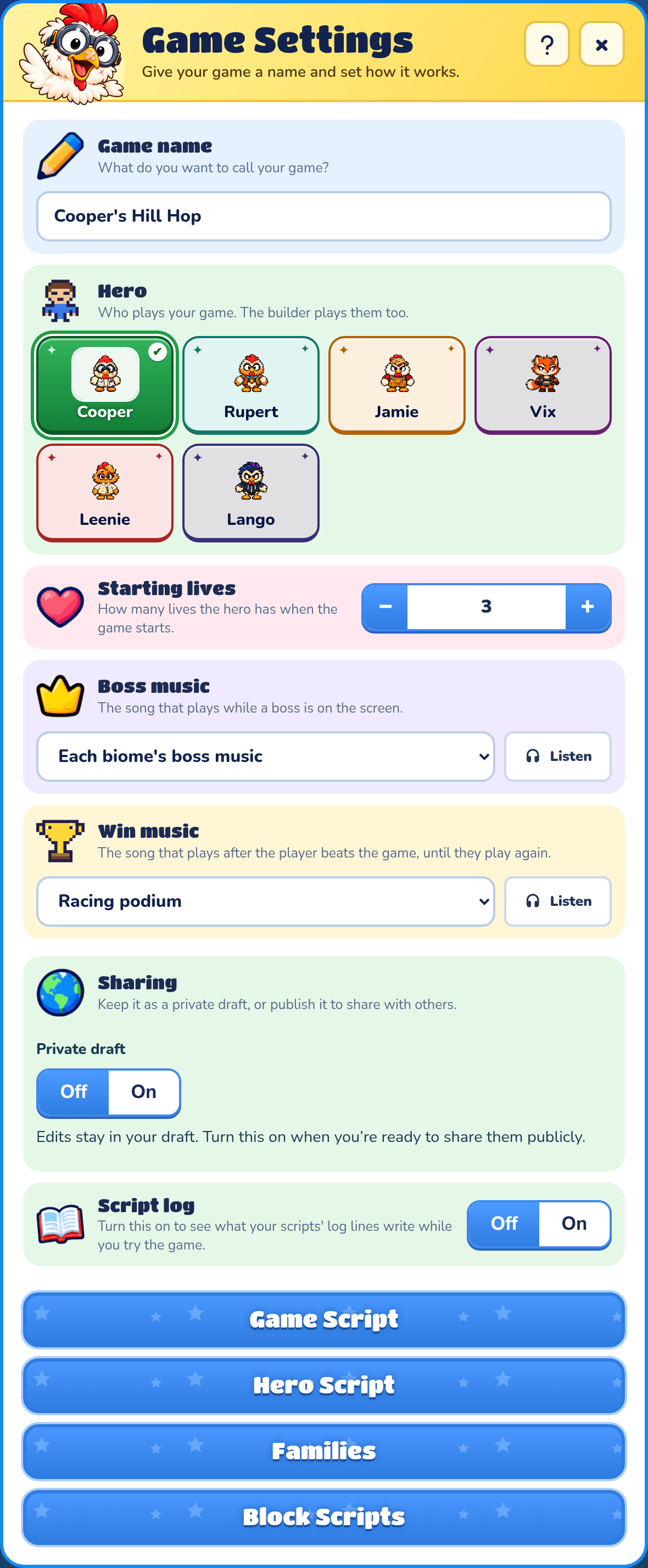
Game name
Type what you want to call your game.
Hero
Hero picks who plays your game, from the Splat Labs crew or your own heroes. Changing it also changes the hero you play while you build. Racing and Artillery only have the Splat Labs crew. In Racing, your hero is the driver you race as when you play alone, and the one you start with when you play with friends.
Starting lives or shots
How many lives the hero starts with. In Artillery it's how many shots. Adventure and Racing don't have this.
Boss music
In Platformer and Adventure, Boss music picks the song that plays while a boss is on the screen. Each biome's boss music gives each level its own biome's boss tune. A level with its own boss song from an addon keeps it. Press the play button beside the list to hear a song.
Win music
Win music picks the song that plays after the player beats the whole game, and it keeps playing until they play again. In Racing it plays on the podium when the player wins the whole run. Until you pick one, it's the Racing podium tune.
Opening Screen
Opening Screen picks one of your Screens to play when someone starts a new game, after Start new game and before they pick their hero. Players can press Start or Enter, or tap, to skip it, and loading a saved game skips it too. Make Screens in the Addon Lab and press Save in one to list it here; see Screens. After you save the Screen again, Use its newest save appears here: press it to use the new one.
Game script
In Adventure and Platformer games, Game script at the bottom of Game settings opens the game's own script, for quests, story moments and when the game is won. It runs in every level. See Game and level scripts.
Sharing
Your game starts as a private draft that only you and your family can play. Turn Sharing on to share it with everyone. Some Labs send the game to a grown-up for review first. After you publish, new changes stay in your draft until you press Publish changes. Turn Sharing off to hide it again. Published games can also be played online with friends.
Allow copying
Once your game is published, Allow copying lets signed-in players make their own copy of it, addons and all, with Copy game on its play page. The card shows how many times it's been copied.
Script log
In Adventure and Platformer games, Script log helps you see what your scripts are doing. Turn it on, and the Script log drawer shows under Find a brush. While you try the game, every log line in a script writes there, with the game's time and who wrote it. Put log in front of a step, a when or an if, and the drawer also says what that line did. See Seeing what a script does.
The drawer follows new lines as they come. Scroll up to read older ones, and it stays where you are until you press New lines. Copy copies the whole log, and Clear empties it. Each new Try game starts under a line, so you can tell one try from the last.
The log is only for you, in the builder. Players never see it, and with Script log off, log lines do nothing.
Sharing your game
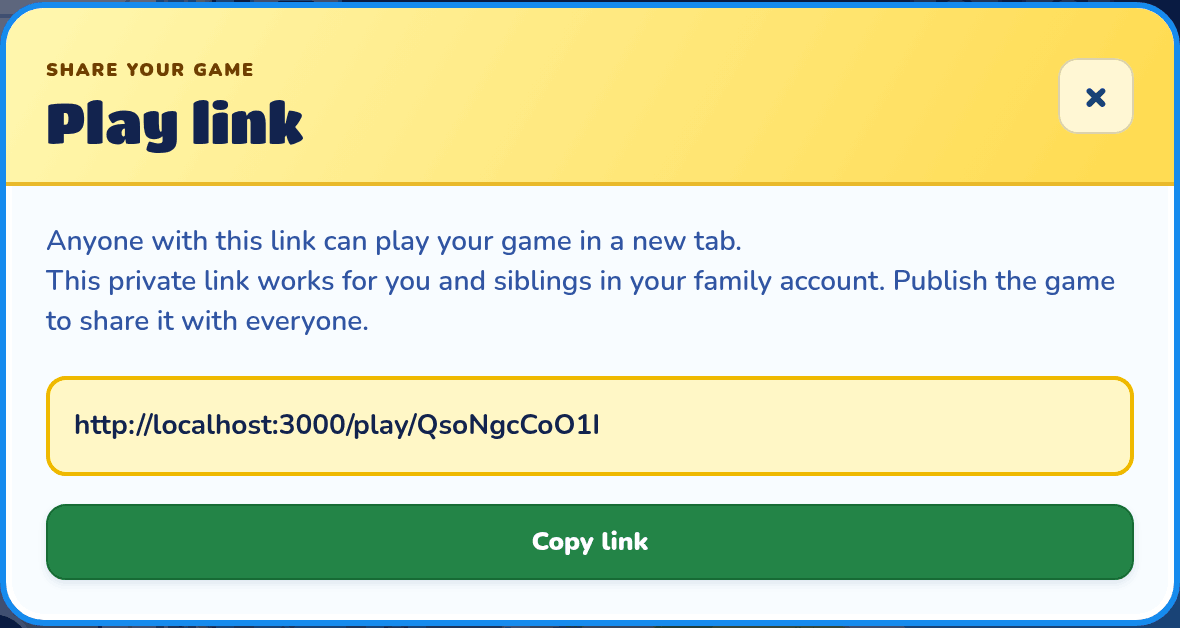
Press Share at the top of the builder to see your game's play link. Press Copy link to copy it. A private game's link only works for you and your family. Once it's published, everyone else sees the published version.
Levels and Map Settings
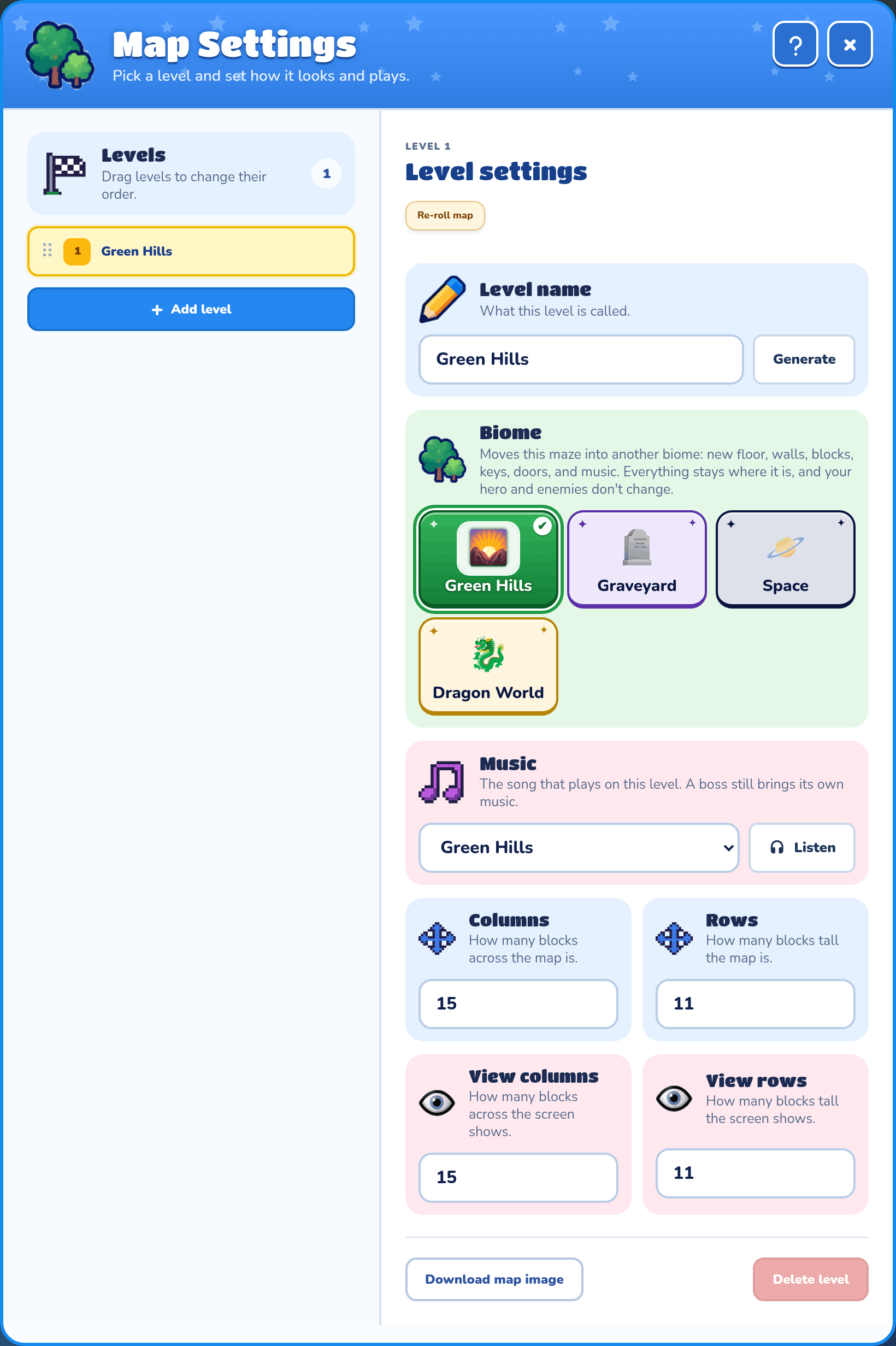
Press Map under the map. Your levels are on the left, and the settings for the chosen level are on the right. Adventure has a world map here instead; see the Adventure page. Platformer has worlds of levels on top, with the settings underneath; see Worlds.
Levels
Click a level to build on it. Drag levels up and down to change their order.
Add a level
Press Add level (in a Platformer, the + under a world). Cooper asks a few quick questions, then you press Create this level. A platformer can have up to 50 levels; most other game types can have up to 20.
Level name
What this level is called. Every new level starts with a random name. Type a new name, and it changes when you click away, or click Generate for another random one. Keep clicking until you find one you like.
Level script
In Adventure and Platformer games, Level script at the bottom of a level's settings opens that level's own script, which runs while the hero is in it. See Game and level scripts.
Biome
Biome changes the level's look and music. Everything you placed stays where it is. A biome is the style of one level, so levels in the same game can use different biomes. A world is different: it's all the levels in a game or, in a Platformer or Adventure, a group of them.
Music
Press Listen beside any music list to try the songs. Play as many as you like, then press Select to keep one, or Cancel to change nothing.
Music picks the song this level plays: any biome's tune, the Racing or Adventure tune, one of the extra songs (Sunny Scramble, Breezy Meadow, Moonlit Wander, Shadow Sneak, Midnight Dash, Candy Rocket, Bubbling Swamp, Sky High, Velvet Heist, Desert Sun, Zoomies), or a music addon of yours. Until you pick one, the level plays its biome's music and changes with its biome (a race track plays the Racing tune, and an Adventure the Adventure tune). A boss still brings its own boss music. In an Adventure, each world has its own music, and its buildings play their world's.
Columns and Rows
Columns and Rows set how many blocks wide and tall the map is.
Re-roll map
In Maze and Artillery, Re-roll map makes a brand-new random map for this level. Cooper asks first whether to keep your edits or throw them away. Your other levels stay the same.
Download map image
Saves a picture of the whole level.
Delete level
Removes this level from your game. It asks first, and Undo brings it back if you change your mind.
Chat with Cooper
Cooper's chat opens in a box over your game. After setup, type an idea for your game in the message box and press Send. Cooper can rename your game, add or change levels, change your hero, move things around, and lots more. Not every idea works in every kind of game, so Cooper tells you when it can't.
Open, close and resize the chat
Cooper's button, in the row under the map just left of the Game button, opens the box. While the box is open, the same button shows a round X that closes it.
Drag the box's top-right corner to make it bigger or smaller, and the builder remembers its size. The box hides while your game is running, and it opens by itself when Cooper has something to tell you.
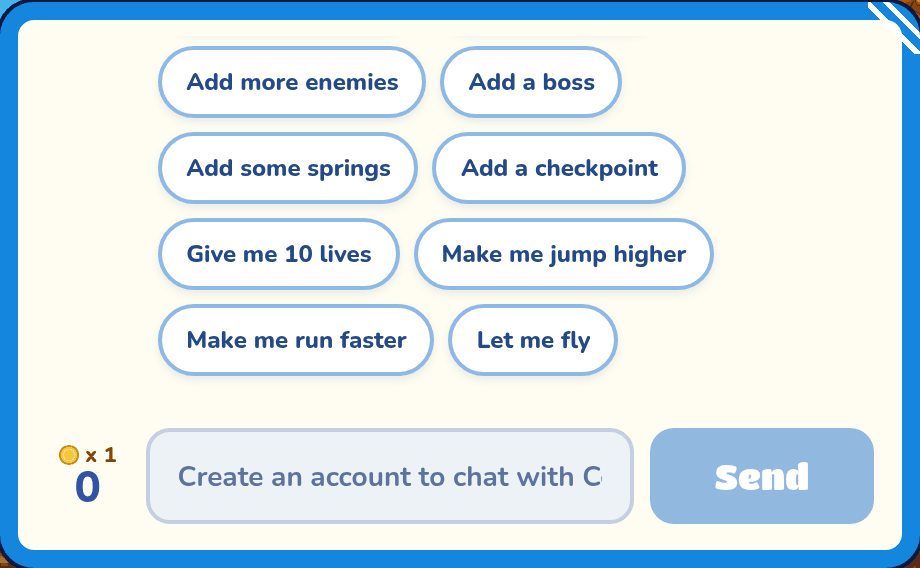
Idea buttons
The buttons in the chat, above the message box, are ideas you can send with one tap, like Add more coins.
Cooper coins
Each message to Cooper costs Cooper coins. The chat box shows how many you have left this month.
When Cooper asks you
Sometimes Cooper stops to check with you. Press Proceed to let Cooper keep going, or Reject to stop. You can type a note for Cooper first.
Saving
You never need to press save for the map. Every change saves by itself a moment after you make it. If a change can't be saved, a message pops up asking you to try again.
Keyboard shortcuts
Hover any button to see its shortcut. The main ones are:
- P play or pause, Alt+R full reset, Ctrl+Alt+R enemy reset (Platformer), M sound
- S Select, G Move, E Erase (not in Racing)
- C opens the script of what you've picked: enemies or villagers, and in a Platformer, blocks or objects too. S, with one enemy or villager picked that isn't a character yet, asks for a name to save it as a character (Adventure and Platformer)
- Ctrl+Z undo, Ctrl+Shift+Z or Ctrl+Y redo
- Ctrl+= zoom in, Ctrl+- zoom out, Ctrl+0 reset zoom
- Delete or Backspace removes what's selected
- Ctrl+C, Ctrl+X and Ctrl+V copy, cut and paste, in game types that have them
Shortcuts don't work while you're typing in a box.
Every key, for building and for playing, is on the Keyboard shortcuts page.
On a phone
On a small screen the map comes first and the build tools sit below it. While you answer Cooper's first questions, his chat fills the screen. It shrinks back when your game is ready, and the round X at the top closes it sooner.