
Lab help
Your Lab
Where your games live: making a new one, opening, playing, copying and deleting them.
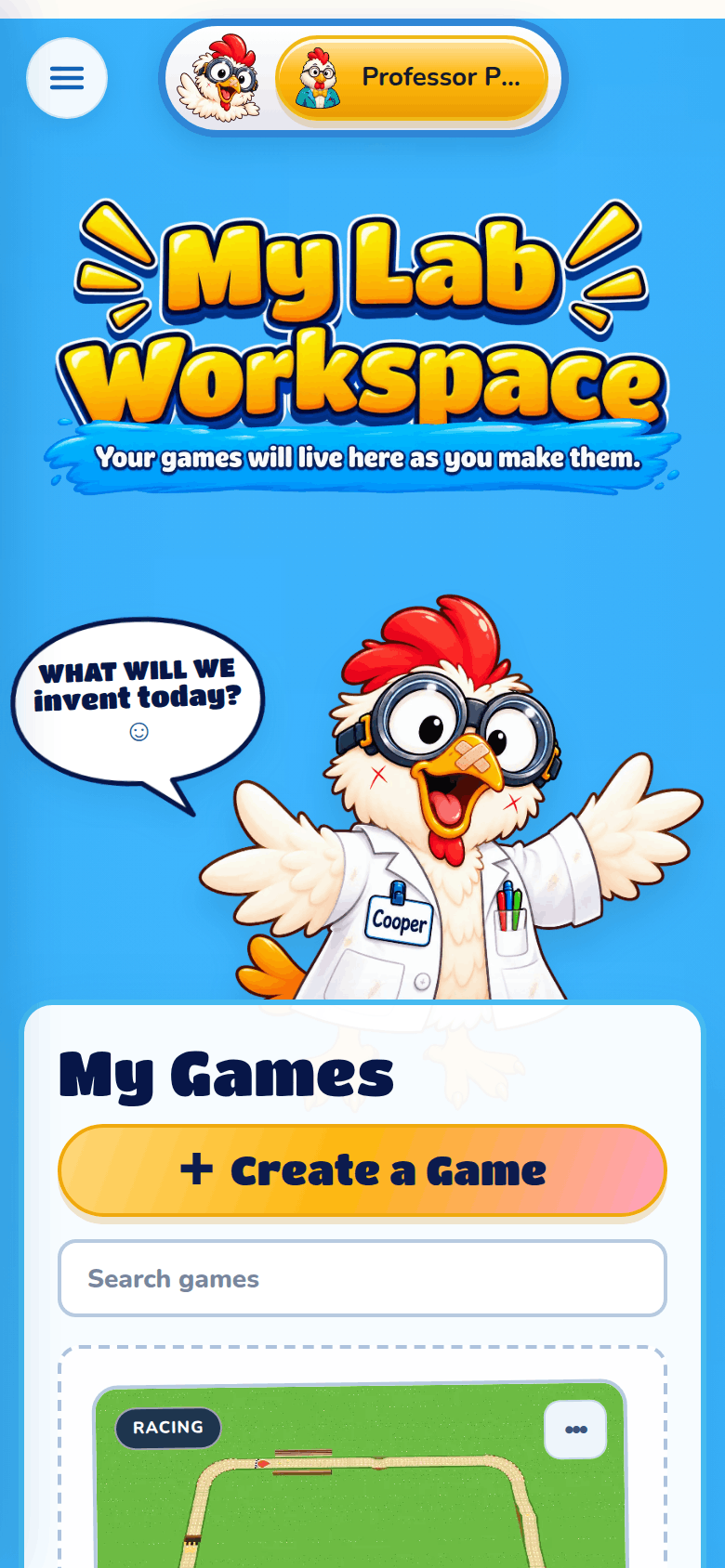
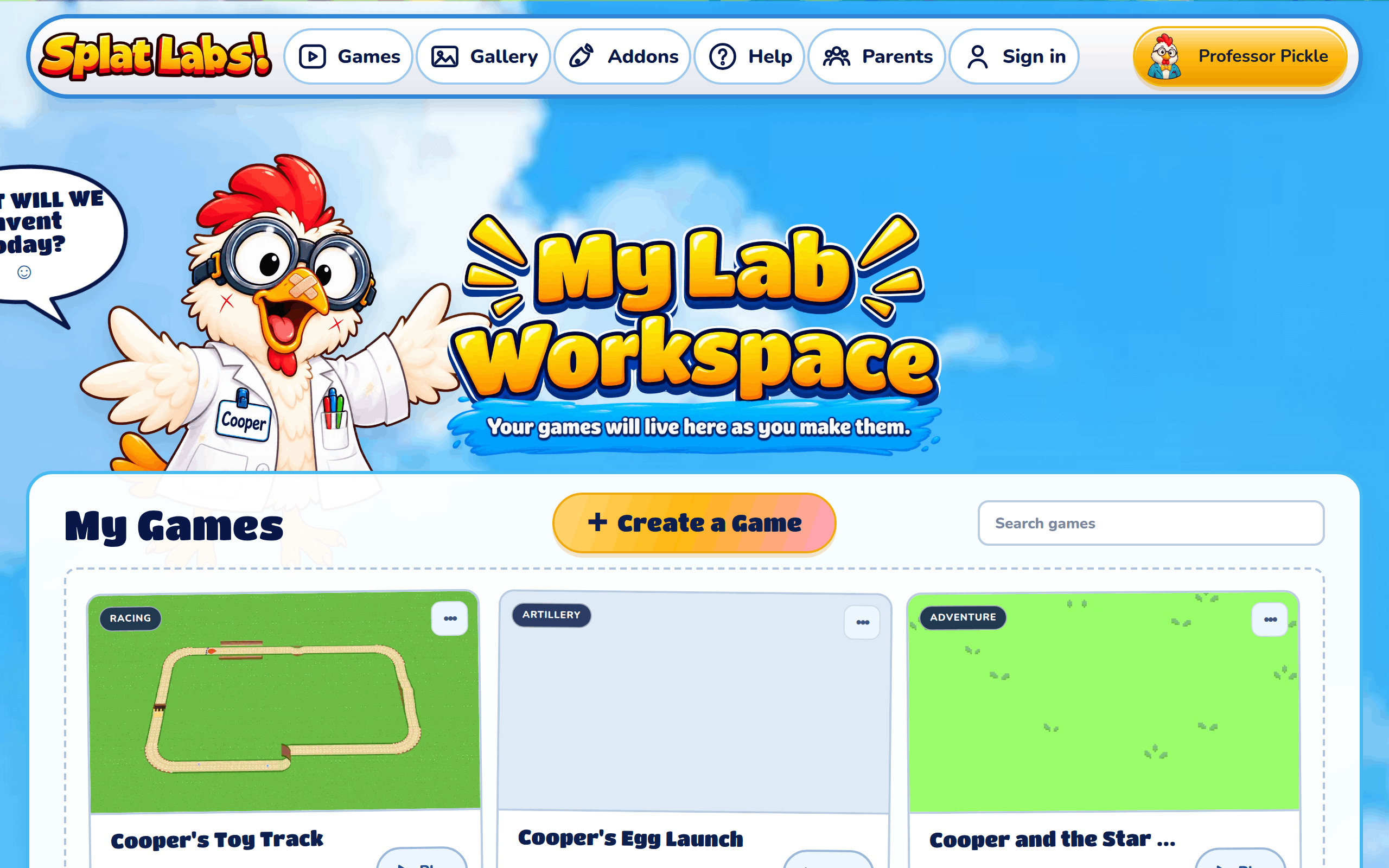
Your Lab is your own workspace in Splat Labs. Every game you make lives here, along with the pictures, videos and addons you make. Press Get Started at the top of any page to go there. Once you have a Lab name, that button shows your name and picture.
My Games
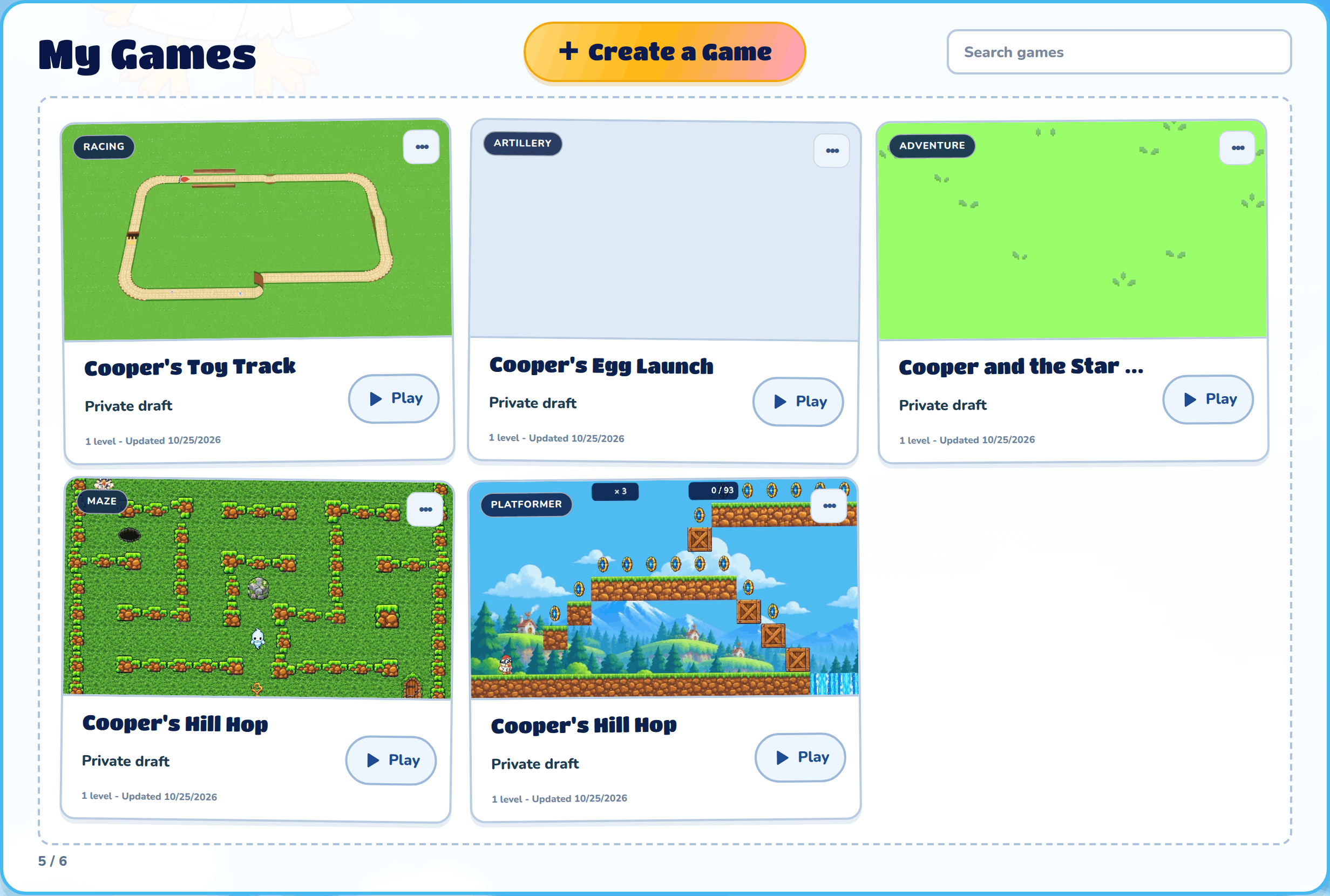
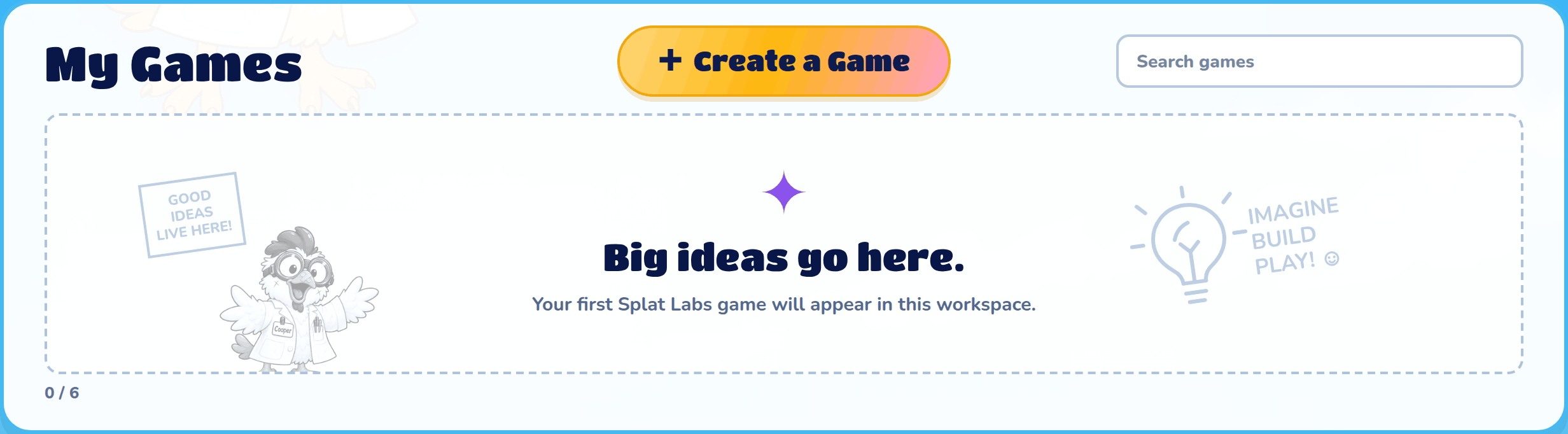
My Games shows every game in your Lab, with the one you changed last at the top.
Create a Game
Press Create a Game to start a new game in the builder, where a wizard asks a few questions to set it up. The builder help explains the questions. If your Lab doesn't have a name yet, you pick one first.
Your Lab can only hold so many games. When it's full, the button is greyed out: delete a game to make room.
Search games
Type in Search games to show only the games whose name or game type matches, like "maze" or "Cooper". If nothing matches, try a different word.
A game card
Each game has a card with its picture, its game type, its name, how many levels it has and when it last changed. Click the picture to open the game in the builder, right where you left off. A new game shows "Preview coming soon" until the builder has saved its picture.
Shared or private
Under the name, each card says who can play the game:
- Private draft: only you and your family can play it.
- Waiting for review: it's being checked before everyone can play it.
- Changes needed: the reviewer asked for changes. Their note shows on the card.
- Published: everyone can play it.
- Draft changes · live version published: everyone plays the published version, and your newer changes wait in your draft.
You publish a game from Game Settings in the builder; see Sharing.
Play
Press Play on a card to play the game on its own page. The Play help explains everything on it.
The ••• menu
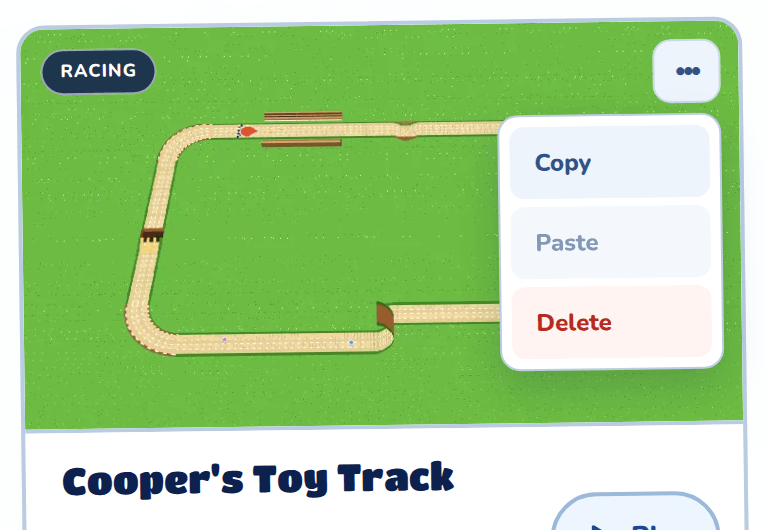
The ••• button on a card opens a menu with Copy, Paste and Delete.
Copy and Paste
Copy copies all of a game's levels. Then open the ••• menu on another game of the same type and press Paste to add those levels after its own. The game you paste onto keeps its hero and settings. Paste is greyed out until you've copied something, and what you copied is forgotten when you reload the page.
Delete
Delete removes the game for good. It asks first, and it can't be undone.
How many games
The numbers under your games, like "5 / 6", show how many games you have and how many your Lab can hold.
More pages
My Games shows 6 games at a time. Press Next and Previous to see the rest.
A brand-new Lab
A Lab with no games yet says "Big ideas go here." Press Create a Game to make your first one.
Pictures, videos and addons
Below your games are My Media, with the screenshots and videos you save from your games, and My Addons, with the heroes, monsters, pictures and sounds you make. See the Media help and the Addons help.
On a phone
On a small screen everything in your Lab stacks up in one column, with your games first.