

Builder help
Racing
Lay down a race track piece by piece, add coins, eggs and enemies, then test drive it.
In a Racing game you build a race track, square by square, and then race round it. You pick a square, then pick a piece of road or an object to put there. This page covers what's special about Racing. For the parts every game shares, see Using the builder.
Starting a racing game
The setup wizard asks a few questions and builds a ready-to-race track for you to change.
Cooper's racing questions
When you pick Racing, the wizard asks:
- What biome do you want? Pick one: Green Hills, Graveyard, Space, Dragon World or Ice World.
- How long should your race track be? Small track, Medium track or Large track. Small tracks mean quick laps.
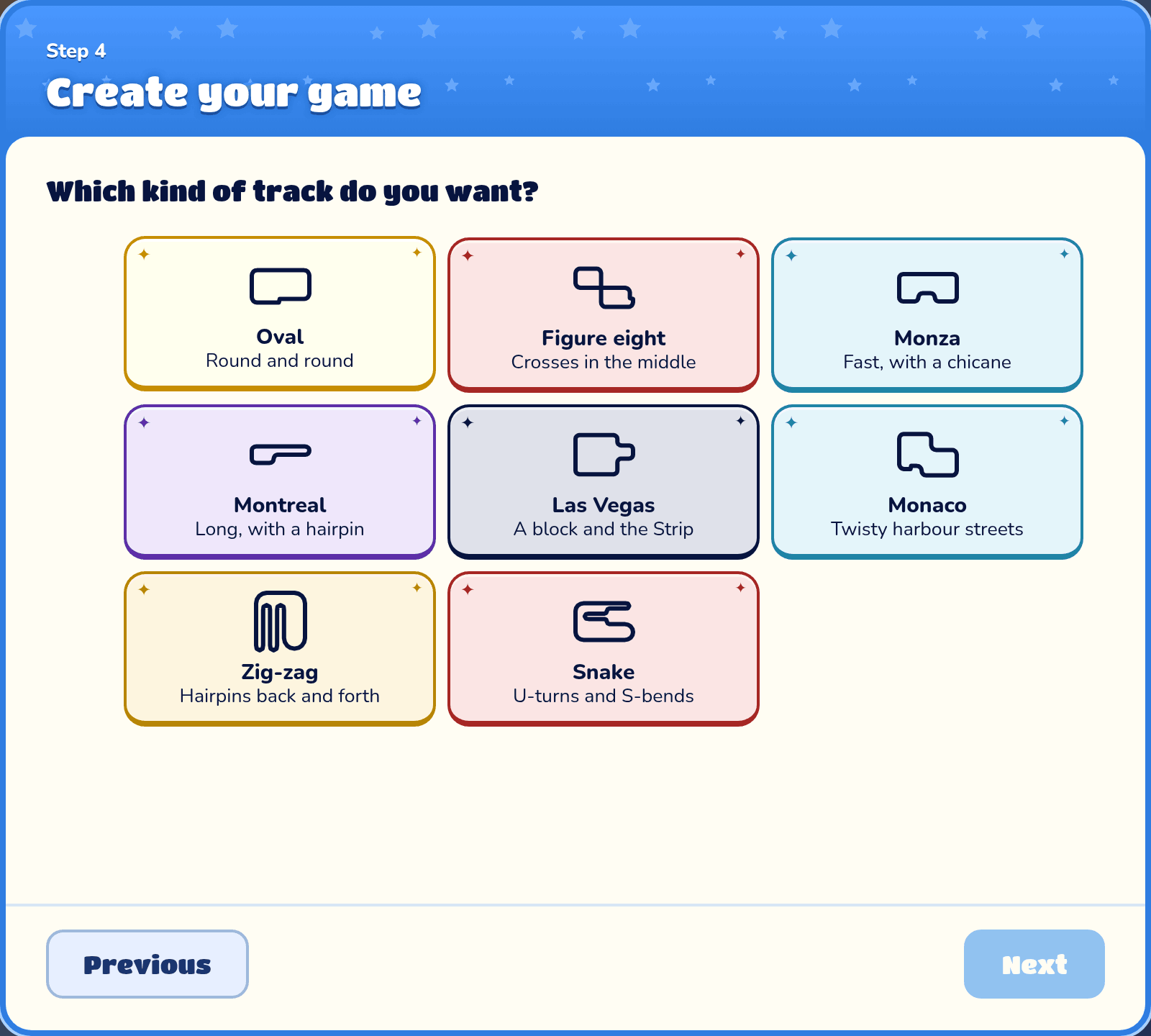
- Which kind of track do you want? Pick one of 8 ready-made shapes, like Oval, Figure eight or Monaco. Each card shows the road's outline.
- Pick your hero! Racing has the six Splat Labs drivers: Cooper, Rupert, Jamie, Vix, Lango and Leenie. Your driver's kart comes first when you pick a car.
Your starter track
Your new track is named after its biome, like "Green Hills 1". It has 3 laps and stands of cheering spectators just past the gate.
Add another track
Each level in a Racing game is a track. When you add a level, Cooper asks the same length and shape questions.
The Track drawer
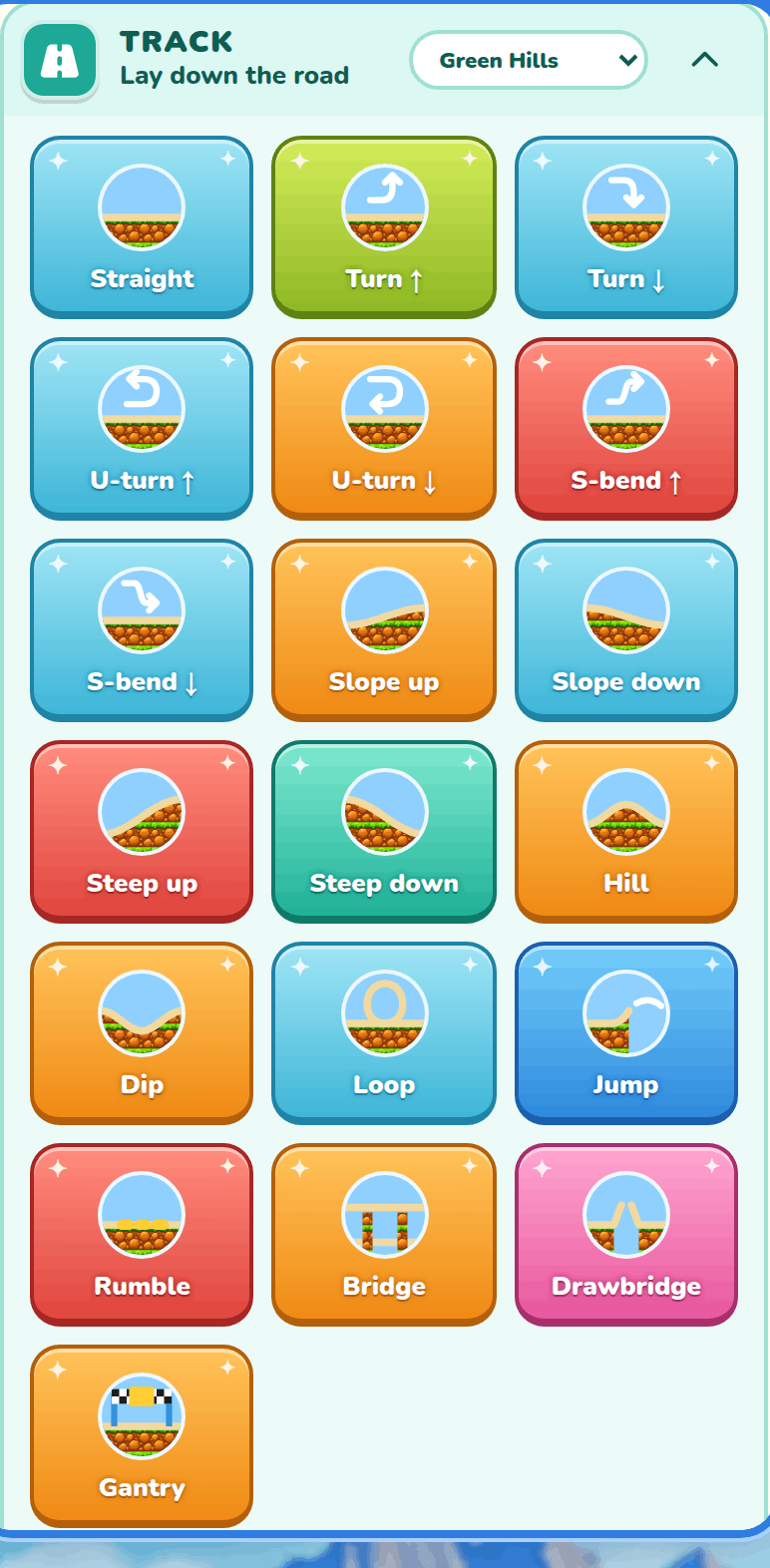
The Track section of the build tools holds the road pieces. First click a square on the map to pick it. Then click a piece:
- On a square of track, the new piece swaps in for the old one.
- On a red-outlined square of grass where the road runs out, the piece is laid and the next square is picked, so you can click pieces one after another to build a long road.
Turns, U-turns, S-bends and slopes each have a left and right, or up and down, version. Once a square is picked, the turn pieces show a map arrow instead, like Turn ↓.
Track biome
The Biome drop-down at the top of the Track drawer moves the whole track into another biome, with a new sky, road colours and props.
Straight
A plain piece of straight road.
Turn
A corner to the left or right.
U-turn
A tight hairpin that comes back on the square beside it. Slow down for it!
S-bend
Wiggles over onto the square beside it and carries on the same way.
Slope
Climbs up or drops down one block.
Steep slope
Climbs up or drops down two blocks.
Hill
A bump in the road. Go over the top too fast and you fly.
Dip
A hollow in the road. Go too fast and you bottom out.
Loop
A loop-the-loop. Go too slowly and you fall off. It comes out on the square beside it, so carry on building from there.
Jump
A ramp and a gap. Cars land on the next piece, so put a straight or a slope down after it. Only coins and eggs can sit on a jump.
Rumble
Speed bumps. Hit them too fast and your car is jolted to a crawl, so slow down first.
Bridge
Goes over other track one block below it. Put a slope up before it and a slope down after it.
Drawbridge
Lifts open and shuts again. Cross while it's down, or hop the gap at speed.
Gantry
A sign that stretches over the road, like the one on the start gate. You can put up to 4 emoji on it in its track settings.
The start/finish gate
The checkered gate is always the first square of the track. Every race starts there and every lap ends there. You can't swap, remove, copy or cover it.
The Objects drawer
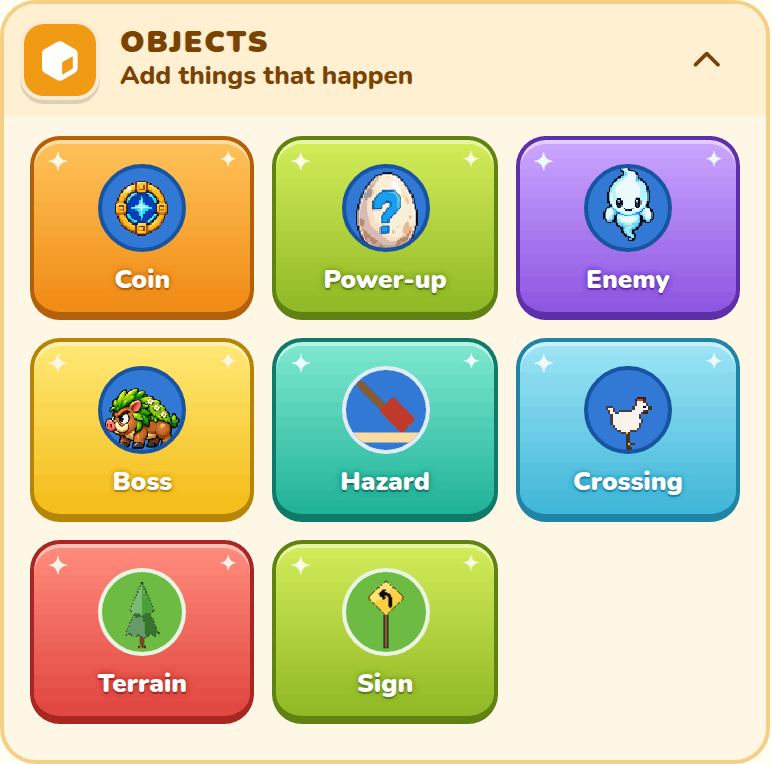
The Objects section holds everything that goes on or beside the road. Pick a square of track, then click an object to put it there. Its settings open so you can choose exactly which kind you want.
With an object on the track picked, the arrow keys move it. Up and Down slide it along the track, on to the next piece when it reaches an end. Left and Right move it one lane.
Building with the keyboard or a gamepad
You can build a track without the mouse. A gamepad works the same way. A screen reader says what each press did.
| What it does | Keyboard | Gamepad (Xbox) |
|---|---|---|
| Step to the next or last piece of track, and say what is on it. | Left and Right | D-pad or left stick |
| Open the brush search, to put an object on that piece. | B | X |
| Move the object you just placed or picked. | Arrow keys | D-pad or left stick |
| Let go of what is picked. | Escape | B |
| Describe the whole track: how long it is and what is on it. | D | Y |
| Remove the picked object, or the picked piece of track. | Delete | none |
In the brush search, type a name, press Up or Down to choose, then Enter to place it. The object lands in a free lane and stays picked, so the arrow keys can move it straight away.
Coin
Each coin takes half a second off the racer's time. Coins come back every lap.
Power-up
A power-up egg, like Speed boost or Throwing egg. It has variants: 5 egg powers to choose from in its settings.
Enemy
A character that walks along the road. Driving into it is a crash, so hop over it, change lanes, or splat it with an egg. It has variants: each biome has its own enemies, and your addon enemies show up too.
Boss
A big boss that is two lanes wide. It has variants: one boss per biome, plus your addon bosses.
Hazard
Something nasty on the road, like a swinging hammer or an oil spill. It has variants: 6 hazards to choose from.
Crossing
Critters waddle across the road, like chickens or penguins. It has variants: 5 kinds of critters.
Terrain
Scenery for the grass beside the track, like trees, spectators or floodlights. Pick squares of grass first, then click Terrain. If no grass is picked, the button stays pressed and every square of grass you click gets a tree. Click the button again or press Escape to stop. Cars never hit terrain. It has variants.
Sign
A warning sign for the grass, like a bend, a loop or a drawbridge ahead. You place signs the same way as terrain. It has variants, including one that shows an emoji.
Sprites and Sounds
Below the Objects section are the shared Sprites and Sounds sections, with skies, music and race sound effects for your track.
Track piece settings
Click a square of track and its settings open. If you pick several squares, the settings change them all at once.
Road
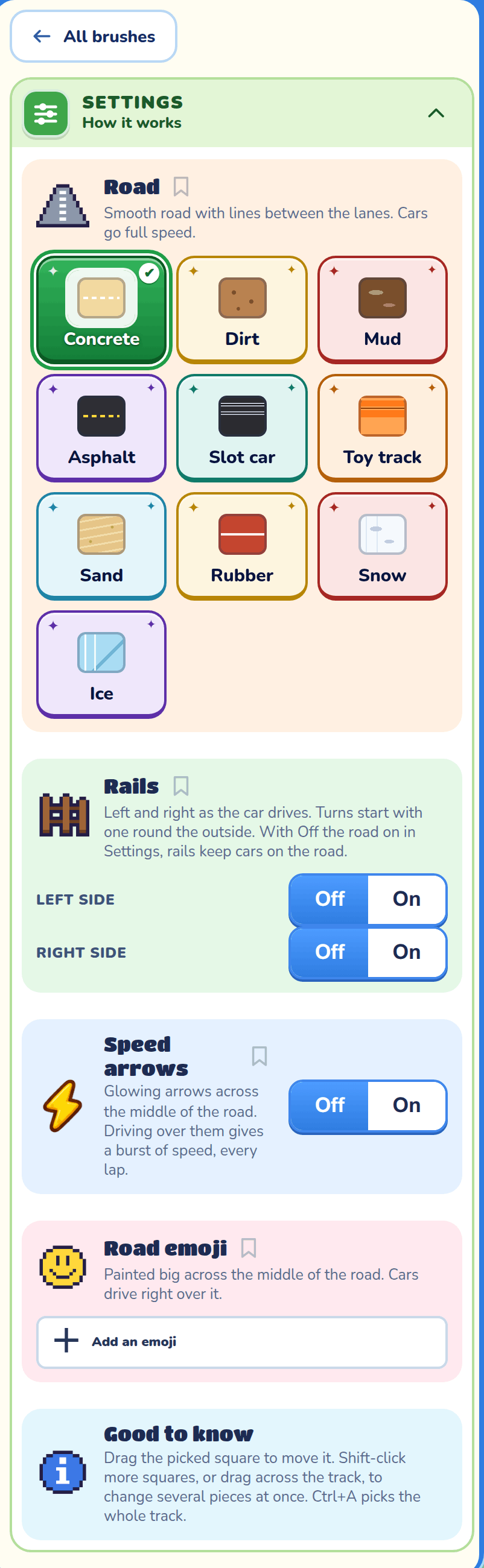
What the road is made of, like Asphalt, Mud, Toy track or Ice. Each one changes speed and grip.
Rails
Puts a rail on the Left side or Right side, as the car drives. A rail keeps cars on the road, but only when Off the road is on in Game Settings.
Speed arrows
Glowing arrows across the middle of the road. Driving over them gives a burst of speed, every lap.
Road emoji
Paints a big emoji across the middle of the road. Cars drive right over it.
Gantry sign
On a gantry: up to 4 emoji across its sign, in the order you tap them. With none, the banner is all checkers.
Opens after
On a drawbridge: when it lifts, so several drawbridges don't all open together. Cars cross while it's down, or hop the gap at speed.
Object settings
Click an object on the track to change it. The Which …? picker swaps it for another kind, like Which power? or Which hazard?.
Lane
Which of the 4 lanes it sits in. Lane 1 is the front. A wide object picks the two lanes it fills.
Comes back
How long until a power-up, enemy or boss comes back after it's taken or splatted. Never means it's gone for the rest of the race.
Walk down and Walk across
How far an enemy or boss walks down the track, and how many lanes it walks across.
Starts after
On a hammer: when it starts swinging, so hammers side by side swing at different times.
Paint colour
On a paint splat: which colour it is. Put different colours on different routes. Mystery is a surprise colour every time.
Copy and Delete
Copy makes another one just like it, and Delete takes it off the track. On the grass, a copy goes on free grass next to it.
Terrain and sign settings
Click terrain or a sign on the grass to change it. Which scenery? or Which sign? swaps it for another kind. Copy puts a copy on free grass next to it, and Delete removes it.
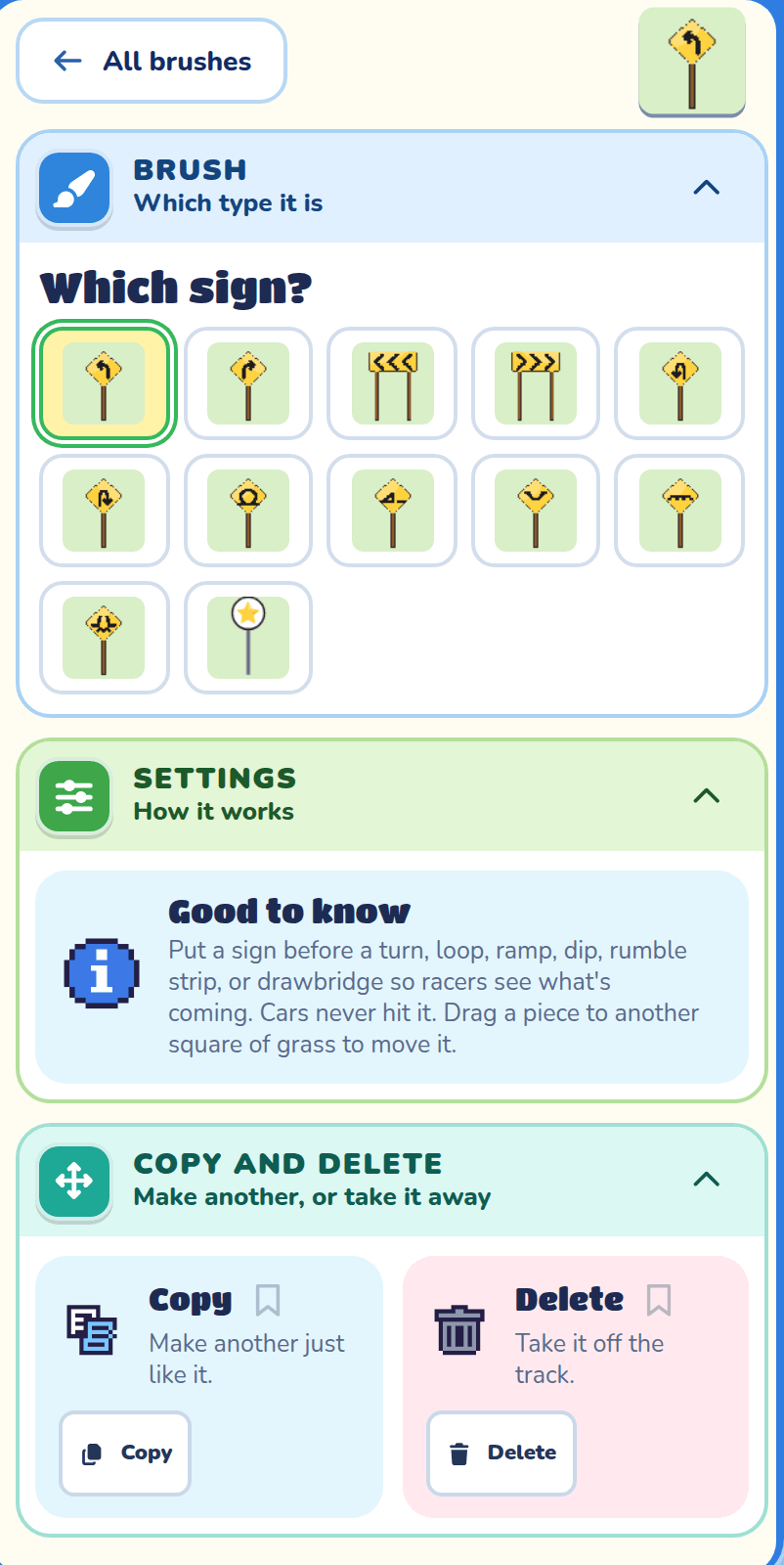
Sign emoji
The emoji shown on a white round sign beside the track.
Bubble colour
A clear bubble shimmers like soap; a colour tints its film and the spray when it bursts.
Editing the track
- Click a square of track to pick it. Shift-click, or drag across the track, to pick several. Ctrl+A picks the whole track, and Escape lets go.
- Drag picked track to move it. Drag an object along the road, or terrain to other grass, to move it.
- The ← and → keys pick the previous or next piece.
- Press Delete, use Erase, or cut a piece to remove it. The rest of the track stays put, so this leaves a gap.
- Ctrl+C, Ctrl+X and Ctrl+V copy, cut and paste pieces, objects and terrain.
- The turn buttons on the map, or Q and E, turn the map so you can see the track from another side.
Track problems
If something stops the race from working, a banner above the map tells you, like a gap in the track or a track that doesn't join up with the gate. Play stays off until it's fixed. Press Show me to pick the spot where the road runs out. When the end of the lap just needs closing, Join it up lays the pieces back to the gate for you.
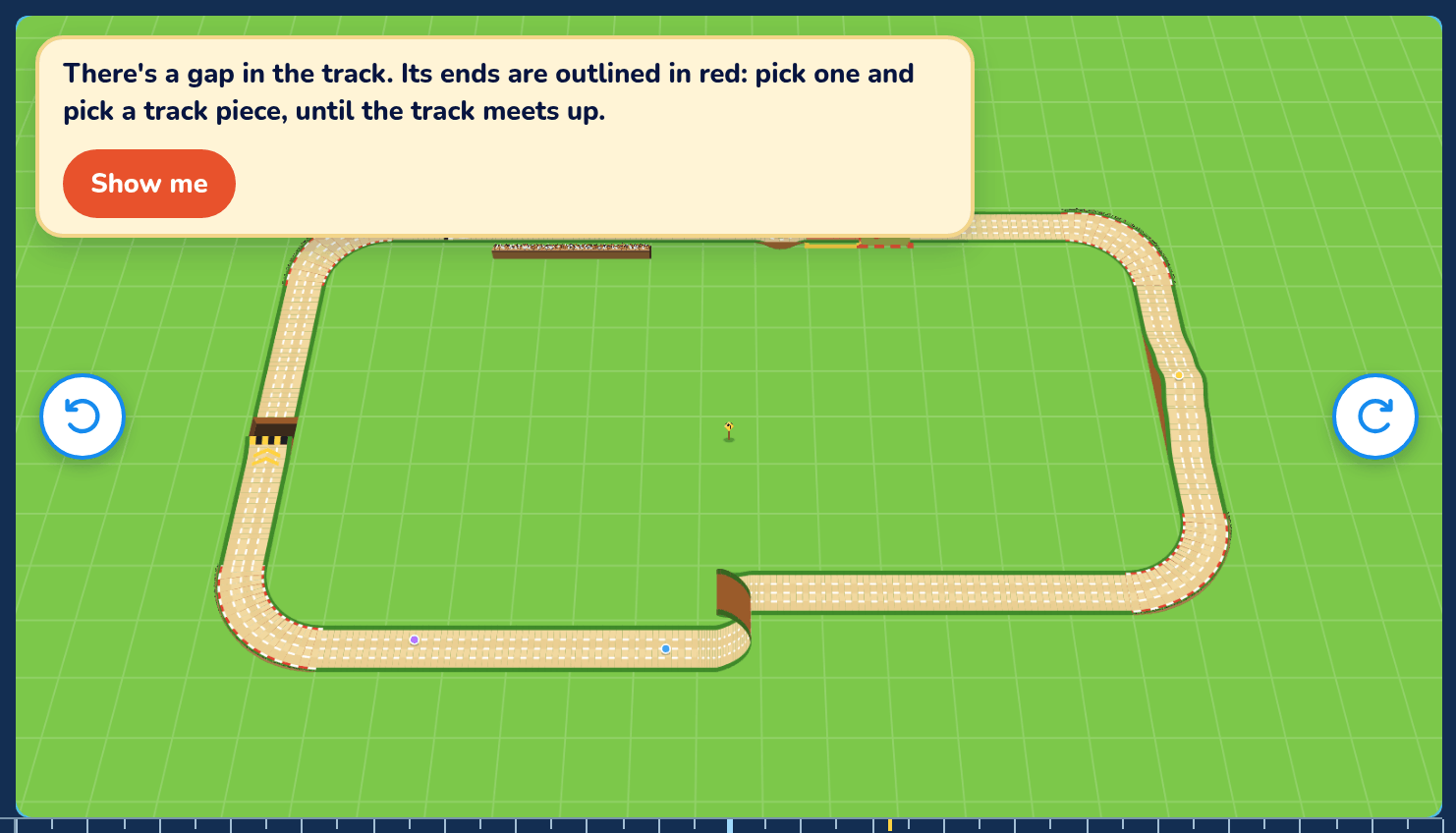
Where the test drive starts
Click the track ruler beside the map, or drag the car with Select, to choose where your next test drive starts.
Test driving
Drive your own track to try it out, in any car you like.
Play
Press Play to test drive your track. Press Pause to go back to building, with the car's square picked.
Racer
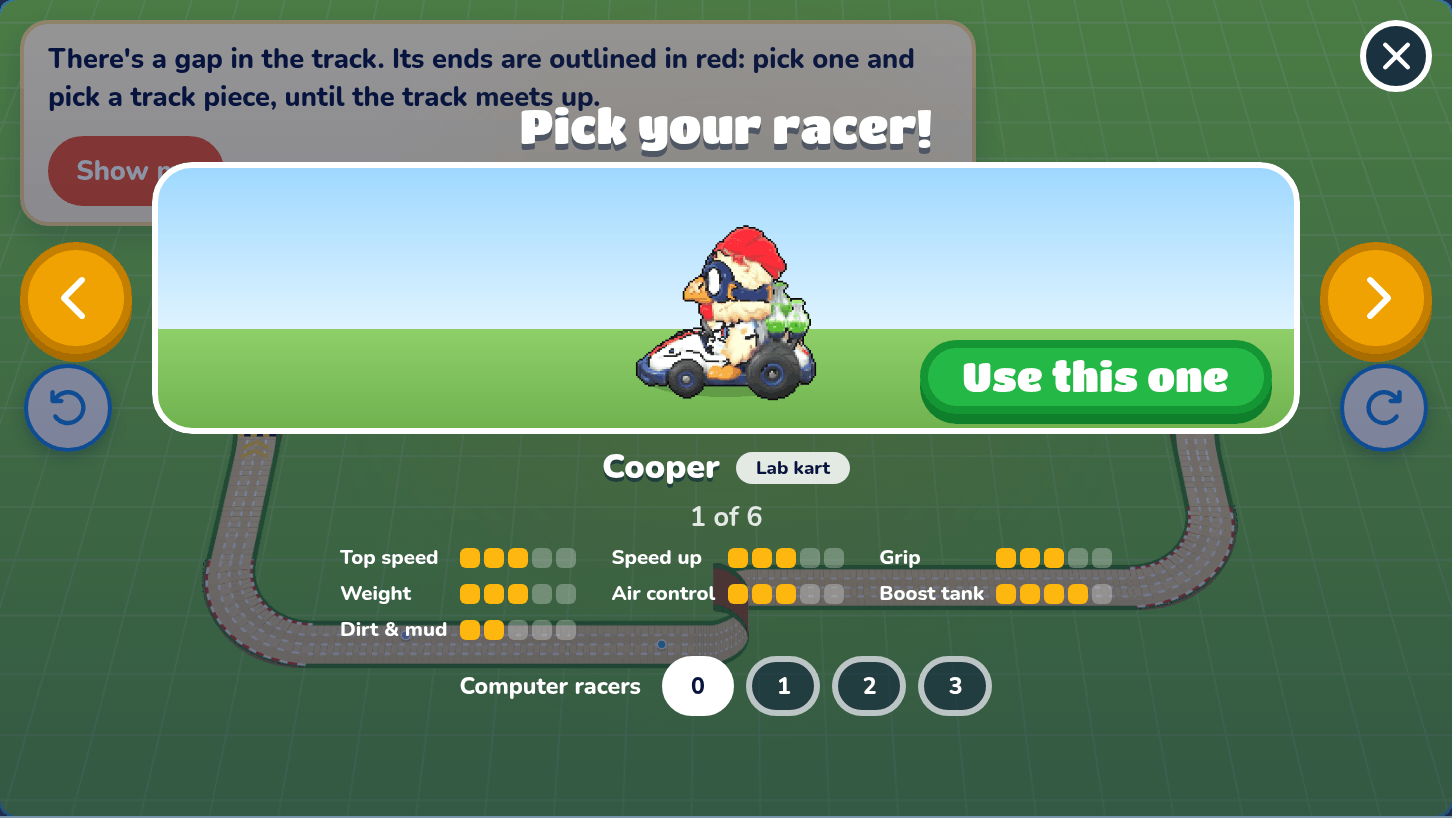
Racer opens the car picker so you can choose which car to test drive with. Press Use this one to pick it.
The car picker
Players see the car picker before every race. They flip through the cars with ← and →, look at each car's Car stats, and press Race!. Your own race car addons come after the six team karts. Players can also add up to 3 Computer racers and choose their Difficulty.
Map Settings for a track
Press Map to change the chosen track. Racing has no columns or rows. The shared Map Settings page covers levels.
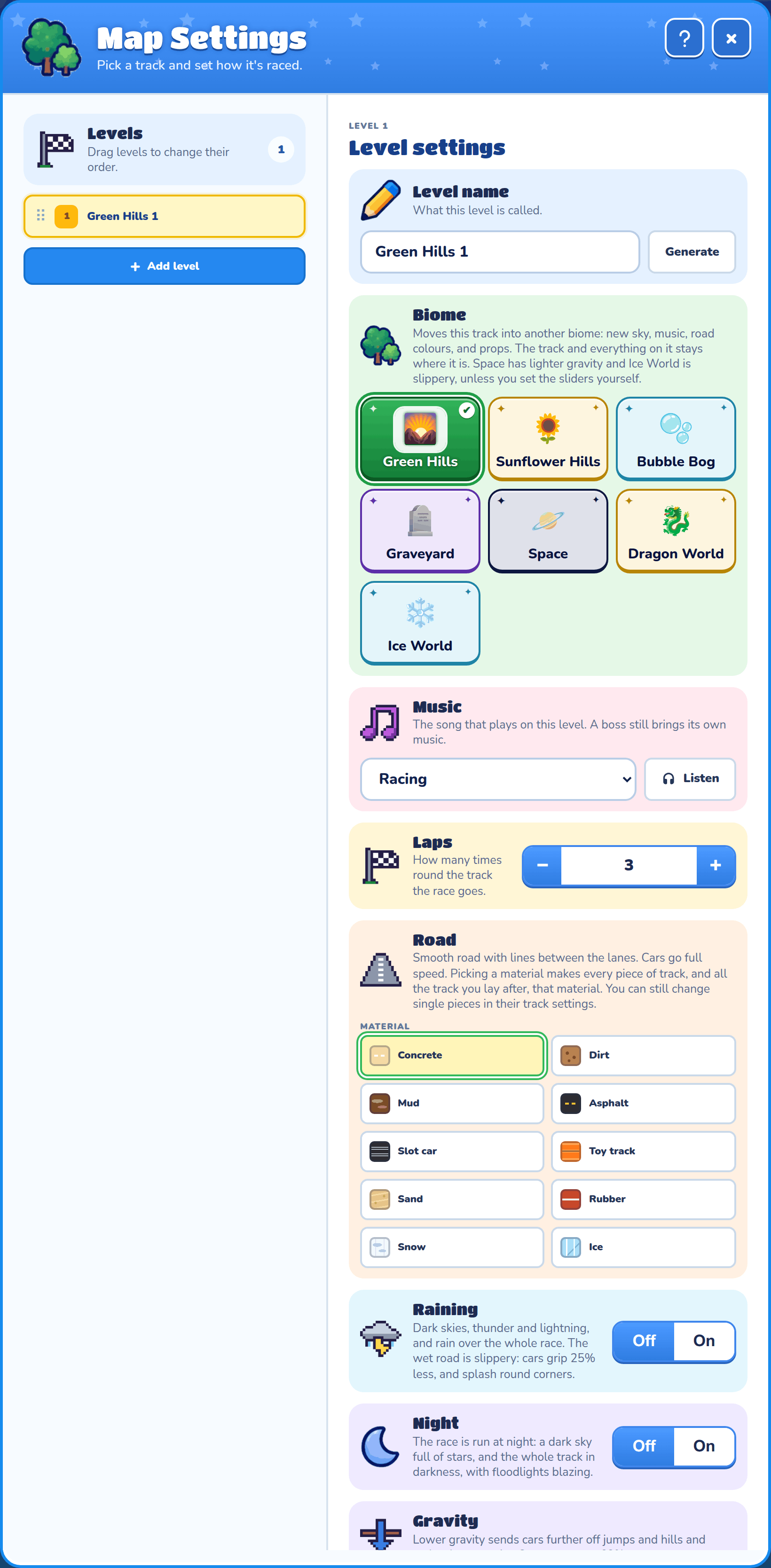
Laps
How many times round the track the race goes, from 1 to 5.
Road
Makes every piece of track, and all the track you lay after, one material. You can still change a single piece in its own settings.
Raining
Brings thunder, lightning and a slippery wet road.
Night
Runs the race in the dark, with floodlights blazing.
Gravity
Lower gravity sends cars further off jumps and hills, and makes loops easier.
Ground traction
Lower traction makes the road icy.
Biome
Moves the track into another biome. Everything on it stays where it is.
Race rules
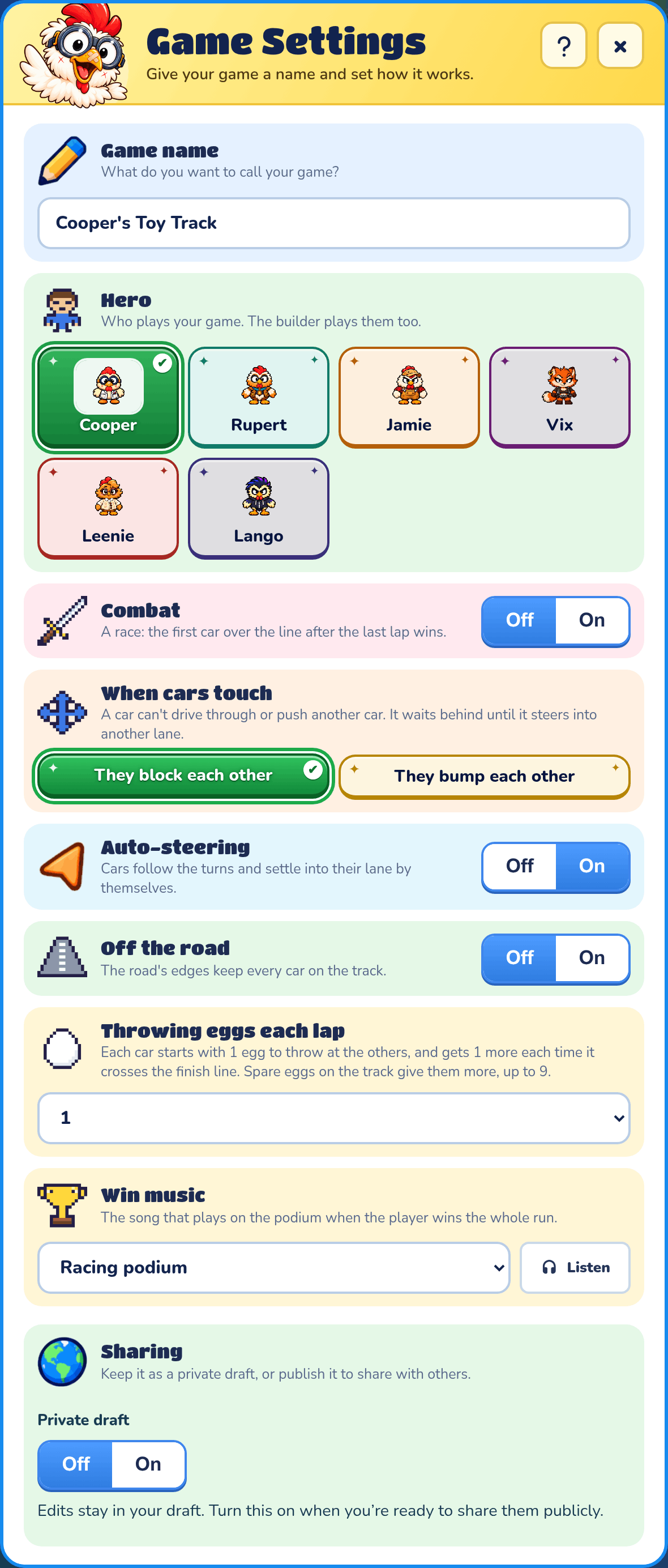
Press Game to set how the race works for everyone. Racing has no starting lives.
When cars touch
They block each other means a car can't drive through or push another car. They bump each other means cars bounce off and shove each other aside.
Auto-steering
With Auto-steering on, cars follow the turns by themselves. With it off, players steer, and run wide if they let go.
Off the road
With Off the road on, cars can steer or slide off the edge of the road. With it off, the road's edges keep every car on the track.
Throwing eggs each lap
How many eggs each car starts with and gets again every lap, from 0 to 9, or Unlimited.
Combat
Turns the race into a battle. Cars still drive round the track, but laps don't count and nobody wins by crossing the line.
Cars throw eggs at each other instead. Each egg that hits a car takes one of its lives, shown as hearts above the car. A car with no lives left is out. The last car still in wins.
Eggs still come from Throwing eggs each lap, so set it to Unlimited for a battle where nobody runs out.
Hits to knock out
How many lives each car has in a battle, from 1 to 9. It starts at 3. Only shown when Combat is on.
Time limit
How long a battle lasts: 1, 2, 3, 5 or 10 minutes. When time runs out, the car with the most lives left wins, and cars tied on the most all win. Only shown when Combat is on.