
Scripting help
Getting started
Splat Script works in Adventure and Platformer games.
Splat Script lets you decide what your characters do. You write short lines like when I get hit and run away 3 blocks, and your character does just that. Want an enemy that hides until the hero walks past, or a villager who waves hello? Write it, press Play, and watch it happen.
Splat Script is made of rules, and rules are made of statements. A statement is one instruction, like chase the {Hero}. It usually takes one line, and a long one can carry on over the next lines. Most rules start with a trigger, a when statement that says when the rule happens. The statements under it happen in order from the top.

This script has two rules. The first sets the character patrolling, ready to fight. The second makes it chase the hero as soon as it sees them. Press the play button to try it.
The kinds of statements
Every statement is one of a few kinds. In the script window, each kind has its own color and its own drawer.
| Kind | What it does | Examples |
|---|---|---|
| Trigger | Says when a rule happens. | when I startwhen I get hitevery 3 secondswhen "alarm" |
| Behavior | What the character does until another rule changes it. | patrolchase the {Hero}stand still |
| Action | Something that happens once. | jump backsay "Boo!"wait 1 secondtrigger "alarm" |
| Setting | Changes the character itself. These start with my. | my opacity is 50my look is dark |
| Variable | Keeps something in a @variable. | @count is 0@count goes up by 1 |
| Choice | Chooses what to do, with if. | if the {Hero} is near |
| Loop | Repeats some statements. | repeat 3 times |
Three of these have pages of their own: Making characters act for the Setting statements, then Choosing with if and end and Using @variables to remember. Triggers explains every 3 seconds, when "alarm" and trigger "alarm", and Repeating explains repeat.
Writing comments
A line that starts with # is a comment. It's a note for you, or for anyone who reads your script, and the game skips it.
# The guard by the gate. It only wakes up when the hero gets close.
when I start
  stand still

when I see the {Hero}
  # Give the hero a moment to run.
  wait 1 second
  chase the {Hero}
A comment can sit on a line of its own anywhere in the script, and it can be indented like the lines around it. Use comments to say what a rule is for, or to switch a line off for a while without deleting it:
when I get hit
  # say "Ouch!"
  run away 3 blocks
For a script before and after comments, and ideas for what to write in them, see the recipe on comments.
One rule at a time
In a character's script, only one rule runs at a time. When a new rule starts, it takes over from the rule that was going.
Game and level scripts are different. Their rules run side by side (see Game and level scripts).
A step that tells another character what to do waits until that character is done. End the line with and go to carry on straight away, so several characters can act at once:
when I see the {Hero}
  the {Minion 1} attack and go
  the {Minion 2} attack and go
  say "Get them!"
Both minions attack, and the character shouts at the same time. Telling a character what to do has more.
What doesn't matter, and what does
Big or small letters don't matter, and neither do "the", "a" and "an". Spaces at the start of a line are only there to make the script easy to read, with one exception: a long line can go on onto the next line after a comma, and that next line must start further in. A line that starts with # is a comment, and the game skips it (see Writing comments).
If the game can't understand a line, it skips that line when you play, and the rest of the script still works.
Numbers have limits, like 20 blocks or 30 seconds. A number that is too big is turned down to the most allowed, and the box under the script tells you. A script can have up to 500 lines.
Long lines
A line with lots of parts, like a trigger with many values, is easier to read over a few lines. End the line with a comma after one part, and put the next part on the line under it, indented further. The game reads them as one line.
Format does this for you when a line is long and has commas. A when, if, repeat or learn line can't carry on like this, because the lines under it are its steps.
Opening the Character script window
Pick an enemy or a villager with Select, then press Character scripting at the bottom of its Object settings. The Character script window opens with the script that character runs now. If you pick several characters first, a change goes to all of them.
In a Platformer, only walkers and swimmers have the button. Fliers and enemies with moves of their own, like the penguin or Spike, don't.
A walker with Boss turned on has the button too. Its script moves it only inside its walk range, so the boss wall stays where it is. The Horned Bubble has it too. Its script starts from Its own moves: it winds up, jumps at the hero, and splashes slime where it lands while its script says attack. It only gets about by jumping, so walking words leave it where it is.
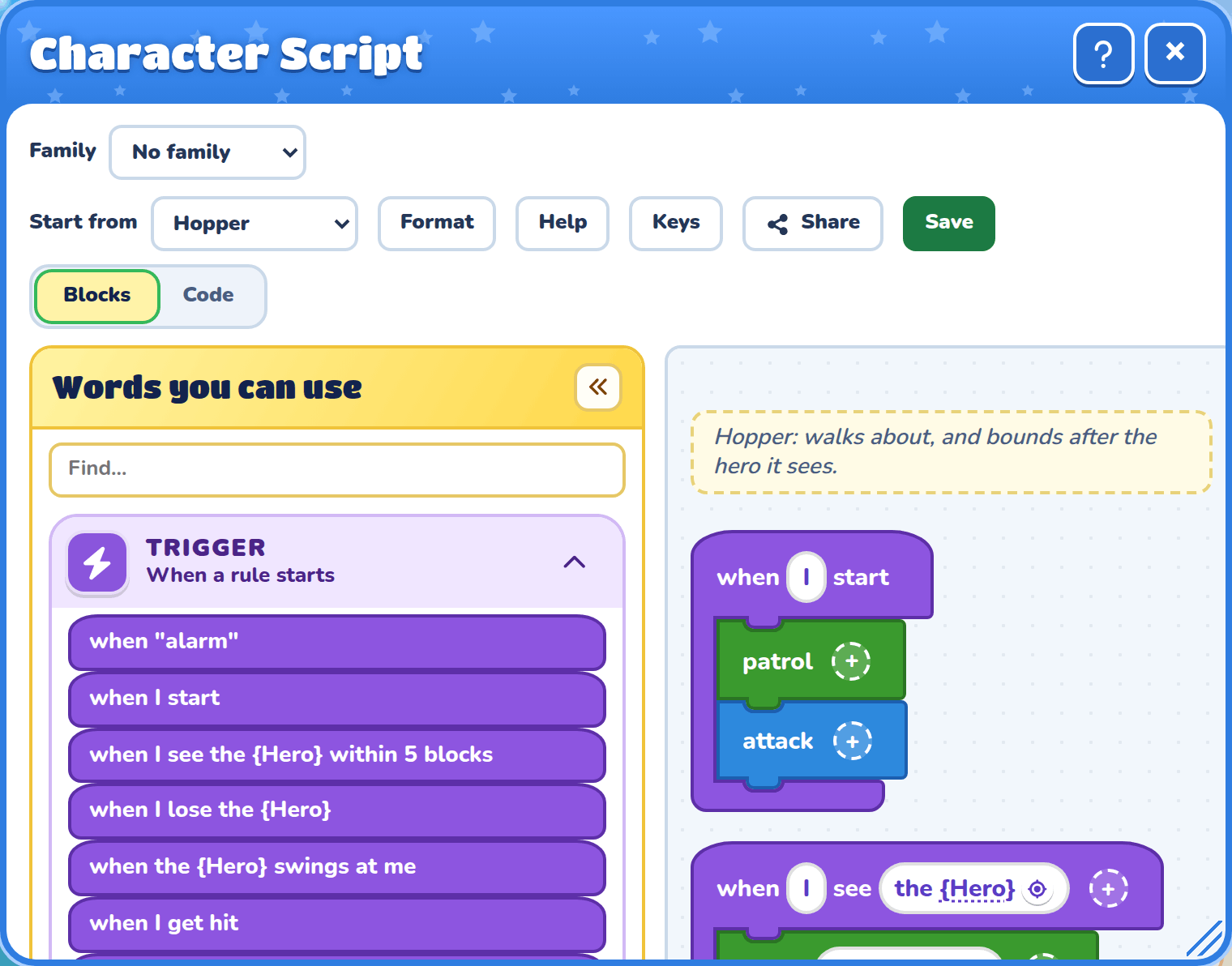
The window has five parts:
| Part | Where it is | What it's for |
|---|---|---|
| The script | On the right | Blocks and Code at the top right switch how it shows (see Blocks and code). |
| Start from | At the top left | Picks a different built-in script to begin with. Reset goes back to the built-in one.Both ask before they throw away your changes.Format tidies the script the way the built-in ones are written: two spaces of indent per level, one space between words, and a blank line between rules. A long line with commas gets one part to a line (see Long lines). Your words don't change. |
| Words you can use | On the left | The words sit in drawers, like Trigger, Action and Choice, that open and close.Type in Find… to see only the words with those letters in them.Point at a word to see what it does. |
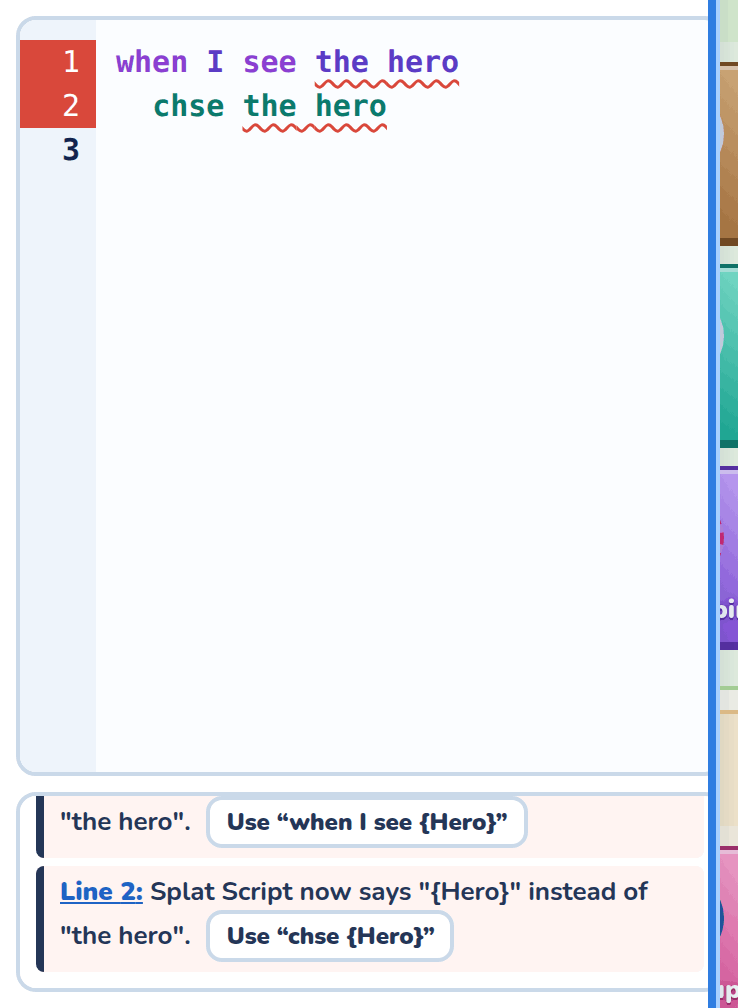
| The notes box | Under the script | Lists anything the game can't understand, in plain words, like Line 4: I don't know "chse". Did you mean "chase {Hero}"?.Click Line 4 to go to that line, or the button beside it to use the suggestion. |
| Ask Cooper | At the bottom | Type what you want, like "Make the enemy run when attacked", and Cooper changes the script for 1 Cooper coin.A short line says what changed, and Undo brings your old script back.If Cooper can't do it, the line says so, your words stay in the box, and you get your coin back. |
Share, beside Help, makes a short link to the script, which opens in the Script Playground inside a copy of the level around this character. It shows when one enemy or one villager is picked.
The window stays open while you play. You can read the script then, but you can't change it. To change it, stop the game, make your change and press Play again. The new script starts at once, even from a paused game.
In an Adventure, every boss has the button too. Each one starts from Its own moves:
| Boss | Its own moves | Words only it has |
|---|---|---|
| Swamp Toad | Leaps at the hero it sees, then lashes its tongue while its script says attack. | "jump toward the hero", "jump away" |
| Floating Dragon | Flies in, keeps beside the hero breathing fire while its script says attack, and dives on "charge at the hero". | "charge at the hero" |
| Spider Boss | "fight smart". A hit splits it into eight little spiders, and each has its own script. | |
| Bubble Snake | Its head "chase the hero", and its bubbles follow. |
Some bosses are made of parts, like the Sunflower with its three heads, and each part has its own script. See Bosses made of parts.
Blocks and code
Splat Script can show as blocks or as code. Blocks and Code at the top right of the window switch between them.
Both show the same script, so you can change it either way and switch whenever you like. Your choice stays for every script you open, and for the examples on this page, until you switch again.
Working with blocks
In blocks, every statement is a block, in the color of its kind. A when rule, an if and a repeat hold their statements inside them.
| To do this | Do this |
|---|---|
| Pick a block | Click it. A dark ring shows which block is picked, and a small bar of buttons appears beside it. |
| Change what's in a block | Numbers, words in quotes and choices sit in white bubbles. Type in one, use its − and + buttons, or pick from its list. |
| Add a word | Drag it from Words you can use to where it goes. A see-through copy of the block shows where it will land.Or click it, and it's added under the block you picked. |
| Move a block | Drag it somewhere else. A rule moves with all its steps.Or press the up or down arrow on the bar beside it. |
| Copy a block | Press Make a copy on the bar. The copy goes just under the block.Right-click a block for Copy, Cut and Paste too. |
| Take a block away | Drag it onto Words you can use, or press the bin on the bar. |
| Add to a block | Press the + at its end. It adds more to the block, like within 3 blocks or for 2 seconds, or takes it off again.On an if, it adds else if and else. |
You can do all of this without a mouse. See Using the keyboard.
Working with code
In code, you type the script yourself. Click a word in Words you can use to add it where you're typing, then change its numbers.
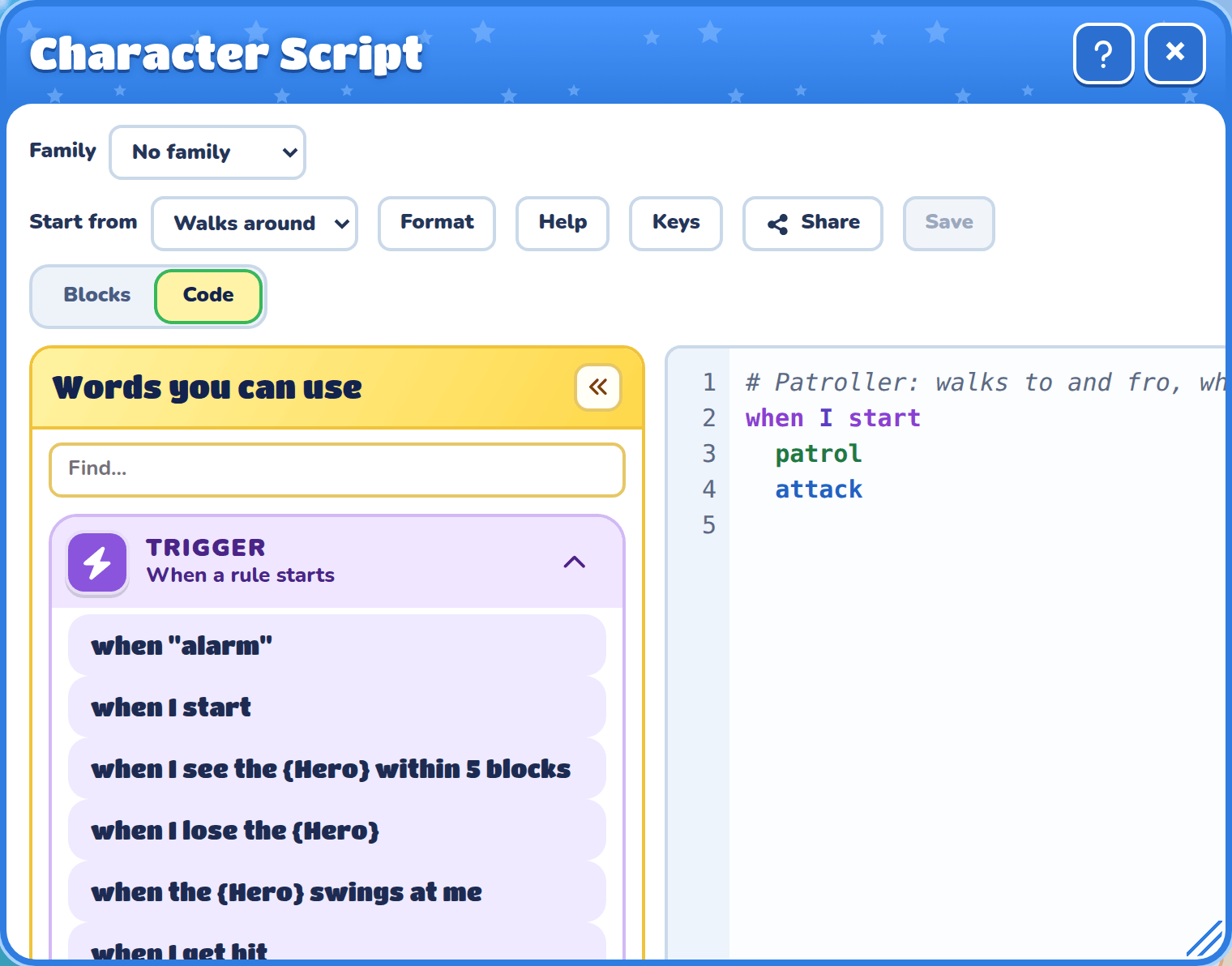
As you type, a list offers ways to finish the line. Press Tab to take the first one. To take another, press the down arrow to pick it, then Enter.
Tab also indents a line, so it never leaves the code. To move on with the keyboard, press F6. Shift+Tab moves back.
Using the keyboard
Everything in the Character script window can be done from the keyboard. The same keys work in the Script Playground and in the examples on these pages.
Press Alt+/ or the Keys button to see the list of keys at any time.
Saving
Press Ctrl+S (Cmd+S on a Mac) to save the script, just like the Save button. It works wherever you are in the window, in blocks or in code.
Jumping around
These keys take you straight to a part of the window. Each part remembers where you were in it.
| Keys | Where it goes |
|---|---|
| F6 | The next part. |
| Shift+F6 | The part before. |
| Alt+B | Shows blocks, and goes to the script. |
| Alt+T | Shows code, for typing, and goes to the script. |
| Alt+W | Words you can use. |
| Alt+S | The script. |
| Alt+N | The notes under the script. |
| Alt+G | Ask Cooper. In the Script Playground, the game. |
| Alt+P | In the Script Playground, plays the script or stops it. |
| Alt+/ | The list of keys. |
In the blocks
Tab takes you to the blocks, and lands on the block you were on last. From there, the arrow keys move between blocks.
| Keys | What they do |
|---|---|
| Up, Down | The block before or after. |
| Home, End | The first or last block. |
| Right or Enter | Into a block, to change its number or words. |
| Escape | Back out to the block. |
| Left | The block that holds this one, like its when. |
| Space | Picks the block up. Up and Down choose where it goes, and Space drops it there.Escape puts it back. |
| Alt+Up, Alt+Down | Moves the block one place. |
| Ctrl+D | Makes a copy under the block. |
| Ctrl+C, Ctrl+X, Ctrl+V | Copy, cut and paste. A pasted block goes under the block you're on. |
| Delete | Takes the block away. |
| Shift+F10 | Opens the block's menu, the same one a right-click opens. |
In the words
Each drawer of Words you can use is one stop for Tab. Up and Down move between its words, and Enter adds the word under the block you picked. You land on the new block, ready to change it.
When you make a mistake
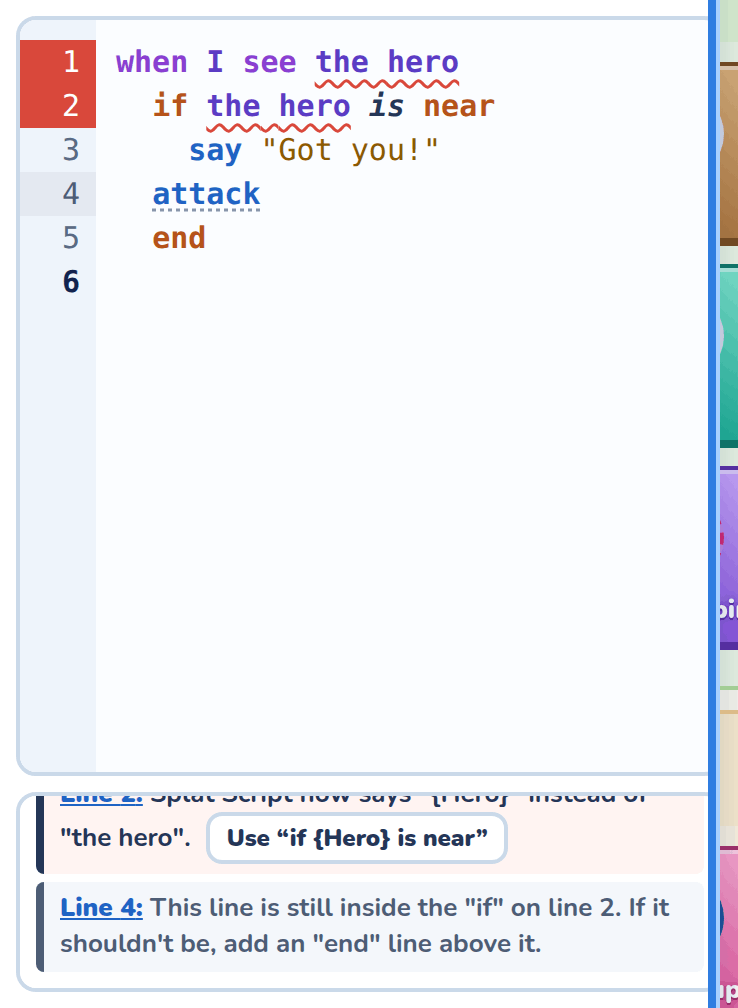
Splat Script forgives a slip when there is only one thing you could have meant. The line still runs, and a note under the script says how it was read.
Notes come in three colors:
| Note | What it means |
|---|---|
| Yellow | The line had a slip, but it still runs. A button rewrites the line the way it was read. |
| Red | The game can't tell what you meant, so the line is skipped, all of it. |
| Grey | A tip. It changes nothing, and only points out something that may confuse you later. |
A red when, if, else if or repeat line skips the lines under it too. A red learn line's function does nothing when it's used.
Slips that are forgiven
These slips get a yellow note, and the line still runs. Press the button in the note to rewrite the line the way it was read.
| The slip | Example |
|---|---|
| A word one letter off, when only one word fits | chse the {Hero} |
| An item's name that is nearly right | {Game} give a "sack of apple" to the {Hero} |
| One or many, after any number | 1 seconds2 block |
| A number too big or too small | The nearest allowed number is used. |
An end that names the wrong thing | end if under a repeat still closes the repeat |
Lines that are skipped
When a line could be read two ways, the game doesn't guess. The note is red and the line is skipped. That happens when and and or are mixed on one line, when a typo is one letter from two different words, or when a missing end would change what the lines mean.
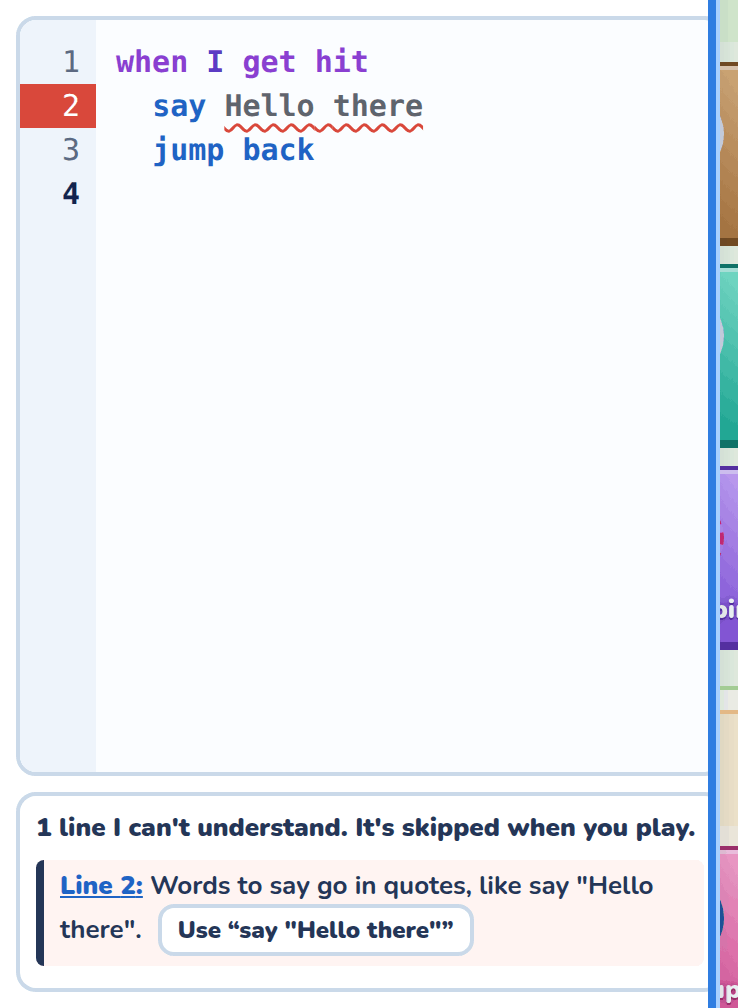
Words to say, show or ask always need their quotes, and are never guessed at. say Hello there gets a red note, with a button that puts quotes around the words just as you wrote them.
A misspelt @variable is never corrected either, because you may have meant a new name. Instead, when a script checks @aswer but only ever sets @answer, a note asks whether that's what you meant.
Tips
A line written less indented than the if or repeat above it is still inside it, until an end line. A grey tip says so, in case that isn't what you meant.
Seeing what a script does
When a character doesn't do what you expect, a log line can tell you what its script is up to. Turn on Script log in Game settings, and the Script log drawer shows under Find a brush. While you try the game, each log line writes its words there. debug works the same way.
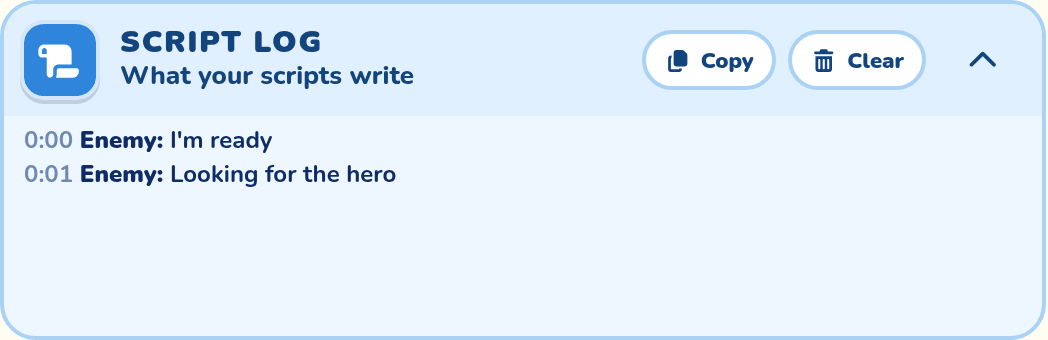
when I see the {Hero}
  log "I saw the hero"
  chase the {Hero}
A @variable in the words shows its value, so log "Apples: @apples" tells you how many apples there are right then. Each line in the drawer starts with the game's time and who wrote it. A character with an ID shows its ID, like {Goblin}, and others show what they are, like Enemy or Villager. A line written many times in a row shows once, with a count.
A log line takes no time, and never changes what the character does. Players never see the log, and with Script log off, log lines do nothing, so you can leave them in.
Logging a line
Put log in front of almost any line, without quotes, and the line runs just as before. The log also says what it did. Each report starts with the line as you wrote it.
log when the {Hero} touches me
  log wait 1 second
  log if @apples is 3
    say "Three!"
end| You log | It writes | For example |
|---|---|---|
A when or every line | Each time the rule starts, and what set it off | when the {Hero} touches me: the hero is 1 block away, to my left |
| A step that happens at once | That it was done | face the {Hero}: done |
A step that keeps going, like chase the {Hero} | That it started, where the hero is, and how fast it walks | chase the {Hero}: started, the hero is 5 blocks away, to my right, I walk 2 blocks a second |
A step that takes time, like wait or jump back | How long it took, once it's done | wait 1 second: done after 1 second |
An if or else if | Its answer, and what it checked | if @apples is 3: no, @apples is 2 |
| A @variable line | What the @variable is now, and what it was | @apples goes up by 3: @apples is now 5 (was 2) |
A repeat | Each time round | repeat 3 times: time 2 of 3 |
A repeat until | Its check's answer, each time round | repeat until @count is 5: no, @count is 2, so time 3 |
A repeat for | Its @variable, each time round | repeat for @count from 1 to 5: @count is 2, time 2 of 5 |
| One of your own words | The values it was given | greet with 4: @times is 4 |
every also says when it will run next, like every 1 to 3 seconds: next in 2.4 seconds.
A logged line that tells another character, like log the {Baker} wave hello, says how it went: done after 1 second, cut short, or skipped when the character isn't there. With and go it just says told. The character's own log says who told it.
When one rule cuts off another
A character runs one rule at a time, so a new rule stops the one before it. The log says when that happens. A logged rule says which rule it took over from, and a logged rule that gets stopped says which rule stopped it. A logged step that was still waiting says it was cut short, after how long, and by which rule.
wait 2 seconds: cut short after 0.5 seconds, "when the {Hero} touches me" took overlog does nothing in front of end, else or learn to, and a yellow note says so. In the blocks view, logged blocks show a white log badge. Hover over a block and press its dashed log button to log it, and press the badge to stop.