

Play help
Playing a game
Starting a game, the gear's Game settings, sound, changing the controls, high scores and saved games.
Every game made in Splat Labs has a play page, where anyone can play it. You get there from a game's card on the Games page, from a link a friend sends you, or from Play on a game card in your Lab. This page covers what every game shares. Each game type has its own page too: Platformer, Maze, Adventure, Artillery and Racing.
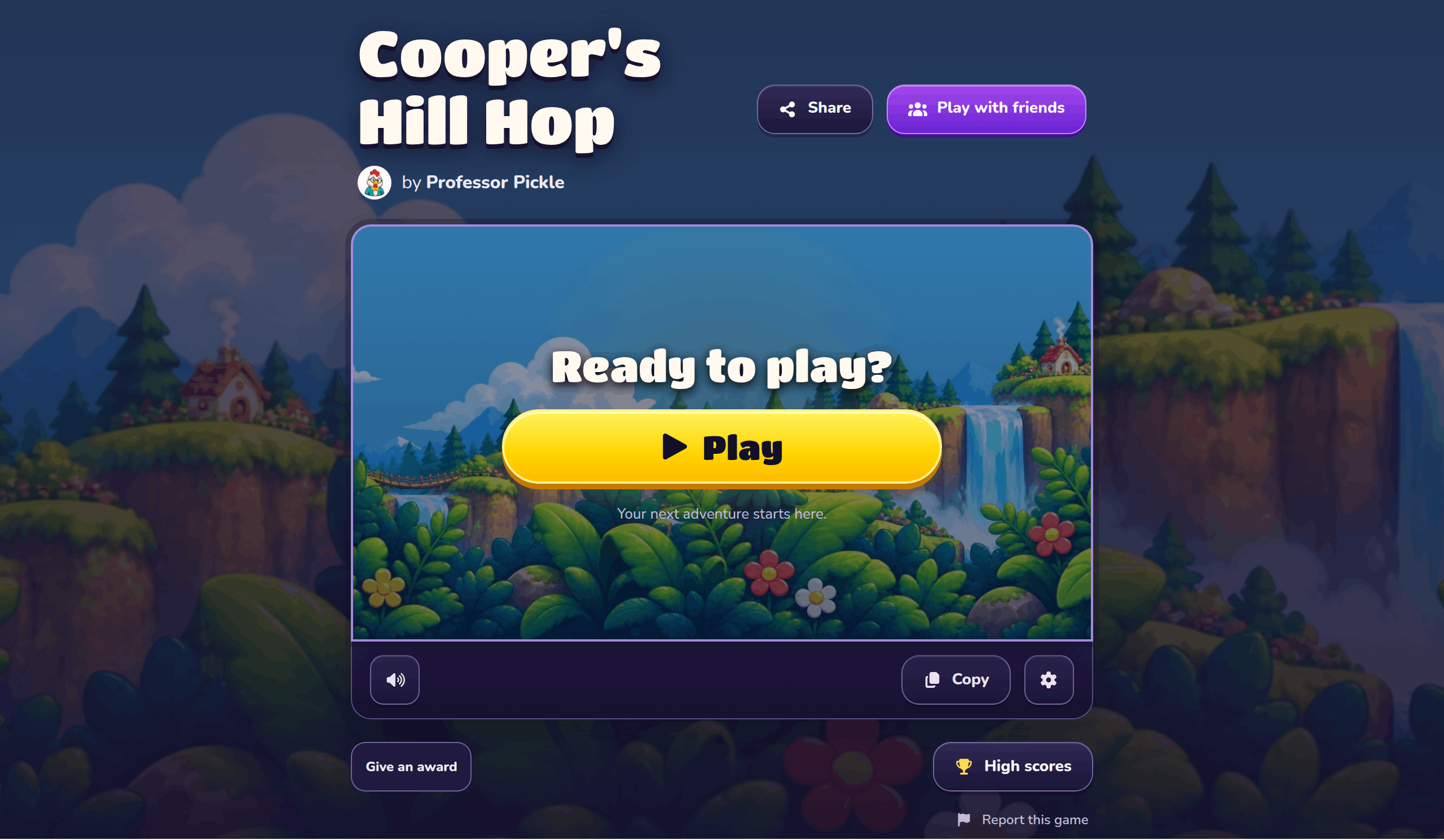
The play page
At the top are the game's name and the Lab that made it. A game copied from another one says "Copy of" and links to the first game. Under the name, beside the Lab, are Share and Play with friends, which are on the Sharing and copying and Playing with friends pages. The bar under the game shows its awards on the left, with High scores and the gear for Game settings on the right. Report this game is below the bar.
Starting a game
The Play button shows how much of the game has loaded. When it is ready, press Play.
On a phone or tablet
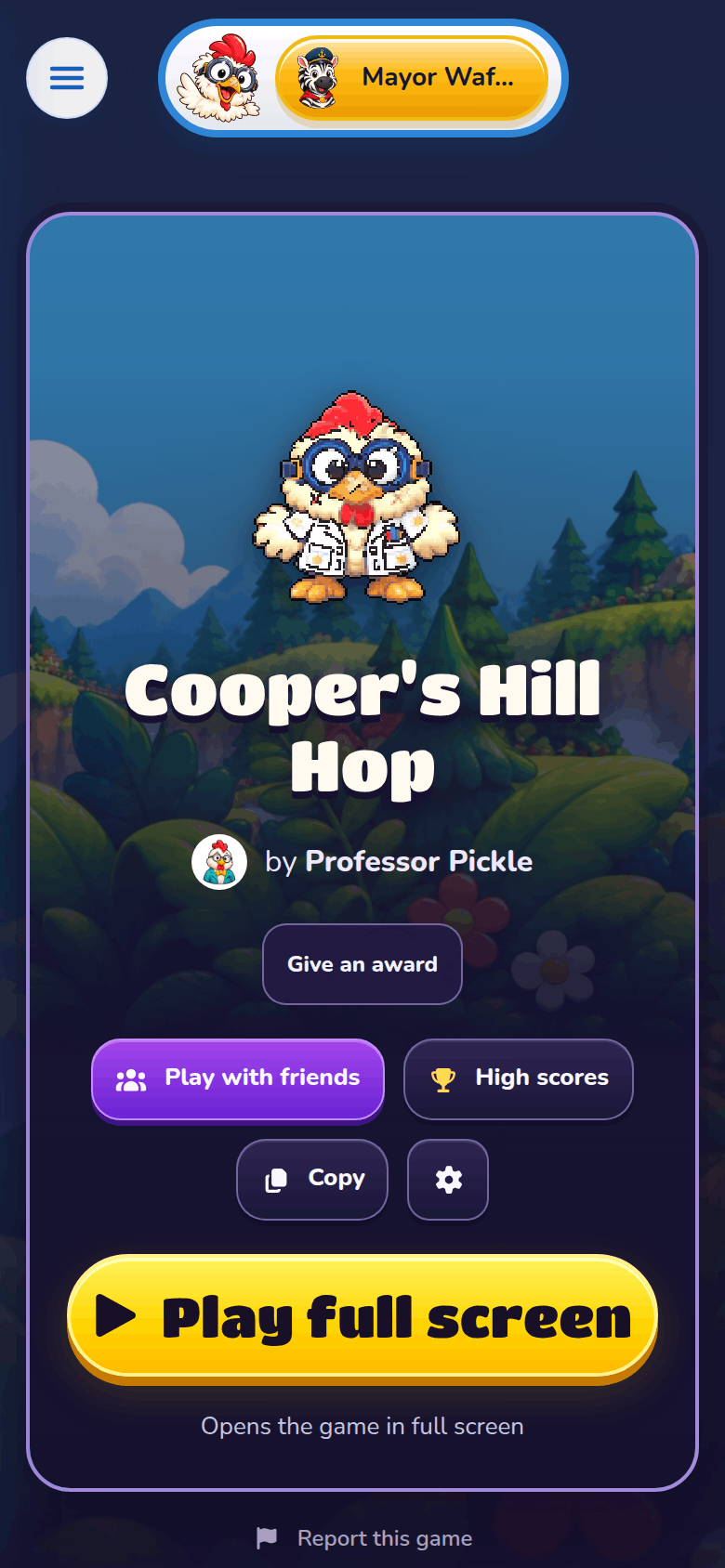
On a phone, the play page shows the game's hero, its name, its awards and buttons for Play with friends, High scores, Copy game (when you can copy the game) and the gear. Press Play full screen to start. The game fills the screen, and turns sideways if your phone lets it.
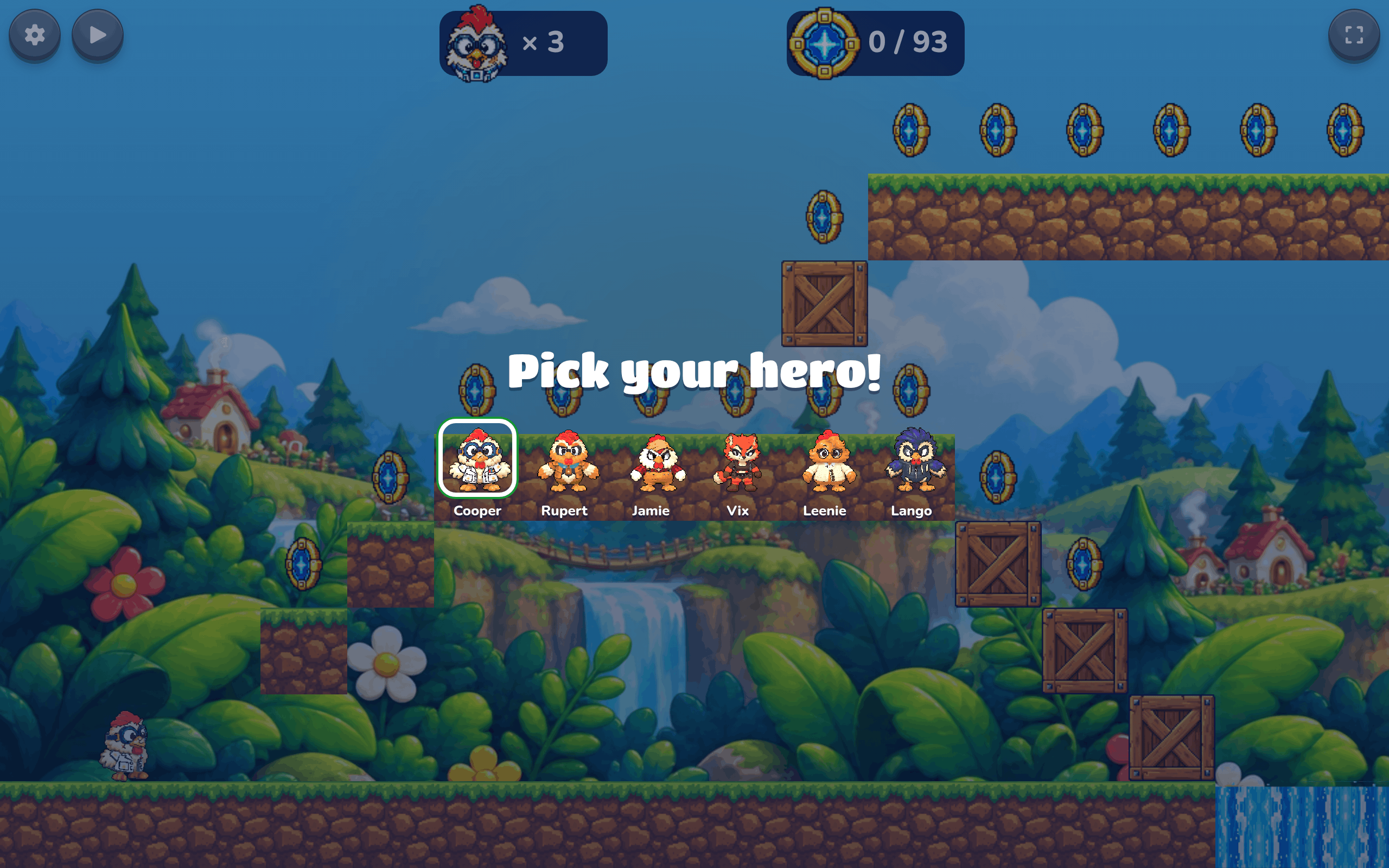
Pick your hero
Before the game starts, pick who to play as: one of the six Splat Labs heroes, or the game maker's own hero. The maker's choice is picked to begin with. Use ← and → (or A and D) and press Enter or Space, or click a hero. Racing games show a car picker instead.
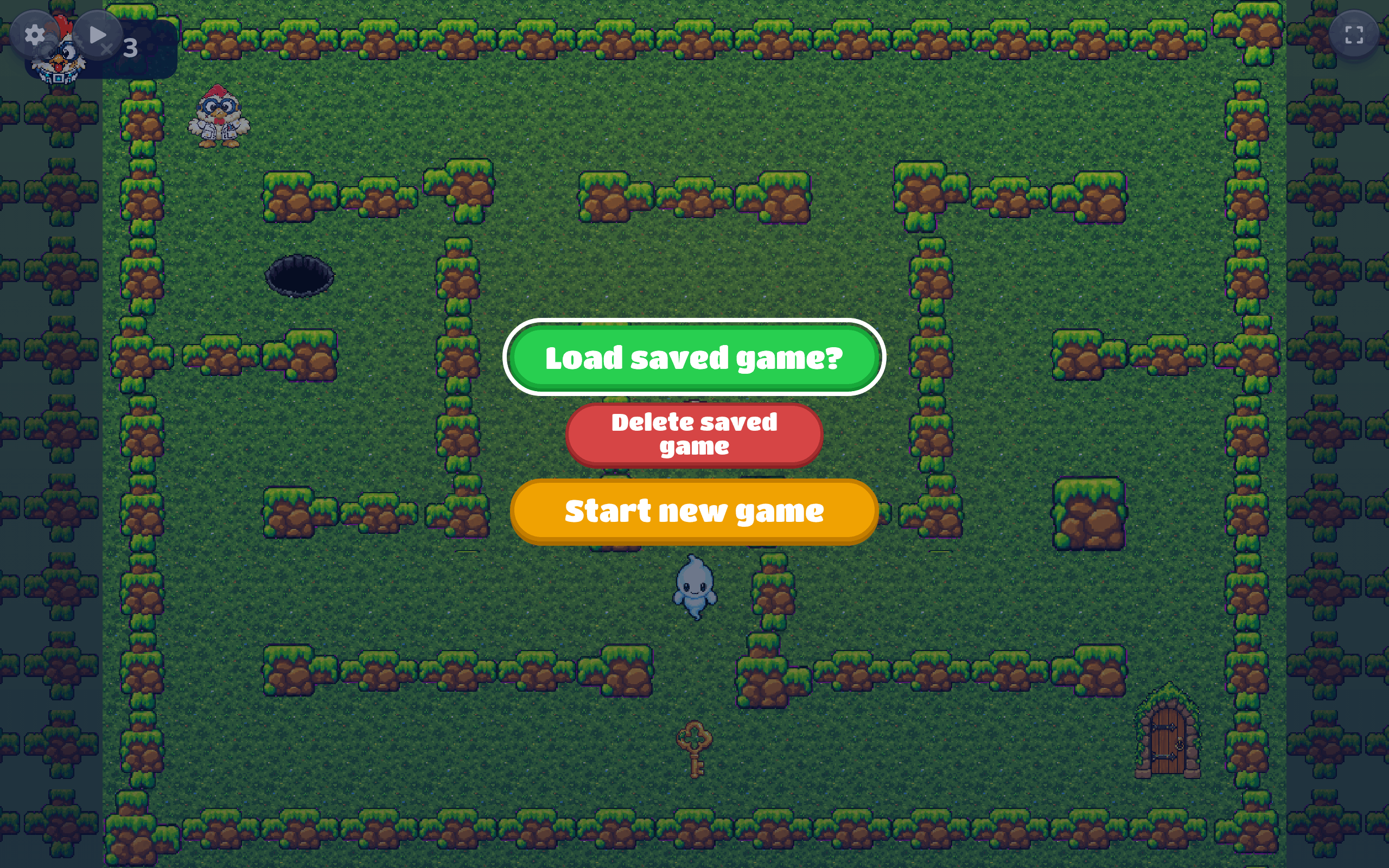
Your saved game
If you saved this game last time, Play asks what to do: Load saved game? carries on from where you saved, Start new game starts from the beginning, and Delete saved game throws the save away. Only Labs with an account can save games.
Full screen
On a computer, the game fills the screen when it starts. Press Escape to leave full screen, and the game pauses.
Level by level
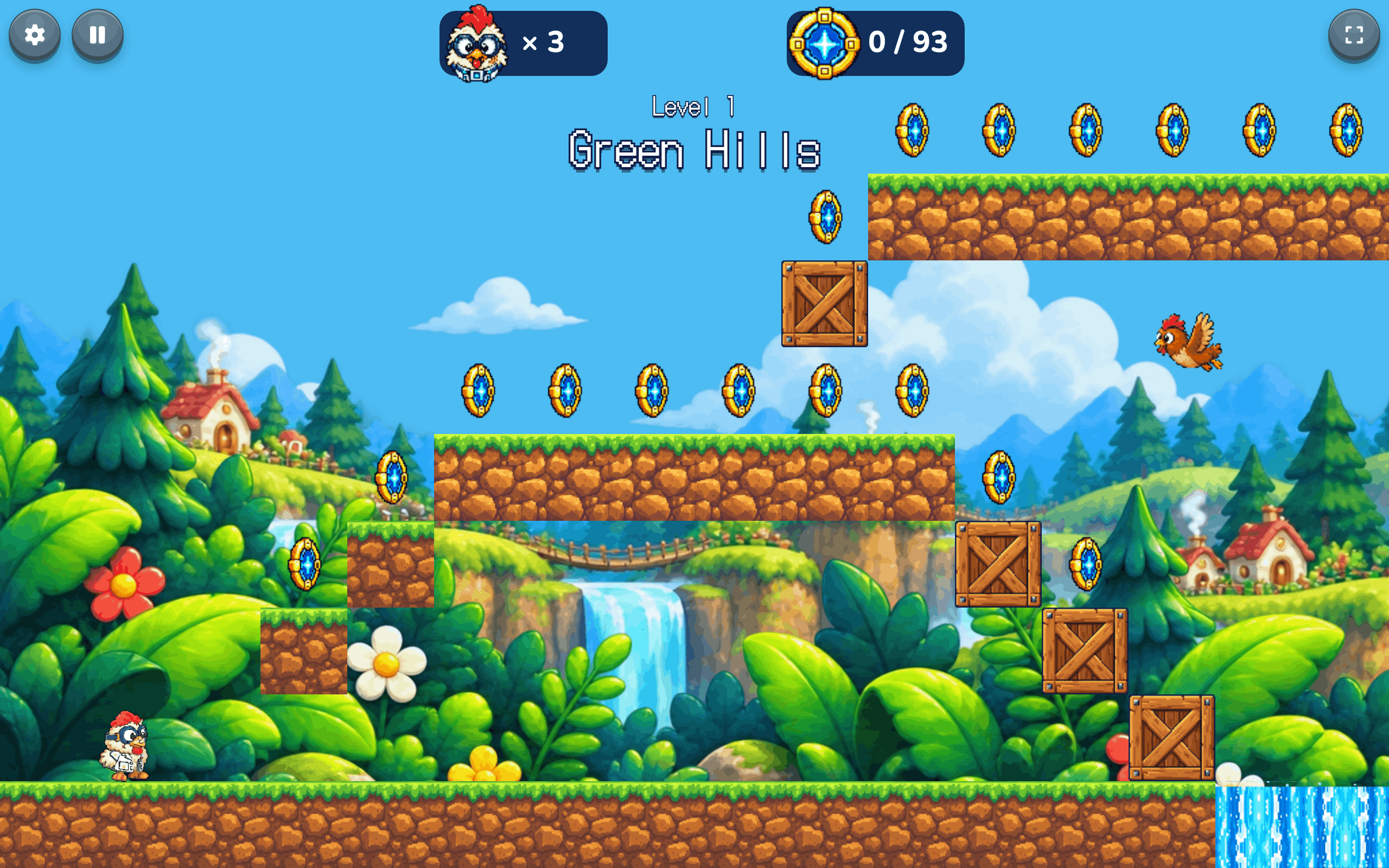
Most games show "Level 1" and the level's name as each level starts. When you finish a level, the next one starts by itself. Your lives come with you, and your score and time keep adding up. Lose all your lives and the game is over.
Pausing
Open the gear, leave full screen, or press Start on a gamepad to pause. On a phone, use the pause button at the top. Adventure games have a pause menu with Save game and Quit.
On-screen controls
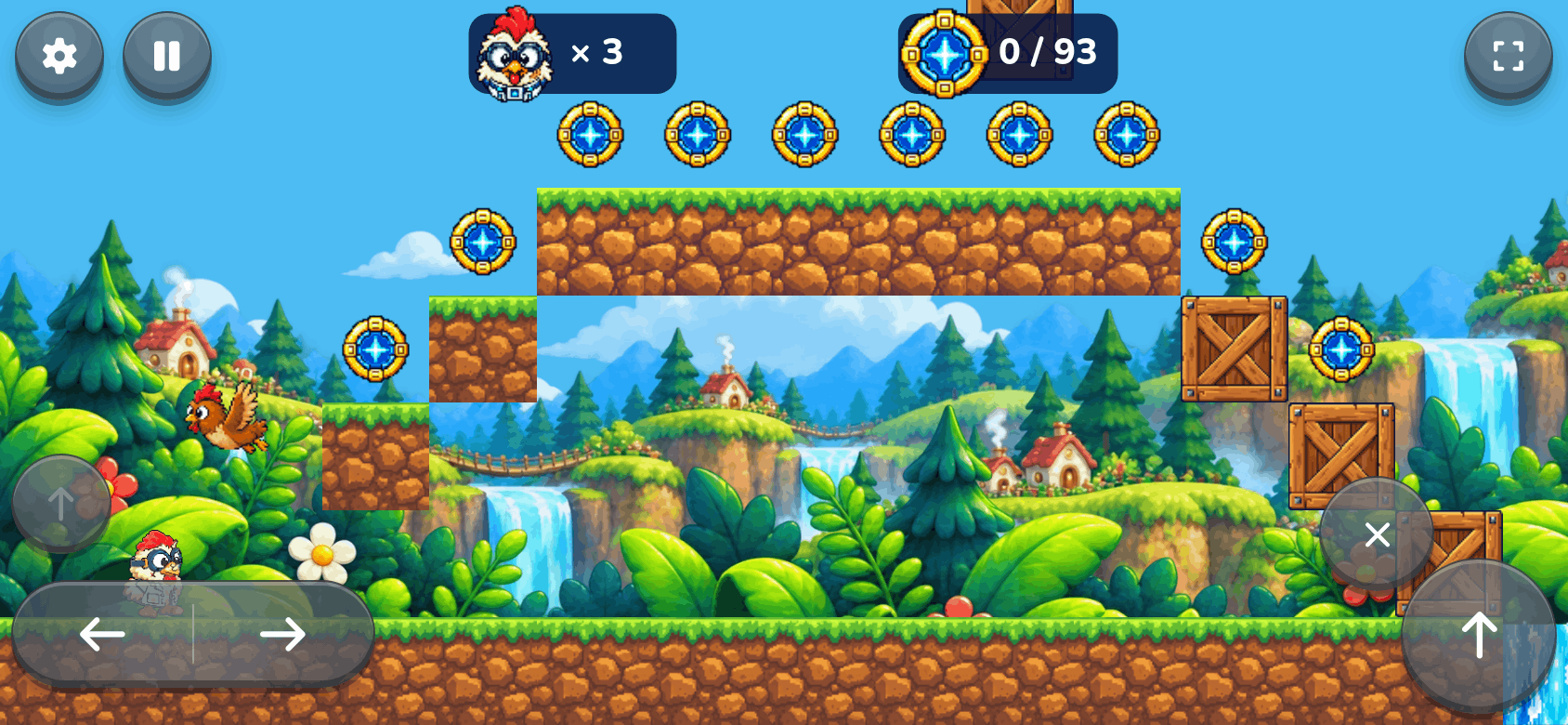
On a phone or tablet, buttons appear over the game: the gear, pause and Exit full screen along the top, and the buttons for moving and jumping at the bottom. Each game type has its own buttons, shown on its page. The phone gives a little buzz each time you press one.
Game settings
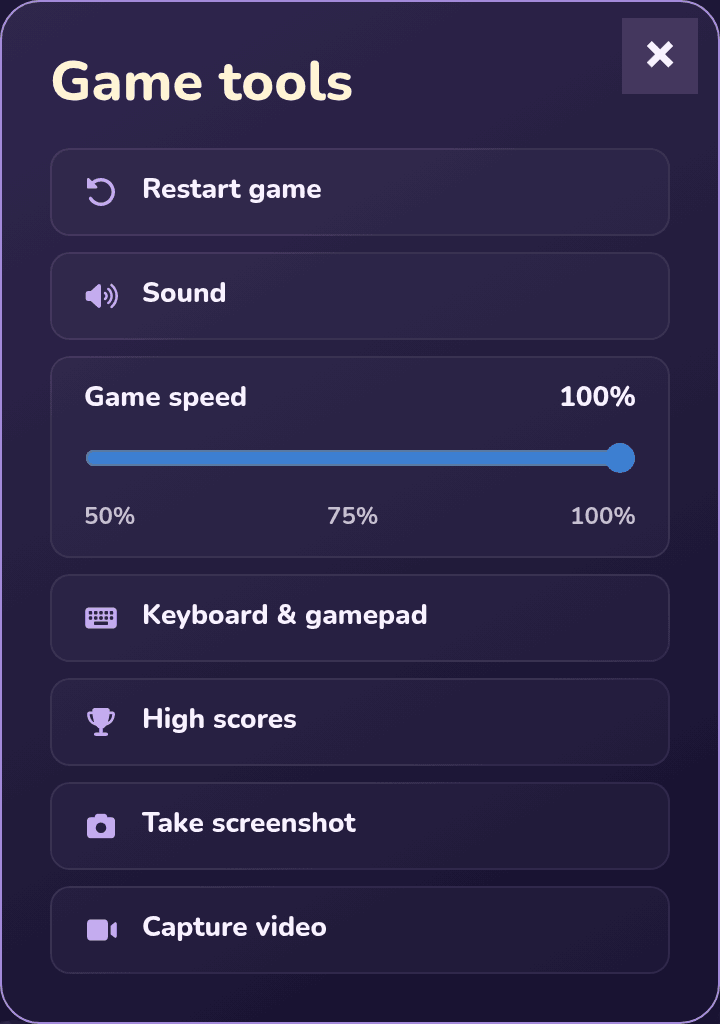
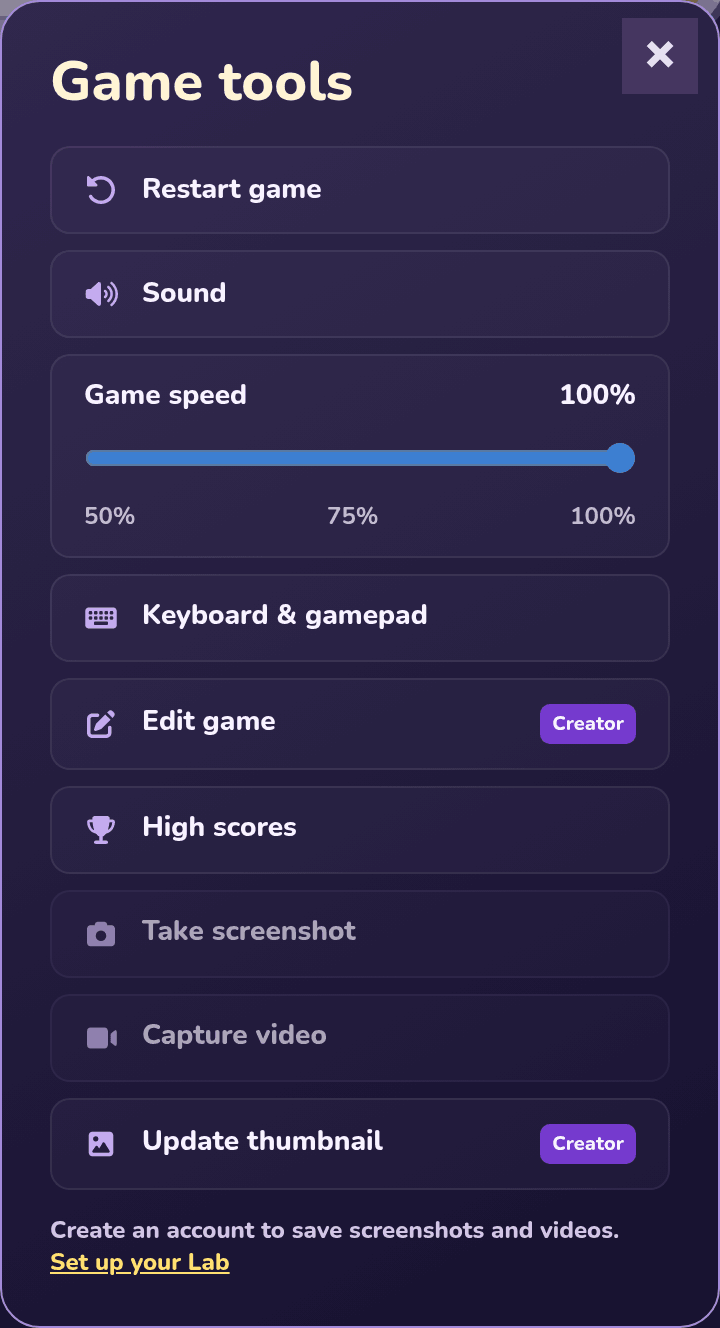
The gear opens Game settings and pauses the game. Close it with ×. Press ? in its title bar, then tap any setting to see what it does.
Restart game
Starts again from the first level, or from your saved level if you loaded a save.
Game speed
Slows the game down to 75%, 50% or 25%, which helps with a hard bit. This device remembers your choice. Racing games don't have it.
On-screen gamepad
Shows the buttons for moving and jumping over the game. It's on until a gamepad is plugged in, and this device remembers if you switch it on or off.
Zoom
On a phone, Zoom in and Zoom out change how close the camera is, from 1× to 3×.
Capture image
Saves a picture of the game to My Media. Saving pictures and videos needs a Lab with an account; see Saving pictures and videos.
Capture video
Counts down 3, 2, 1 and records 10 seconds of the game to My Media. Press Stop recording to finish sooner.
Edit game
On a game you made, Edit game opens it in the builder. It's marked "Creator".
Update thumbnail
On a game you made, this makes the game's card picture from what's on screen right now. It's marked "Creator".
Sound
Game settings has a Sound group: slide Music and Sound effects up or down, or switch on Mute all. The same volume is used for every game.
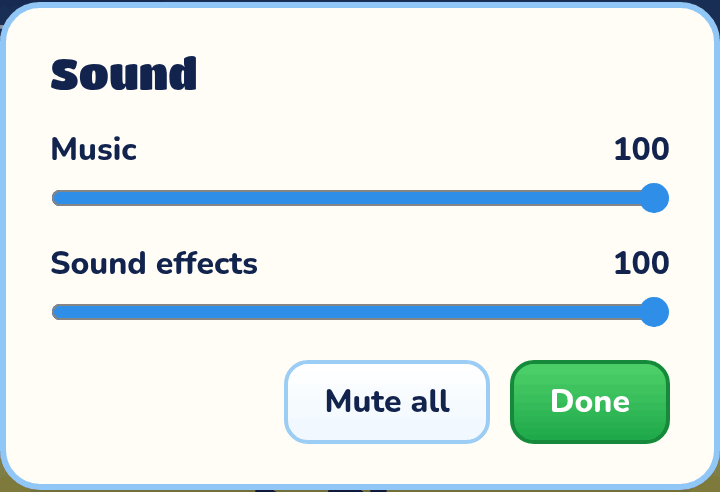
Music and Sound effects
Slide Music or Sound effects to make them louder or quieter. Every game uses the same volume.
Mute all
Turns off all of the game's sound, music and effects, until you switch it off again.
Changing the controls
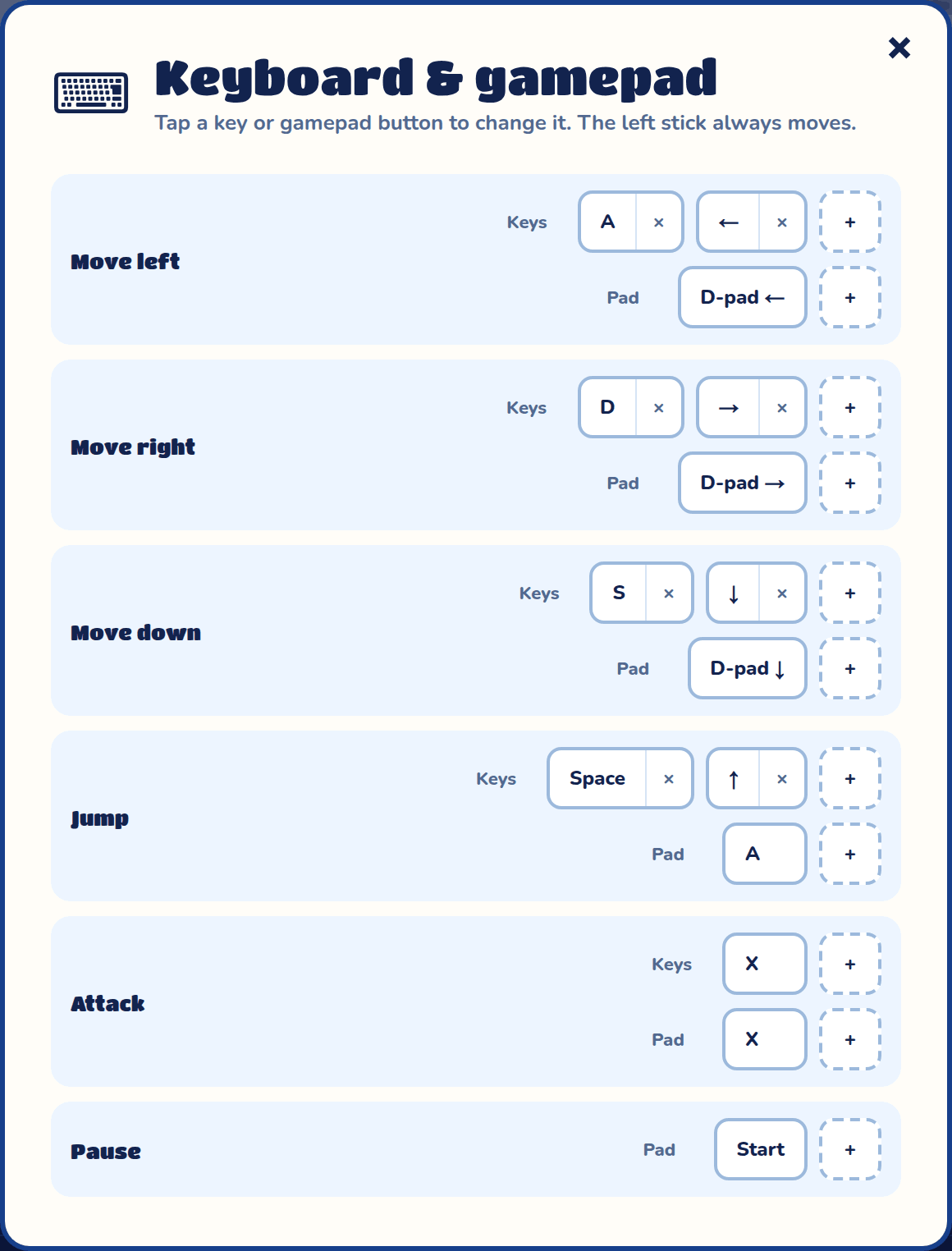
Keyboard & gamepad in Game settings opens the Keyboard & gamepad box. Each action has its keys and its gamepad buttons. Press × on one to remove it, or + and then the key or button you want. Reset defaults puts everything back. Your controls are remembered, and Labs with an account keep them on every device.
In Maze and Adventure games you can change the gamepad buttons but not the keys.
Accessibility
Game settings has an Accessibility group, for players who can't see the game well, can't see it at all, or find fast moves hard. Accessibility on the start menu opens it before the game begins. Your choices are remembered on this device and used in every game.
Preset sets several switches at once. Standard turns everything off. Low vision turns on High contrast and Bigger view. Audio navigation turns on Sound cues, Game voice and Help round corners, for playing with headphones and no screen. You can still change any switch afterwards.
So far these work in Maze games. Other game types will follow.
Sound cues
Short sounds tell you what is around your hero. Something on your left sounds in your left ear, and nearer things are louder and higher. Cue volume sets how loud they are, apart from the music and sound effects.
| Sound | What it means |
|---|---|
| A soft tick | You walked onto a new square. |
| A low thud | You pushed into a wall, on that side. |
| Two rising notes | The path splits here. |
| A repeating beep | The way to the key, and then to the exit. Faster means nearer. |
| The beep rises | The next turn is up the screen. |
| The beep falls | The next turn is down the screen. |
| A low buzz that keeps pulsing | An enemy is near. Faster means nearer. |
| Two falling buzzes | A hole is on the next square. |
| A quick falling run | An enemy has just fired. |
| A faint chime | A coin is a few steps away. |
| Two quick high beeps | An enemy is right in front of you. Jump on it now. |
Game voice
The game tells you things out loud, such as "Paths: up, left" and "Key picked up. The exit is open." Voice speed sets how fast it talks, and How much it says chooses a little or a lot. The music goes quiet while it talks.
If you use a screen reader, leave Game voice off. The same words are sent to your screen reader instead.
Asking the game
Three buttons ask the game a question. They work on the keyboard and a gamepad, and they show under the game while Sound cues or Game voice is on.
| Button | Key | Gamepad | What it tells you |
|---|---|---|---|
| Look around | F | LB | Enemies and holes near you, the way to the goal, and the paths. |
| Goal | Q | RB | How many steps to the key or the exit, and which way to go. |
| Where am I | R | View | Which part of the maze you are in, and how many coins are left. |
To change a key or a gamepad button, open the Accessibility settings, press it in the table there, and then press the one you want. Escape leaves it as it was.
High contrast
Draws the maze as dark walls on a light floor. Each kind of thing has its own bold shape, so you don't need to tell colours apart.
| Shape | What it is |
|---|---|
| Your hero on a blue-edged circle | You |
| A character on a red diamond | An enemy |
| A yellow diamond | The key |
| A purple door with a cross | The exit, locked |
| A green door with a white middle | The exit, open |
| A small yellow disc | A coin |
| A black disc with a red ring | A hole |
| A dark block with stripes | A block in the way |
Bigger view
Shows half as many squares, each twice as big. The view follows your hero.
Less motion
The view jumps to the next part of the maze instead of sliding. It starts switched on if your device is set to reduce motion.
Help round corners
When your hero catches on the corner of a gap, the game lines the hero up so it walks through.
One square at a time
One press moves your hero exactly one square. Hold the key and the hero keeps going, a square at a time.
High scores
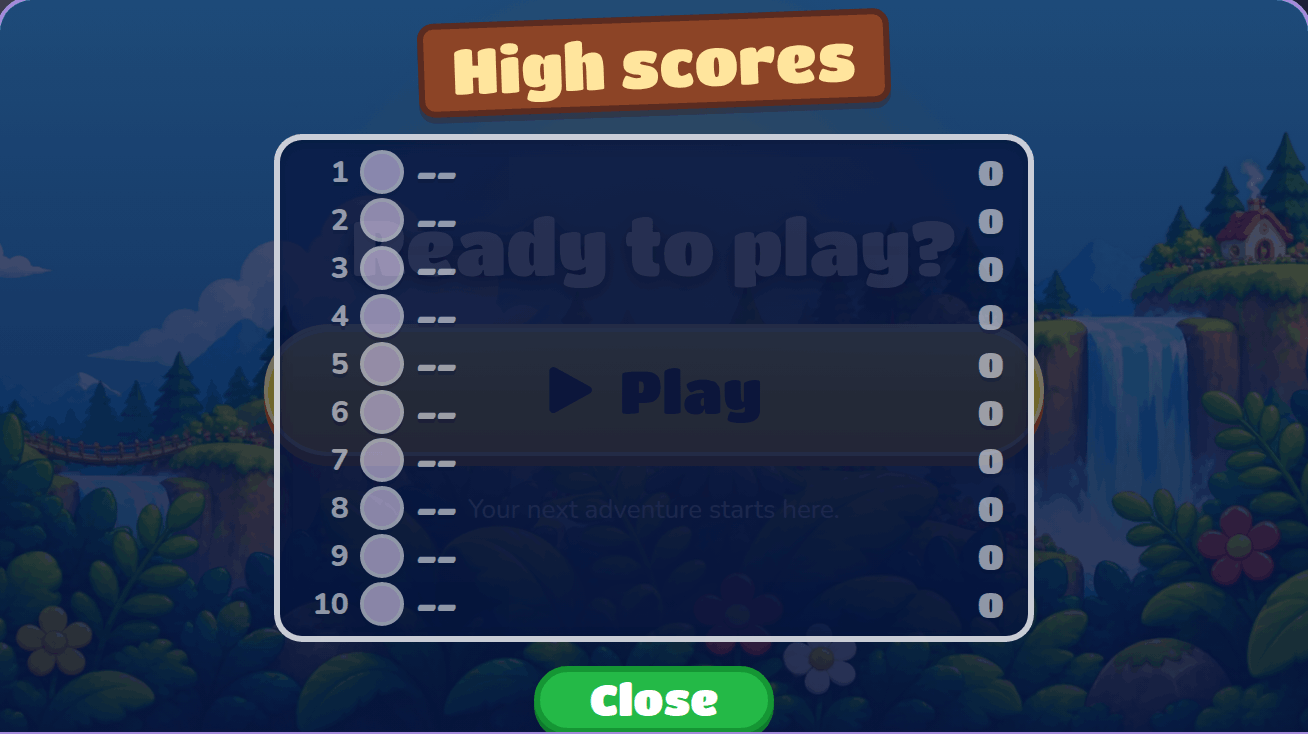
High scores shows the top 10 for the game. It opens by itself when you win or the game is over, with "You Won!" or "Game over" at the top, and Close starts the game again. Your score goes on the board once your Lab has a name. When it can't go on, the board says why.
Platformers are scored by points. Mazes and Adventures are scored by time, the quickest first. In Artillery and Racing, time counts too, and coins take time off.
Saving your game
When you lose in a Platformer or an Adventure, the game asks "Do you want to save this game?". Yes saves the level you got to, and next time Play offers Load saved game?. Only Labs with an account are asked.