
Builder help
Platformer
Paint the ground, add coins, enemies and doors, and set up how your jumping game is won.
In a Platformer your hero runs and jumps from one side of the map to the other. You paint the ground and platforms with Terrain brushes, then add coins, enemies, a goal and more with Object brushes. This page covers the parts only Platformers have. For the map, the buttons and Cooper's chat, see Using the builder.
The build tools
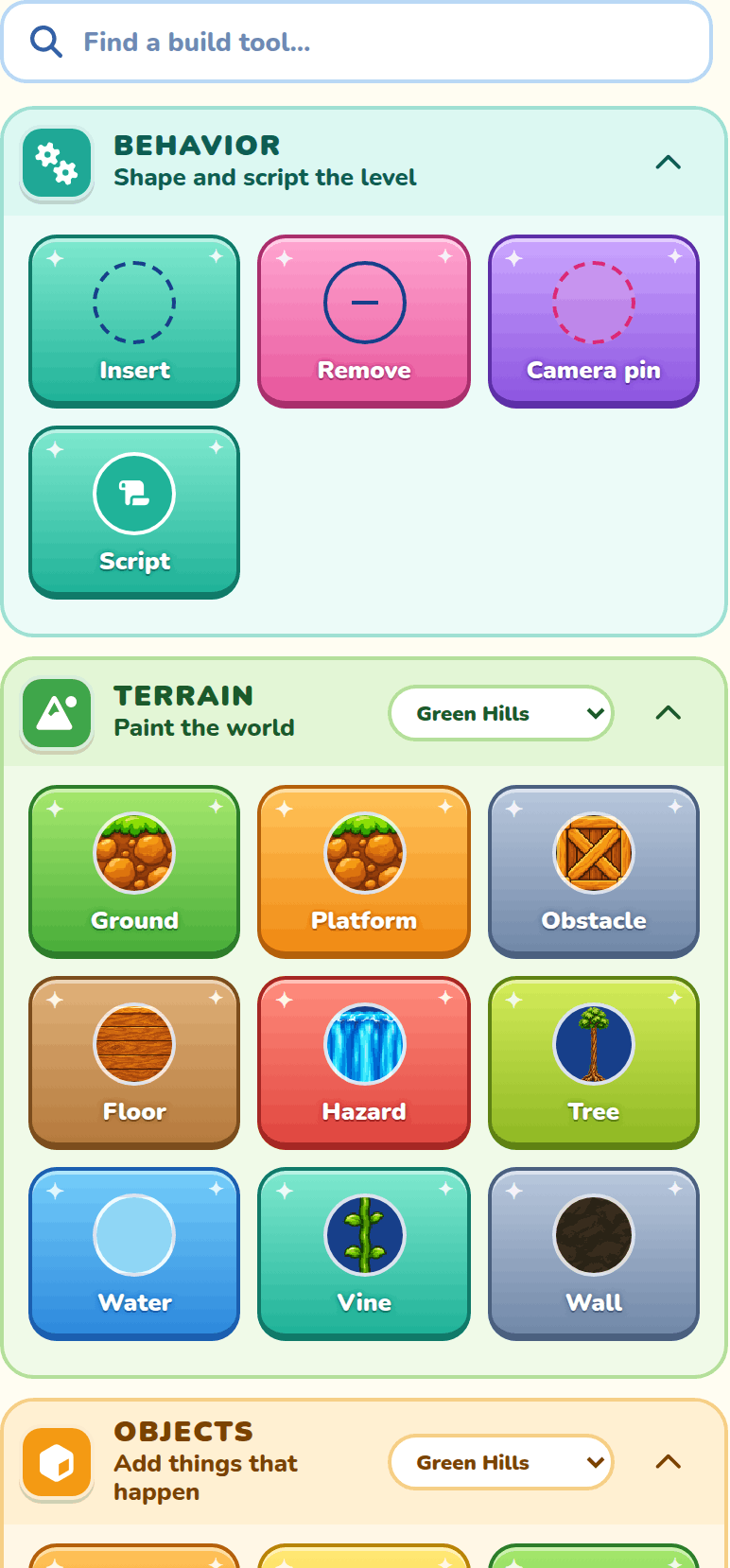
Your Platformer brushes live in three sections: Behavior, Terrain and Objects. The Sprites and Sounds sections work like in every game; see Sprites and Sounds.
Pick a brush
Click a tile to pick it up. It gets a ring and a check mark, and the corner of the map shows Build mode with the brush's name. The brush stays in your hand while you click on the map, so you can keep placing. Click the same tile again, or click somewhere off the map, to put it down and go back to Select. Hover a tile to see what it does.
Borrow art from another biome
The Biome drop-down at the top of the Terrain and Objects drawers picks which biome's art those brushes paint with: Green Hills, Graveyard, Space, Dragon World or Ice World. That way a Green Hills level can borrow Graveyard spikes. The tile pictures change to match.
Your own art as brushes
Terrain and object pictures you've made in the Addon Lab show up as extra tiles at the end of Terrain or Objects, named after your addon. Paint with them like any other brush. A custom egg picture places a Power-up.
Behavior brushes
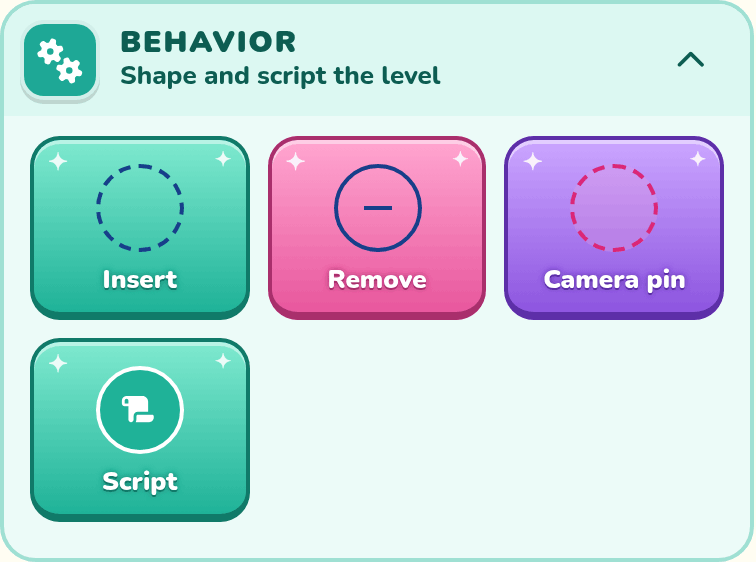
Behavior brushes change how the level works rather than painting it: they add or take away space, hold the camera still, and open block scripts.
Insert
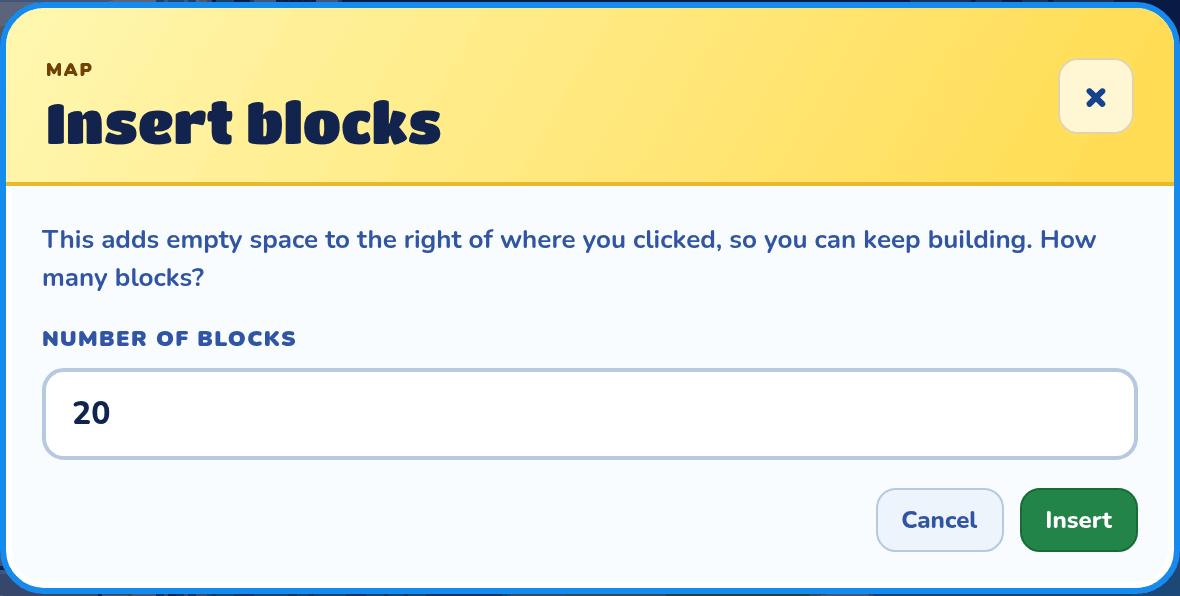
Click a block to add empty columns to its right. It opens the Insert blocks box; see Insert and remove blocks.
Remove
Click a block to remove columns to its right. It opens the Remove blocks box.
Camera pin
Pins the camera so an area stays on screen while the hero is above it. Click or drag to mark blocks. Start dragging on a pinned block to take pins away instead. Pinned areas show as a light wash with a dashed outline, but only in the builder.
Script
Click a block to open its script. It works on Ground, Platform, Obstacle, Floor and Hazard blocks, and on blocks you drew yourself. Over anything else, the box under the pointer turns red. Right-click a block and pick Open script to do the same thing with any brush.
The script window shows the script of the block's group, and its family. Blocks with no group get a one-off script of their own. See Block scripts.
Give a group an ID and a script, and it becomes a brush of your own: a sub-brush in the row of the brush its blocks were painted with, such as Which platform?. A scroll on a block on the map means its group has a script or a family. Scrolls and group outlines only show while you build.
Terrain brushes
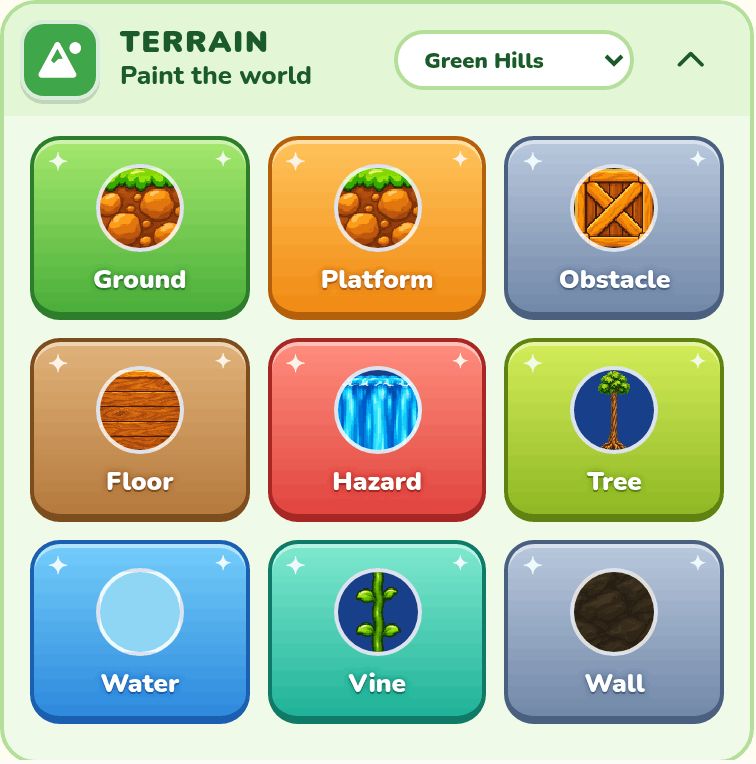
Terrain is what your hero stands on, bumps into, and has to avoid. Click to place one block, or drag to paint a line of them.
Ground
Solid ground blocks for your hero to run on. Its look comes from the biome picker.
Platform
Solid platform blocks to jump up onto. This brush has variants: pick it, then choose Platform, Moving platform, Floating platform or Seesaw platform in the Brush drawer.
A moving platform travels and can be ridden. Moving platform blocks that touch each other join up and move together. See Moving platform for its settings.
A floating platform is a log that floats on water and water hazards. See Floating platform for its settings.
A seesaw platform tips under the hero. Seesaw platform blocks side by side in one row join up into one platform that turns around its middle. See Seesaw platform for how it tips.
Obstacle
Solid blocks that get in the way, like crates, clouds or tombstones. Select one afterwards to pick from several looks, or to make it solid or deadly. See Terrain settings.
Floor
Solid indoor floor blocks for your hero to stand on. Choose a biome in the Terrain drawer for its matching material: farmhouse wood, greenhouse tiles, swamp-hut boards, haunted stone, ice, castle stone, or space-station metal. Drag to paint a continuous floor. Stacked floor blocks show their top trim only along the exposed surface.
Choose Floor joist in the Floor brush drawer to paint decorative beam ends up to a block high. Paint in the row directly beneath floor blocks. All eight biomes have bold, front-facing designs that need no mirroring, including steel-banded lumber and wrought iron with cobwebs. Everyone passes through joists; they do not support the hero or affect play.
Choose Chandelier, immediately after Goal in the Objects brushes, for a hanging light that matches the selected biome. The fixture is three blocks wide and one and a half blocks high, with a one-block stem that fades away toward the ceiling. The painted cell is the top of the stem. Candle flames, lantern glows, crystal light, and fluorescent lighting animate in-game. Chandeliers are decoration only: heroes and characters pass through them. Select any part of the fixture to move or erase it.
Hazard
Dangerous blocks, like spikes or water. Touching one defeats the hero, unless you set it to fall through. Each biome has a danger look and a water look. Floating platforms float on water hazards.
Water
Water the hero can swim in. It isn't a hazard: touching it does no harm. In the water, a direction swims that way and jump swims up, and the hero sinks slowly unless they keep swimming. With the head under, they drown after 10 seconds, or sooner if they sink off the bottom of the map. Tiny bubbles rise from their head while they swim under the surface. Their face goes red as the air runs out, and menacing music plays for the last 3 seconds. Reaching the surface refills their air, and jumping from there leaps out.
Pick a water color in the settings before you paint, or click placed water to change the color of the whole pool. Plants, coral, fish and jellyfish in colored water take on a slight tint of it.
Object brushes
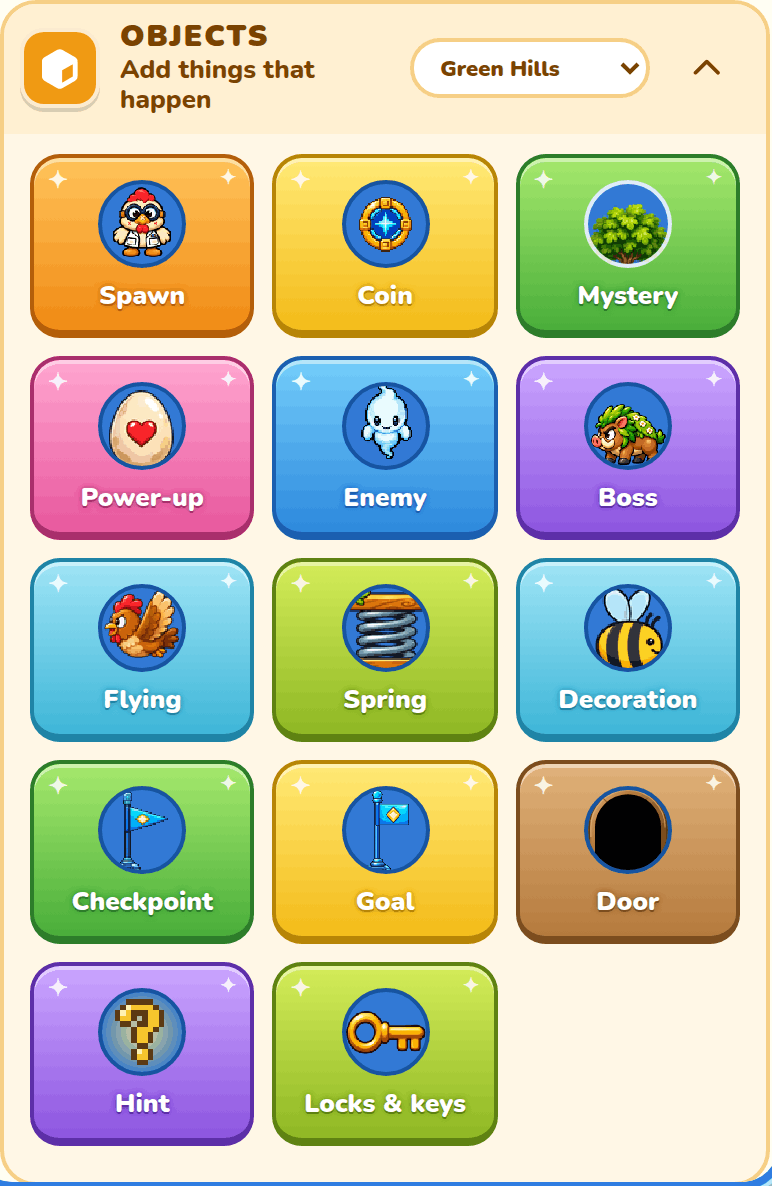
Objects are the things that happen in your level: where you start, what you collect, who you fight, and how you win.
Spawn
Where the hero starts. A level has only one start, so placing it again moves it. The tile shows your hero, and you can pick a different hero in its settings. If you erase it, Play turns off until you place a new one.
Coin
A coin to collect. Click or drag to add or remove coins. Collect every coin in a level and you get an extra life when you finish it.
Mystery
A mystery box: a one-block hiding place that breaks when attacked and may contain a coin or power-up egg. Its biome-specific brush choices include a wicker Basket in Green Hills, an empty Cracked Pot in Sunflower Hills, a Damaged Crate in Bubble Bog, and a volcanic Chest in Dragon World. Each breaks into pieces that match its material when hit.
Power-up
An egg that hatches and grants its power as soon as the hero touches it. Pick from several powers in its settings.
Spring
Launches the hero high in the air, still going the same way. It has no settings.
Enemy
A basic enemy. Each biome has its own enemies, and you can use your own custom enemies too. Pick from several looks in its settings.
Characters
Make an enemy once and put it down as often as you like. Set it up the way you want it, with its script too. Then pick it and press Save as character in its settings (or press S), and give it a name. Its brush is then in your hand. Your characters have their own box in the drawer, Characters, and the Enemy brush lists them under Your characters: pick one to put down more. Cooper can put them down too. Change the settings or script of any one of them, or of its brush, and they all change. Which way each one faces, how far it walks and notices the hero, and its ID are its own. Make this one different turns one into a plain enemy, and Delete removes the character but leaves the ones on the map as they are.
Share as addon on a character's card makes it a Character addon, so your other Platformer games list it in their Characters box too. A change in one game stays there until you press Update addon. Then your other games that have it show Update ready on its card, and change when you press Take update there (a published game changes the next time you publish it). See Characters in your other games.
Boss
A big enemy. While any boss is alive, the Goal won't finish the level. Beat every boss and the level finishes, even with no Goal. Each biome has a boss, and your own custom bosses work too.
Flying
A Chicken, Bat or Dragon fireball that flies. Select it to see its flight path drawn as a dashed arc.
Decoration
Scenery that has no effect on play. Everyone passes through it, and nobody can stand on it. The brush shows every decoration from every biome, so you can mix them freely. Choose a Bee that zig-zags around where you put it, a Butterfly with fluttering wings, or a Warning light with a rotating glow. Bubbles look best in water. A Spider crawls across the front of connected ground, floor, platform and obstacle blocks. Snowflake, Rising embers, Dragonfly, Swamp bubble, Floating satellite, and Satellite dish keep their themed behavior in any biome. Static choices include Milk churn, the 1.5-block-tall Potted sunflower, Rat, the 2-block-tall Three-candle holder, the 2-block-tall Ice crystal cluster, Castle brazier, Planet hologram, the 1.5-block-wide Wheelbarrow planter, the 2-block-tall Knight armor statue, the 1.5-block-wide Control dashboard, and the 1.5-block-tall Gargoyle statue. The candle holder and brazier cast flickering light; the crystal and hologram cast a pulsing glow; the dashboard's colored lamps blink. Place the rat in open air directly above a floor; it scurries across connected floor within its range and turns at walls and gaps. The outline turns red on unsuitable blocks.
Checkpoint
Once the hero touches it, a fall brings them back here instead of the start. It has no settings.
Goal
Touch it to finish the level, but only once every boss is beaten. It has no settings.
Door
A portal the hero goes through by pressing W or d-pad up. The default brush has a simple frame matching the chosen biome; Plain doorway keeps the original unframed shape. Both contain a colored swirl. Brush settings choose the frame and portal color. Object settings choose the door's name and destination.
Choose Violet, Blue, Cyan, Green, Gold, Orange, or Pink under Portal color in Brush settings. The choice changes the swirl inside either doorway style and is saved with that door.
Locks & keys
Keys and the locks they open. The brush has variants: choose Key or Lock block under A key or a lock? in Brush settings.
A key floats over the hero's head once they touch it. Keys stay with the hero through doors (into hidden levels and back) and when they lose a life. Each key opens only the locks that name it, and is used up when it opens one: it floats up and off the screen. When the hero reaches the goal or beats the bosses, any keys still held float away too, so every level starts with none. Put each lock's key on the same level, or in a hidden level its doors lead to; the lock's settings warn you if the key is on another level.
A lock block is solid, like an obstacle, until the hero walks into it holding its key; then it disappears for good. A door can be locked too: pick its key under Locked with in the door's settings. A locked door shows a padlock, and opens when the hero presses W or d-pad up in the doorway holding the key. A lock is the colour of its key.
Hint
Adds a glowing question mark that floats in its block, on the ground or in the air. Type a tip in What the hint says. When the hero touches it, the game waits and the words show in a box. Press Close, A, B or Start, or Enter, Space or Escape, to play on. The question mark then floats away. It stays gone if the hero falls, and comes back when the level starts over. A hint with no words does nothing in the game.
Placing things
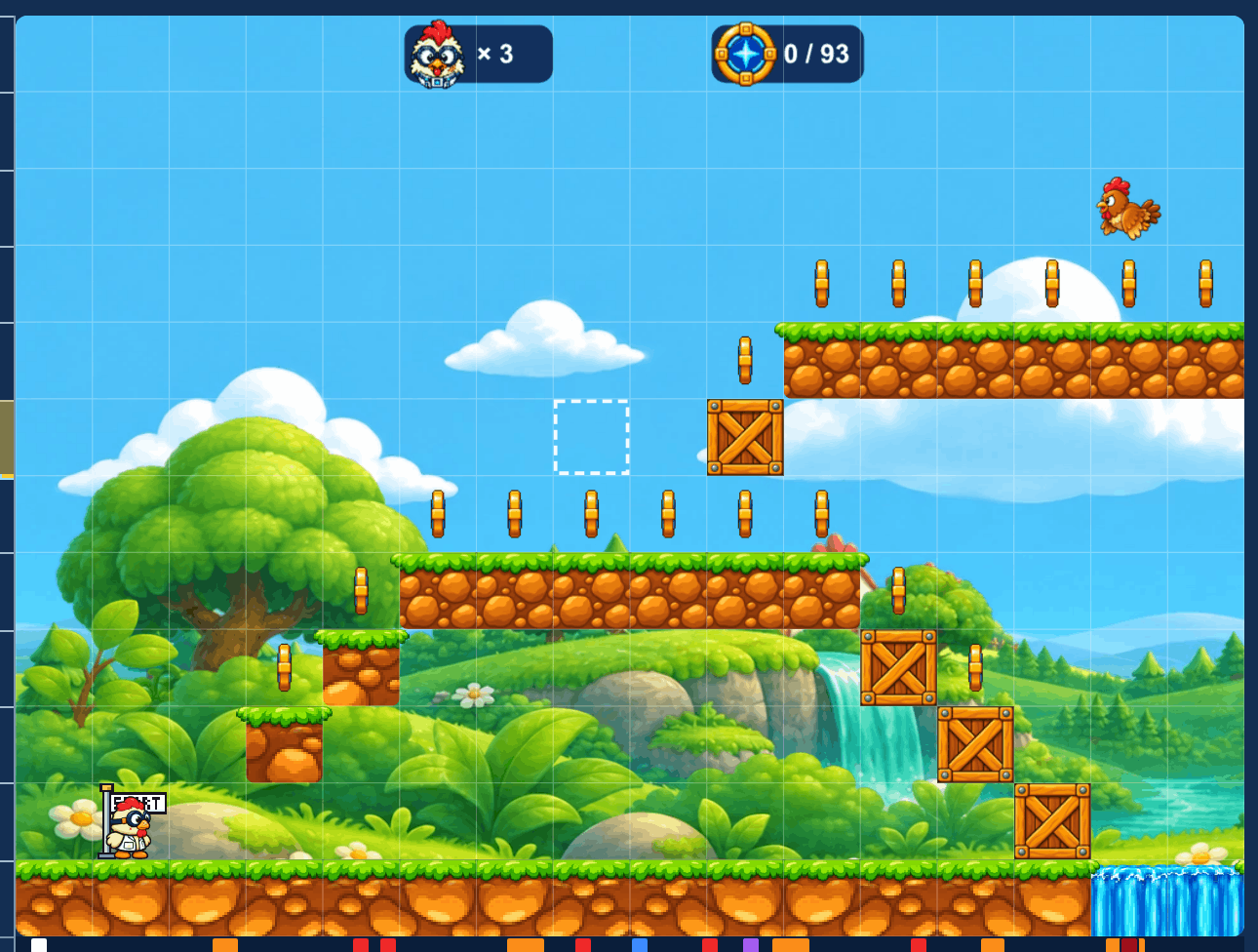
With a brush picked, click one block, or drag to paint a line. The hint under the map changes with the brush, like "Click or drag to add ground blocks". Every Platformer brush covers one block. A dashed white box shows the block under your pointer, and the blocks you drag over fill in with the brush's color until you let go.
Building with the keyboard or a gamepad
You can build without the mouse. Click the map once, or press Tab until it has focus, and then use these keys. A gamepad works the same way. A screen reader says what each press did.
| What it does | Keyboard | Gamepad (Xbox) |
|---|---|---|
| Move a cursor one block, and say what is on that block. | Arrow keys | D-pad or left stick |
| Use your brush on the cursor's block. With Select, pick what is there. | Enter or Space | A |
| Paint with your brush as the cursor moves, to draw a run of blocks. | Shift and an arrow | Hold RB and move |
| Move what you picked, one block at a time. | Arrow keys | D-pad or left stick |
| Unpick what you picked. | Escape | B |
| Open the brush search over the block. | B | X |
| Describe the whole level: its size, the start, the goal and what is in it. | D | Y |
In the brush search, type a name, press Up or Down to choose, then Enter to place it. It lists the brushes you use most in this biome first, and the brush you place becomes your brush. Sprites you made in Addons are in the list too, under their own names.
When you pick up an enemy this way, a small card opens beside it with its two most-used settings: Speed and How it moves. Up and Down go from one setting to the next, and Left and Right change it. More settings opens the full panel. Escape closes the card and puts you back on the map with the enemy still picked up.
If coins are hidden in the builder, the hint says Coins hidden (Alt+C). Press Alt+C to show them again.
Selecting and changing things
With the Select tool, click a block or object to select it. It gets a yellow outline. Click it again to unselect it, or click empty space to clear everything. Drag across empty space to select everything you pass over.
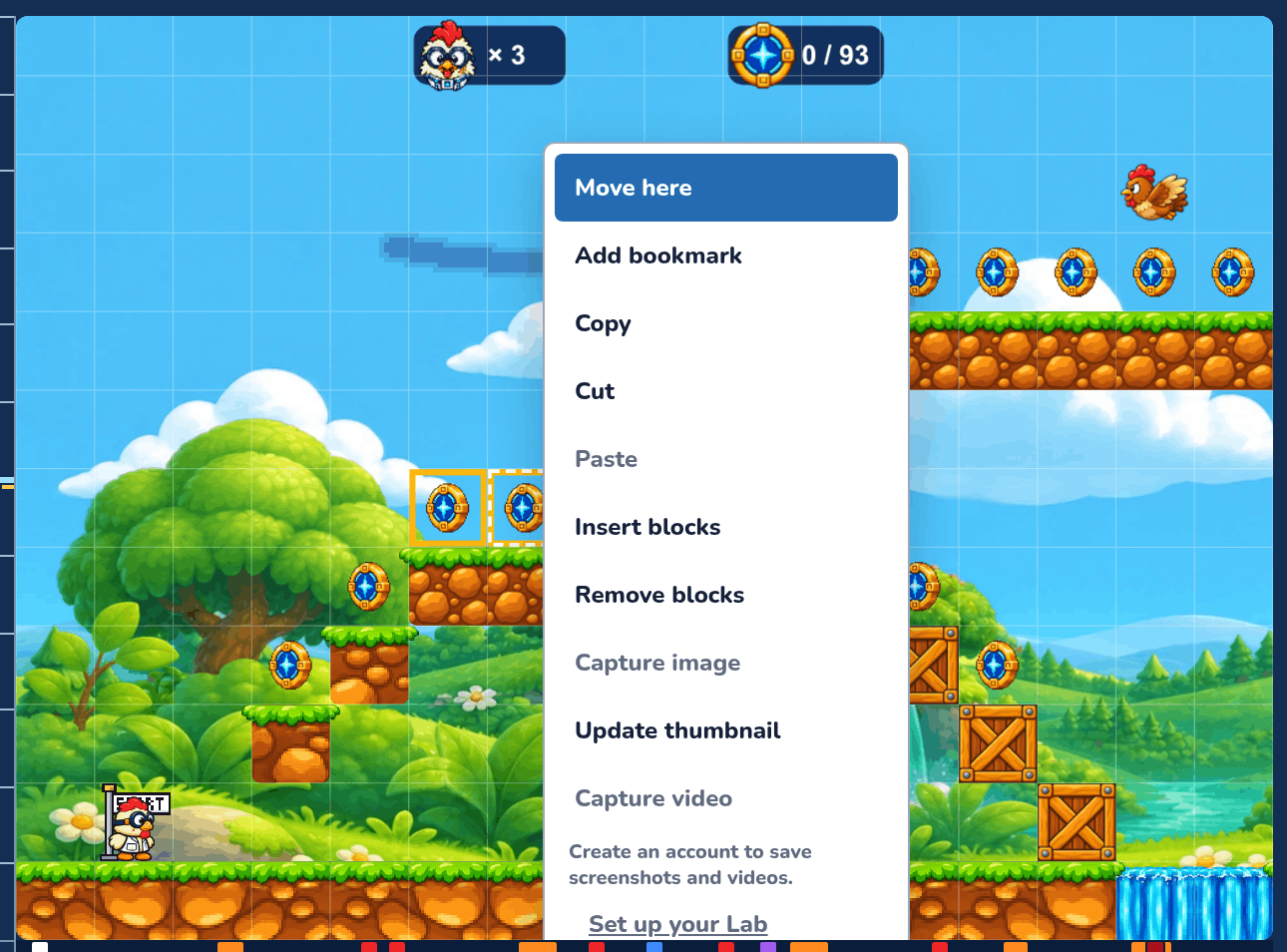
- Shift-click selects every block in the box from your last pick.
- Ctrl-click (Cmd on a Mac) adds or removes one thing without losing the rest.
- Drag anything selected to move the whole selection. The arrow keys move it too, one block for each press.
- Erase removes one layer from each block you click or drag across, starting from the front. For a coin in a bush, it takes the coin first and then the bush. Click again to reach what's behind. Delete or Backspace erases everything that's selected.
- Copy, Cut and Paste are in the right-click menu, or use Ctrl+C, Ctrl+X and Ctrl+V. Paste lands at your pointer.
When you select an enemy or a moving platform, the map draws its path: how far it walks or travels, which way it goes, or the circle it loops.
Settings for what you selected
Selecting one enemy, boss, spawn, power-up, flying object, moving platform, floating platform, decoration, door or hint opens its settings. Selecting a hazard or obstacle opens Terrain settings. Select two or more of the same kind to change them all at once. Coins, springs, checkpoints, goals, ground and platforms have no settings.
The Brush drawer holds which kind or look it is, and the Object settings drawers hold everything else. See Brush and Object settings.
Insert and remove blocks
Need more room in the middle of your level? Use the Insert brush, or right-click a block and pick Insert blocks. Type a Number of blocks and press Insert. Empty space appears to the right of where you clicked. A map can be up to 256 columns wide.
Remove blocks works the other way: type a Number of spaces and press Remove to take away columns to the right.
Test from any spot
When you're zoomed out, clicking a spot also stands your hero there, so zooming back in shows that place. Clicking a ruler does the same; see The rulers. This is only for testing and doesn't move the Spawn.
Bookmarks
The strip between the map and the column ruler is a map overview. It marks where things are along the level, like the Spawn, bosses, doors and the Goal. Rest the pointer on a marker to see what it is.
Click a marker to select that thing on the map, the same as clicking it with the Select tool. Your hero stands one block before it, so you can see it and test from there. Selecting a thing on the map lights up its marker too.
A bookmark is a marker you add yourself, for a spot you keep coming back to. Click an empty space on the overview strip to add one there. Your hero moves to that column. You can also right-click the map and pick Add bookmark.
Click a bookmark to stand your hero at its column, then press Play to test from there. Bookmarks are saved with your game, so they're still there next time.
To take a bookmark away, press and hold it. This works with a mouse and on a touch screen. You can also right-click the map at that column and pick Remove bookmark.
Terrain settings
Select an obstacle or hazard to change it.
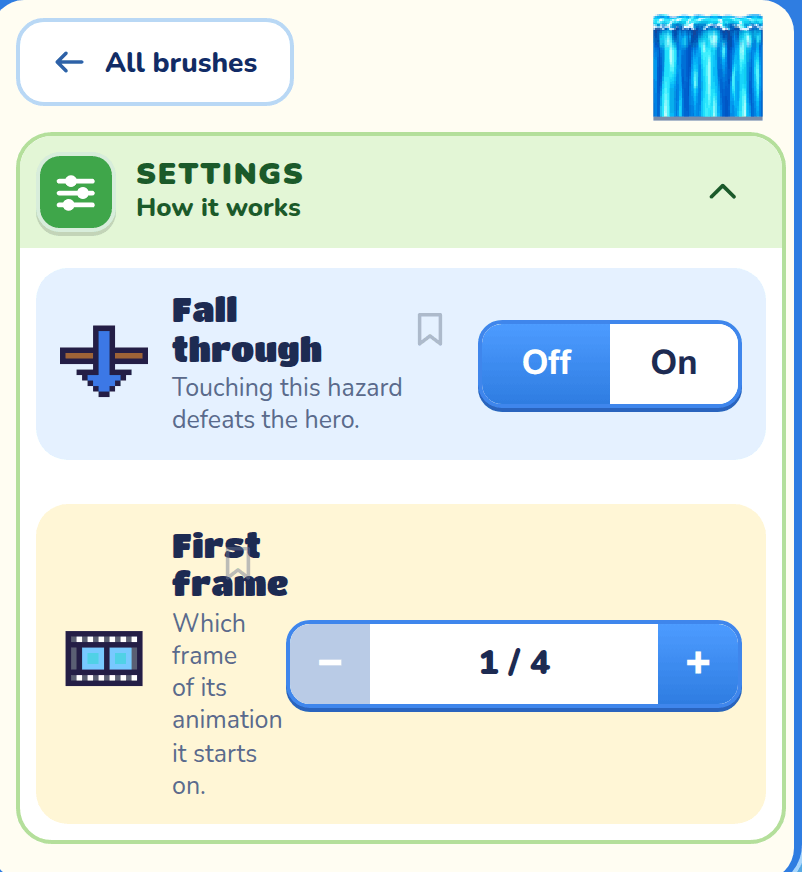
Which look
Which obstacle? or Which hazard? in the Brush drawer picks the look from the ones this level's biomes offer.
Solid
For obstacles. On, the obstacle blocks the hero from every direction. Off, the hero passes through it from the sides and below, but lands on top while falling.
Deadly
For obstacles: touching this obstacle defeats the hero.
Fall through
For hazards: the hero falls straight through, as if the hazard weren't there.
First frame
For hazards: picks which frame of its animation it starts on, so hazards side by side don't all move at the same time.
Object settings
Select an object to change how it looks and acts.

Enemy
Which enemy? in the Brush drawer picks its look. Select an enemy on the map for the rest of its settings.
Which effect? in the Brush drawer puts an effect round it: Sparkles, Fire, Electric, Frost, Shadow, Hearts, Music, Bubbles, Dizzy stars or Petals, or No effect. It is only for looks: it changes nothing about how the enemy moves or fights. A boss's effect is as big as the boss.
How it moves
Walks around walks about near where it starts. Chases hero walks about too, and runs after the hero who comes near. Walkers can also be a Coward, an Ambusher, Hit and run, Grumpy, a Show-off or a Hopper, which jumps at the hero it sees. Each is a character script; Custom shows when an enemy runs a script of its own.
Walking
How far it walks from where you put it, in blocks. Left and Right are set on their own.
Notice
How near the hero must come before a chasing enemy runs after them. Left and Right are set on their own.
Walk down stairs
The enemy goes down with the floor when the ground drops, and keeps walking until the end of its Walk or Notice distance. It can't walk back up, so once it's down it turns around at each block. It won't drop into a pit, a hazard or water. Rolling enemies roll down the same way, and the angry penguin slides down on its belly. With this on, both also see a hero on lower levels, and the penguin dives or the enemy rolls as soon as they do. The lines on the map follow the path it will take.
Grip
How well an enemy or boss keeps its footing. It matters in two places: on a tipped seesaw platform, and on slippery ground, which is a level with Ground traction under 100%.
| Grip | On a tipped seesaw | On slippery ground |
|---|---|---|
| Sticky | It never slides | It never skids |
| Normal | It slides downhill | It is slow to get going, and skids when it stops |
| Slippery | It slides downhill twice as fast | It skids about twice as far |
A skidding enemy can slide past the end of its Walk distance, then walks back. It stops at walls and at ledges. On ground with normal traction nobody skids, whatever their Grip.
A script can change it while the game plays, with a line like my grip is slippery.
Weight
Heavy makes an enemy or boss tip a seesaw platform. Normal is the starting choice: seesaws ignore it.
A heavy one weighs the seesaw down on the side where it stands, like the hero does but twice as heavy. The seesaw stays tipped while it stands there, so the hero slides toward it. The hero can stand on the other side to push back.
It also shoves the seesaw down where it lands. A higher jump, and a landing further from the middle, give a bigger shove.
With no hero on the seesaw, heavy enemies never tip it too steep to stand on. A seesaw's Max tilt caps the tilt lower if you want.
A script can change the weight with my weight is heavy, and make the jumps with hop left 1 block or jump right 3 blocks, up 3 blocks; see Seesaw platforms in scripting.
Starting direction
Which way it goes when the game starts: Moving left or Moving right.
Speed
How fast it moves, from Slow to Extra fast. Extra fast is as fast as the hero.
Defeating enemies
The hero can defeat enemies by jumping on them or hitting them with a weapon. Both methods work in every Platformer, including older saved games.
Defeat effect
How an enemy goes when the hero beats it, each with its own sound:
- Normal (an enemy's default): the boar and enemies with their own "dying" frames play them; the rest vanish.
- Poof (a boss's default): it grows bigger, shaking, then goes poof in a cloud of smoke and sparkles.
- Fireballs: like Poof, but it bursts into balls of fire and glowing embers that burn down to smoke.
- Pop: a smaller, quicker Poof, for small enemies beaten fast.
- Splat: it bursts into drops of its own colour that land as puddles and shrink away. Made for jellies.
- Leaves: it bursts into pieces of its own colours (leaves, petals or bits of mushroom cap) that flutter down. Made for plants.
- Zap: it's held flashing white and blue in crackling lightning, then bursts into sparks and smoke over a scorch mark. Made for electrified enemies.
Weapon
Any enemy or boss can carry a weapon: None (the default), Crossbow, Lightning, Fireball, Slimeball, Bomb, Charge, Spooky, Lobbed shot or Beam. An armed enemy only uses it on a hero in its area: its notice distance when it chases, its walk distance when it walks around. It turns to face the hero before it attacks. Every enemy still hurts by touch, armed or not, and a hit from any weapon hurts the hero as touching does (a shield takes one).
Your own weapons from the Addon Lab come after the built-in ones: a picture you drew, which the enemy shoots straight or throws in an arc, with the speed, size and spin set on the addon. See Weapons.
- Crossbow, Lightning, Fireball and Slimeball shoot straight across at a hero who is level with the shot. The shots stop at the edge of the enemy's area and at walls. One that chases keeps after the hero between shots; one that walks around stands and shoots.
- Lobbed shot throws a shot in an arc at where the hero stands. The haunted boss throws flaming pumpkins and the ice boss throws crystals; anyone else throws a fireball.
- Bomb throws a bomb at where the hero stands. It falls, lands, and goes off a second later; a hero within a block of it is hit.
- Beam charges up for a second, then fires a laser straight across to the next wall or its area's edge.
- Charge winds up for a second when the hero is level with it, then rushes at them as far as its Charge distance. It never rushes past its walk distance or off the edge of the floor it's on.
- Spooky fades out and, two seconds later, fades back in on its own row, beside the hero if they are in its area, and goes for them. While it is gone it can't hurt and can't be hit.
Dragons breathe from their mouths, Cindermaw's shots are twice as big, the Orbital Sentinel fires from its chest, and bosses throw from high up; other enemies fire from their hands.
Attacks every
Shown when the enemy has a weapon: how often it uses it while it sees the hero, from 0.25 to 10 seconds, in 0.25-second steps. A charger rests this long after each charge. Unless you change it, a charger rests a second, a spooky enemy vanishes and a beam fires every 3 seconds, and the rest attack every 2 seconds.
Charge distance
Shown when the enemy charges: how far it rushes, from 1 to 16 blocks (4 unless you change it), or until a wall, an edge or the end of its walk distance stops it.
Character scripting
At the bottom of a walking or swimming enemy's settings. It opens the Character script window, where you change what the enemy does in plain words, like when I see the {Hero} and jump toward the {Hero}. See Character scripting. Fliers and enemies with moves of their own don't have it. Bosses do: see Its own moves.
A script can also change these settings while the game plays, with lines like my weapon is lightning or my speed is extra fast; see Its Object settings. The panel keeps showing what you set here, which is what the script starts from.
ID
At the very bottom of a thing's settings: a name that game and level scripts point at it by, like hide {Bouncy} or when {Slimy} is beaten. No two things in a game can share one. Doors and keys go by their Door name and Key name instead. See IDs.
Path
The Path card sets how an enemy or boss travels: Fixed position, Follow behavior or Circle a grid. Circling lets you pick the grid size, Clockwise or Counterclockwise, and how long a lap takes.
Body motion
Body motion makes an enemy, boss or flyer bob or peck as it goes: None, Bobbing or Pecking. Then set how far it bobs or pecks, in blocks, and how long each bob or peck takes.
Colors
The Colors button is in the Brush drawer, under the enemy or boss picker. It opens a panel for recoloring. Pick a look under Looks, or slide Hue to shift all its colors around the rainbow. The map shows the colors as you slide. Start over puts its own colors back.
Opacity, under Colors, makes the enemy or boss see-through. Its effect and its shots fade with it. At 0% it is invisible in play but can still hurt the hero. The builder always shows it a little, so you can find it.
Boss
A boss has everything an enemy has, plus one more card.
Hits to defeat
How many times the hero must hit the boss to beat it.
Its own moves
Each biome's boss fights its own way, and the whole fight is written in its script. Open its Character scripting to read it, or change it. The script picks the boss's weapon, speed and notice distance itself, so those Object settings don't change how it fights. Its Walking Left and Right are still its arena: it never goes past them.
| Boss | How it fights |
|---|---|
| Green Hills boar | Stamps the ground, then charges in a straight line. After a charge it is dizzy for a moment. |
| Space robot | Stomps closer, crackles, then fires three quick shots. Then it hops back to cool down. |
| Haunted pumpkin | Keeps its distance and throws flaming pumpkins. Sometimes it leaps at the hero. |
| Cindermaw (Emberkeep) | Rears back, breathes big fireballs, then pounces. |
| Glacier Brute (Ice) | Throws ice crystals. Up close, it leaps and stomps, then is stuck for a moment. |
| Horned Bubble | Squashes down, bounces at the hero, and splashes slime where it lands. |
| Three-headed Sunflower | Its heads take turns to bite, then all three bite at once. |
| Junkyard crane | Swings its claw at the hero. Hit the raccoon driver to beat it. |
Power-up
Which power? picks what the egg gives: Speed boost, Invincible, Super jump, Shield, Jetpack or Extra life. Touching the egg grants its power immediately while the hatch animation plays.
Flying object
A flyer swoops across the screen when the hero gets near, or stays in one place. Every flyer can bob or peck with Body motion.
How it flies
Fly-by arc swoops across the screen. Fixed position stays where you put it. The cards below are for a fly-by.
Comes in from
Which side of the screen it flies in from.
Arch
Whether its flight bends up or down as it crosses the screen.
Entry row and Exit row
The screen rows it flies in at and out at.
Arch height
How high its arch bends, in blocks.
Flight time
How long it takes to fly across the screen.
Offscreen padding
How many blocks off the screen it starts and ends its flight.
Repeat
Once flies by one time. At an interval flies by again and again: Time between sets how long it waits, and Flights how many times it comes.
Decoration
Scenery with no effect on play. Bees and butterflies stay still on their blocks while you build, and fly when you try the game. Butterflies flutter more slowly; choose their wing color from the preset swatches in the Brush drawer. A warning light stays seated at the bottom of its block and spins in both the builder and the game. The beacon is half a block tall. Choose its housing and light colors separately from the preset swatches.
Range
How many blocks it may wander from where you put it. The map draws this as a dashed square. Bees and butterflies turn back at solid blocks. Rats scurry left and right over supported floor, turning at walls and gaps. Spiders stay on the front of connected ground, floor, platform and obstacle blocks inside the square. A spider on a single block crawls around within that face. Snowflakes fall through open air within their range, fading before solid blocks and repeating from above. Embers rise and fade within the same kind of range. A swamp bubble rises only above its placed position, up to its Range, fading before it starts again; it never drops below that starting point. Dragonflies hover between short darts. Floating satellites pass left at 0.9 blocks per second, fading before repeating. Their Left travel distance setting runs from 1 to 256 blocks (32 by default); place them overhead at the right end of the flight path. Terrain and map edges shorten the flight. Radio beeps grow louder as they approach the hero, then quieter and farther apart after passing. Beeps follow the game’s sound-effects volume and mute setting. These decorations stay still on their starting block while you build.
For a satellite dish, this setting is called Scan distance and appears as a dashed circle. The dish follows the nearest visible floating satellite overhead inside that distance, with a steady green signal light. When none is nearby, it sweeps back and forth with a blinking light. Its base stays on the bottom of its block. Both the dish and satellites are still in the builder.
Moving platform
A platform that carries the hero back and forth. It dips a few pixels when the hero steps or lands on it, then springs back up.
Travel
Which way the platform travels: Side to side or Up and down.
Starting direction
Which way it goes when the game starts.
How far it goes
The two Goes cards set how far it goes each way from its start, in blocks.
Speed
How fast it moves.
Floating platform
Turn on Sinks when stood on and the log sinks into the hazard about a second after the hero stands on it. Off, it floats and bobs and is safe to stand on.
A log right above a hazard or water sits low in its block, so it rests on the surface. It dips a few pixels when the hero steps or lands on it, then springs back up.
Seesaw platform
A seesaw that balances on its middle. It stays still while the hero stands in the middle, give or take 5 pixels. Step to one side and that side tips down, faster the further out the hero stands.
The hero slides downhill as it tilts. If it tips too far to stand on, the hero falls off and the platform turns right round until it is level again. If the hero jumps off sooner, it swings back to level.
Enemies and bosses can stand on it too, but they never tip it. They tip with it and slide downhill, then hang on at the low end. A script can make them walk back up; see Seesaw platforms in scripting.
A seesaw with a hazard or water under any of its blocks sits low in its row, like a floating platform. It turns in front of the hazard, and its ends can swing off the screen.
Speed
Speed sets how quickly it tips: Slow, Normal or Fast.
Max tilt
Max tilt sets how many blocks an end can dip below level before the seesaw stops. It slows gently into the stop, holds there while the hero stays on the low side, and swings back when they leave. A seesaw with a max tilt never turns right round.
No limit is the starting choice: the seesaw tips until the hero falls off. An end can't dip further than half the seesaw's length, so a bigger number also means no limit.
Select the seesaw to see dashed lines on the map showing how far it tips each way.
Door
Heroes press up in a doorway to go through. A door needs a name and somewhere to lead. The hero spins and shrinks into the portal, then grows and unspins at the destination. Movement resumes after the arrival animation.
Door name
This door's name. Another door leads here by picking it.
Leads to
Where the door goes: another door in any level, or the start of a hidden level. Nowhere (exit only) makes a door heroes can come out of but can't go in. The card warns you if the door or level it leads to is gone.
Locked with
The key the hero needs to go through, from every key in the game, or Not locked. The first time the hero goes through with the key, the door opens for good and the key is used up.
Key
A key the hero picks up and carries over their head. Its colour is in Brush settings; every lock it opens wears the same colour.
Key name
This key's name, which no other key in the game can have. Locks pick their key by it, and renaming a key keeps its locks pointing at it.
Lock block
A solid block that opens when the hero walks into it holding its key.
Opens with
The key that opens it, from every key in the game. A new lock block opens with the newest key until you pick another.
Hint
A question mark with words for the hero to read. Select two or more hints to give them all the same words.
What the hint says
The words the hero reads when they touch the hint. Up to 200 characters.
Level settings
Press Map under the map to open your levels. Level name, Columns and Rows work like in every game; see Levels and Map Settings. Level script, at the bottom, opens the level's own script, and Game script at the bottom of Game settings the whole game's; see Game and level scripts. Platformers also have these:
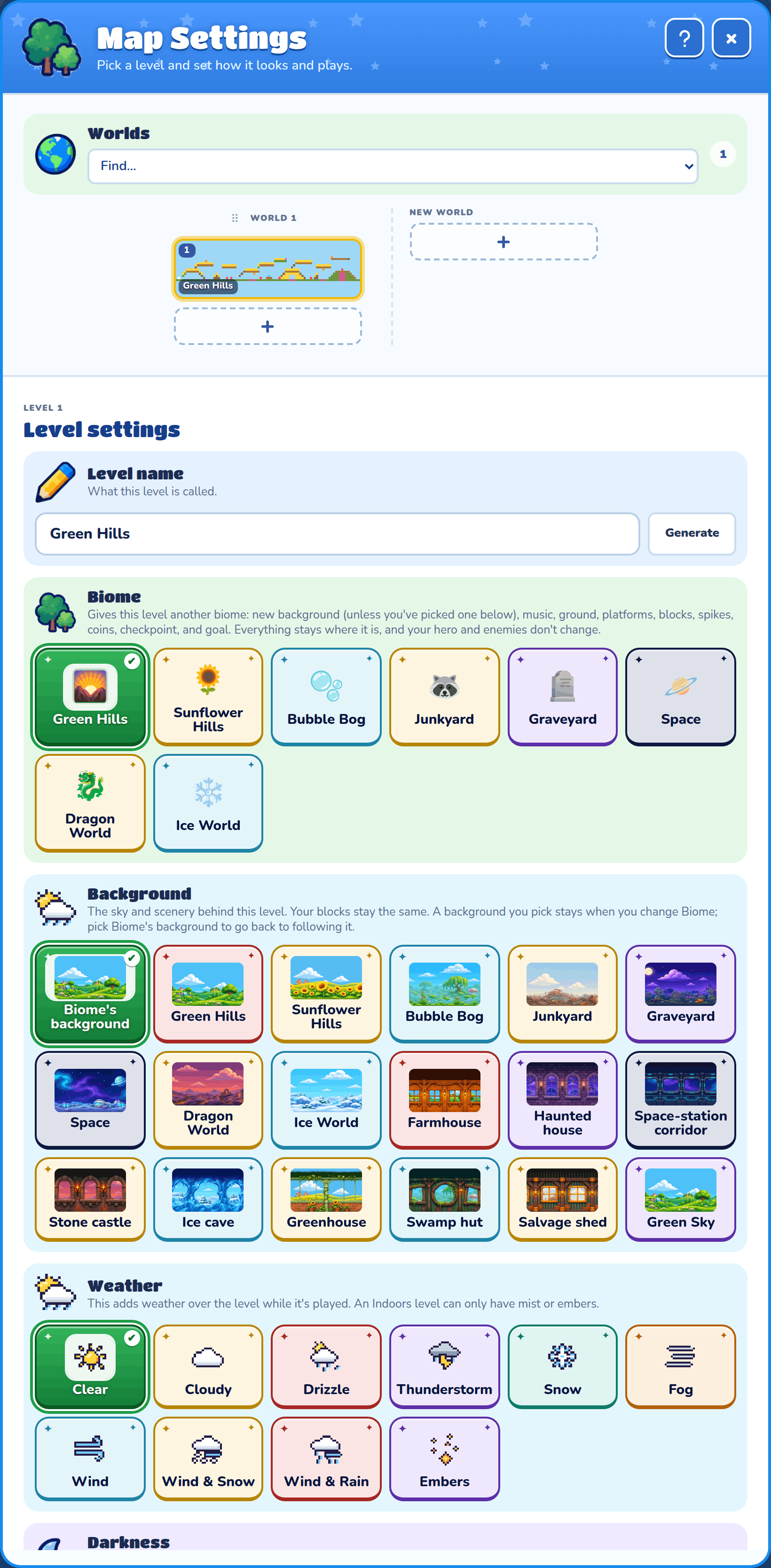
Worlds
Your levels sit in worlds, side by side at the top of Map Settings. A world is one column of levels, each drawn small so you can see what's in it, and the levels play from top to bottom. When the last level of a world is beaten, the game carries on at the top of the next world to the right. Use the arrows to scroll through them. Level numbers carry on from one world to the next.
- Click a level to open its settings underneath.
- Drag a level up or down to change its order, or onto another world to move it there. Drop it on a level to put it just above that one, or on the world's empty space to put it at the end.
- Drop a level on New world to start a new world with it. A world with no levels left goes away.
- Drag a world by its heading to change when it plays.
- Click a world's name to rename it.
- Press + under a world to add a level to it, or the + under New world to start a new world.
A world with only hidden levels is skipped when the game plays, and doors can still lead into it.
Find picks something to look for, such as enemies or doors, and marks where it is on every level.
Biome
Biome changes the level's look and music. Everything you placed stays where it is.
Background
Background picks the sky and scenery behind this level: Biome's background, any biome's background, an indoor background, or a background addon of yours. Indoor choices include Farmhouse, Greenhouse, Swamp hut, Haunted house, Ice cave, Stone castle, and Space-station corridor. Their windows reveal moving scenery, and the walls fade into a matching solid color above them in tall levels. Your blocks stay the same. A background you pick stays when you change Biome. Pick Biome's background to go back to following it.
Weather
Weather adds weather over the level while it's played. It doesn't show while you edit, so press Play to see it.
| Weather | What you see |
|---|---|
| Clear | No weather. |
| Cloudy | A dimmer sky, with cloud shadows passing over. |
| Drizzle | Light rain. |
| Thunderstorm | Heavy rain, a dark sky and flashes of lightning. |
| Snow | Falling snowflakes. |
| Fog | Bands of mist drifting across. |
| Wind | Gusts of wind sweeping across. |
| Wind & Snow | Snow blown along by the wind. |
| Wind & Rain | Rain blown along by the wind. |
| Embers | Sparks rising through an orange glow. |
Wind blows the hero to the right, in gusts. Running into it is slower and running with it is faster. Standing still, the hero drifts a little, and in the air the wind carries their jumps. The other weathers only change how the level looks.
An Indoors level has a roof, so it can only be Clear, Fog or Embers. Turning on Indoors sets any other weather back to Clear.
A level script can change the weather while the level is played, like my weather is raining or my weather is wind and snow. See Game and level scripts for every weather word.
Darkness
Turn on Darkness and the level is dark while it's played. Like the weather, you only see it when you press Play.
How dark goes from 0 to 100. At 100 the places no light reaches are black, and at 0 they aren't dark at all.
What gives light
| Light | What gives it |
|---|---|
| Fire | Chandeliers, candelabra, braziers, burning drums and rising embers |
| Glow | Warning lights, ice crystals, holograms and control dashboards |
| Coins | Each coin, until it's picked up |
| The goal | The level's goal |
| Ghosts | Ghost enemies, until they're beaten |
| The hero | A small glow round the hero, so there's always somewhere to jump from |
Solid blocks stop light. A light shines on the side of a block facing it, but not on what's behind it.
A level script can change it while the level is played, like my darkness is 50%. my darkness is 0 or my darkness is off turns it off, and over 3 seconds fades it.
Hidden level
Turn on Hidden level and it's skipped when the levels play in order. Heroes get there through doors instead. Beating its goal or boss beats the level they came from. The Hidden level ID is the name doors list it by.
Indoors
Turn on Indoors when this level is inside a building. It picks the biome's indoor background, and you can still pick another one in Background above.
If the level has ground blocks, you're asked whether to replace them with floors. Say yes and they all change, while pits, hazards, and platforms stay as they are. Turn off Indoors and you're asked the same about turning floors back into ground. Either way, Undo puts the blocks back. Blocks with addon art stay as they are.
Play interlude
Set Play interlude to The biome's house and the hero first walks up to the biome's building. They turn to look at you, the door opens, and they go in, then the level starts. No level plays one unless you pick one. It works on indoor and outdoor levels, and hidden levels don't have it.
You can pick one of your Screens instead, and it plays in place of the walk to the house, with the player's hero as The hero. See Screens.
It takes about 10 seconds, and Jump, Start or a tap skips it. It plays once for each visit, not after a retry.
It plays in the builder too, when you press Play on a level that's been reset. Once you've played or moved your hero somewhere, Play carries on from there without it, until you reset the level.
Boss blocks movement
Turn on Boss blocks movement and each boss blocks the way until the hero defeats it. The hero can't go past the end of the boss's Walking Right range, and the camera doesn't show anything past it either. Once the boss is defeated, the camera glides on and the hero can go further.
With more than one boss, the leftmost one still standing blocks the way, so the hero fights them one at a time from left to right. A boss that's left of the hero when the level starts doesn't block them. It works the same for every hero in a multiplayer game.
Testing past a boss
While you build, you don't have to beat the boss every time you want to test what comes after it. Put a bookmark just past the boss's Walking Right range and click it before you press Play: the boss is behind your hero, so it doesn't block them.
The boss's marker on the overview strip shows where it stands, not how far it walks, so count from there. A boss at column 40 with Walking Right at 6 blocks the way up to column 46, so the bookmark goes on column 47 or later. If your hero starts inside that range, they're stuck behind the boss, so move the bookmark along.
Autoscroll
Turn on Autoscroll and the camera moves forward by itself, whatever the hero does. The hero has to keep up and can't run ahead of the screen. If the back of the screen squeezes them against something solid, they lose a life. After a life is lost, the camera goes back to the checkpoint or start and scrolls again from there. Camera pins still steer its height.
Speed goes from 0.5 to 6 blocks a second. The hero's normal run is 6, so that's the toughest.
Stop before the end is where the scroll stops, up to 20 blocks from the end of the map. That's a good place for a boss: the hero walks freely in those last blocks, the camera follows them there, and they can't go back. The view is usually 16 blocks across, so anything up to 16 scrolls all the way to the end.
The map only scrolls when you play it, not while you edit it. In a multiplayer game, each player has their own scroll.
View size
View columns and View rows set how many blocks across and tall the screen shows.
Gravity
Lower gravity makes jumps higher and longer, and slows the fall.
Ground traction
Lower traction makes the hero speed up, brake and turn around more slowly, like on ice. Walking enemies and bosses skid on it too, as much as their Grip lets them. It doesn't change how they move in the air.
Winning and losing
- Touch the Goal to finish a level, once no boss is alive. A level with bosses also finishes when every boss is beaten, even with no Goal.
- After touching a checkpoint, the hero comes back there after a fall.
- Collect every coin, then finish the level, for one extra life.
- Run out of lives and it's game over. Press Reset to try again.
- Beat the last level and you see "You beat the game!" with a Your run card: your time, score, coins, enemies, falls and secret rooms.