

Builder help
Artillery
Build wobbly towers, hide enemy eggs inside, and launch your hero from the cannon to squash them all.
In Artillery your hero flies out of a cannon. You build towers out of blocks, beams and barrels, hide enemy eggs in them, and the player has to squash every egg with as few shots as they can. This page covers what's special about Artillery. For the parts every game shares, like Play, Undo and levels, see Using the builder.
The build tools
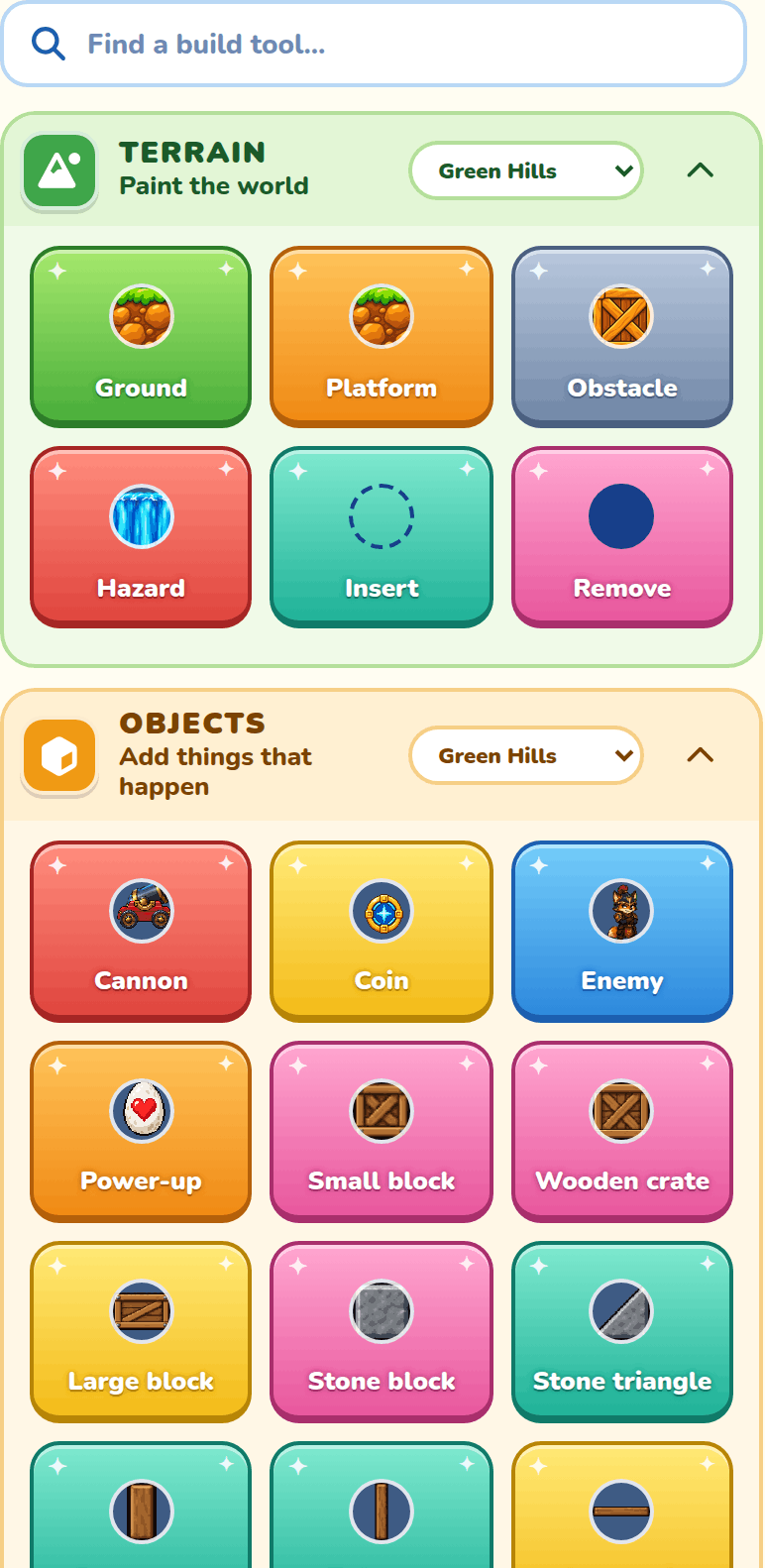
Artillery has its own build tools beside the map. The Terrain section paints the world, the Objects section adds the cannon, eggs, coins and building pieces, and below them are your Sprites and Sounds.
Picking a brush
Click a brush to pick it, then click the map to place that thing. Click the same brush again to put it down and go back to Select. You can't use brushes while the game is playing.
Terrain biome picker
The Biome drop-down at the top of Terrain picks which biome your new tiles come from: Green Hills, Graveyard, Space, Dragon World or Ice World. Tiles you already painted keep their look.
Object biome picker
The Biome drop-down at the top of Objects does the same for new coins and building pieces. A piece's name, picture and material all change with the biome, so a Wooden crate in Green Hills is a Cargo module in Space.
Terrain brushes
Terrain is painted one block at a time. Each brush's art follows the Terrain biome picker.
Ground
Paints a solid ground block. It replaces whatever tile was there.
Platform
Paints a platform block.
Obstacle
Paints an obstacle block. Some biomes have more than one look, which you can change in its settings.
Hazard
Paints a moving hazard, like flames or a waterfall. Some biomes have more than one look, which you can change in its settings.
Insert
Click a column on the map to open the Insert blocks box. Type a Number of blocks and press Insert to add empty columns there. Everything to the right slides over.
Remove
Click a column to open the Remove blocks box and take columns out from there. The map always stays between 10 and 64 columns wide.
Object brushes
Objects are the cannon, the coins, the enemy eggs and the power-ups. The building pieces come after them.
Cannon
Every level has exactly one cannon, and it's where your hero launches from. This brush moves it to the spot you click. You can't delete it.
Coin
Places a coin. Click a coin with this brush again to take it away. Every coin the player grabs takes 10 seconds off their time. A level can have up to 200.
Enemy
Places an enemy egg to squash. It starts as a Fox soldier, and you can change it in its settings. A level can have up to 10 enemies, and always needs at least one.
Power-up
Places a power-up egg. It starts as an Extra life, and you can change it in its settings. A level can have up to 10.
Building pieces
Building pieces are what your towers are made of. A new piece drops onto the ground or the flat piece just below it. A level can have up to 120 pieces. Every piece has variants: its name and look change with the Object biome picker.
Small block
A small box.
Standard block
A box one block big.
Large block
A wide box.
Stone block
A heavy stone box that's hard to knock over.
Stone triangle
A stone ramp shape.
Short post
A short post that stands upright.
Tall post
A tall post, good for holding up beams.
Beam
A flat beam to lay across posts.
Long beam
An extra-long flat beam.
Roller
A round piece, like a barrel, that rolls.
Small weight
A small but heavy metal piece.
Biome block
A block made just for its biome, like a hay bale or a moon rock.
Piece materials
How heavy, grippy and bouncy a piece is depends on its material: wood, stone, metal, ice or soft. Ice is very slippery. In Ice World most pieces turn to ice, and in Space wooden pieces turn to metal.
Your own pieces
Pieces and terrain you made in the Addon Lab show up in Sprites. Click one to add it to your level, then place it like any other brush. The Create addon tile opens the Addon Lab in a new tab.
Editing on the map
Select, Move and Erase work as on Using the builder. Erase won't remove the cannon or your last enemy.
Select and move things
With Select, click something to pick it and open its settings. Click more things to add them, or drag on empty space to draw a box around them. Drag what you picked to move it. Glued pieces move together. The arrow keys nudge picked objects a tiny step, and Delete removes them.
Building with the keyboard or a gamepad
You can build without the mouse. Click the map once, or press Tab until it has focus, and then use these keys. A gamepad works the same way. A screen reader says what each press did.
| What it does | Keyboard | Gamepad (Xbox) |
|---|---|---|
| Move a cursor one block, and say what is on that block. | Arrow keys | D-pad or left stick |
| Use your brush on the cursor's block. With Select, pick what is there. | Enter or Space | A |
| Paint terrain as the cursor moves, to draw a run of blocks. | Shift and an arrow | Hold RB and move |
| Nudge the objects you picked a tiny step. | Arrow keys | D-pad or left stick |
| Unpick what you picked, or put the cursor away. | Escape | B |
| Open the brush search over the block. | B | X |
| Describe the whole level: its size, the cannon and what is in it. | D | Y |
The cursor starts on the cannon. In the brush search, type a name, press Up or Down to choose, then Enter to place it. It lists the brushes you use most first, and the brush you place becomes your brush.
Copy, cut and paste
Ctrl+C, Ctrl+X and Ctrl+V, or the right-click menu, copy things and paste them where your mouse is. The right-click menu also has Insert blocks and Remove blocks.
Settle
Settle is at the top of the builder. It lets every piece drop into the spot where it would really rest, then saves it there. If some pieces would fall off the map, nothing changes, so add some support and try again.
Testing your level
Press Play to try the level. Drag back from the cannon to aim and let go to fire. Click a ruler to move the cannon to that column or row just for testing; it isn't saved. Press Alt+C to hide the coins while you build, and again to show them.
Artillery controls
The keyboard button at the top opens Settings. Press Keyboard & gamepad in it, then pick keys and gamepad buttons for Aim up, Aim down, Decrease power, Increase power, Fire and Pause.
Object settings
Select something on the map to see its settings. Most things have Line up, Copy and Delete.
Cannon settings
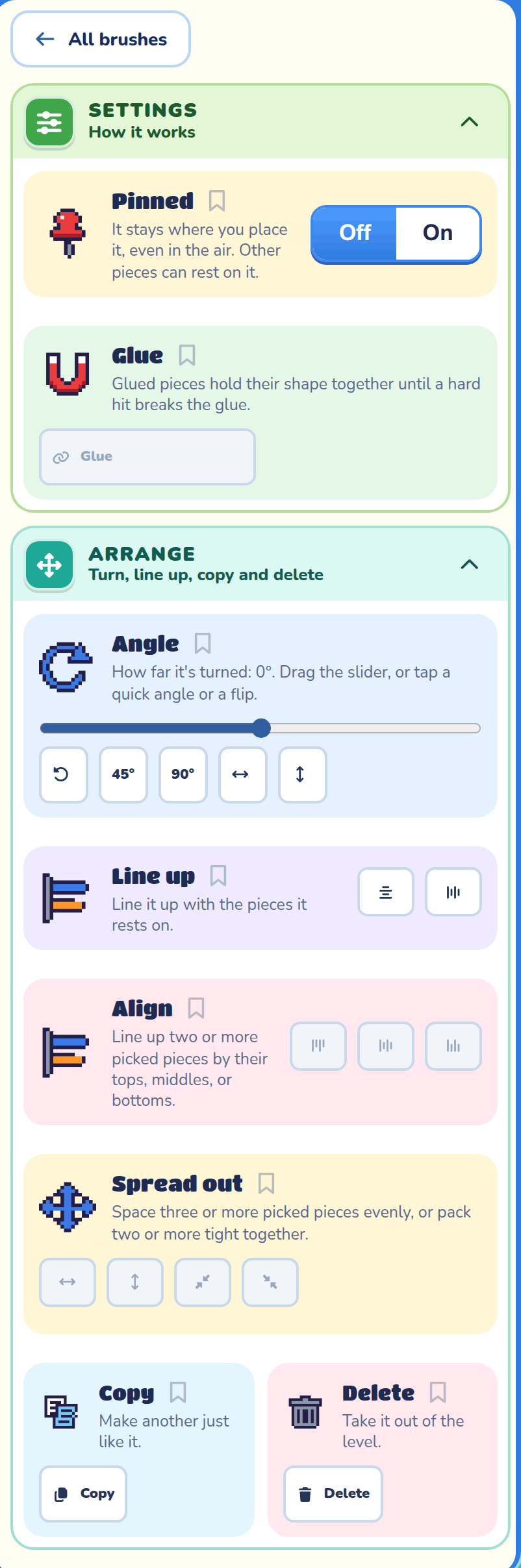
Angle sets which way the cannon aims when the level starts. You can also flip it.
Building piece settings
Blocks, posts and beams have cards to hold them in place, tilt them and line them up.
Pinned
Keeps a piece exactly where you put it, even floating in the air. Other pieces can rest on it.
Glue
Sticks the picked pieces together. They hold their shape until a hard hit breaks the glue. Unglue lets them go.
Angle
How far a piece or cannon is turned. Drag the slider, or tap a quick angle or a flip. A cannon aims this way when the level starts.
Line up
Lines a piece up with, or centers it on, the pieces it rests on.
Copy and Delete
Copy makes another one just like it, and Delete takes it out of the level.
Enemy settings
Which enemy? picks a Fox soldier, Robbing racoon or Gator enforcer.
Which effect? in the Brush drawer puts an effect round it: Sparkles, Fire, Electric, Frost, Shadow, Hearts, Music, Bubbles, Dizzy stars or Petals, or No effect. It is only for looks: it changes nothing about how the enemy moves or fights.
Facing
Flips it to face the other way.
Defeat effect
How an enemy goes when it's squashed, each with its own sound (the last enemy squashed plays the win sound instead):
- Normal (the default): it sways, knocked out, and fades away.
- Poof: it grows bigger, shaking, then goes poof in a cloud of smoke and sparkles.
- Fireballs: like Poof, but it bursts into balls of fire and glowing embers that burn down to smoke.
- Pop: a smaller, quicker Poof.
- Splat: it bursts into drops of its own colour that land as puddles and shrink away. Made for jellies.
- Leaves: it bursts into pieces of its own colours (leaves, petals or bits of mushroom cap) that flutter down. Made for plants.
- Zap: it's held flashing white and blue in crackling lightning, then bursts into sparks and smoke over a scorch mark. Made for electrified enemies.
Power-up settings
Which power? picks what the egg does when the hero crushes it:
- Speed boost makes the next shot, and the 15 seconds after it, fire 1.5× faster.
- Extra life adds one shot.
- Dynamite blows up the pieces nearby.
Picking several things
With two or more things picked, Angle, Pinned, Glue, Copy and Delete change all the picked pieces at once. Two more cards show up too.
Align
Lines up two or more picked pieces by their tops, middles or bottoms.
Spread out
Spaces three or more picked pieces evenly, or packs two or more tight together.
Obstacle and hazard settings
If the biome has more than one look, Which obstacle? or Which hazard? changes the picked tiles. Ground and platform tiles have no settings.
First frame
For hazards: which frame of its animation it starts on, so hazards side by side don't move in step.
Map and game settings
These are in Map Settings and Game Settings, with a few Artillery extras.
Biome
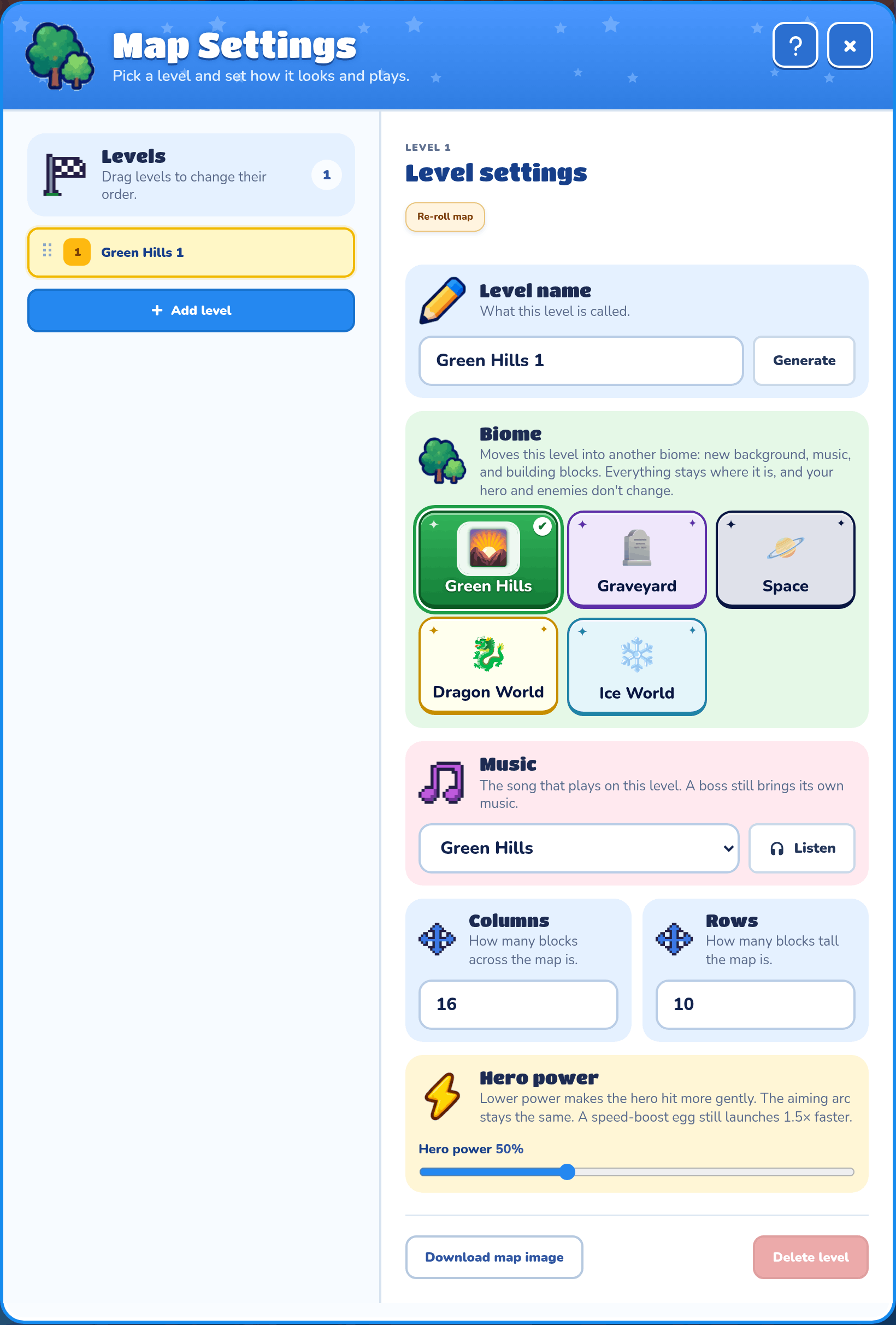
Biome gives the level a new background, music and building blocks. Everything stays where it is. Space also has lower gravity, and Ice World's ground is slippery.
Size
Columns can be 10 to 64, and Rows can be 6 to 32.
Hero power
Hero power sets how hard your hero hits, from 25% to 100%. The aiming arc stays the same. New maps start at 50%.
Starting shots
Starting shots in Game Settings is how many shots the hero has at the start, from 1 to 99. Every level the player wins gives them one extra shot for the next level.
Winning and losing
The player wins by squashing every enemy egg before the shots run out.
Winning
Squash every enemy egg to win the level.
Losing
Each launch uses one shot. The game is over if the last shot lands with enemies still left, or if an enemy falls off the map. If the tower falls apart before the first shot, the level is broken, so use Settle and Pinned to keep it steady.
Time and coins
Faster wins rank higher on the high scores, and every coin takes 10 seconds off your time.