Builder help
Adventure
Build a big world to explore, with villagers, monsters, keys and locks, hidden worlds, shops and a story.
An Adventure is a world your hero walks around in from above. You paint the land, fill it with villagers, monsters and treasure, and hide keys that open the way forward. It's the biggest kind of game, so take it one part at a time. The parts every game shares, like Play, Undo and saving, are on Using the builder.
When you start a new Adventure, the setup wizard skips the biome and map questions. Instead it asks how your hero wins and shows you a story you can change. See Goal and story below.
The build tools
An Adventure has three sections of brushes, then the shared Sprites and Sounds sections.
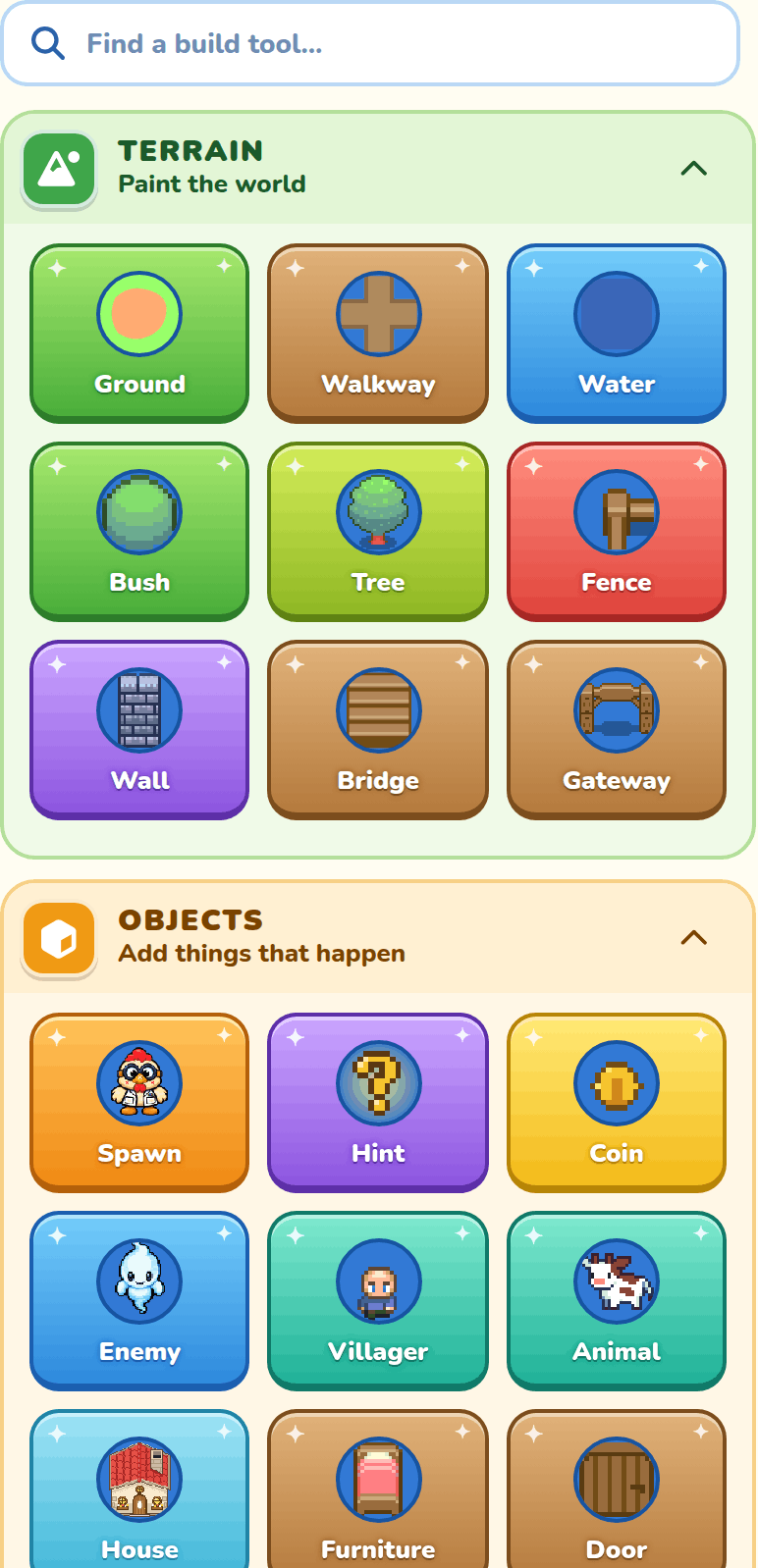
- Terrain shapes the land: ground, paths, water, plants, caves, fences, bridges and gateways.
- Objects holds the hero's start, hints, coins, monsters, villagers, animals, houses, furniture, doors, signs, shops, locks and more.
- Inventory holds the pieces of your goal first, then things the hero picks up and keeps in their bag.
Which brushes you see depends on the world's Biome. A brush that has nothing to draw in that biome is left out, and some brushes change their names: in the Desert the Tree is a Cactus, in the Caves it's a Big rock, and in Winter the Bush is a Crystal.
Sprites only says "Backgrounds are for jumping games." in an Adventure, but your music and sounds work here like anywhere else. Your own enemy sprites from the Addon Lab show up in the Enemy brush.
Terrain brushes
Terrain shapes the land: the ground, paths, water, plants, caves, fences, bridges and gateways. Click or drag to paint.
Ground
Paints this world's other kind of ground over the plain ground, like sand or dirt. Paint over a patch to make it bigger. This is also where hills and walls come from (see below).
Hills, cliffs and walls
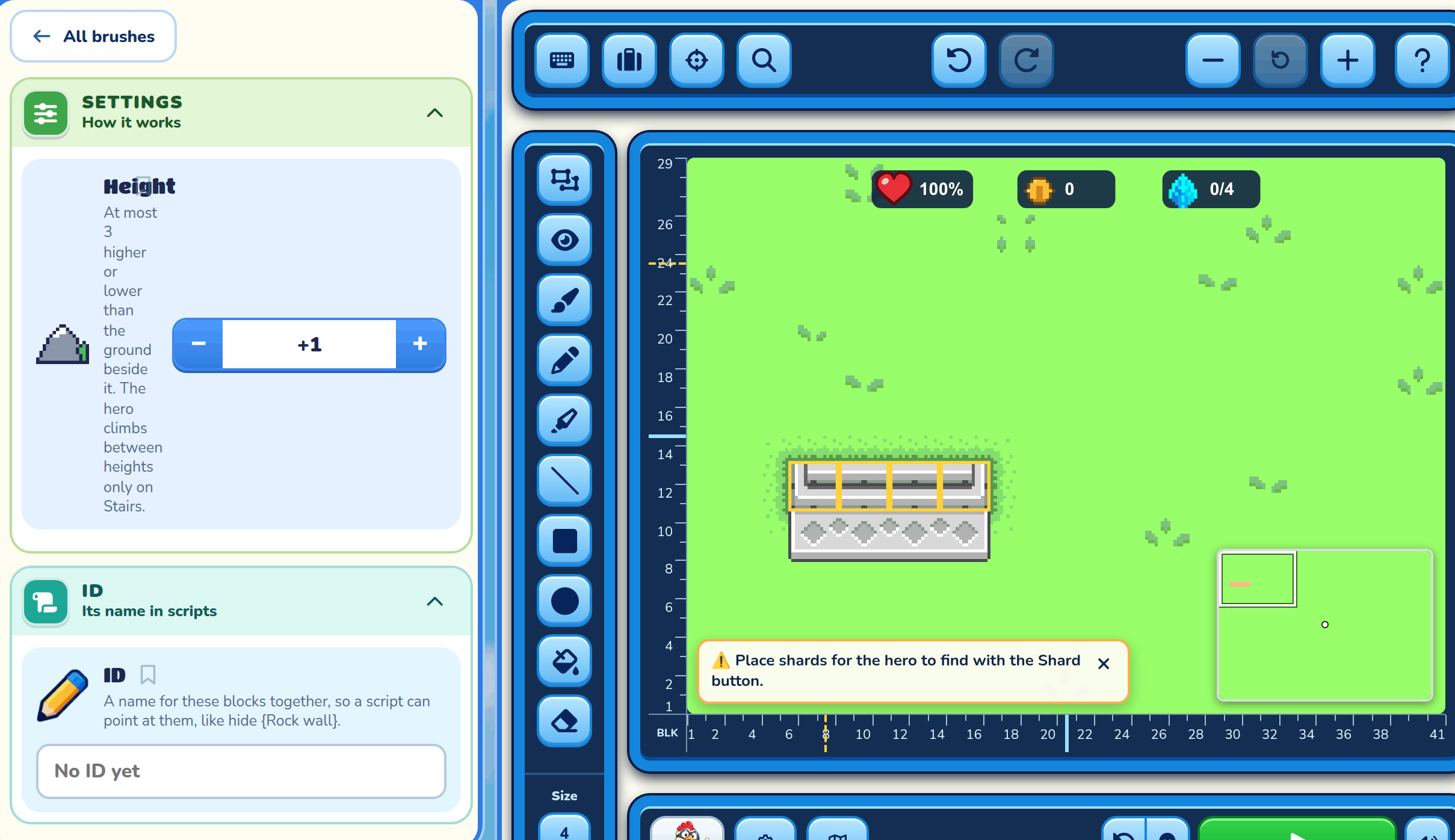
In an Adventure, walls are raised ground. Pick some ground on the map to change it.
Height
Press Raise the ground or Lower the ground. Ground can be up to 3 steps higher or lower than the ground beside it, and that makes a cliff. Each step makes the cliff one block taller, drawn as one cliff face however tall. The hero can only climb between heights on Stairs.
You can raise ground on top of raised ground, in every biome: pick part of a plateau and raise it again to make a hill on a hill. Leave a ledge in front of it to walk along, or raise it right to the edge for one taller cliff.
Grass patch
Turn on Grass patch to draw the grass as a patch with a ragged edge, over the grass around it. Things stand on it like any ground.
Walkway
Adds a dirt path, a brick walkway, or ski tracks in Winter. Paths join up by themselves. A walkway can't go over water; use the Bridge brush there.
Water
Adds water the hero can't cross. It also has lily pads and lotuses, which the hero can walk over. Water laid up to the edge of raised ground pours over it as a waterfall, down the cliff into whatever is below; in the Grotto, lava does the same.
Bush
Adds a bush the hero walks around, or a small cactus, small rock or crystal in the Desert, caves and Winter. It has a few shapes.
Tree
Adds a tree the hero walks around and behind, or a cactus in the Desert and a big rock in the caves. It has several shapes. In the Forest you can give a tree orange or red leaves with Blossom.
Cave
Adds a cave mouth, small or large, in biomes that have caves. A cave leads into a hidden world or to another door. See Worlds, hidden worlds and rooms.
Fence
Adds a wooden fence that turns corners and joins up by itself. A fence on its own can run Across or Up and down.
Wall
Adds a block of wall in the hero's way: the world's own raised ground a level up (the Castle's raised stone in the Castle). Walls put side by side or stacked join into one wall. It has a variant, the cracked wall: only a hero who has hatched a Smash egg can get past it, by holding Attack to smash through, and it crumbles away for good. A cracked wall is also a door: it has a Door id, and other doors can lead to it, though they stay blocked until someone smashes it. Give it a Leads to and, once smashed, the hero walks into the gap and comes out at that door; with none, the gap is just a way through. Leave a Smash egg somewhere the hero can reach first.
Bridge
Adds a plank or rope bridge, three blocks wide or narrow (one block wide, as long as you lay it), or a hollow log, over water or land. Choose which way it runs. The hero walks through a hollow log out of sight. A bridge between two blocks of land as high as each other, over lower ground or water, is a high bridge: the hero crosses it at their height, and the water, fish and anyone on the ground below go under it.
Gateway
Adds a wooden arch the hero walks through. The two posts are in the way. It has a few variants.
Object brushes
Objects are the hero's start and everything that lives in or fills your world: hints, coins, monsters, villagers, animals, houses, furniture, doors, signs, shops and locks.
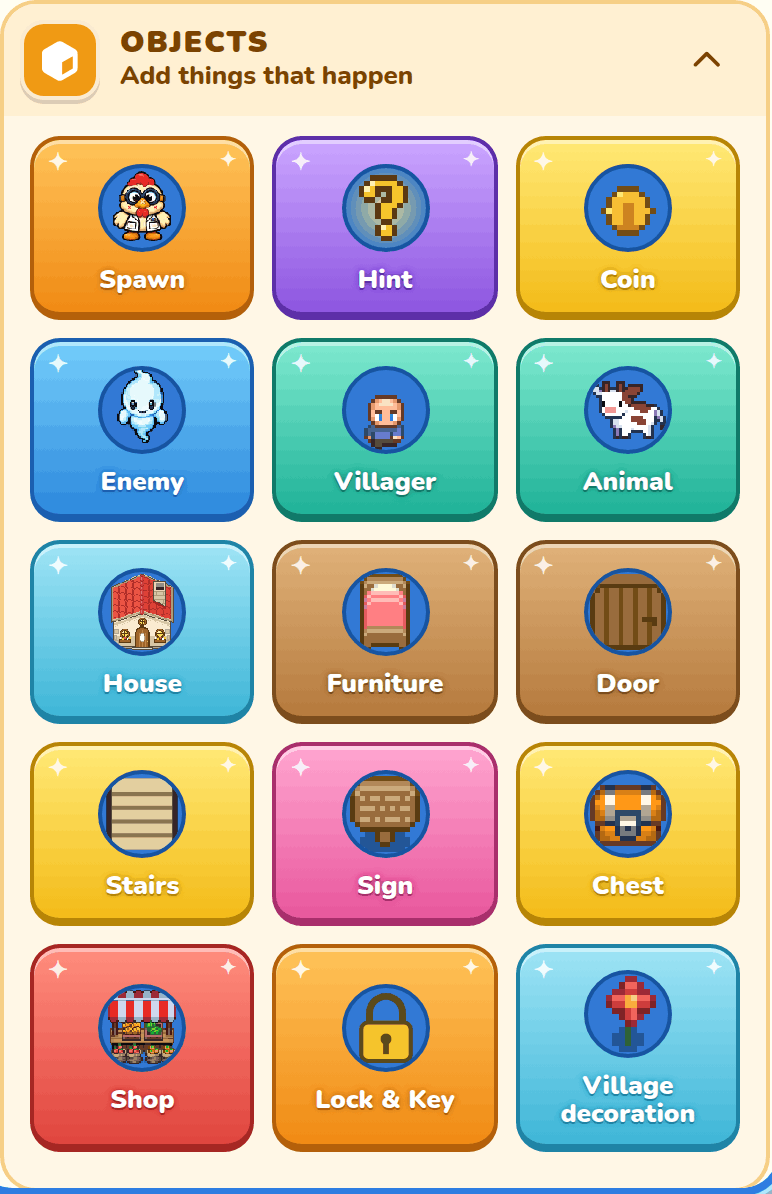
Spawn
Chooses where the hero starts, or where Reset puts them. Choose Hero start or Reset point in the Brush drawer.
- Hero start is where the hero starts the game. In a rescue game, this is where the hero brings the friend back to.
- Reset point puts down a white Reset flag. Pressing Reset by Play puts the hero on it. Each level can have one Reset flag, and rooms can't have one. Putting it down again moves it, and you can erase it. A level without a Reset flag resets the hero to the start, or the middle of a level the start isn't in. Players never see the flag.
Hint
Adds a glowing question mark that floats over the ground. Type a message of the day or a tip in What the hint says. When the hero touches it, the words show on the screen like a sign's, and go when they walk away. The hero walks through it, and it stays there to read again.
Coin
Adds a coin to collect. Coins pay for things at shops.
Enemy
Adds a monster that wanders or chases the hero. There are lots of looks, like slimes and sprouts, plus your own enemy sprites. Pick a look and its Colors in the Brush drawer, and slide Opacity to make it see-through (at 0% it is invisible in play but can still hurt the hero). In Object settings you choose how much it hurts, how it moves (like Chases hero, Coward or Ambusher), and what it drops when it's beaten, like coins or a key. Turn on Big Boss to make it twice as big. To make it do something all its own, press Character scripting at the bottom (see Character scripting).
Villager
Adds a villager who talks to the hero. Pick their look, skin and Colors, and slide Opacity to make them see-through, like a ghost. In Object settings, type What they say, choose how they move (Wanders a little, Stays put, Shy or Follows the hero), and use Gives the hero to hand over an item or a key for free. A villager can also keep a shop, or run a script of their own.
Animal
Adds a cow, goat, pig, sheep or chicken. Choose its colour, grown or baby, and which way it faces.
House
Adds a house, inn or keep, in biomes with buildings. Pick its roof colour too. Its door leads into a room you build; see Doors. Erase takes the whole building away.
Furniture
Adds beds, chairs, tables, cupboards, shelves, a stove and more. Nothing walks through furniture, but a villager behind a counter can talk across it. Choose its colour and which way it faces. Nightstands, wardrobes, cupboards and drawers can hold coins, shards, an item or a key under What's inside.
Door
Adds a door, stairs down or up, or a hollow tree that the hero goes through to another door anywhere in the game. It also has the Entrance and Exit for a hidden world.
Stairs
Adds stairs or a ladder on a cliff: put it on the block right under the raised ground. On a tall cliff it runs all the way down the face. It's the only way the hero can walk up or down between heights (a hero who can swim can also drop one step into water).
Sign
Adds a sign or notice board. Type What the sign says, and the hero reads it when they walk up.
Chest
Adds a chest: wooden, teal or steel. The hero opens it to find what's inside. Choose coins, shards, an item or a key under What's inside, and lock it with the Lock & Key brush if you like.
Shop
Adds a market stall, or sacks, crates and buckets of food and other wares. The hero picks up food and eats it from their bag to get health back. Some wares just stand in the way.
Lock & Key
Puts down a key, a gem or a dagger, or locks something. Choose Key, Gem, Dagger or Lock in the Brush drawer. In Key, Gem or Dagger mode, click a chest to put the new one inside it. In Lock mode, click a house door, wall door, gate, chest or gateway to lock it. Its Object settings open so you can choose the key under Opens with. Until you do, it's locked and can't be opened. See Keys, locks and doors.
Harbor
Adds docks, boats, posts, life rings and buoys, in the Harbor biome. The hero can walk on a dock; boats and posts are in the way.
Castle
Puts down whole castle sections one level up: towers, a keep, walls and a hall, in castle biomes. Sections side by side join up, and you can stack them to go higher. Erase takes a section down one level.
Castle gate
Adds a castle door the hero opens with Open. It can be locked, or lead into a hidden world or to another door.
Decoration
The last tile is named after the biome, like Village decoration. It adds that world's own rocks, flowers, mushrooms, snowmen, wells, crates, barrels and more, and in the Mountains big rock piles and spires. Some block the hero and some lie flat. Grotto lava acts like water, and castle and dungeon windows and torches hang on a cliff face.
Characters
Make an enemy or villager once and put it down as often as you like. Set it up the way you want it: its look, how it moves, what it says and its script. Then pick it and press Save as character in its settings (or press S), and give it a name, like Goblin Guard.
Once saved, its brush is in your hand, ready to put down more. Your characters have their own box in the drawer, Characters, and the Enemy and Villager brushes list them under Your characters. Pick one to put down more of it. Copying a level into another game turns them into plain ones there. Change the settings or script of any one of them, or of its brush, and they all change. Where each one stands, which way it faces, how far it walks and notices the hero, and its ID are its own.
A villager says the character's words, unless you type other words for that one. Clear them and it says the character's words again.
Make this one different turns one of them into a plain enemy or villager, which the character's changes leave alone. Delete removes the character, and the ones on the map stay just as they are. Cooper knows your characters too: ask Cooper to put three Goblin Guards in the cave, or to save an enemy as a character.
Characters in your other games
Press Share as addon on a character's card to make it a Character addon. Then every one of your Adventure games lists it in its Characters box: pick it there to add it to that game, with its brush in your hand.
Change it in one game and only that game changes. Its card says "Changed here" and shows Update addon. Press it, and every other game of yours that has it shows Update ready on its card. A game changes only when you press Take update there, and Undo can take it back. A game you've published changes the next time you publish it. Deleting the character in one game leaves your other games alone, and deleting the addon leaves every game's characters just as they are. Make it public in your Lab, and other players can use it too: they get their own copy, with copies of any sprites it wears.
Inventory brushes
The first brush here depends on your goal.
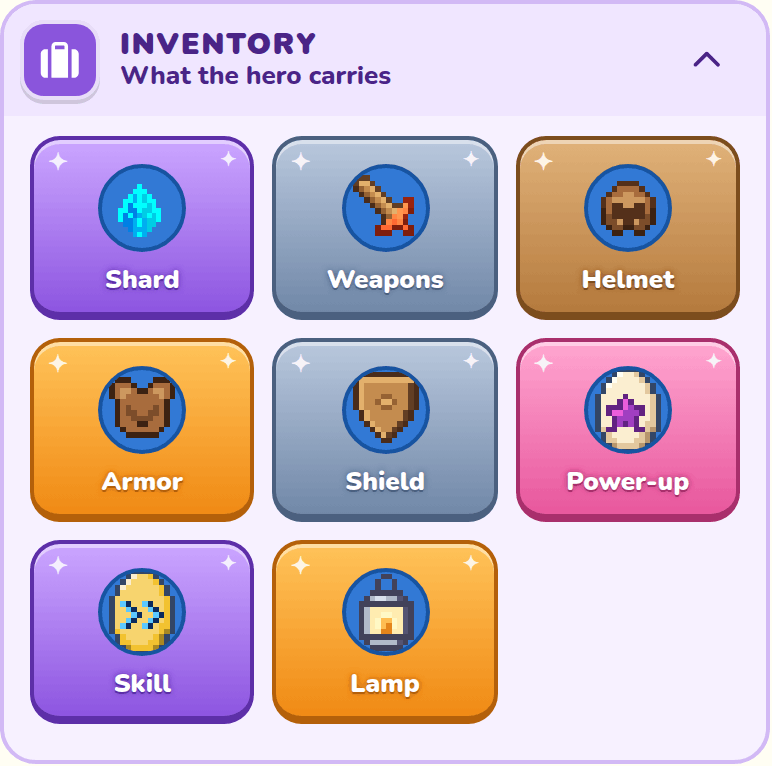
Shard
Only in "Collect them all" games. Adds a shard, and the hero wins by finding every one.
Winning Key
Only in "Find the key" games. Adds the special key that opens the goal's lock.
Friend to rescue
Only in "Rescue a friend" games. Adds the friend to rescue. Once the hero talks to them, they follow the hero back to the start. You can also turn a villager into the friend by ticking Goal in their Object settings.
Weapons
Leaves a sword or an axe for the hero to find. Pick which one in the Brush drawer, and set its Strength in Object settings. The hero picks it up, then chooses Equip in their bag.
A sword you drew yourself is in Sprites, under Weapon: a Weapon addon set to Swings. It's left the same way, and swings like an iron sword. See A swung weapon in a game.
Helmet
Leaves a helmet for the hero to find. Pick which one in the Brush drawer, and set its Protection in Object settings. The hero picks it up, then chooses Equip in their bag.
Armor
Leaves body armor for the hero to find. Pick which one in the Brush drawer, and set its Protection in Object settings. The hero picks it up, then chooses Equip in their bag.
Shield
Leaves a shield (wood, iron, gold or diamond) for the hero to find. Pick which one in the Brush drawer, and set its Protection in Object settings. The hero picks it up, then chooses Equip in their bag. A shield only guards the hero's front: it softens a hit from the way the hero faces, but a hit from the side or behind gets past it (the helmet and body armor still count). A hero with no shield equipped carries a wood shield, the way they hold a wood sword with no weapon.
Power-up
Leaves a power-up egg for the hero to find. Pick which one in the Brush drawer. The hero picks it up, then chooses Hatch in their bag.
- Invincible: enemies can't hurt the hero for 30 seconds.
- Health: gives the hero back half their health.
- Speed boost: the hero moves twice as fast for 30 seconds.
- Fireballs: for 30 seconds the hero's attack shoots a fireball the way they face, as often as they could swing. It hits the first enemy it reaches as hard as their weapon would.
- Lightning: works once. The hero tosses it down in front of them. A second later it shoots lightning into the sky, then lightning strikes every enemy on the screen, each as hard as two diamond-sword hits.
- Freeze: works once. The hero tosses it down in front of them, and a second later time stops: every enemy in the world, room or cave the hero is in freezes for 10 seconds, bosses too, while a stopwatch ticks. Frozen enemies turn pale blue and can't move, attack or hurt the hero, and their shots hang in the air, but the hero can still hit them.
Skill
Leaves a skill egg for the hero to find. Pick which skill in the Brush drawer, and its colour in Object settings. The hero picks it up, then chooses Hatch in their bag. A hero starts without skills, and a skill they hatch is theirs for good; in a game played together, it teaches the whole team.
- Dash: the hero can dash, a quick lunge or sidestep. Until a hero hatches a Dash egg, they can't dash.
- Smash: the hero swings as usual when Attack is pressed. Kept held for 2 seconds, it charges and lets go by itself as a smash: twice the damage to enemies, and it breaks through a cracked wall or a smashable Door.
- Swimming: the hero swims through any water (not lava, and not winter's ice), and can go down a waterfall but not up it. They can jump off a dock into the water but can't climb back up onto a dock or bridge, only onto the shore, or into a boat from the water. While swimming they can only swim.
Lamp
Lights up the space around the hero in a dark level, while it's in their bag.
Brush and Object settings
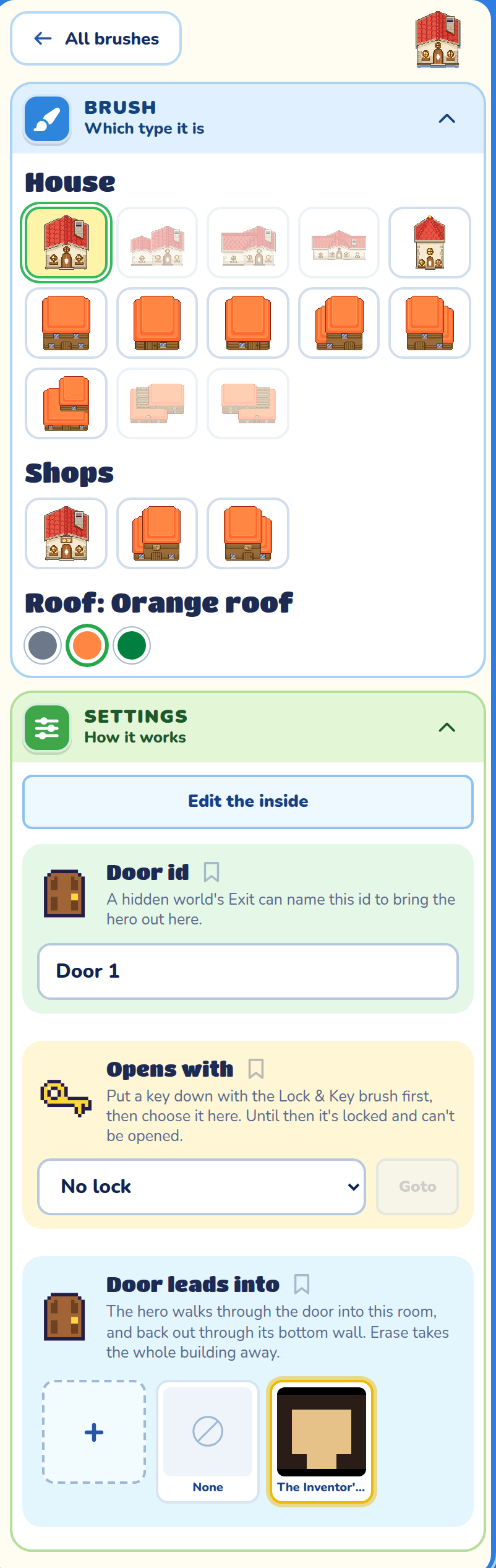
When you pick a brush, the Brush drawer shows what it puts down and how it looks. When you pick something already on the map, Object settings shows everything else: words, doors, locks and what's inside. The thing you just placed is picked for you, so its settings open right away. How to close them is on Using the builder.
Enemy settings
Which enemy? in the Brush drawer picks the monster. Select one on the map to set how tough it is and how it moves.
When you pick up an enemy with the keyboard or a gamepad, a small card opens beside it with its two most-used settings: Speed and How it moves. Up and Down go from one setting to the next, and Left and Right change it. More settings opens the full panel. Escape closes the card and puts you back on the map with the enemy still picked up. A boss creature opens its full panel straight away.
Hurts the hero
How much damage it does when it hits the hero.
Damage from hero's attack
How much of its health each hit from the hero takes. 33% means three hits beat it.
Thrown when hit
How far a hit from the hero throws the enemy back, away from the hero: from None to 4 blocks, a block at a time; 1 block unless you change it. It slides to a stop, and walls, blocks, water and cliffs stop it sooner.
Stunned when hit
How long a hit from the hero stuns the enemy, from Off to 10 seconds, in 0.25-second steps; 0.75 seconds unless you change it. While it's stunned, little stars circle its head, it stands still, and it doesn't swing, shoot, throw or charge, and a swing or charge it was in stops. A hit while it's stunned, or in the second after, still hurts it but doesn't stun it again, so it gets a chance to fight back.
Respawns after
How long after the hero beats the enemy it comes back, full of health, where you put it: from Never (the default) to 30 seconds, a second at a time. Time the hero spends in other places counts too. It waits while the hero stands within 2 blocks of its spot. What it holds (an item, coins, shards or a key) it drops only the first time it's beaten. A Big Boss never comes back, so it has no respawn.
Weapon
Any enemy can carry a weapon (how often it uses it is its Attacks every): None (the default), Sword, Ball & Chain, Crossbow, Lightning, Fireball, Slimeball, Bomb, Charge, Spooky or Beam. A crossbow, lightning, fireball or slimeball enemy shoots at the hero in its area. A sword enemy steps in and swipes at the hero as far away as the hero's own sword reaches; with no other enemy near the hero, it swings as soon as it gets there. A ball & chain enemy swings its ball half a turn round its front, from its right to its left, a block out; only the ball and chain hurt. A bomb enemy throws a bomb at where the hero stands; it goes off a second after it lands and hurts the hero within a block. A shooting or bomb enemy that chases keeps after the hero between shots; any other stands to shoot. A beam enemy turns to face the hero in its area, charges up for a second, then fires a laser straight ahead, up to something solid or its area's edge; it stands still while it charges and fires, stops if it's hit, and the laser hurts the hero. A charge enemy stops a moment when the hero comes within 3 blocks, then charges at them in a straight line; it also hurts by touch. A spooky enemy fades out where it stands in a quarter of a second, and two seconds later fades back in beside the hero if it sees them (as near them as it can fit), and goes for them until it vanishes again; a hero outside its area, it fades back in at a random spot in its area; it vanishes as often as its Attacks every says, can't be hit or hurt while it is gone, and hurts by touch otherwise. An armed enemy only sees the hero in its area and doesn't hurt by touch; an unarmed one hurts by touch. A hero who dashes into any enemy, armed or not, is hurt.
Your own weapons from the Addon Lab come after the built-in ones: a picture you drew, which the enemy shoots at the hero, with the speed, size and spin set on the addon. See Weapons.
Attacks every
Shown when the enemy has a weapon: how often it uses it while it sees the hero, from 0.25 to 10 seconds, in 0.25-second steps. Unless you change it, a sword swings every second, a charger rests a second after each charge, a spooky enemy vanishes and a beam fires every 3 seconds, and the rest attack every 2 seconds.
Big Boss
A boss is drawn twice as big as the enemy it is, and so are its weapons. When the hero beats it, their health counts quickly back up to 100% and glows, and it goes Poof unless you pick another Defeat effect.
Defeat effect
How an enemy goes when the hero beats it, each with its own sound:
- Normal (an enemy's default): it plays its own defeat and fades away.
- Poof (a boss's default): it grows bigger, shaking, then goes poof in a cloud of smoke and sparkles.
- Fireballs: like Poof, but it bursts into balls of fire and glowing embers that burn down to smoke.
- Pop: a smaller, quicker Poof, for small enemies beaten fast.
- Splat: it bursts into drops of its own colour that land as puddles and shrink away. Made for jellies.
- Leaves: it bursts into pieces of its own colours (leaves, petals or bits of mushroom cap) that flutter down. Made for plants.
- Zap: it's held flashing white and blue in crackling lightning, then bursts into sparks and smoke over a scorch mark. Made for electrified enemies.
Drops when defeated
When the hero beats this enemy, it drops this item where it falls. It can be a key, so a monster can guard the way on.
How it moves
Walks around walks about near where it starts. Chases hero walks about too, and runs after the hero who comes near. An unarmed chaser bites: as near the hero as the hero's sword reaches, it stops a moment, lunges straight at them, and rests before it bites again. Stands still stays where you put it; if it carries a weapon, it turns to face the hero within its notice distance and attacks from where it stands.
Smart also circles the hero, steps back to make room, and dodges some attacks. Up close, it pauses briefly before lunging forward, then rests long enough for the hero to counterattack. It also strikes at an opening, with a quicker pause: just after a dodge, when the hero's swing misses it, or when the hero comes as near as their sword reaches. A lunge keeps going in the direction it started, so you can sidestep it. Enemies with ranged weapons keep their distance and strafe between shots; charging and spooky enemies keep their special attacks.
Five more give your monsters a personality:
- Coward chases the hero, but says "Eek!" and runs off when it gets hit, then comes back. When it's nearly beaten, it gives up and keeps away.
- Ambusher waits without moving until the hero is 3 blocks away, then pounces, faster than usual. When it loses the hero, it goes back to its spot to wait again.
- Hit and run darts in, and after it hurts the hero it jumps back, waits a second, and comes again.
- Grumpy wanders about and leaves the hero alone, until the hero hits it. Then it chases and attacks.
- Show-off shouts things and chases the hero, attacking every few seconds.
Every way of moving is a script. When you change an enemy's script, How it moves shows Custom and the one it started from. Picking another way to move puts its script back to that one's (Undo brings yours back).
Walk distance
How far it walks from its starting point.
Notice distance
How close the hero must come before it starts chasing. An armed enemy uses it on a hero this close; one that walks around uses this or its walk distance, whichever is further.
Starting direction
Which way it goes when the game starts: Moving left or Moving right.
Speed
How fast it moves, from Slow to Extra fast.
Villager settings
Villagers are the friends the hero meets. Select one to set what they do and say.
How they move
A wandering villager strolls a block or so from where you put them and back. Stays put stays on their block, looking about. Either way, when the hero comes near, they stop and watch. Beside a counter or a bar, or waiting to be rescued, a villager always stays on their block.
Shy walks off when the hero comes near; corner them to talk. Follows the hero asks "Can I come too?" the first time the hero comes by, then goes everywhere with them. Like enemies, villagers can have a script of their own, and then How they move shows Custom.
Starting direction
Which way they face when the game starts: Down, Left, Right or Up.
What they say
The words the hero hears when they walk up to this friend.
Gives the hero
Something they hand the hero when the hero talks to them, like an item or a key. The hero can only get it once.
Gives it
An item can be a gift or a deal. A gift is free. For a deal, the hero sees what the villager wants and what they get, and picks Deal or No thanks.
Wants
What a villager asks for their item, when it's a deal. The hero gives it, and it's gone from their bag.
| Wants | What the hero gives |
|---|---|
| Coins | That many coins. Set how many with the buttons. |
| An item | That many of the item, like 3 Sack of apples. |
| A gem or a dagger | Any gem or dagger of that colour. If a lock on the map needs it, the settings warn you: the hero might get stuck without it. |
A villager's script can make deals of its own too.
The friend to rescue
In a "Rescue a friend" game, turn on This is the friend to rescue on one villager. When the hero talks to them, they follow. Bring them back to the start flag to win.
Building and plant settings
Many things on the map have a card or two of their own once you select them.
Which way it runs
Fences beside each other join up and turn corners by themselves. A fence on its own runs the way you pick here.
Blossom
A tree in the Forest can have orange or red leaves instead of green.
Colour
Picks the colour the furniture is painted.
Which way it faces
Turns the furniture so its front faces this way.
What's inside
What the hero finds when they press Open / Talk beside it: coins, shards, a key or an item. They can take it once.
What the sign says
The words the hero reads when they walk up to the sign.
What the hint says
The words the hero reads when they touch the hint. Up to 200 characters.
Put a control in braces and the game fills in the player's own keys and gamepad buttons. Press {attack} to attack enemies. shows as "Press X or RT to attack enemies." if the player hasn't changed their buttons. Click a control under the box to add it. The controls are {left}, {right}, {up}, {down}, {jump}, {attack}, {talk} (Open / Talk), {dash}, {inventory}, {map} and {pause}. They work in a sign's words too.
Strength and Protection
A weapon's Strength is how many times as hard it hits as the hero's wood sword, which is 1. A helmet's, armour's or shield's Protection is how much of an enemy's touch it takes off; a helmet, body armour and shield add up to at most 75%. A shield only counts when the hit comes from in front of the hero.
Scripts
Every enemy and villager runs a script that says what it does, like when I get hit and run away 3 blocks. Pick one with Select and press Character scripting at the bottom of its Object settings to change it. How scripts work, and every word they can use, is in Character scripting.
An enemy's script can change its settings while the game plays too, with lines like my weapon is sword or my notice distance is 8 blocks; see Its Object settings. The panel keeps showing what you set here, which is what the script starts from.
The game has a script of its own (Game script at the bottom of Game settings), and so does each world and room (Level script at the bottom of its Map settings), for quests and story moments. Scripts point at things by their ID, set at the bottom of a thing's Object settings. See Game and level scripts and IDs.
Keys, locks and doors
Keys and locks make the hero explore. Put a lock in the way, then hide its key somewhere else: on the ground, in a chest, with a villager, or dropped by a monster.
Opens with
A lock gate, house door, castle gate, Door, gateway or chest has Opens with in its Object settings. Choose the key that opens it, or No key yet to keep it locked for now. The hero opens it by walking up with that key, and the key is used up. In a "Find the key" game, choose Winning Key (opening it wins the game) for the goal's lock.
Once the first Opens with is a key or a boss, two more lists sit under it, so a lock can need up to three things. Each one can be a key, gem, dagger or boss, or Nothing. Something picked in one list isn't offered in the others. The hero needs every key, and every gem and dagger in the bag, and every boss picked must be beaten. Then the lock opens and all of them are used up together. A lock that needs more than one thing has a little sign on it, like a boss's lock, instead of a padlock. When the hero reaches it, they see The lock's sign.
Gems and daggers
A gem or a dagger is a key that doesn't look like one. It opens only its own lock, and it's used up, just like a key. The differences:
- It takes a slot in the hero's bag. If the bag is full, the hero is asked what to throw away to make room for it.
- If the hero throws it away, it drops on the ground where they stand, so its lock can still be opened.
- Its lock shows a grey gem or dagger where the keyhole would be.
- A dagger is only a key. The hero can't fight with it.
Key ID and colour
New keys are called "Key" plus a number and get their own colour. Gems and daggers are numbered on their own ("Gem 1", "Dagger 1"). Change the name in Key ID and the colour in Colour. A lock shows the colour of its key, gem or dagger.
The lock's sign
Words the hero sees when they reach the lock without its key, like "It's locked! Find the red key."
Goto
Goto sits beside Opens with and Leads to. It jumps your builder hero to the key that opens a lock, or to the door it leads to, in whatever world or room that is.
Editing a key someone holds
A key inside a chest, given by a villager, or dropped by a monster has an Edit button next to it. It opens that key's own settings, and a "Back to the …" button takes you back.
Door id
Every door has a Door id, shown in its settings. Other doors and a hidden world's Exit pick a door by its id.
Leads to
On a Door, stairs, cracked wall, cave, castle gate or a hidden world's Entrance, Leads to picks another door in the game, and the hero comes out there, in whatever world or room it stands in. A door that leads nowhere yet is linked back to this one. An Entrance that leads nowhere takes the hero back out the way they came.
Smashable
A Door (not stairs, a hollow tree or a hidden world's doorways) can be Smashable. It shows a rusty lock with no key, and only a hero who knows Smash can open it, by smashing it. Once smashed, it stays open for good. Making a door smashable takes off any key it needed.
Comes out by
A hidden world's Exit brings the hero out by the door they came in by. Pick a door's id in Comes out by and they come out at that door instead.
Cave and door leads into
A cave or a door in a wall can lead into a hidden world, where the hero comes out at its Entrance, or to another door. Its Exit brings them back.
House doors and Edit the inside
A house's Door leads into picks the room behind its door, None to keep it shut, or Make a new room for this door. Press Edit the inside to build in that room, and ← Back to return to your world.
Worlds, hidden worlds and rooms
An Adventure doesn't have levels. Press Map under the map to see your world map instead.
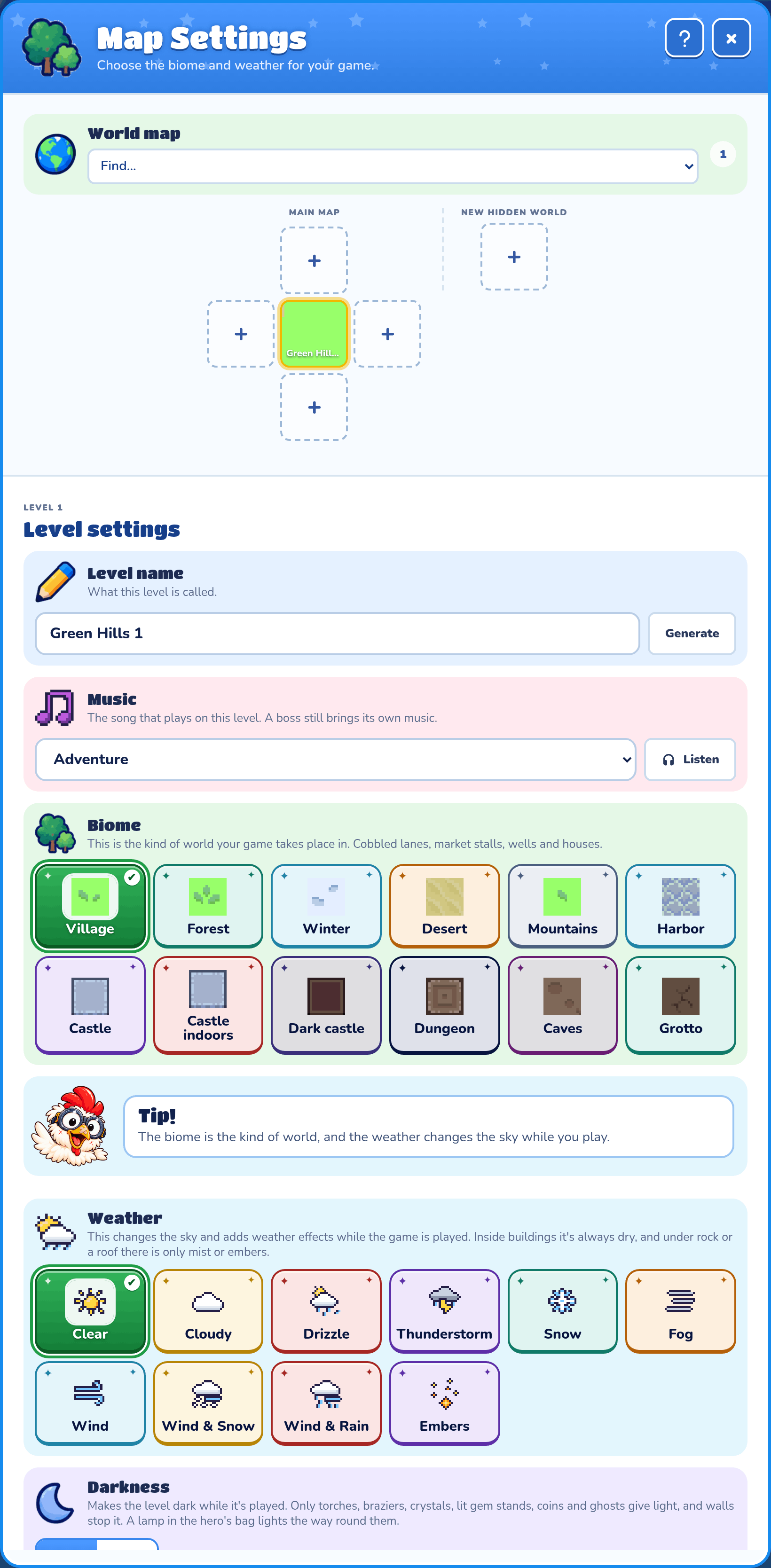
The world map
Your worlds sit in a grid, north, east, south and west of each other, and the hero walks from one into the next. Click a world to build on it, and drag it to move it. Press + beside a world to add a new one there. When the map is wider than the window, the round arrows at its sides scroll it.
Hidden worlds
A hidden world is its own little map that the hero can only reach through a cave, castle gate or door. Press Add a hidden world at the end of the world map row. Put an Entrance where the hero arrives and an Exit where they leave. Click its name to rename it. You can also choose Make a new hidden world behind this door on a cave, then Edit the hidden world.
Find
Pick a thing in the Find... box at the top of the world map to see everywhere it is. Each world turns its biome's color, without its name, and each room a floor color, with a turning crosshair on every one you have. Pick Find... to clear it.
Rooms
Rooms are the insides of buildings, shown at the bottom of Map settings. Click one to build in it, or Add a room. A room no door leads into shows a warning. If a room has stairs up, press + above it to add a second story. Each room can use one of the artist's room styles.
Biome
The kind of world, like Village, Forest, Desert, Mountains or Dungeon. Each world picks its own, and it changes the ground, the plants and the brushes.
Weather
Changes the sky and adds rain, snow, fog or wind while playing. It's always dry indoors.
Darkness
Makes a world or room dark: turn on Darkness and slide how dark. Only torches, crystals, coins and other glowing things give light, unless the hero carries a Lamp.
The mini-map
When a world is bigger than your view, a small map of it sits in the corner. Click it or drag its box to look somewhere else.
Goal and story
Press Game under the map to find your goal and your story.
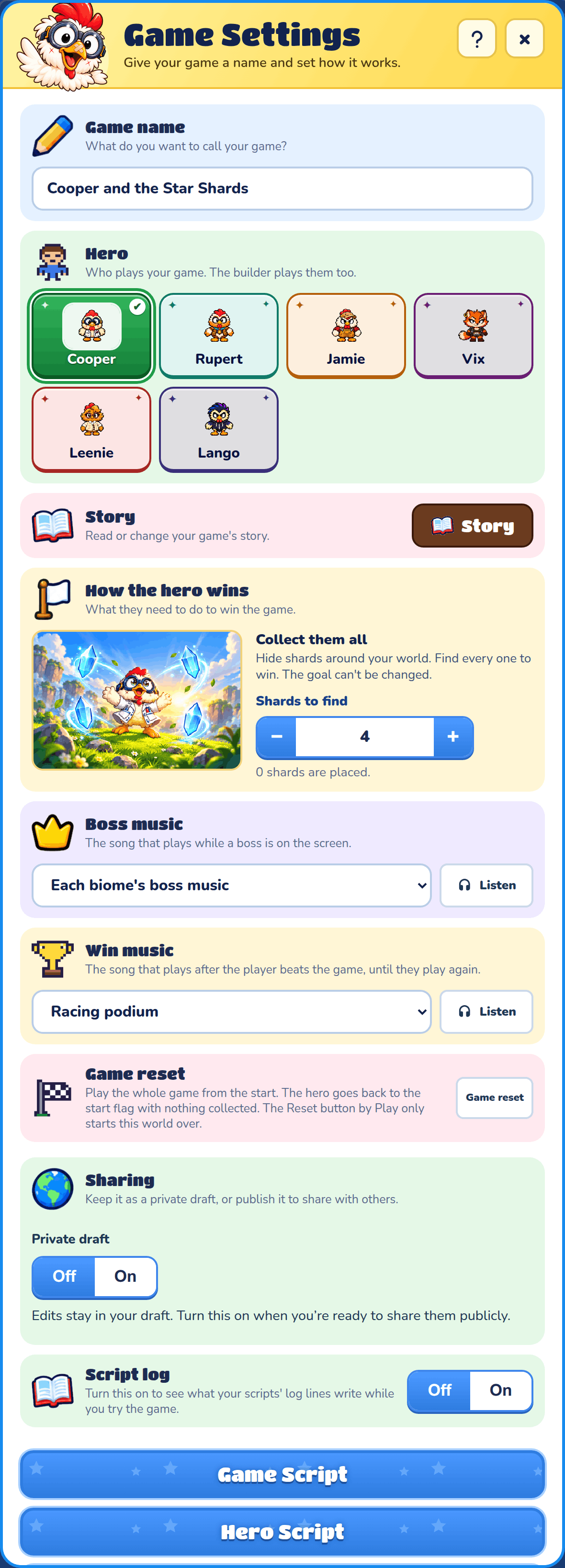
How the hero wins
Pick one goal:
- Collect them all: find every Shard.
- Find the key: find the Winning Key and open its lock.
- Rescue a friend: find the friend and bring them back to the start.
- Open world: no set goal. Make your own quests with the game and level scripts, and write {Game} is won when the hero finishes them. An open world has no story.
Press Fewer or More to choose how many are needed, from 1 to 20, then press Keep this goal. After that the goal can't be changed, so choose carefully. You can still change how many are needed.
Still to do
Notes over the map tell you what's missing, like shards you still need to place. Press × to close them.
Your story
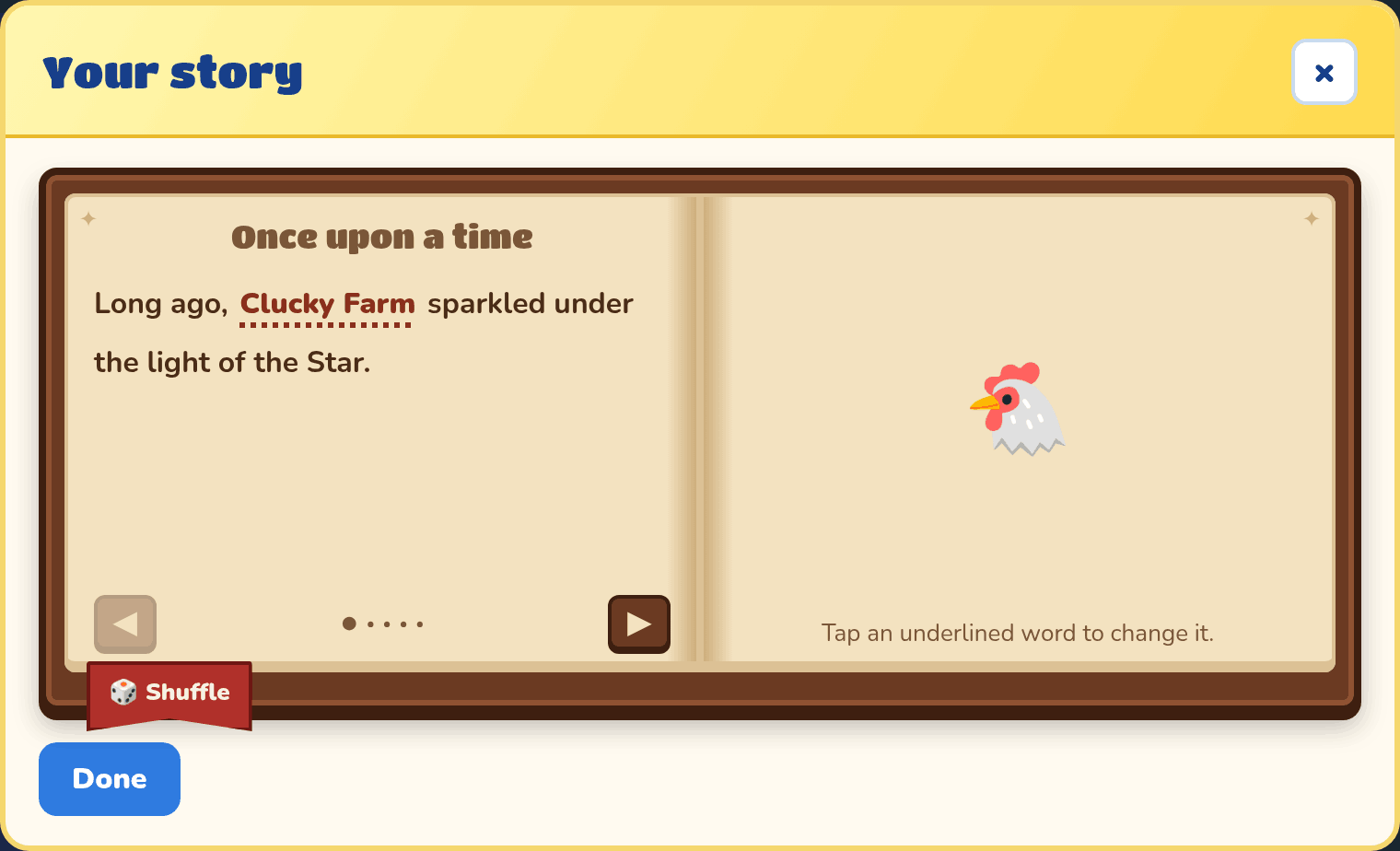
Press Story to open your storybook. Tap an underlined word to swap it, or press Surprise me for a random one. The ribbon shuffles every word at once. A ⚠️ marks a word that no longer fits your map. Press Done, then save your settings to keep the changes.
Game reset
Reset by Play only starts the world you're in over, with the hero on its Reset flag if it has one. To play the whole game from the start, press Game, then Game reset. After you say yes, the hero goes back to the start flag with nothing collected, and Play starts the journey again. Your maps and settings stay as they are.
Shops
Any villager can run a shop where the hero spends coins on items and gear.
Shop keeper
Pick a villager and turn on Shop keeper. They can sell up to 10 items at your prices, and the hero can sell them things if there's an empty spot.
The shop keeper's bag
Press Open shop keeper's bag to fill the shelves. Pick a slot, choose the item, and type its Price in coins. Gear also gets a strength or protection. Press Close when you're done.

Awning
When the hero talks to a shop keeper, their shop opens as a market stall with a striped awning. Pick the awning's colour under Awning: red, blue, green, yellow, purple or orange. It's red unless you pick another, so shop keepers side by side can each have their own.
Finding things
A big Adventure has lots of places to look. These tools help you find your way.
Find
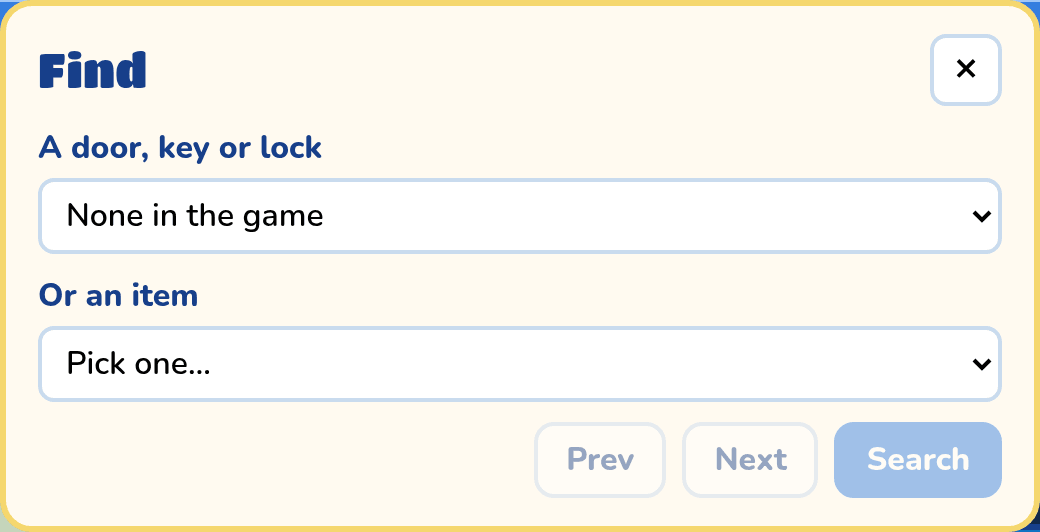
Press the magnifying glass on the map to open Find. Pick a door, key or lock and press Search to jump your hero there. For a key, choose The key to find the key itself, or Its locks to find every lock that needs it, including locks that also need another key or a boss. For an item or a key's locks, Next and Prev step through every one in the game.
Find on the map
In Map, use Find on the map under the world map. Pick a thing, and a mark appears on every world and room where it is. Under A key's locks, pick a key to mark every lock it opens.
Put the hero in the middle
This button on the map moves your builder hero to the middle of the level.
Hero's bag for testing
Press the suitcase on the map to fill your hero's bag for testing. Pick a slot and choose an item, or None. Under Wearing, choose their weapon, helmet, body armor and shield. Every Try game starts with them, and the game remembers them in this browser.
Copy, cut and erase
Right-click the map for Copy, Cut and Paste, or press Ctrl+C, Ctrl+X and Ctrl+V. They work on the blocks and things you've picked, and paste goes where you click. Erase takes away a whole building, cave or castle door at once.
Building with the keyboard or a gamepad
You can build a world without the mouse. Click the map once, or press Tab until it has focus, and then use these keys. A gamepad works the same way. A screen reader says what each press did.
| What it does | Keyboard | Gamepad (Xbox) |
|---|---|---|
| Move a cursor one block, and say what is on that block and beside it. | Arrow keys | D-pad or left stick |
| Use your brush on the cursor's block. With Select, pick up what is there. | Enter or Space | A |
| Paint with your brush as the cursor moves. | Shift and an arrow | Hold RB and move |
| Move what you picked up, one block at a time. | Arrow keys | D-pad or left stick |
| Put down what you picked up, or put the cursor away. | Escape | B |
| Open the brush search over the block. | B | X |
| Describe the whole world: its size, the hero's start and what is in it. | D | Y |
| Stand the hero on the cursor's block, to test from there with Play. | H | none |
Things move with the arrow keys, and ground stays where it is. Each move can be undone on its own.
In the brush search, type a name, press Up or Down to choose, then Enter to place it. It lists the brushes you use most in this biome first, and the brush you place becomes your brush. Your goal's pieces, like shards, are in the list too, and so are your own copies of sprites, under their own names.