

Builder help
Maze
Walls, floor, the key and the exit, enemies, and the settings that make a Maze your own.
In a Maze, your hero walks around a top-down map, finds the key, and opens the locked exit. You paint the walls and floor, then add coins, enemies and traps along the way. The buttons, levels and sharing work like every other game; see Using the builder for those.
The build drawer
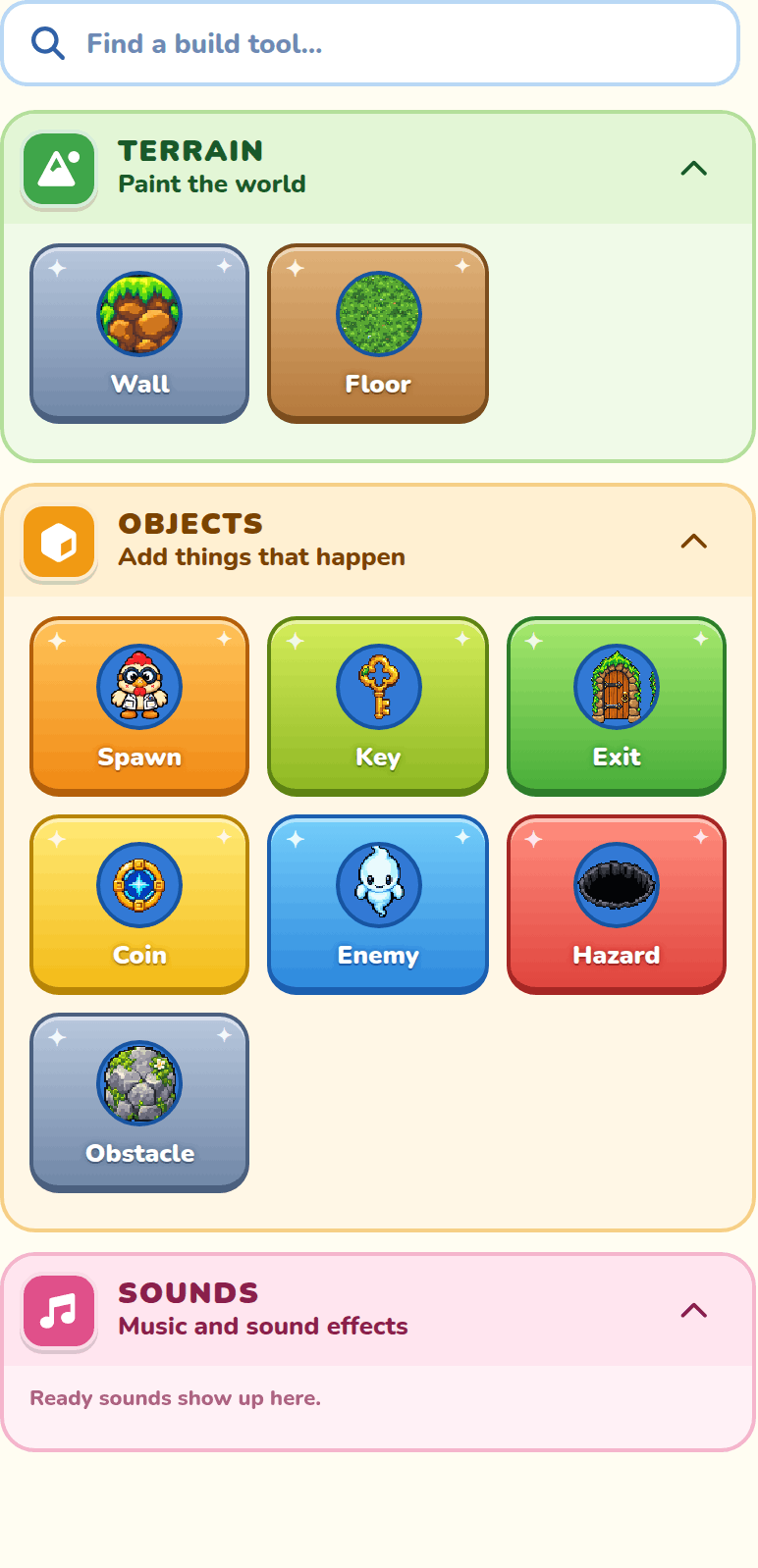
The drawer holds the Maze's brushes in two sections, Terrain and Objects, then the shared Sprites and Sounds sections. Each tile shows what it paints, in your maze biome's art. Hover a tile to see what it does. You can search and fold up sections like in every game.
Picking a brush
Click a tile to turn that brush on. Click it again to put it away and go back to Select. Clicking outside the map puts the brush away too.
Sprites in a Maze
Addons made for top-down games show up in Sprites. Backgrounds don't work in a Maze, so the section says Backgrounds are for jumping games.
Terrain brushes
A maze is made of walls and floor. Paint walls to block the way and floor to open it up.
Wall
Click or drag to turn floor into wall. Walls join up with their neighbours all by themselves. A wall painted over a coin, enemy, hazard or obstacle removes it, but it never covers the hero's start, the key or the exit.
Floor
Click or drag to open walls into floor the hero can walk on. The ring of wall around the edge of the map always stays, so your hero can never walk off the map.
Object brushes
Objects only go on open floor that nothing else is using. Clicking a wall or a busy square does nothing. You can drag to paint lots at once.
Spawn
Click a floor square to move where the hero starts. A maze has just one start, so this moves it instead of adding another.
Key
Moves the maze's key to the square you click. The hero has to pick up the key before the exit opens.
Exit
Moves the locked exit door to the square you click. Walk into it with the key to win the level.
Coin
Adds a coin to each empty floor square you click or drag over. The hero collects coins by walking over them. They're a bonus; you don't need them to win.
Enemy
Adds a ghost that walks back and forth along its corridor. Touching it costs a life. It has a few different looks; pick it with Select to change its look, how it moves, and its speed (see Enemy settings).
Hazard
Adds a hole. Stepping in costs a life, but the hero can jump over it.
Obstacle
Adds a solid block the hero can't walk through or land on.
Map tools
The Select, Move and Erase buttons sit under the map, like in every game. As you move over the map, an outline shows which square will change: white for brushes and Select, red for Erase.
Select
Click an object or a wall to pick it. Picked squares get a yellow outline.
- Drag across squares to pick everything you pass over.
- Shift+click picks everything in the box since your last pick.
- Ctrl+click (Cmd+click on a Mac) adds or removes one thing.
- Click empty floor to pick nothing.
Drag something you picked to move it all together. Objects need open floor to land on. If anything can't fit, nothing moves. Press Delete or Backspace to open picked walls into floor and remove picked objects.
Move
Drag to look at another part of the maze.
Erase
Click or drag to remove objects and open walls into floor. It can't erase the start, key, exit, or the wall around the edge.
Building with the keyboard or a gamepad
You can build a maze without the mouse. Click the map once, or press Tab until it has focus, and then use these keys. A gamepad works the same way. A screen reader says what each press did.
| What it does | Keyboard | Gamepad (Xbox) |
|---|---|---|
| Move a cursor one square, and say what is on that square and beside it. | Arrow keys | D-pad or left stick |
| Use your brush on the cursor's square. With Select, pick up what is there. | Enter or Space | A |
| Paint with your brush as the cursor moves, to draw a run of wall. | Shift and an arrow | Hold RB and move |
| Move what you picked up, one square at a time. | Arrow keys | D-pad or left stick |
| Put down what you picked up, or put the cursor away. | Escape | B |
| Open the brush search over the square. | B | X |
| Describe the whole maze, and say whether the key and exit can be reached. | D | Y |
| Stand the hero on the cursor's square, to test from there with Play. | H | none |
Each move of something you picked up can be undone on its own. A brush that can't go on a square shows a red outline there.
In the brush search, type a name, press Up or Down to choose, then Enter to place it. It lists the brushes you use most in this biome first, and the brush you place becomes your brush.
When you pick up an enemy this way, a small card opens beside it with its three most-used settings: Speed, How it moves and Walks. Up and Down go from one setting to the next, and Left and Right change it. More settings opens the full panel. Escape closes the card and puts you back on the map with the enemy still picked up.
A click and a click, in place of a drag
Anything you would drag can also be done with two clicks. Right-click a square (or press the Menu key) to open the menu.
| Menu choice | What it does |
|---|---|
| Move selection here | Moves what you picked with Select so its top-left lands on that square. |
| Paint a line to here | Paints your brush in a line from the last square you painted to this one. |
| Erase a line to here | The same, with Erase. |
Jumping between parts of the builder
These keys take you straight to one part of the builder, and back to where you were in it.
| Key | Where it goes |
|---|---|
| Alt+1 | The map |
| Alt+2 | The build tools |
| Alt+3 | The settings panel that is open |
| Alt+4 | Cooper's chat, opening it if it is closed |
| Alt+5 | Character scripts, for the characters you picked |
| Alt+A | The Accessibility settings (from the map) |
A maze that can't be won
When you press Play, the builder checks that the hero can reach the key, and then the exit. If a wall is in the way, it tells you which one can't be reached.
Asking Cooper
Cooper can change a maze for you. Ask in the chat, in your own words, for example "put the key in the top-left corner", "add two enemies near the exit" or "open a path through the middle". Cooper can add and remove walls, move the start, the key and the exit, and add or take away coins, enemies, holes and blocks. Cooper can also make the maze bigger or smaller. Cooper won't make a change that would stop the hero reaching the key or the exit.
Things a Maze doesn't have
There's no copy, cut and paste in a Maze, and no tools to insert or remove columns. To make the maze bigger or smaller, change Columns and Rows in Map Settings.
Enemy and hero settings
Pick an enemy or the hero's start with Select to open the Brush and Object settings drawers. Brush shows which enemy or hero it is, and Object settings shows how it behaves. If you picked several enemies, a change sets them all.

Enemy settings
Which enemy? in the Brush drawer picks its look from your biome's enemies, plus your own enemies from the Addon Lab. The rest are in Object settings.
Which effect? in the Brush drawer puts an effect round it: Sparkles, Fire, Electric, Frost, Shadow, Hearts, Music, Bubbles, Dizzy stars or Petals, or No effect. It is only for looks: it changes nothing about how the enemy moves or fights.
Colors
Opens a panel to recolor this enemy. Pick a look under Looks, or slide Hue to shift all its colors around the rainbow. Start over puts its own colors back.
Opacity, under Colors, makes the enemy see-through. Its effect and its shots fade with it. At 0% it is invisible in play but can still hurt the hero. The builder always shows it a little, so you can find it.
How it moves
Walks around stays near where it starts, and Chases hero comes after a hero who gets close. A new enemy starts on Walks around.
Walks
Side to side makes it walk and look left and right. Up and down turns that round, for a corridor that runs up and down. The settings below then say up and down in place of left and right.
An enemy you put in an up-and-down corridor starts on Up and down by itself.
Walking
How many blocks it walks from its start. Left and Right are set on their own; on Up and down they are Up and Down.
Notice
How close the hero must get before it chases. Each side is set on its own.
Starting direction
Which way it goes when the game starts: Moving left or Moving right.
Speed
Slow, Normal, Fast or Extra fast. Extra fast is as fast as your hero!
Weapon
Any enemy can carry a weapon: None (the default), Crossbow, Lightning, Fireball, Slimeball, Bomb, Charge, Spooky or Beam. An armed enemy only sees the hero in its area (its notice distance, walk distance, or how far it wanders) and on the same screen. Any hit from a weapon is a death, the same as touching an enemy, and touching an armed enemy is still a death too. Weapons the hero left behind on another screen, or before a respawn, are gone.
- Crossbow, Lightning, Fireball and Slimeball shoot at the hero. The shots stop at the edge of the enemy's area and at walls. One that chases keeps after the hero between shots; any other stands and shoots.
- Bomb throws a bomb at where the hero stands. It goes off a second after it lands, and a hero within a block of it is beaten.
- Beam turns to face the hero, charges up for a second, then fires a laser straight ahead to the next wall or its area's edge. It stands still while it charges and fires.
- Charge stops a moment when the hero comes within 3 blocks, then charges at them in a straight line, up to 4 blocks.
- Spooky fades out where it stands and, two seconds later, fades back in somewhere in its area, most often beside the hero, and goes for them. While it is gone it can't hurt and can't be jumped on.
Attacks every
Shown when the enemy has a weapon: how often it uses it while it sees the hero, from 0.25 to 10 seconds, in 0.25-second steps. Unless you change it, a charger rests a second after each charge, a spooky enemy vanishes every 3 seconds, a beam fires every 3 seconds, and the rest attack every 2 seconds.
Defeat effect
How an enemy goes when the hero stomps it, each with its own sound:
- Normal (the default): it vanishes.
- Poof: it grows bigger, shaking, then goes poof in a cloud of smoke and sparkles.
- Fireballs: like Poof, but it bursts into balls of fire and glowing embers that burn down to smoke.
- Pop: a smaller, quicker Poof, for small enemies beaten fast.
- Splat: it bursts into drops of its own colour that land as puddles and shrink away. Made for jellies.
- Leaves: it bursts into pieces of its own colours (leaves, petals or bits of mushroom cap) that flutter down. Made for plants.
- Zap: it's held flashing white and blue in crackling lightning, then bursts into sparks and smoke over a scorch mark. Made for electrified enemies.
Map Settings
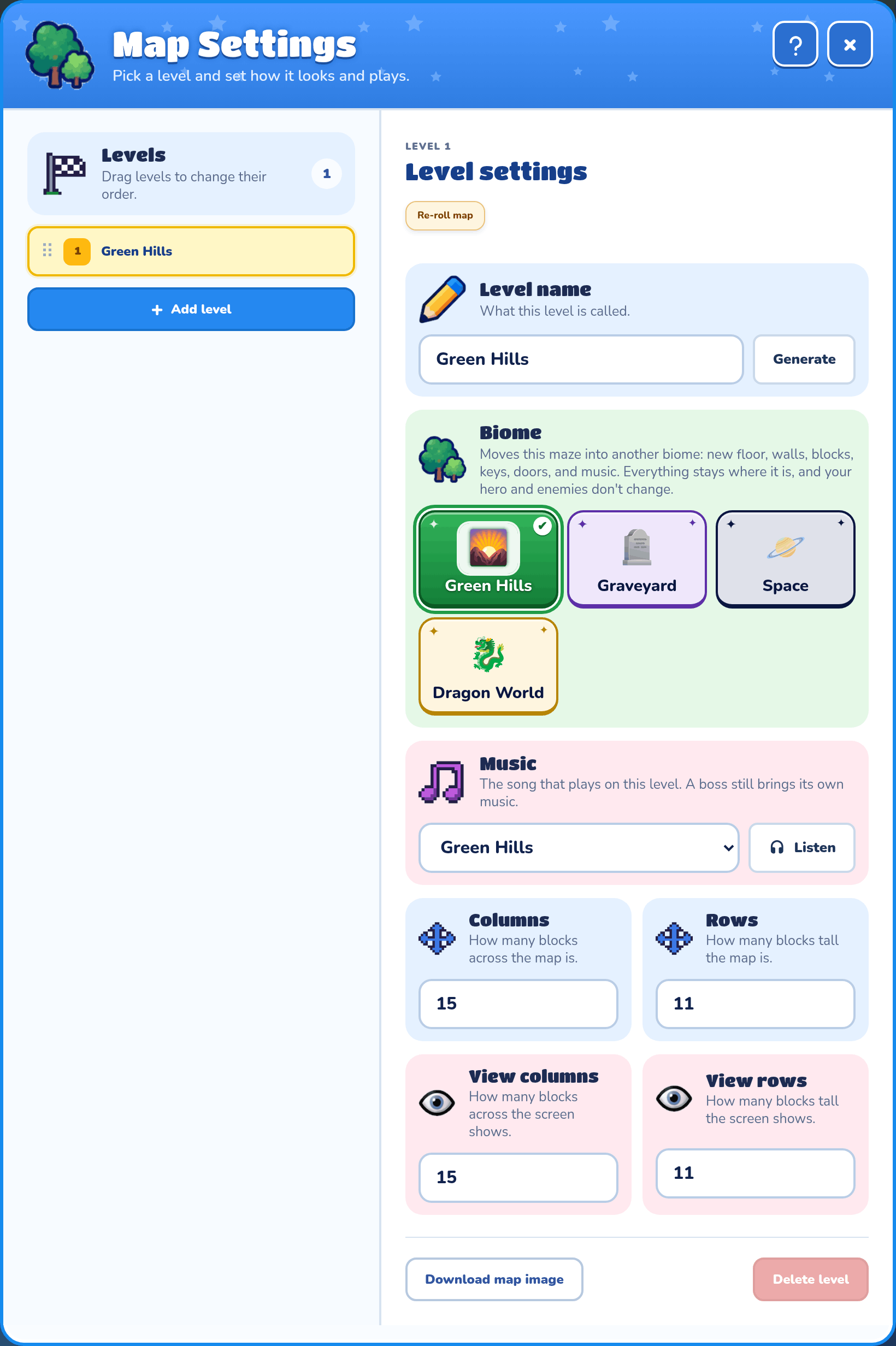
Press Map under the map to see your levels and this level's settings. Adding, naming and deleting levels work like in Map Settings.
Biome
Moves the maze into another biome: Green Hills, Graveyard, Space or Dragon World. The floor, walls, blocks, keys, doors and music change, but everything stays where it is, and your hero and enemies don't change.
Columns and Rows
Set how many blocks wide and tall the maze is, from 5 to 128. The maze grows or shrinks at its right and top edges, and new space is open floor. If the change would cut off the start, key or exit, move them further onto the map first.
View columns and View rows
Set how much of the maze the player sees at once. The view can't be bigger than the map.
Re-roll map
Re-roll map makes a brand-new random maze for this level. Choose Keep my edits or Discard edits and re-roll. Your other levels stay the same.
Playing a Maze
Press Play to try your maze right on the map.
Controls
Move with W, A, S, D or the arrow keys, or a gamepad. Press Space to jump. The hero walks up, down, left and right.
Jump
A jump hops one square forward, so the hero can jump over a hole or an enemy. Jump at an enemy right in front of you to defeat it. The hero can't land on an obstacle, a hole or a wall.
How to win
Pick up the key, then walk into the exit door. You'll see Maze complete!
Losing a life
Touching an enemy or stepping into a hole costs a life. The hero goes back to the start, and the key, coins and enemies all reset. When the lives run out, you see Out of lives! Set the starting lives in Game Settings.