
Media help
My Media
Your saved screenshots and videos: open, make public, share, download and delete them.
My Media is the part of your Lab that holds the screenshots and videos you save from games. The newest is first, six to a page. To save one, see Saving pictures and videos.
Your pictures and videos
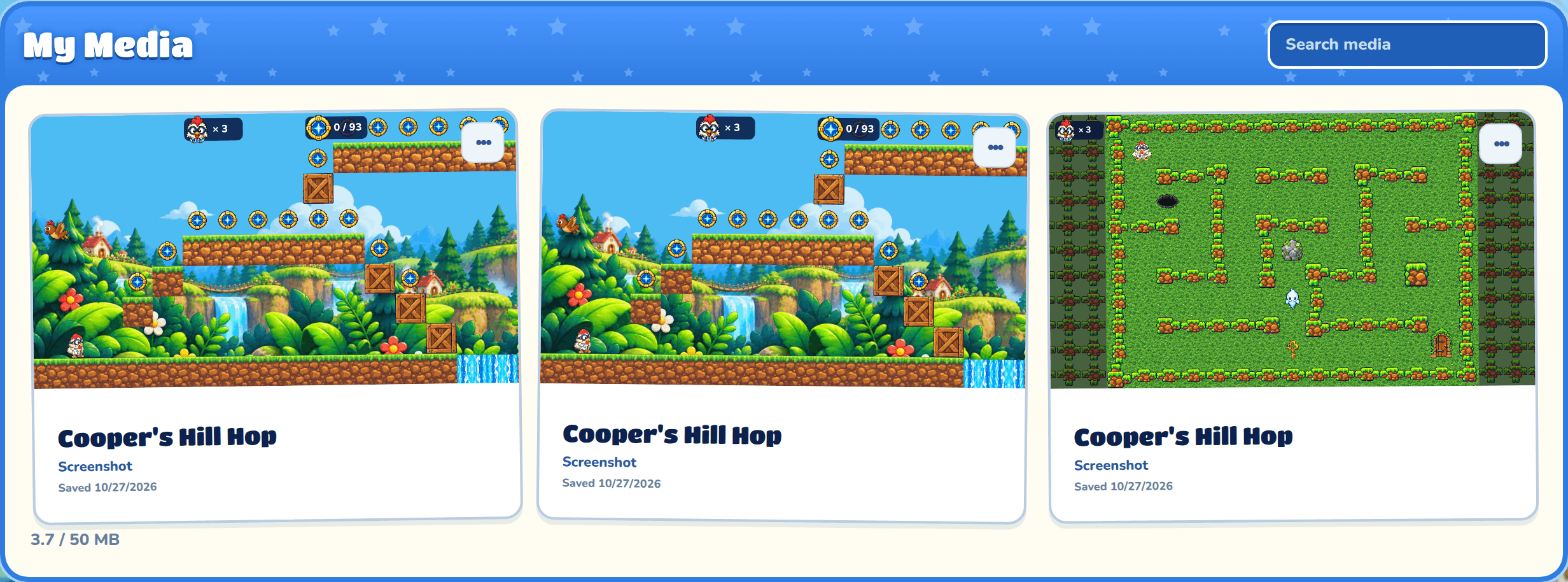
Each card shows the picture, the game's name, "Screenshot" or "Video", and the day you saved it. Videos have a ▶ on them. Click a card to open it.
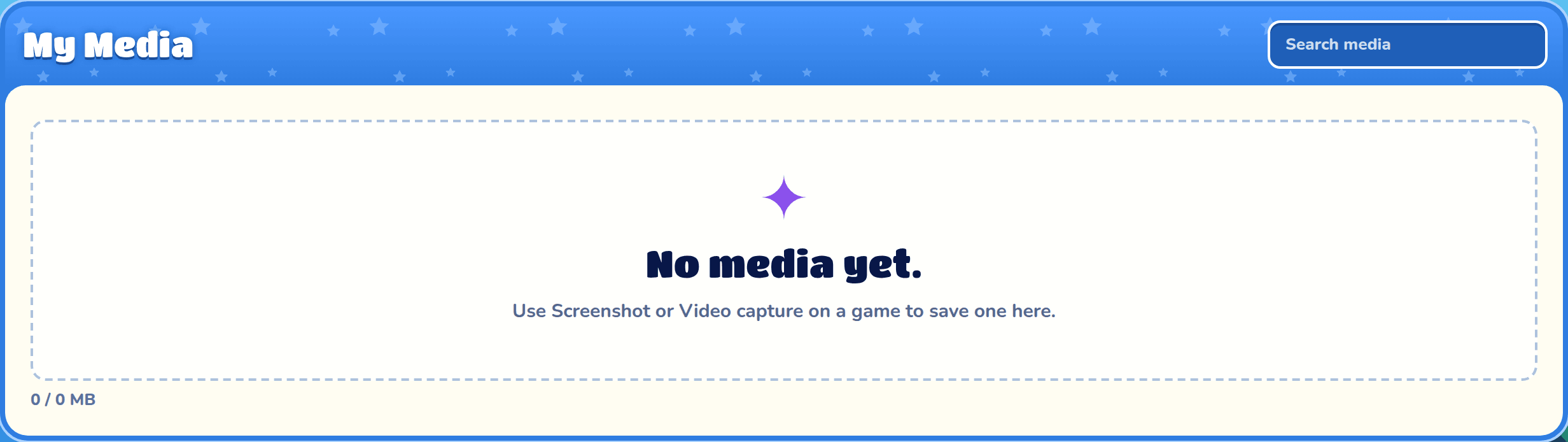
If you haven't saved anything yet, My Media says "No media yet."
Search media
Type a game's name, or "screenshot" or "video", in Search media to show only those.
Processing videos
A new video says "Processing" while it's being finished. You can't open it yet; its card opens by itself when it's ready.
Room used
Under your cards is how much room you've used, like "3.6 / 50 MB". When it's full, delete some to save more.
Opening one
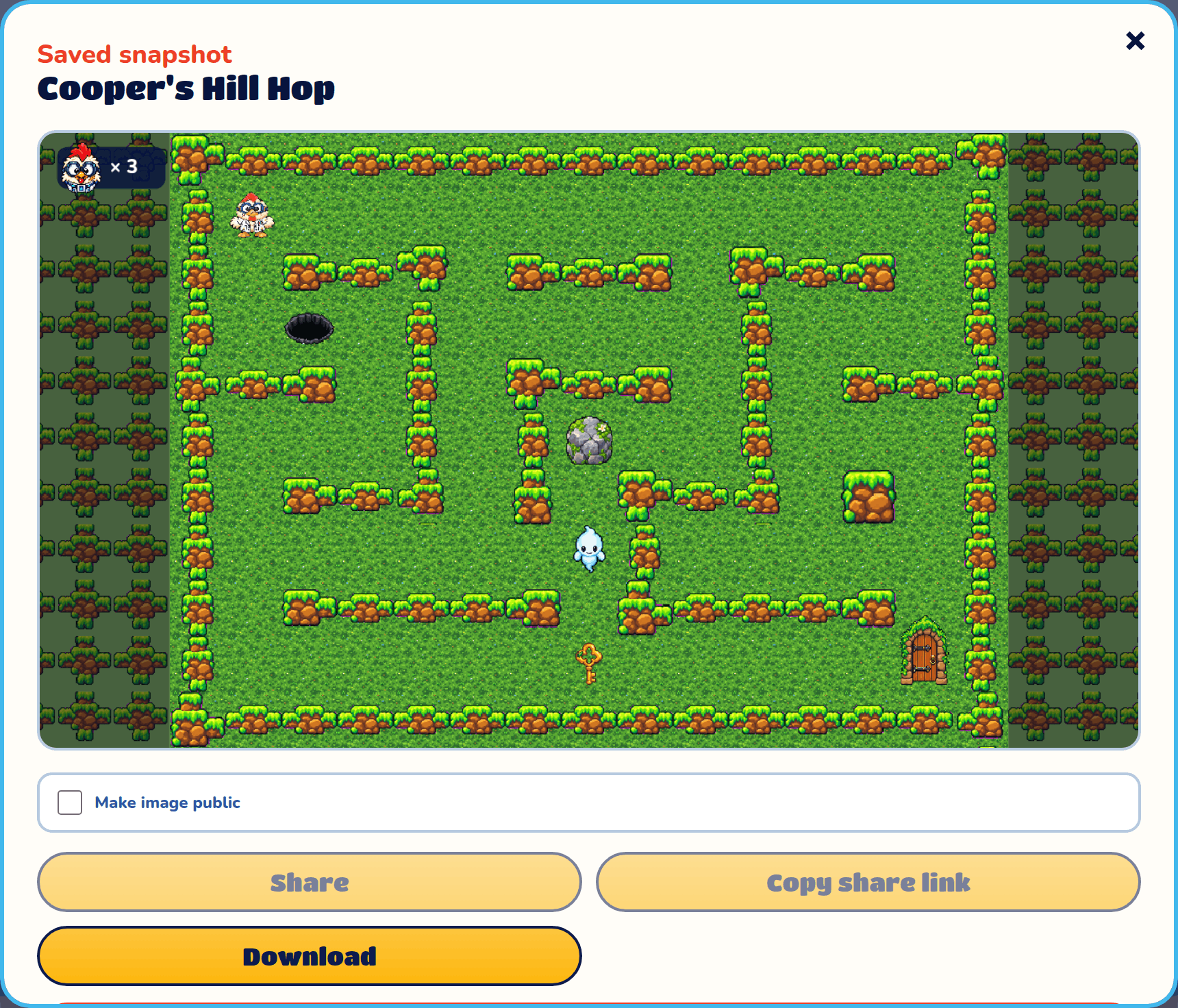
The viewer shows the picture, or plays the video, with the game's name at the top. Press × to close it.
Make it public
Everything you save starts private: only you can see it. Tick Make image public (or Make video public) to put it in the Gallery and on the homepage for everyone to see. Its share link appears underneath. Untick it to make it private again.
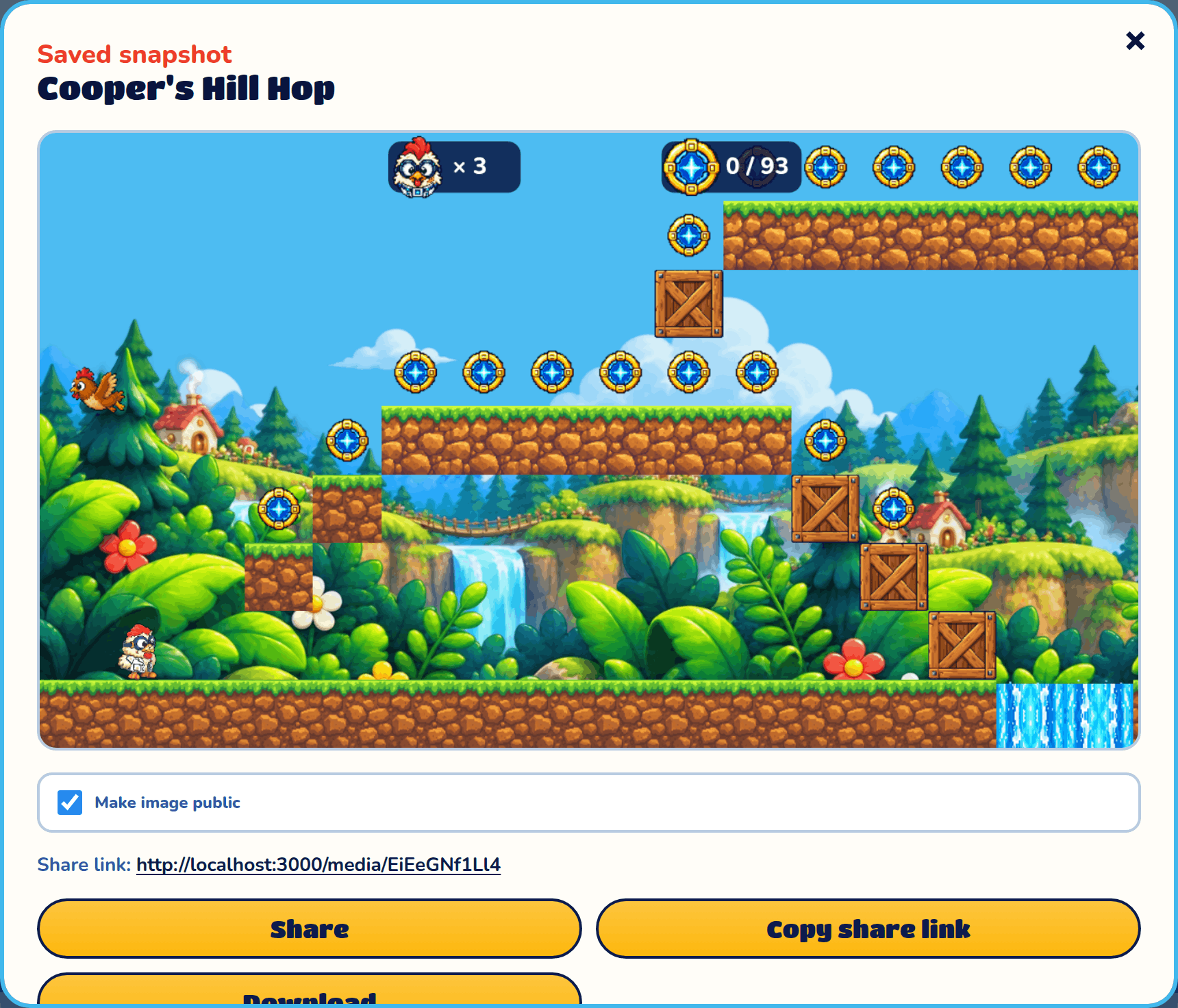
Share and Copy share link
Once it's public, Share sends its link with your device's share menu, and Copy share link copies the link to paste anywhere ("Link copied!"). While it's private, both are greyed out.
Download
Download saves the picture (PNG) or video (MP4) to your device. Videos also have Download GIF, a small moving picture that's easy to send.
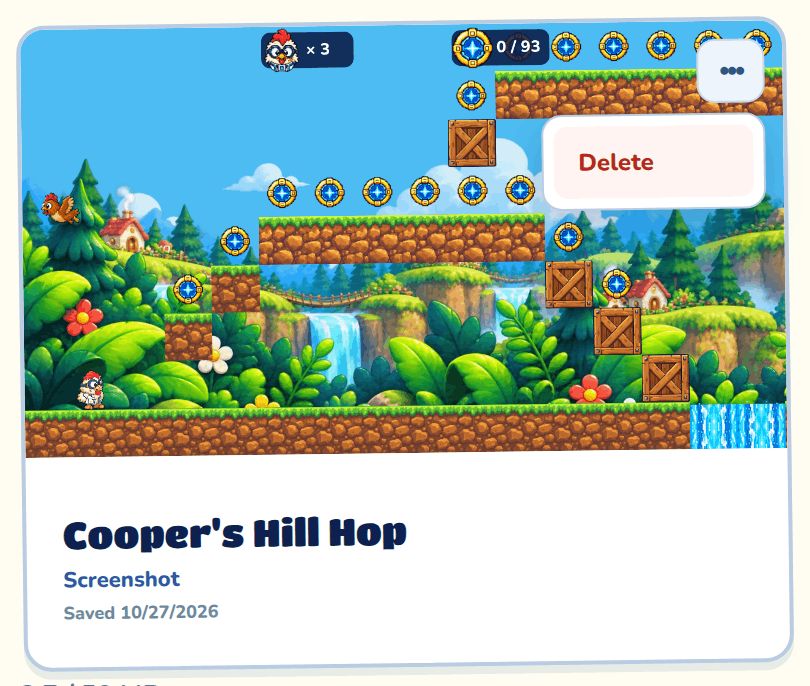
Delete
Press Delete in the viewer, or Delete in a card's ••• menu. You're asked first, because it can't be undone.