

Addons help
Making an addon
Set up a new addon, open one of yours, or copy one of ours, then chat, save and share it.
Addons are your own pictures and sounds for your games: heroes and monsters, blocks and objects, skies, music, sound effects and race cars. You make them in the Addon Lab, then use them in the builder's Sprites and Sounds sections.
The Addon Lab
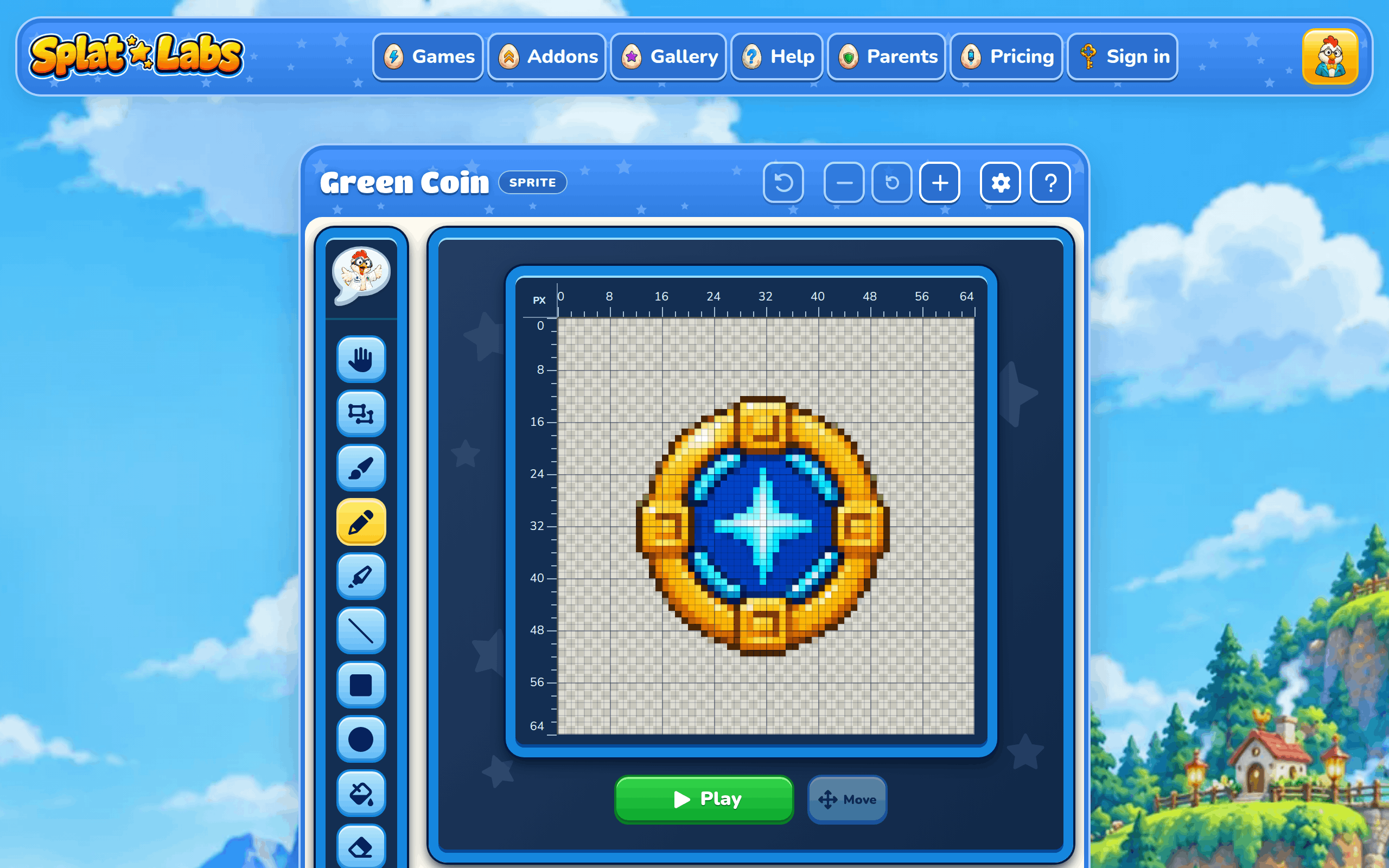
The Addon Lab shows your addon in its editor. Addons with drawers, like a weapon's settings or the Boss and Enemy Maker's pieces, have them on the left. Open the Addon Lab from Create in My Addons in your Lab, from one of your addon cards, or from Create addon in the builder.
Cooper's chat
Cooper's chat is where you ask Cooper for changes to your addon. It opens in a box beside its button.
Open and close the chat
Cooper's picture opens and closes the chat. It's at the top of the toolbox, and the box opens from there, down and to the right. While it's open, a round X in the same spot closes it. A character or family addon has no toolbox, so its button is in the bottom corner of the editor.
Drag the box's top-right corner to make it bigger or smaller. The Addon Lab remembers its size, and whether you closed it. It opens by itself when Cooper has something to tell you or a question for you, like whether to draw the rest of your sprite's frames.
The addon editor
The editor shows your addon once the questions are done. Each kind of addon has its own editor: a pixel editor for sprites, a sky editor for backgrounds, a poster and sound editor for music and sounds, and a paint shop for race cars.
Building bubbles
Bubbles float up the page while Cooper is building your addon. They stop when it's done.
Starting an addon
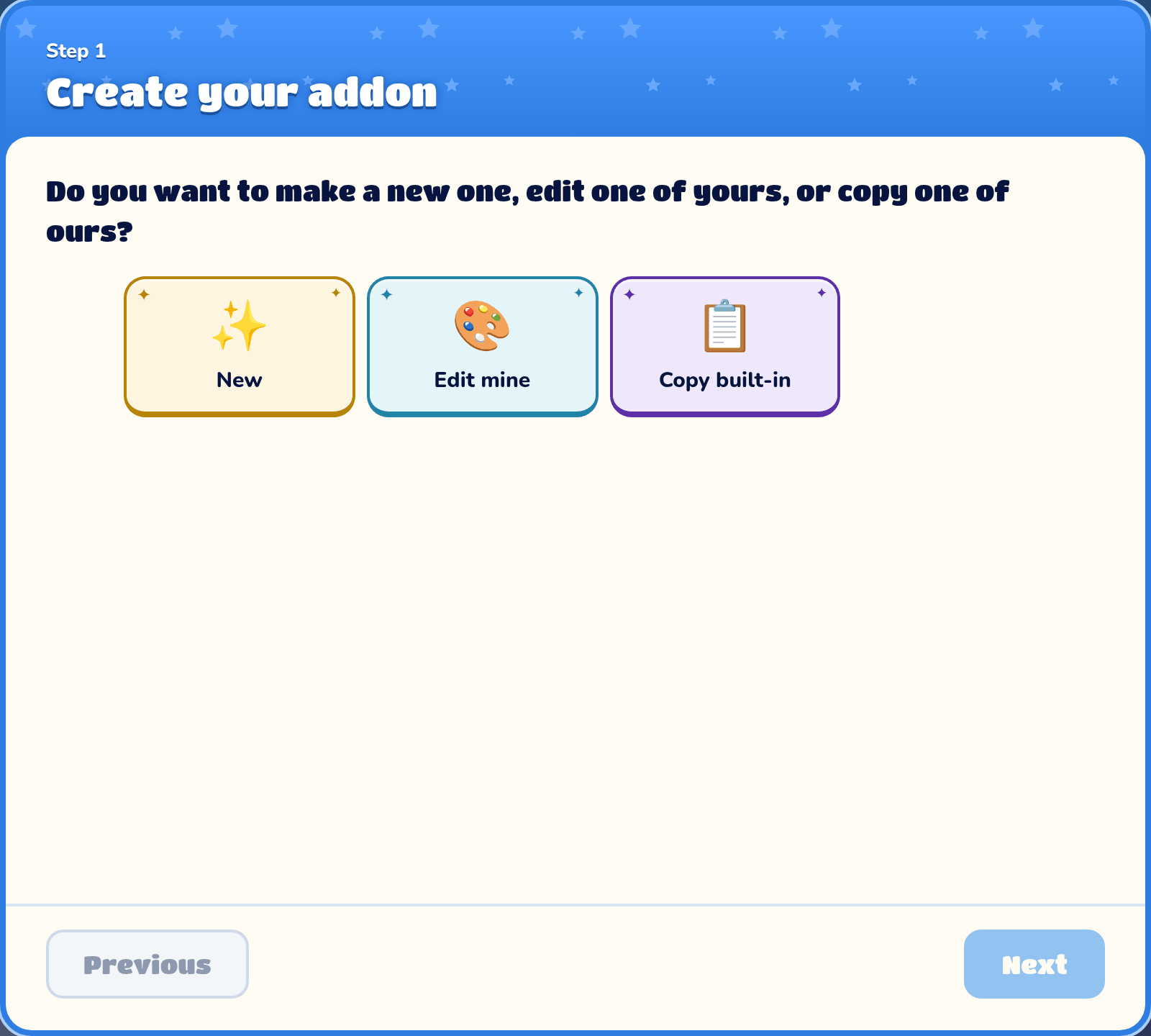
A setup wizard opens with one set of questions at a time. Pick an option and press Next. Use Previous to change an earlier answer. The wizard stays open until you finish, then opens your addon editor.
New, edit or copy
Pick New to make something new, Edit mine to open one of your addons, or Copy built-in to start from one of the game's own pictures or sounds.
Edit mine
Pick one of your addons and press Open addon. If you came from a game, you only see the addons that fit that kind of game.
Which game is it for?
When you copy a built-in, pick the kind of game it comes from. The wizard skips this question if you came from a game's builder.
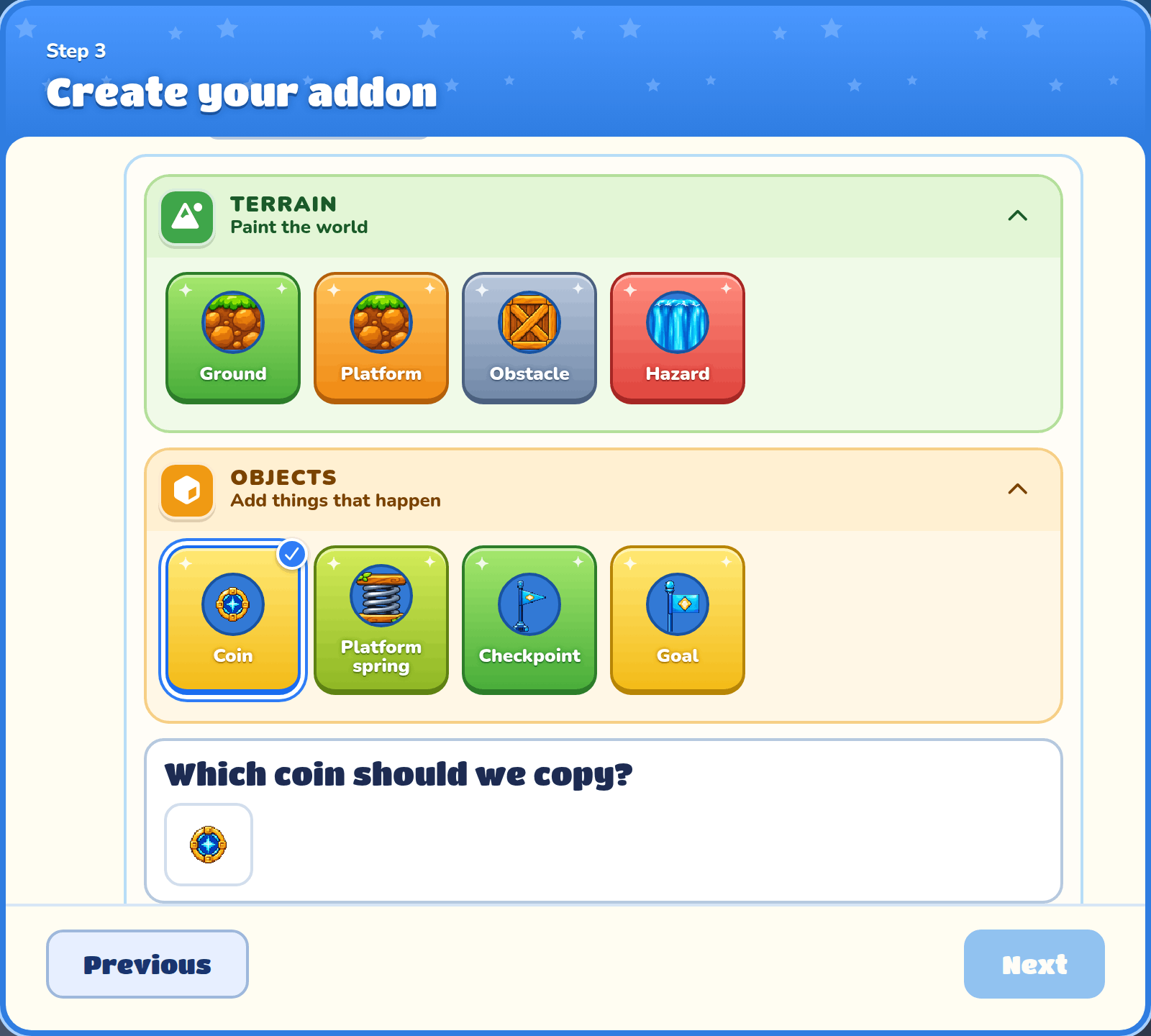
Pick a built-in to copy
The game's own build tools open, holding every brush that is one picture, plus its backgrounds and sounds. Your copy is a new addon, so the game's own one never changes.
Biome
Pick a biome to see that biome's pieces. It only shows when the game has more than one biome.
Brushes to copy
Tap a brush to see its pieces, then tap the piece you want to copy.
Backgrounds and sounds to copy
Backgrounds holds the biomes' skies and scenery, and Sounds holds their music and sound effects.
What do you want to make?
Pick Background, Terrain, Object, Sprite, Weapon, Screen, Artillery piece, Race car, Music or Sound Effect. If you came from a game, you only see the kinds that game can use. A Weapon is a picture of a weapon on its own, which enemies shoot or throw; see Weapons. A Screen is a short animation that plays when a new game starts or before a Platformer level; it only asks for a name, and you build it in its editor. See Screens.
Boss and Enemy Maker builds an enemy or boss out of body parts, the games' own enemies and your sprites, instead of drawing it; see Boss and Enemy Maker. It's there for the Platformer and the Adventure.
Which game?
A Maker character is for the Platformer or the Adventure, and only works in that one. Each game has its own body parts, drawn in its own style. If you came from a game, this is picked for you.
Enemy or boss?
An Enemy is shrunk to about one block in the game, however big you build it. A Boss plays the size you build it, up to the whole space.
Biome or sound pack
Backgrounds, music and sound effects can match one of the game's biomes, like Space or Ice World. Pick Custom to describe your own instead.
Which sound?
A custom song is either the Play song or the Boss song. A custom sound effect is for one moment in the game, like Jump, Coin or Ouch.
What kind of sprite?
Choose what your sprite is for. A Sprite is a Hero, Enemy or Boss; a block is Ground, Platform, Obstacle or Hazard; an object is a Coin, Power-up egg, Spring, Checkpoint or Goal.
Whose kart?
Pick the racer whose kart you want to paint.
Car colors
Pick your kart's colors, or keep the racer's own. You can change them again in the editor.
Name
Pick one of the suggested names for your addon. You can change it later in Addon settings.
Type a name
Type your own short name instead, up to 10 letters, numbers and emojis, and press Next or Create addon.
Animate it?
Pick Animate it to give an object or hazard more frames later, or Keep it still. Heroes, enemies and bosses always move, and ground, platforms and obstacles always stay still.
How will it attack?
A weapon is asked this before you describe it, so Cooper draws the right shape: Shoots is something that flies straight, long and thin, like an arrow or a dart; Throws is something that arcs through the air, round or chunky, like a snowball. Cooper draws the weapon on its own, lying flat and pointing right, because the game turns it to fly where an enemy aims it. You can change Attacks later in the weapon's settings; see Weapons.
Describe it
Describe what it should look or sound like in the wizard. You can go back and change your words before creating the addon. Saving your idea is free; Cooper coins are spent only when you ask him to generate it.
Start building
After setup, Cooper can offer to build the first frame, background, music or sound. Press Build first frame or Start building when you want it. This is optional: you can edit your addon without generating anything. Generation may take a few minutes, and it is okay to leave while it finishes.
Retry picture
If Cooper couldn't finish the first picture, press Retry picture. Your description is saved, so he tries again with the same words.
Make the other frames
An animated sprite starts with one frame. Draw on it as much as you like, then press the button and Cooper draws the rest of the frames from yours. A hero, enemy or boss gets walking and dying animations. You can only do this once, so finish your first frame first.
Retry remaining frames
If some frames didn't finish, press Retry remaining frames and Cooper tries just those again.
Chatting with Cooper
Once your addon is made, the left panel is a chat. Ask Cooper for changes, like "make the hat red".
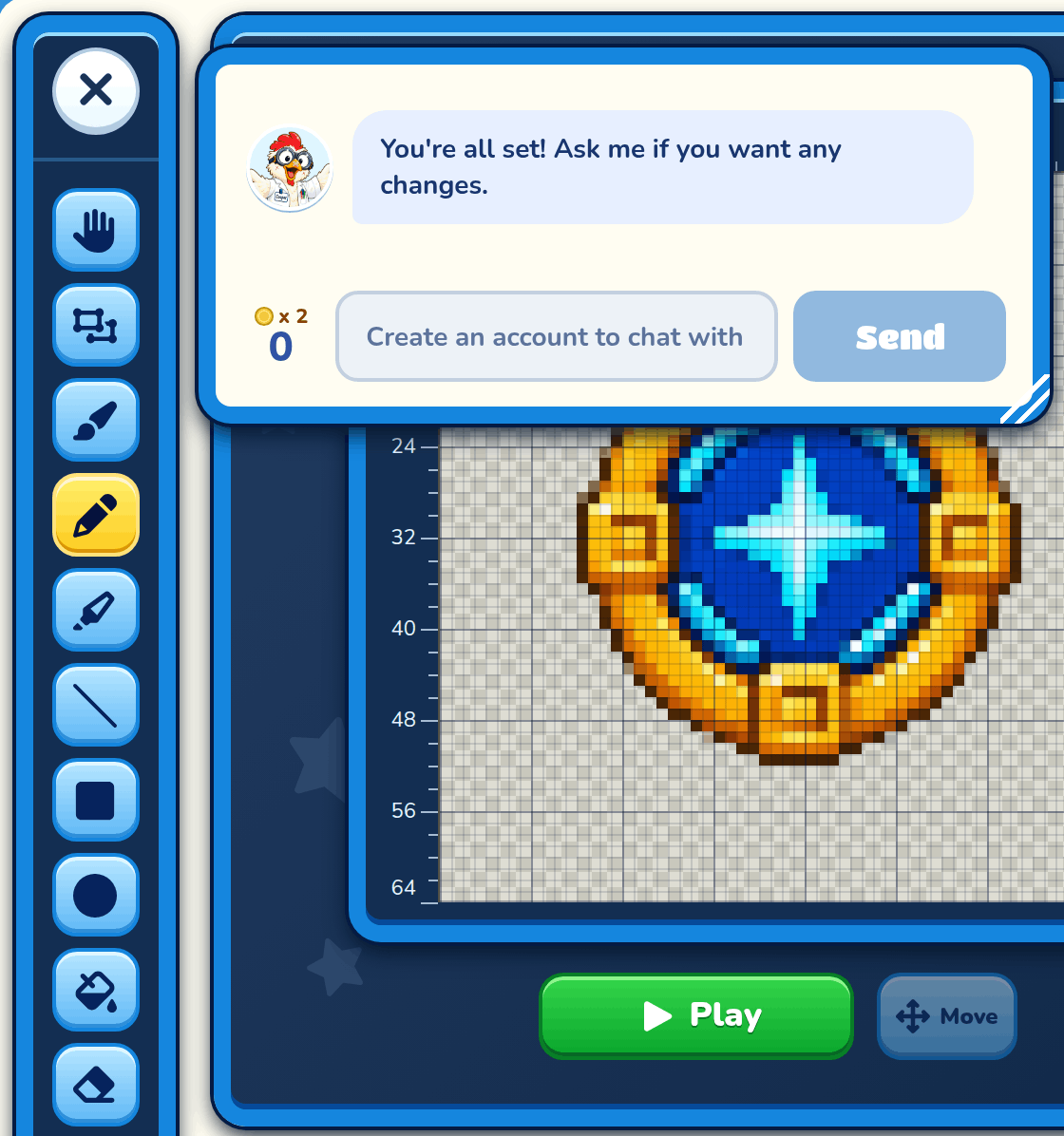
Message Cooper
Type what you want and press Send. Cooper saves your drawing before he reads it. You can't send while he's working or when your Cooper coins have run out.
Cooper coins
The badge shows what a message costs and how many coins you have left this month. The price depends on the type of addon, so a sound costs less than a picture. Making the animation frames for a sprite costs the most, and its button shows the price before you press it.
Chat history
Your chat stays with the addon, so you can see it next time you open it. Setup answers are saved in the addon, without adding a chat transcript.
Make this song or sound
For music and sound effects, one tap on Make this song or Make this sound asks Cooper to make it. It greys out once you've used it.
The top of the editor
The bar on top of your addon has its name, what kind it is, and its buttons.

Addon name
This is your addon's name. Change it in Addon settings.
Kind
The badge beside the name says what kind of addon this is: Background, Sprite, Character, Race car, Music or Sound. A Boss and Enemy Maker character says Boss or Enemy.
Processing
Processing means Cooper is still building your addon. You can keep working while he does.
Undo and Redo
Undo takes back your last change, and Redo puts it back. Backgrounds also take Ctrl+Z and Ctrl+Shift+Z. Sprites have Undo only: it remembers your last 20 changes on the frame you're drawing, and forgets them when you go to another frame. Race cars have no undo.
Zoom
− and + beside Undo and Redo zoom the picture out and in, up to three times as big, as in the game builder. The arrow between them goes back to the whole picture. Ctrl+−, Ctrl++ and Ctrl+0 do the same.
Zoomed in, the rulers stay as they are and the picture moves round in its frame. Turn on Move, beside Play, and drag the picture round; press it again to draw. The right mouse button drags it round at any time. Every editor opens zoomed all the way out.
Help tips
Press the ? button at the top right of your addon to turn on help tips. Then click or tap any part of the Addon Lab to see what it does, with a link to the right help page. Press ? again to get back to making.
Saving
There's no Save button: your addon saves itself as you work. A sprite saves each frame a moment after you stop drawing, and skies, posters and race cars save as you go. Asking Cooper for something saves your drawing first.
My Addons
Every addon you make is in My Addons in your Lab. Click one to open it again. See Your Lab for more.
Characters
A Character addon is a whole enemy or villager from one of your games: its look, how it moves, what it says and its script. You don't make one here. Press Share as addon on a character's card in the builder (see Characters in your other games), and it shows up in My Addons.
Open it here to see what it is and read its script. To change it, change it in a game and press Update addon on its card. Your other games that have it then show Update ready on its card, and change when you press Take update there. Publish it like any addon, and other players can use it in their games. They get their own copy, with copies of any sprites it wears, and your later changes don't reach theirs.
A character in a family brings its family along. Sharing the character shares its family too, as a Family addon, and a game you add the character to gets the family as well.
Families
A Family addon is a family's script from one of your games: the script that every character in the family runs as well as its own. You don't make one here either. Open the family's script in the builder and press Share as addon in its bar.
What its page shows
Open it here to read its script, in Blocks or Code. Under it, About it is a sentence or two in your own words about what the family does. Other players read it when the family is public, and you can leave it empty. Press Save to keep it.
The page also lists what the family gives its characters. You don't write these: they come from the script.
| List | What it shows |
|---|---|
| Things you can change | The family's @variables, and where each starts. A character can set its own value. |
| Words it adds | The family's functions, which its characters can use. |
| What it does | Each of the family's rules, with its steps. |
Changing it, and sharing it
To change the script, change it in a game and press Update addon in the family's bar. Your other games that have it then show Update ready, and change when you press Take update there.
Publish it like any addon. Publishing a character in a family publishes its family too, so other players always get both. They get their own copies, and your later changes don't reach theirs.
Addon settings
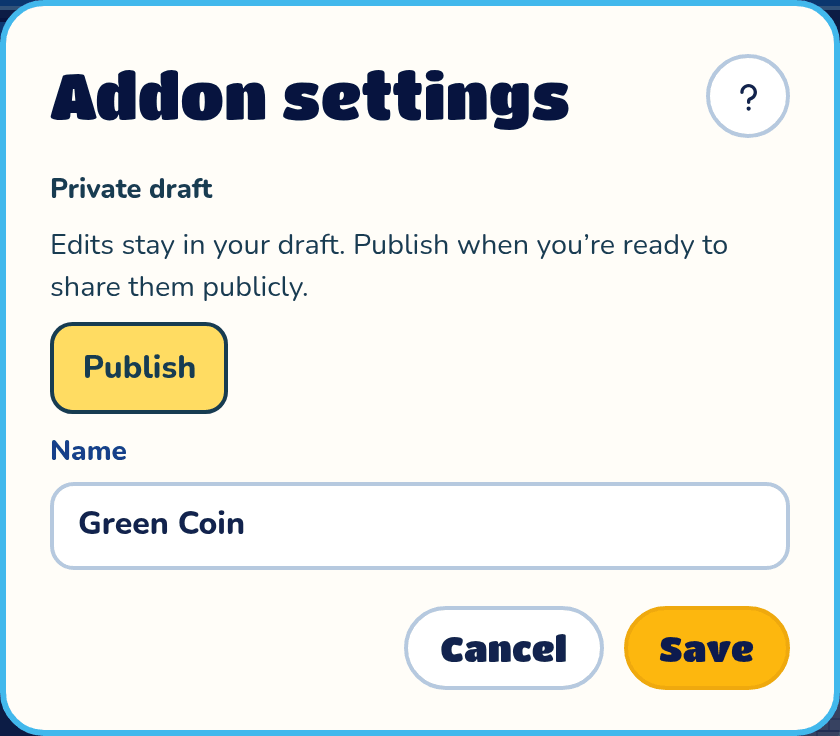
The gear button at the top of your addon opens Addon settings, where you rename it and share it. Save keeps your new name, and Cancel closes without saving.
Sharing status
The top of the box says where your addon is: a Private draft, Waiting for review, Changes needed or Published. If a reviewer asked for changes, their note shows here.
Publish
Publish sends your addon to be checked, and then it shows in the public addons for everyone. You can publish once your addon is ready. Changes you make later stay in your draft until you press Publish changes.
Make private
Make private takes your addon out of the public addons. While it's waiting for review, Cancel submission stops it.
Name
Type a new name for your addon, then press Save.