

Lab help
Parents
For grown-ups. A family Lab with a Lab for each child, a parent PIN, and picking who's playing.
Parent mode turns your account into a family Lab: each child gets their own Lab with their own games, and everyone picks who is playing on each device. You turn it on from the Account page, and your email must be verified first.
Turn on parent mode
Under Parent mode on the Account page, choose a 4-digit parent PIN, type it again, and press Turn on parent mode. The PIN keeps family settings away from children. To turn it off, remove every child profile first, then enter the PIN and press Turn off parent mode.
Change parent PIN
Enter your current PIN and the new one twice, then press Change parent PIN. Forgot it? Press Email me a reset link, and the link lets you choose a new PIN.
Child profiles
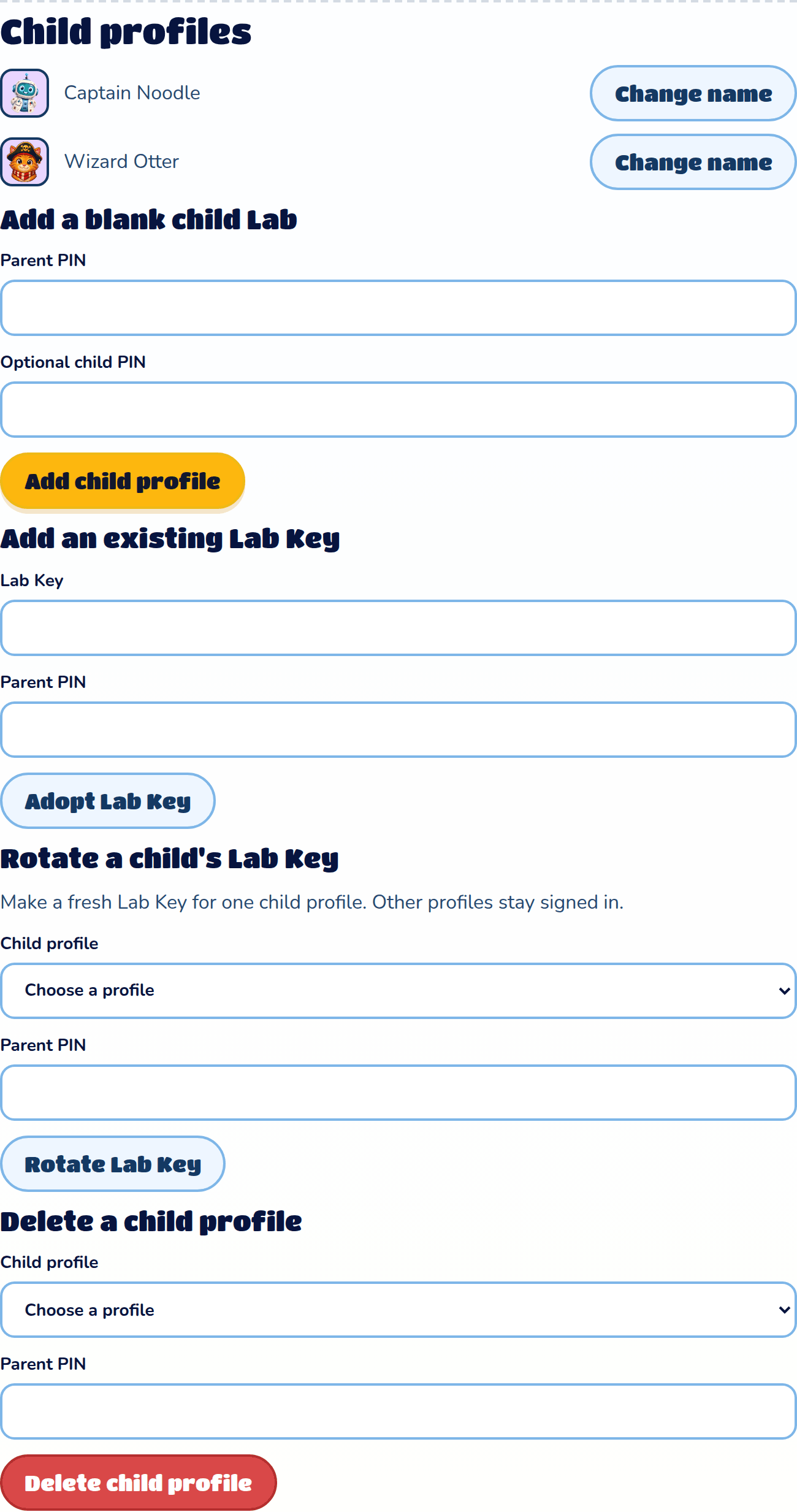
Child profiles lists each child's Lab with its name and picture, and "PIN protected" if it has a child PIN. Press Change name to pick a new Lab name for a child; it asks for your parent PIN. How many child profiles a family can have depends on its plan.
Add a blank child Lab
Enter your parent PIN, and a child PIN if you want one, then press Add child profile. The child gets a new, empty Lab.
Add an existing Lab Key
If your child already has a Lab with a Lab Key, type the key and your parent PIN, then press Adopt Lab Key. Their Lab, with all its games, joins your family as a child profile. This works for a Lab with no account that isn't in another family.
Rotate a child's Lab Key
Makes a fresh Lab Key for one child, if their old one was lost or shared. Choose the child, enter your parent PIN and press Rotate Lab Key. The new key shows once, so save it. The old key stops working; your other profiles stay signed in.
Delete a child profile
Choose the child, enter your parent PIN and press Delete child profile. This removes the child's Lab and everything in it for good, straight away.
Who's playing?
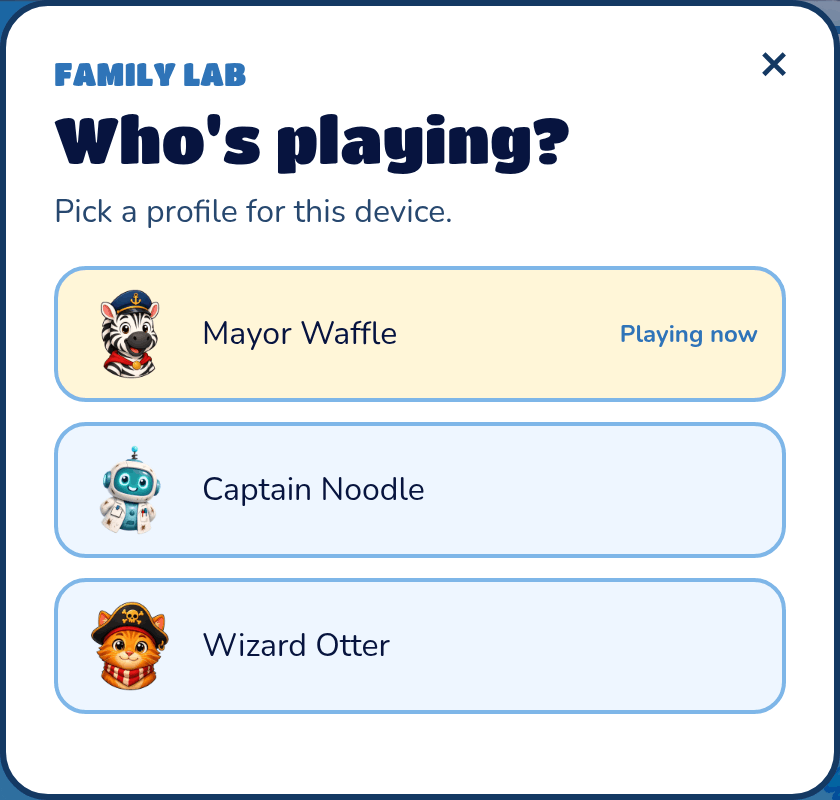
In a family Lab, Who's playing? sits in your Lab and at the top of the site. It shows everyone in the family, with "Playing now" beside whoever is using this device. Tap a name and press Switch profile. Switching to the parent asks for the parent PIN, and switching to a child with a child PIN asks for that PIN.
What children see
While a child is playing, the site has no Account link, no Lab Key box and no Cooper coin history. They can make and play games in their own Lab, and switch back with Who's playing?.
Delete account
With parent mode on, the bottom of the Account page has Delete account. Enter your parent PIN, type DELETE, and press Delete my account to remove your account and every child profile for good.