

Addons help
Drawing sprites
The pixel editor for heroes, monsters, blocks and objects, with the paint tools, colors, guides and frames.
Sprites are the little pictures in your games: characters, terrain blocks, objects and artillery pieces. They open in the pixel editor, where every tool paints whole pixels. The paint tools and the color picker work the same on skies and sound posters, but there they paint smooth strokes.
The sprite editor
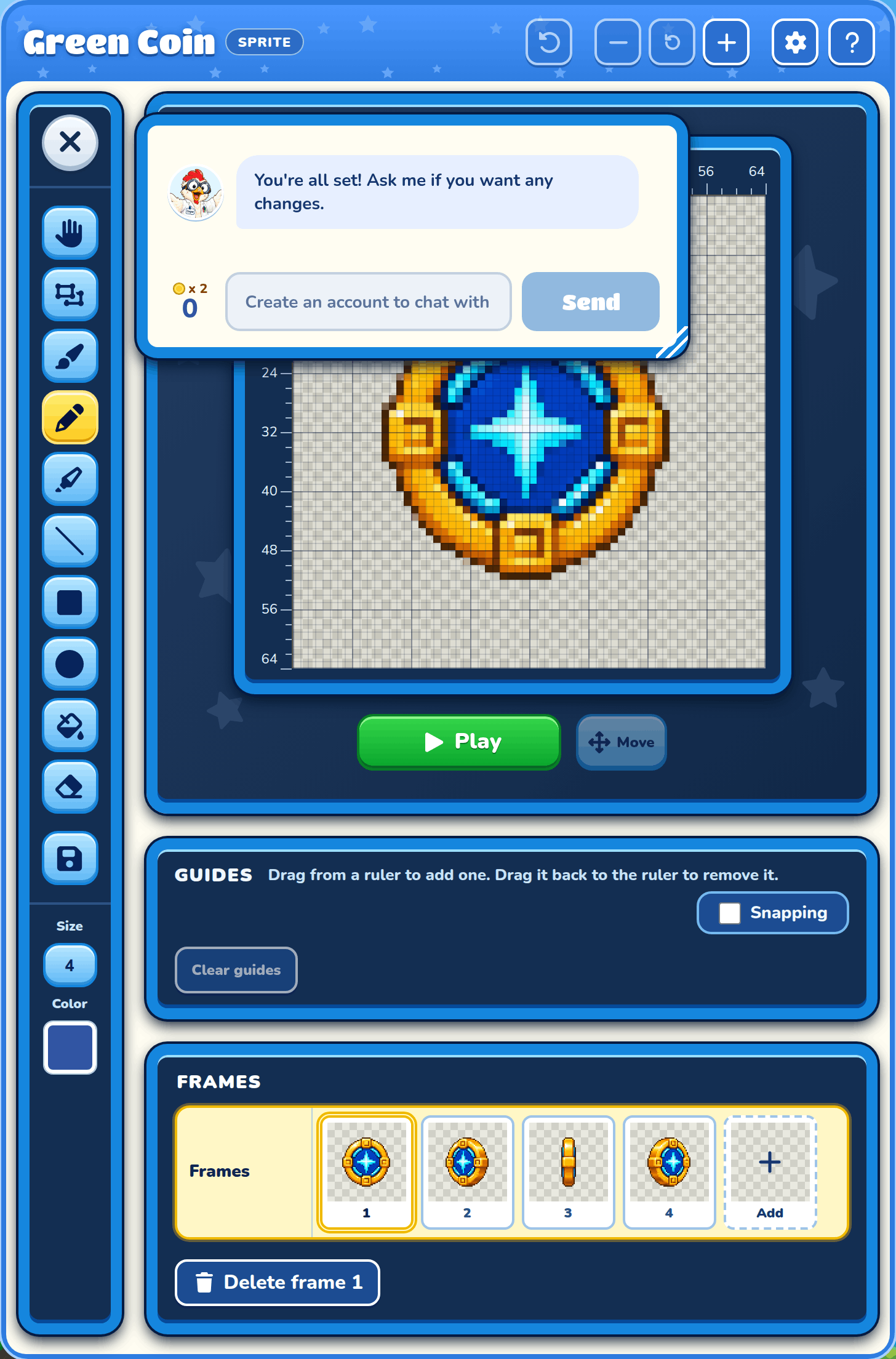
Your sprite sits big in the middle, with rulers above and to the left. Heroes, enemies, bosses and other animated sprites also get a Play button and frames underneath.
Sprite preview
The starry stage shows your sprite big enough to draw on.
Drawing canvas
Draw on your sprite with the tool you picked. While Cooper is drawing it, the canvas says so and waits.
Rulers
The rulers count your sprite's pixels. Drag from a ruler onto the sprite to add a guide.
Pixel grid
When the pixels are big enough, a thin line goes round every pixel and a darker one every 8 pixels, so you can count them.
Brush preview
Before you click, an outline under the pointer shows every pixel the tool will paint.
Drawing with keys
Click the canvas, then use the arrow keys to move a drawing cursor one pixel at a time, or four with Shift. Enter or Space paints. A line, square or circle takes Enter at each end, and Esc cancels it. With the Hand, the arrows move the whole drawing.
Play
Play plays your sprite's frames so you can see it move, and Pause stops it. You can't draw while it plays.
Saving changes
Your drawing saves by itself a moment after you stop. If it couldn't save, press Retry.
Frames
An animated sprite is a strip of frames, played one after another. A hero, enemy or boss keeps its frames in Poses: rows, one row per animation, a little like the layers of a sky. Any other animated sprite has a single Frames row.
Pose
A hero, enemy or boss starts with five poses, each on its own row: Walk down, Walk left, Walk right, Walk up and Dying. The game plays these by itself. Tap a row's name to pick it and open its first frame; Play plays the picked row. A long row scrolls sideways.
Go to frame
Tap a frame in any row to draw on it; that row becomes the picked one. Frames Cooper hasn't made yet can't be opened.
Adding frames
Press Add at the end of a row to add a frame after the one you're on: a copy of it, ready to change. It goes into the row you picked, so Walk left gets longer, not Dying.
A still sprite has an Add a frame button under the picture instead, and becomes animated with its second frame. A sprite with a single Frames row also has Delete frame, which takes away the one you're on.
A weapon can have up to 8 frames, a copied sprite 16, and a hero, enemy or boss 64. You can add, draw and upload frames whenever you like, even while Cooper is still drawing: only Cooper's own frames wait.
Moving and copying frames
Drag a frame along its own row to move it to another spot. A gold bar shows where it will go. This works in Frames too.
On a hero, enemy or boss, drag a frame into a different pose's row, and a copy of it goes in where you drop it. The frame you dragged stays where it was, so you can start a pose from frames you already drew.
To move a frame without the mouse, click it, then hold Ctrl and press ← or →. Frames can't be dragged while Cooper is still drawing them.
Adding a pose
Add a pose under the rows makes a new row with one frame, a copy of the frame you're on. It starts with a plain name like Pose 1. A sprite can have up to 16 poses.
The game never plays a pose you added by itself. An enemy or boss shows it when its script says so, with a line like my pose is "Anger"; see Poses in scripting. It shows the way you drew it, whichever way the character faces.
Naming a pose
Tap the pen beside a pose you added to give it a better name, then press Enter. Two poses on one sprite can't share a name. The five starting poses keep their names.
If a script already uses the old name, that line stops working until you change it to the new name. The script window points to the line and lists the poses the sprite has.
Deleting a pose
The trash at the right end of a row deletes that whole pose and every frame in it. It asks first. A sprite always keeps at least one pose.
Deleting Dying or a Walk row is allowed. The game then shows the sprite's first frame where that animation would have played.
Generating frames
While Cooper draws your other frames, this shows how many are ready.
Paint tools
The toolbox beside your picture holds Cooper's chat button at the top, then the tools, then Size and Color. Tap a tool to pick it up.

Hand
Drag with the Hand to slide your whole drawing around. It's only on sprites.
Brush
The Brush paints a soft, see-through stroke with a fainter edge.
Pencil
The Pencil paints a hard, solid line. At size 1 it paints one pixel at a time.
Crayon
The Crayon is waxy and uneven, with see-through dots scattered round the line.
Line
Drag from one end to the other to draw a straight line.
Square
Drag from one corner to the other to draw a square or rectangle. The size sets how thick its outline is.
Circle
Drag across the box you want the circle to fit in. The size sets how thick its outline is.
Fill
Fill colors in the whole area of one color that you tap, up to where the color changes.
Eraser
The Eraser rubs out to see-through.
Select
Select picks up part of the picture to move it, make it bigger or smaller, turn it, or flip it. Drag a box round the part you want; marching ants run round it.
| Do this | What happens |
|---|---|
| Drag inside the box | Moves it. The place it came from is left see-through. |
| Drag a corner ball | Makes it bigger or smaller. It keeps its shape; it can't be squashed. |
| Drag the ball on the stalk | Turns it, to any angle. |
| Press Flip | Flips it left to right, or top to bottom. |
| Press Done, Enter, or click outside | Puts it down. One Undo takes the whole change back. |
| Press Select again | Puts it down and lets it go. The Select button stays lit while a selection is up. |
| Press Delete or Backspace | Clears everything inside the box to see-through, and lets the box go. |
| Press Cancel or Escape | Puts everything back as it was. |
Pixel art stays crisp when it's turned, so a turned shape looks a little jagged; that's as it should be.
Painting inside it
With a selection up, pick any paint tool and it changes only what's inside the box; the rest of the picture is safe. The brush, pencil, crayon, eraser and shapes stop at the edge, and Fill fills the whole selection with your colour, whatever was there. The handles go away while you paint and come back when you pick Select again, which also picks up what you've painted so you can move or turn it. To let the selection go, press Select again (it stays lit while a selection is up), Done, Enter or Escape.
Upload a picture
The disk button puts a picture of your own on this frame: a PNG, WebP or GIF. It has to be the same shape as the frame (square for most sprites); a picture that isn't is refused, and the message says the size it wants. A picture that is gets resized to fit, pixel by pixel, and used just as it is.
An animated GIF is different: its frames become the sprite's frames, up to 6 of them, in place of every frame it has now. You're asked first.
Size
Size opens a list from 1 to 20. It sets how thick the brush, pencil, crayon, eraser and shape outlines are.
Color
The Color swatch shows your paint color. Tap it to pick another in the color picker.
The color picker
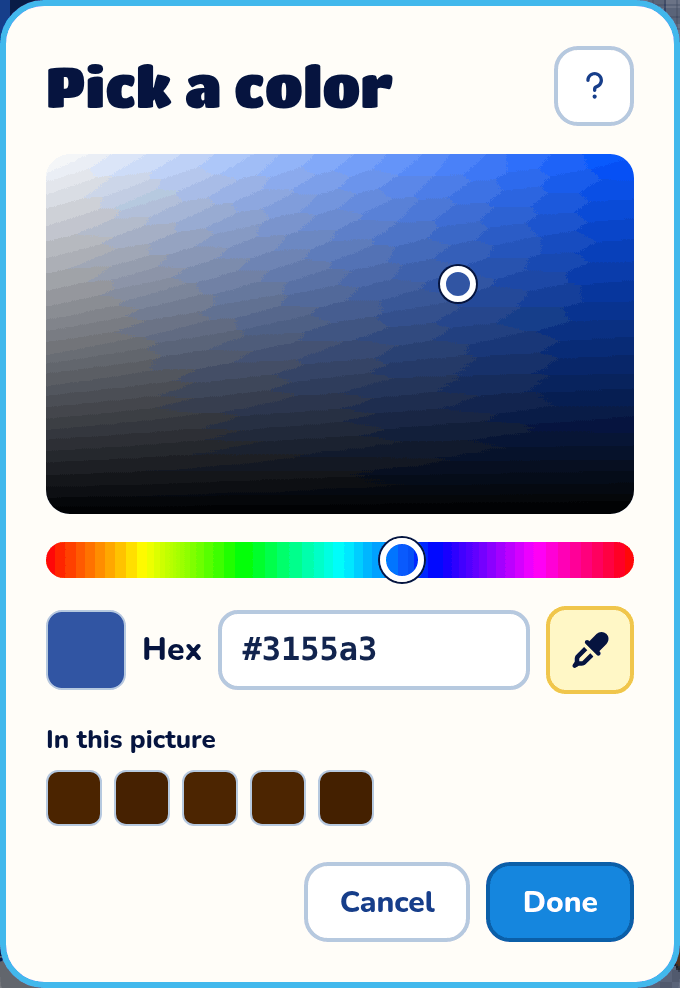
Pick a color lets you choose any color. Done keeps it, and Cancel or Esc puts your old color back.
Shade square
Drag in the big square to make the color stronger or paler, and brighter or darker. The arrow keys move it too.
Hue
Slide the rainbow bar to pick the color itself: red, orange, yellow, green, blue or purple.
Hex
Type a color code, like #3155a3, if you know the exact color you want.
Eyedropper
Press the eyedropper, then click your picture to take a color from it. A magnifier shows the color under the pointer. Press Esc to go back without one.
In this picture and Recent
In this picture shows the colors your picture already uses, and Recent shows colors you used lately. Tap one to pick it.
Guides
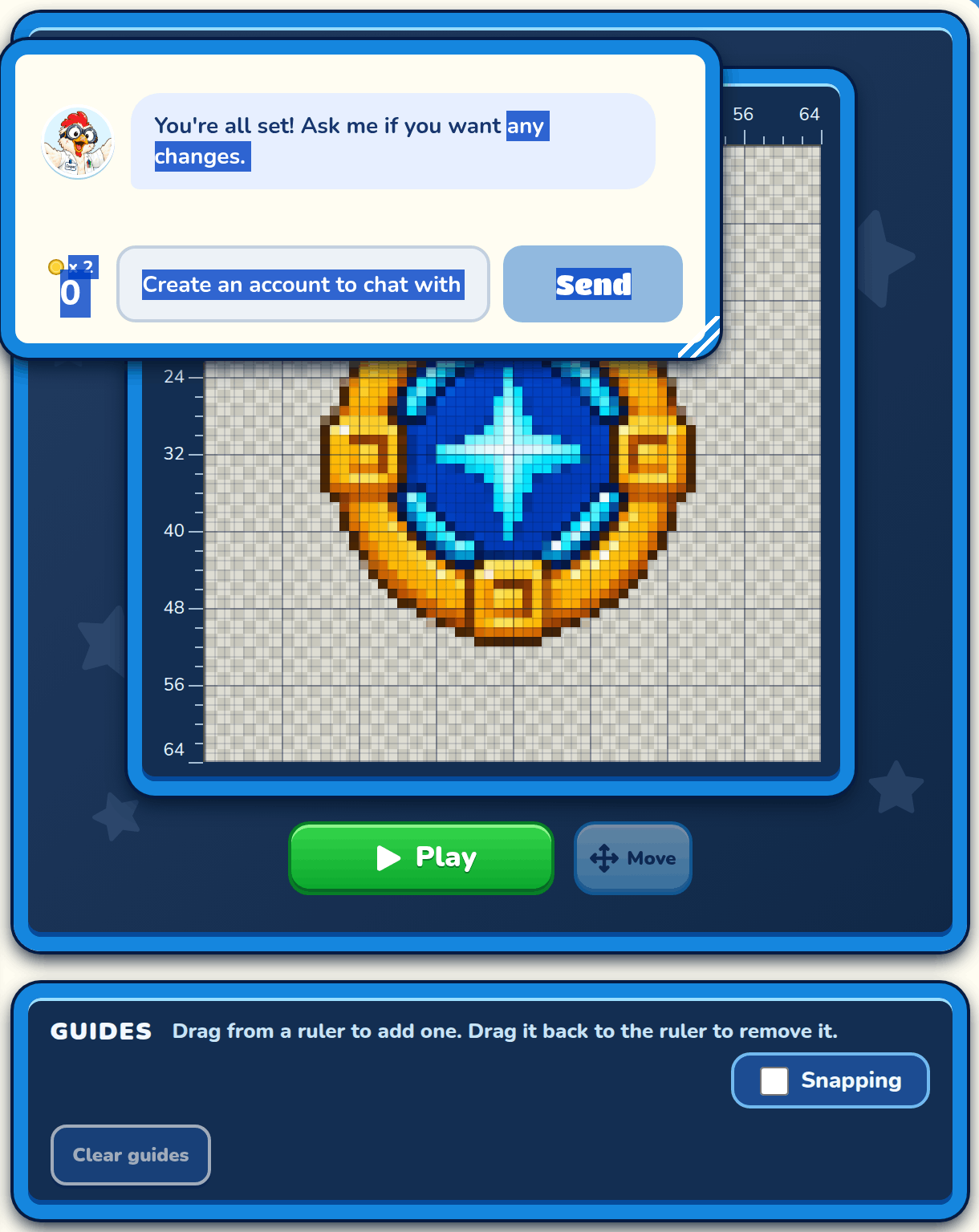
Guides are straight lines over your sprite that help you line things up. They don't show in your game. Your guides stay on this computer or tablet only.
Add a guide
Drag down from the top ruler for a line across, or right from the left ruler for a line going down.
Move or remove a guide
Drag a guide to move it, or use the arrow keys. To remove it, drag it back onto its ruler, double-click it, press Delete, right-click it and pick Remove, or press its trash can in the Guides box.
Guide position
Type the exact column or row to put the picked guide there.
Remove and Clear guides
The trash can in a guide's box removes that guide, and Clear guides removes them all.
Each guide has its own box in the Guides box, with its position. The picked guide's box has a lighter blue border.
Snapping
Snapping makes a guide you drag snap onto the nearest thick block line, when it's within 10 pixels of one. Your browser remembers the choice.