


Your Addon Lab
ReadingMeet the Addon Lab
The Addon Lab is a page of its own. So in this course you use two tabs: this course in one tab, and the Addon Lab in the other. Read a step here, then do it there.
Open the Addon Lab
- Open a new tab in your browser. Press Ctrl and T together (on a Mac, ⌘ and T).
- Go to splatlabs.games, and press your Lab's name at the top right. Your Lab opens.
- Press My Addons on the left.
- Press Create an Addon, at the top right of My Addons.
The Addon Lab opens with some questions.
Answer the questions
Each question has cards to pick from. Pick a card, then press Next. Previous goes back a step.
| The question | What to pick |
|---|---|
| Do you want to make a new one, edit one of yours, or copy one of ours? | New |
| What do you want to make? | Sprite |
| What should we call it? | Pick a name, or type your own in the box (up to 10 letters) |
| What kind of sprite is this? | Coin |
| Do you want to make an animated sprite? | Animate it. An animated coin can spin. |
| What should your sprite look like, and how should it animate? | Leave the box empty. You are going to draw it yourself. |
Then press Create addon.
Close Cooper's chat
Your coin opens, and Cooper's chat opens with it. Cooper asks what your coin should look like. You don't need Cooper for this course, so close the chat with the round X  .
Cooper's chat may open again later, and offer to Create the rest of the frames. That costs Cooper coins, and you are going to make the frames yourself. Just close the chat again. To open it on purpose, press Cooper's picture  at the top of the toolbox.
The parts of the Addon Lab
This is a coin in the Addon Lab. Yours is empty for now.
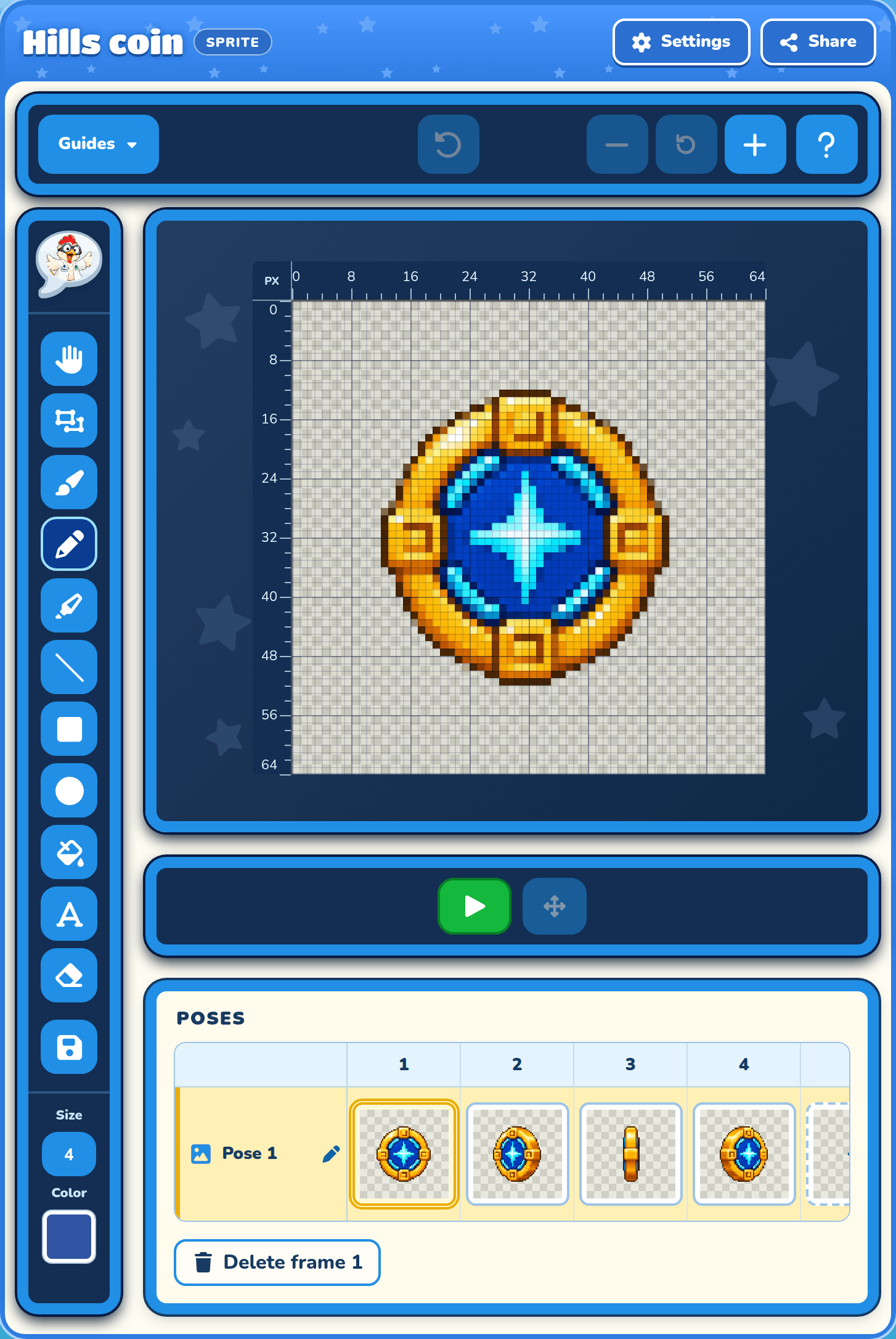
| Part | Where it is | What it does |
|---|---|---|
| The picture | In the middle | Where you draw. It is 64 pixels across and 64 down. The rulers  above it and beside it count the pixels. |
| The toolbox | On the left of the picture | Cooper's chat at the top, then the drawing tools, then Size and Color at the bottom |
| The bar over the picture | Above the picture | Guides  , Undo  , the zoom buttons, and ?  for help tips |
| The bar under the picture | Under the picture | Play  shows here once your coin has two frames |
| Poses | At the bottom | Your coin's frames, in a row. You use it in Chapter 3. |
| The top | Above everything | Your coin's name, Settings  , Export  and Share  |
On the far left are the Things to add drawers, full of the games' own enemies and objects. You don't need them in this course.
It saves by itself
There is no Save button. Your coin saves a moment after you stop drawing. You can close the tab at any time, and find your coin again in My Addons.