


Your builder
ReadingMeet the builder
The game builder is where you make your game. In this course, the builder is right here on the page, so you can read a step and then do it.
Two ways to see the builder
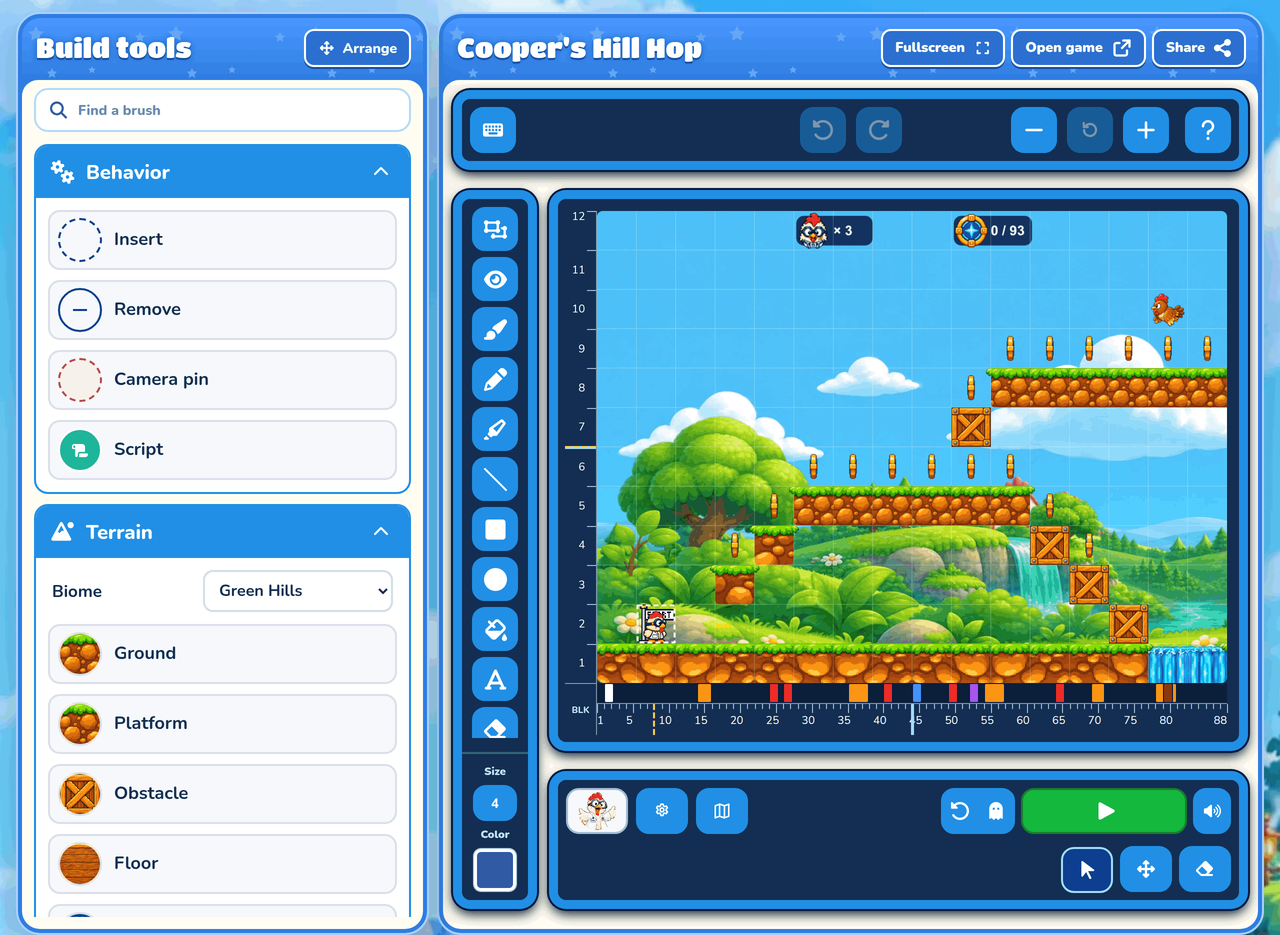
The real builder fills the whole page. You open it from your Lab. It looks like this:
The builder in this course is the same builder, made smaller to fit in the page. It looks like this:
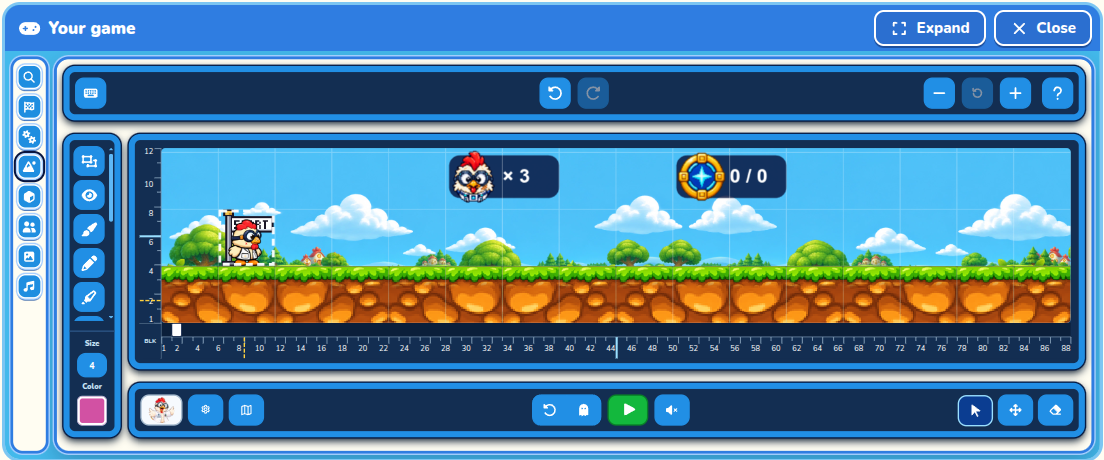
Both have the same three big parts.
| Part | Where it is | What it does |
|---|---|---|
| The map | In the middle | This is your real game. You build on it, and you play it right there. |
| The Build tools | On the left | Your brushes: the things you paint onto the map. |
| The row under the map | Under the map | Buttons to play your game, change its settings and pick a tool. |
The drawers fold up
In the real builder, the Build tools are a tall panel on the left, full of drawers of brushes.
In the course builder there is no room for that panel. So the drawers fold up into a thin row of buttons down the left side. Each button opens one drawer:
| Button | What it opens |
|---|---|
 | Find a brush, to search for a brush by its name |
| The flag | Test results, for checking a game's tests. You don't need it in this course. |
 | The Behavior drawer |
 | The Terrain drawer: ground and platforms |
 | The Objects drawer: coins, enemies, the goal and more |
| Two people | The Characters drawer: enemies you saved to use again |
 | The Sprites drawer: art you made in the Addon Lab |
 | The Sounds drawer: your music and sound effects |
Press a button and its drawer slides open over the map. Here the Terrain button was pressed:
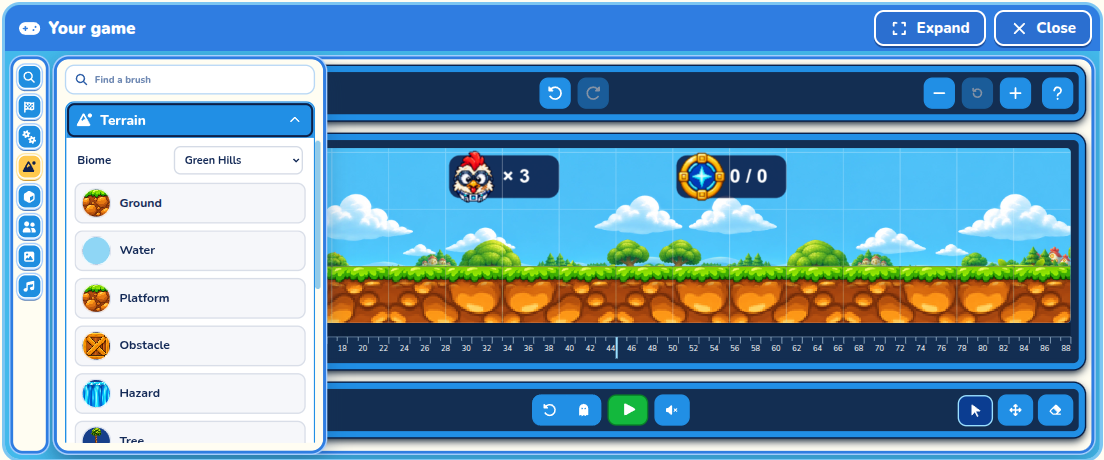
When you pick a brush, the drawer slides shut again, so you can see the map. Press Escape to shut it without picking anything.
Make your game
Now make your game. It is made in your Lab, and it is the same game in every section of this course.
- Press Open your game here, in the box below.
- Some questions come first. Answer them like this:
| The question | What to pick |
|---|---|
| What do you want to make? | Platformer. The rest of the course needs it. |
| What biome do you want? | Any one you like. A biome is the look of a level, like Green Hills or Space. |
| Pick your hero! | Anyone you like. |
| What should we call your game? | Any name. You can change it later. |
- Press Create game.
Your game opens with a first level. It has a row of ground, and a flag that says START. The START flag is where your hero begins.
Make it bigger
The builder is small on this page. Press Expand, at the top right of the builder, to make it fill the window. Press Back to the course to make it small again. Your game saves by itself, all the time.