

Cooper Academy
Take a course. Read a little, play a little, and tick off each section as you go.
Cooper Academy is where you take courses. A course teaches you to make games, one short section at a time. Every course is free.
Pick a course
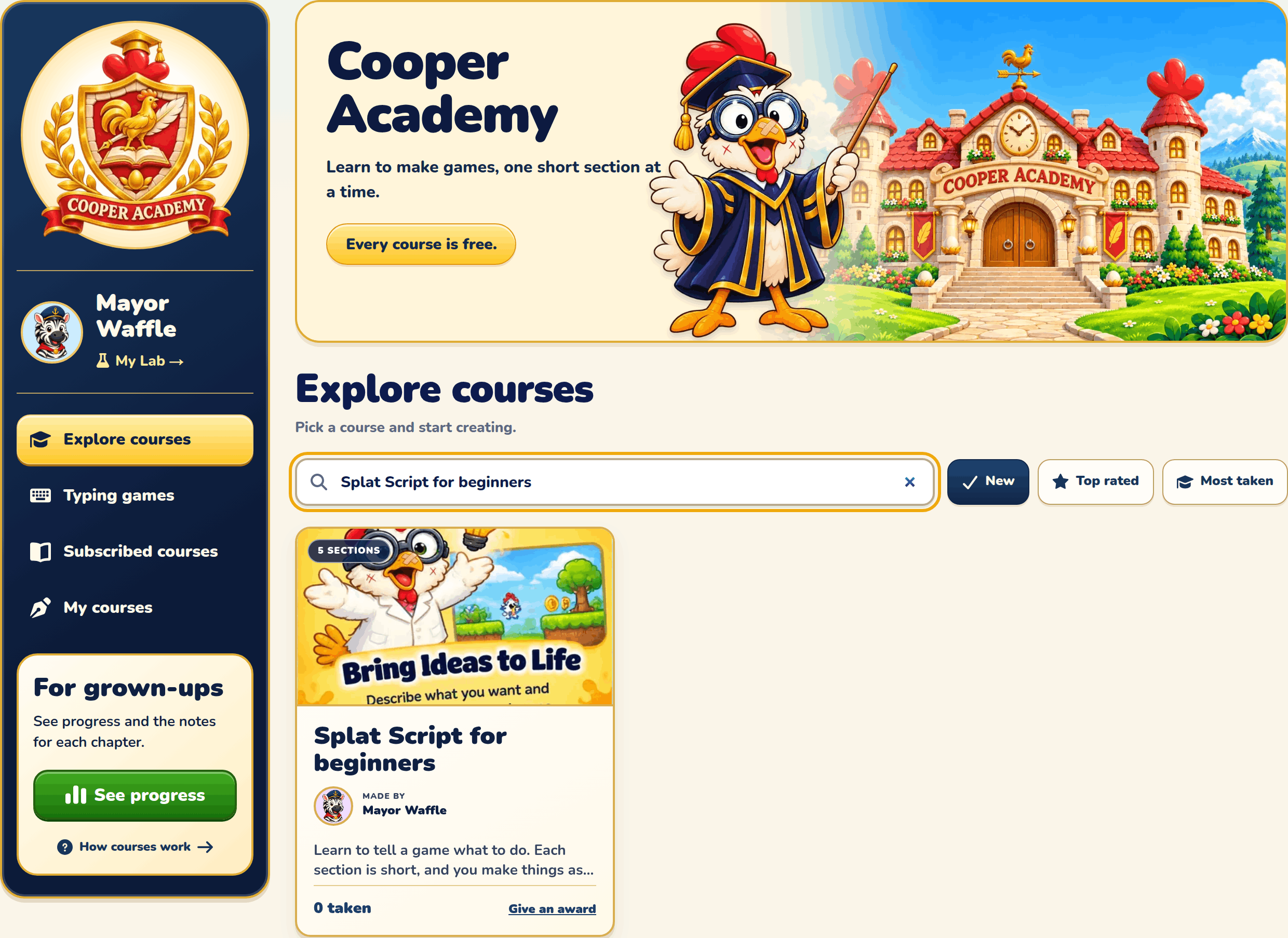
Open Cooper Academy to see the courses. Each course is a card with a picture, its name, who made it and a few words about it. Press a card to open the course.
Find a course
Type in Search courses to find a course by its name or by who made it.
The three buttons beside the search box put the courses in a different order.
| Button | What comes first |
|---|---|
| New | The newest courses |
| Top rated | The courses with the most awards |
| Most taken | The courses the most people have taken |
A course counts as taken when someone joins it and finishes at least half of its sections. Each card shows how many people have taken it.
Give a course an award
Press Give an award on a card and pick one. You can give each course one award, and it stays.
Subscribed courses
Press Subscribed courses on the left to see every course you have joined, finished or not. Each card shows how far you have got.
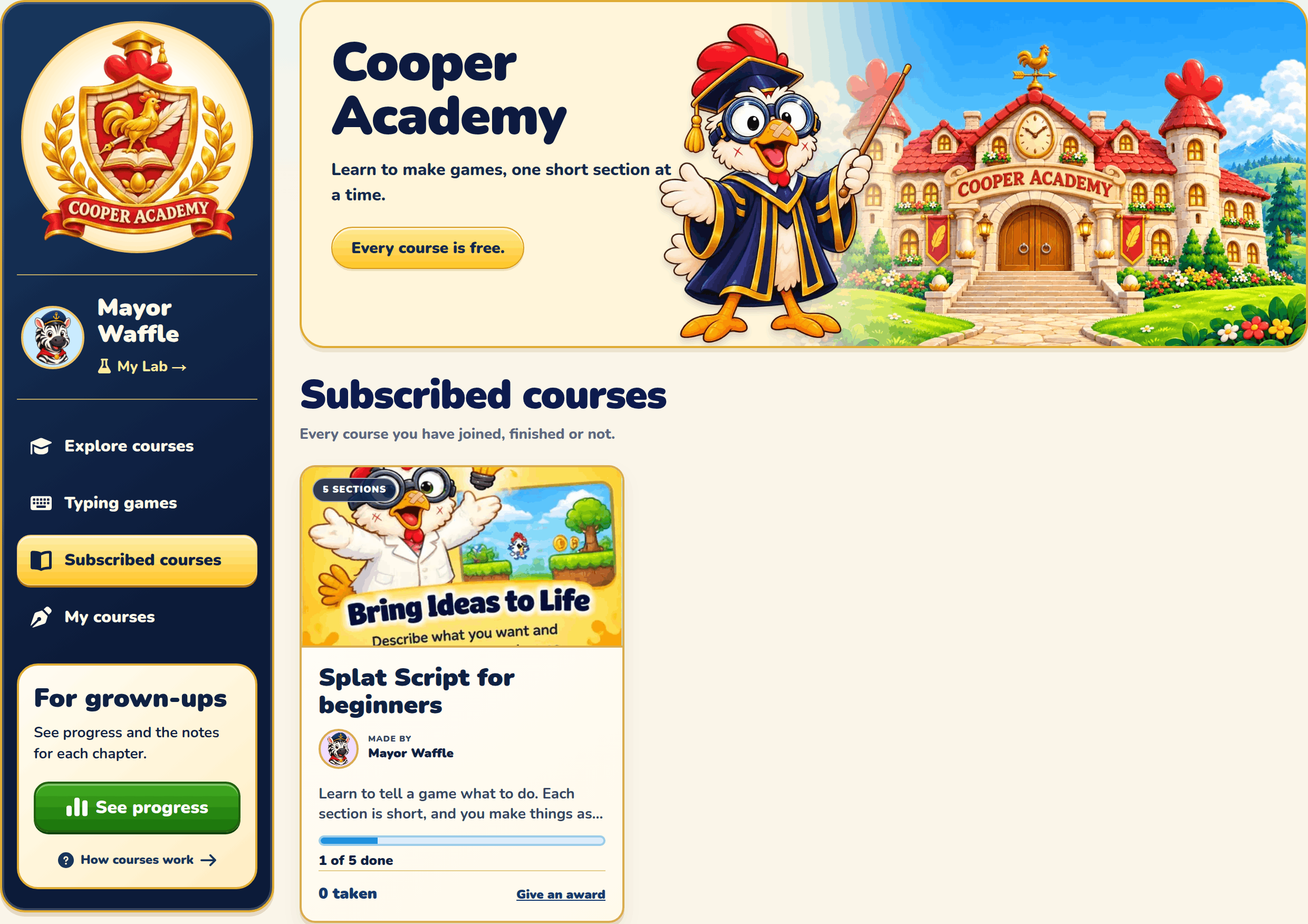
You join a course when you finish its first section.
A course's front page
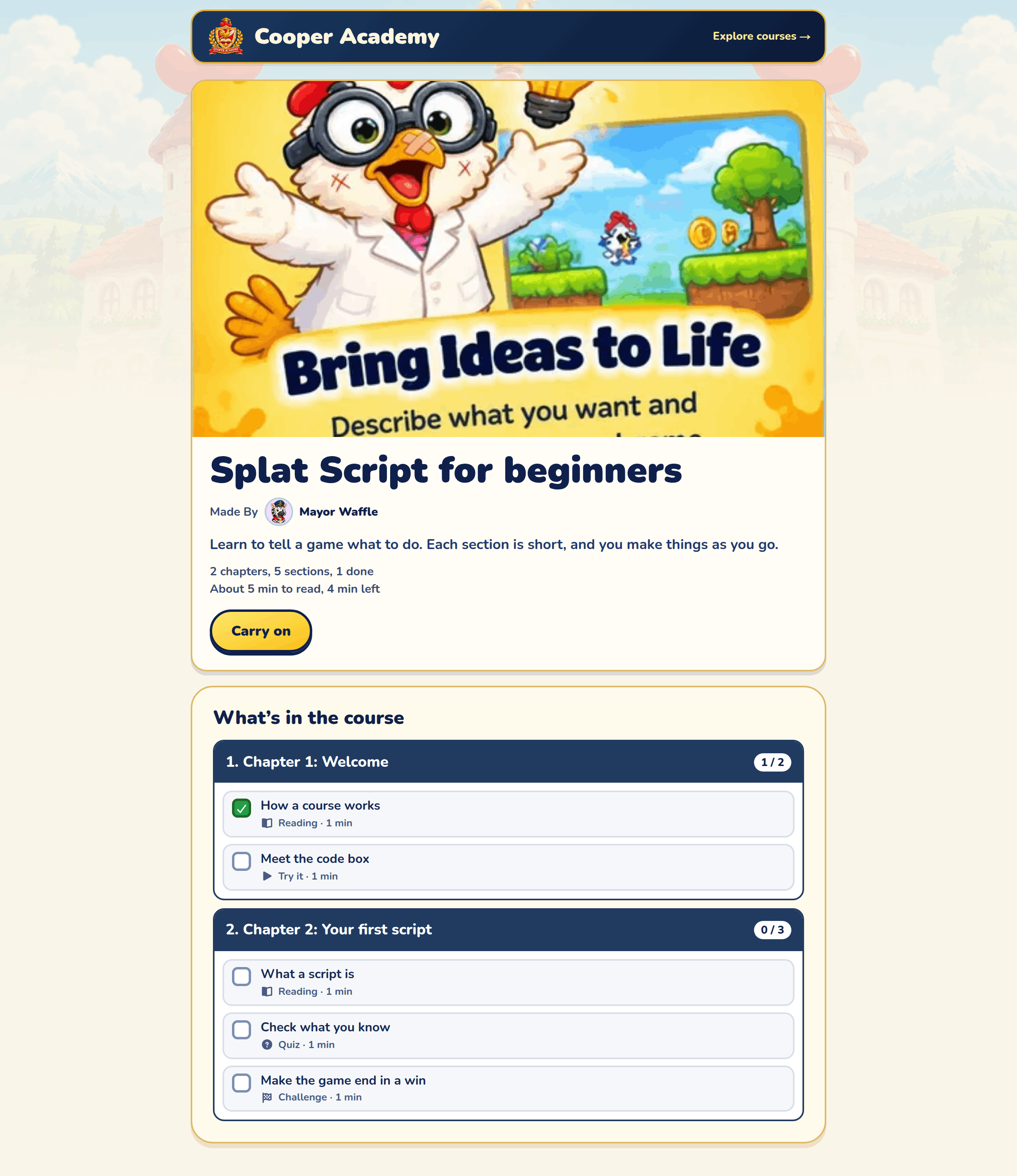
The front page tells you what the course is about. Under that is What's in the course, with every chapter and its sections.
Press Start the course to begin. If you have already started, the button says Carry on, and it takes you to the first section you haven't finished.
A section's page
A course is made of chapters, and a chapter is made of sections. Each section has a page of its own.
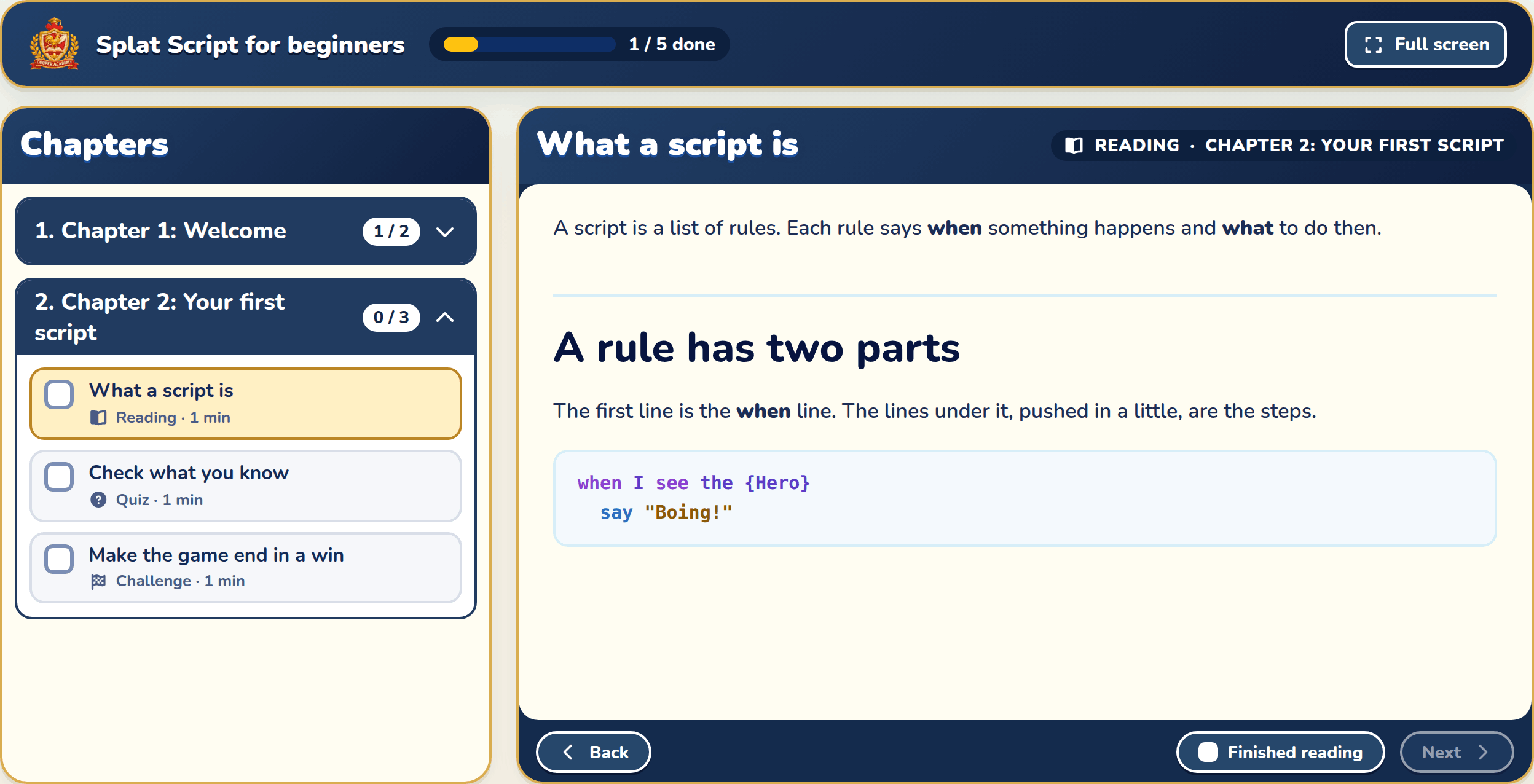
| Part | What it is |
|---|---|
| The bar at the top | The course's name, the Full screen button, and how many sections you have done. |
| Chapters | The list on the left. It shows every chapter and section. |
| The section | The big box on the right. This is what you read, watch or play. |
| The bottom row | Back, the tick box and Next. |
Chapters
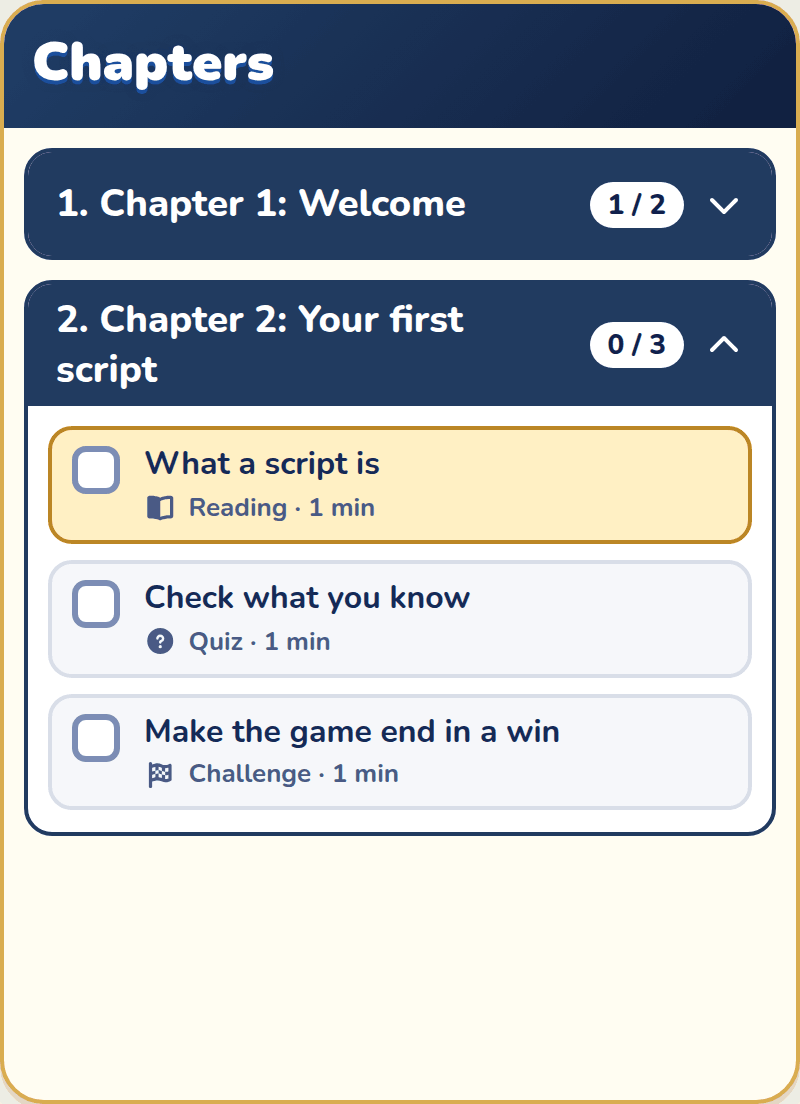
Press a chapter to open it and see its sections. Opening one chapter shuts the one that was open. The numbers on a chapter say how many of its sections you have done.
A section with a green tick is finished. Press any section to go to it. You don't have to go in order.
Full screen
Press Full screen to make the course fill your whole screen. Press Leave full screen, or the Esc key, to go back.
Finish a section
Each section gets a tick when you finish it. How you finish depends on what kind of section it is. The kind is written under the section's name.
| Kind | How you finish it |
|---|---|
| Reading | Tick Finished reading when you have read it. |
| Video | Watch the video to the end. It ticks itself, or you can tick Finished watching. |
| Try it | Press Play in the code box. |
| Quiz | Answer every question right. |
| Challenge | Make every goal pass. |
| Sign up | Get a Lab Key. It ticks itself once you have one. |

Next waits for the tick
Next is greyed out until the section has its tick. If you press it too soon, a little note tells you what to do first.
Want to look ahead? Use the Chapters list. It opens any section, ticked or not.
Some sections are optional. They say Optional under their name, and they have no tick box: read them if you like, then press Next. You don't need them to finish the course. In the Chapters list, an optional section has a dashed box, and an optional chapter says Optional in place of its numbers.

Try it
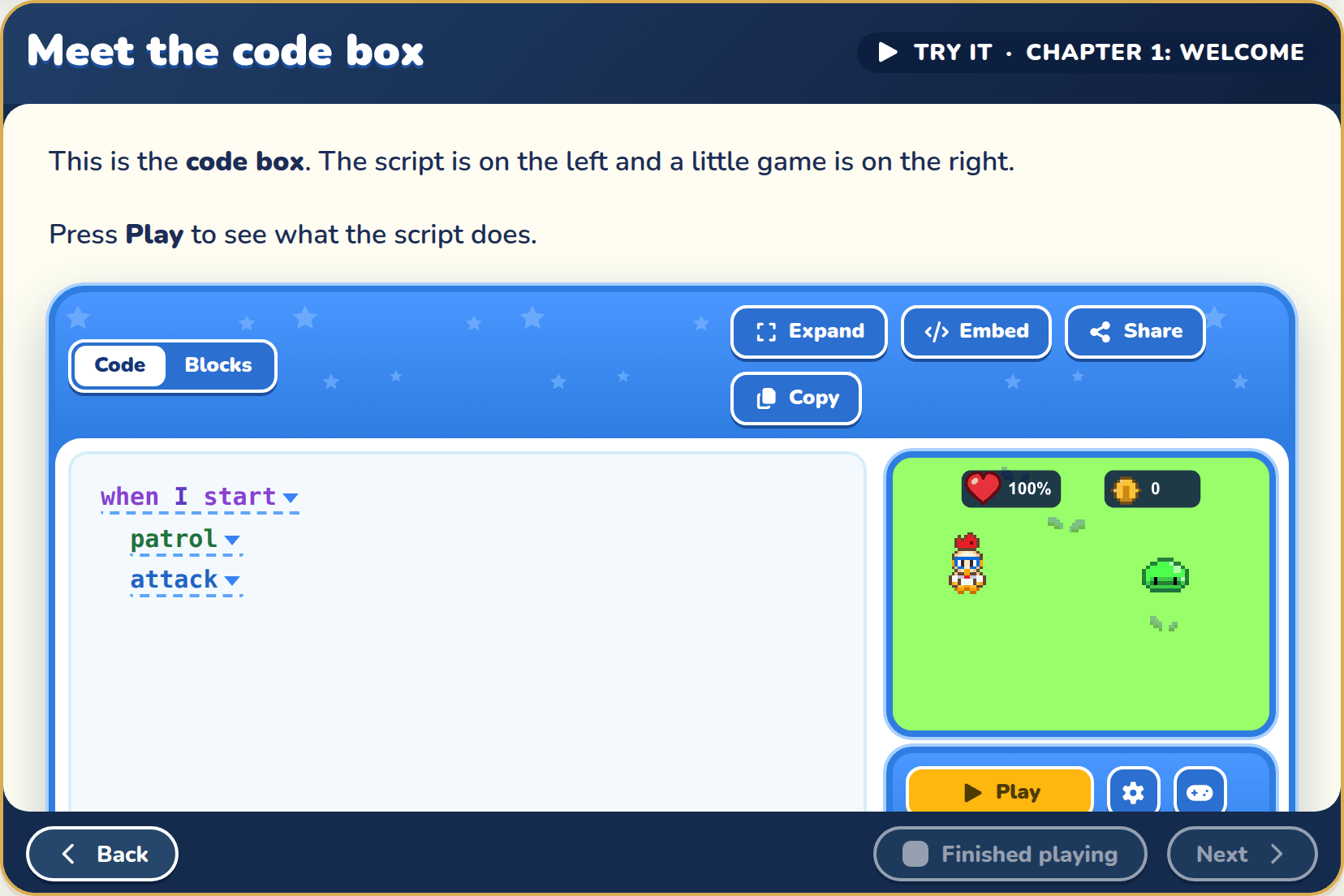
A Try it section has a code box. The script is on the left and a little game is on the right. Press Play to see what the script does. You can change the script and press Play again.
Quiz
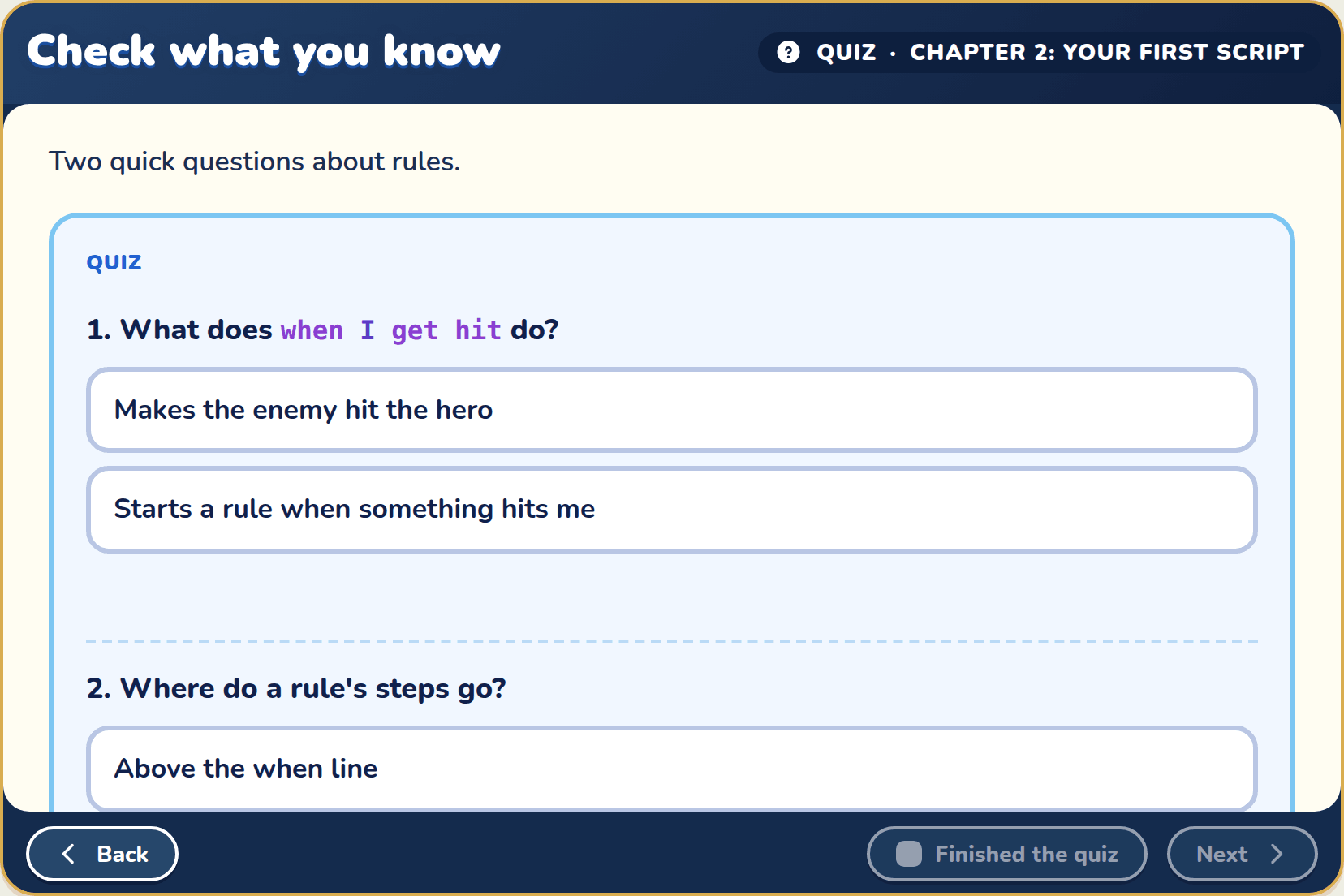
A quiz asks a few questions. Pick an answer for each one. If you get one wrong, it tells you why, and you can pick again.
Challenge
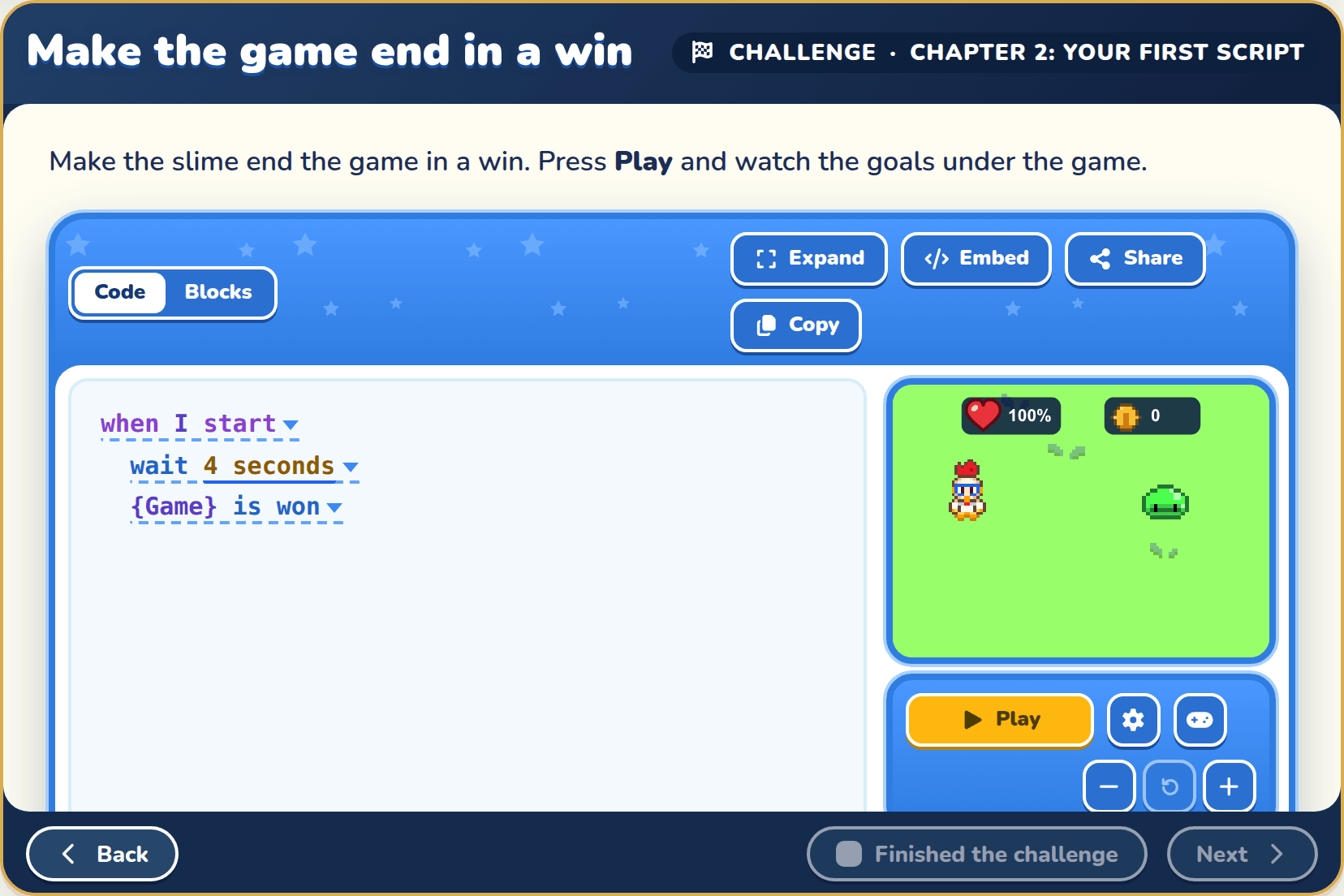
A challenge gives you a script to fix or finish. Under the game is a Goals box. Press Play, and each goal gets a tick when your script makes it happen. The section is finished when every goal has its tick.
The builder in a section
Some sections have the game builder right on the page, with your own course game in it. Press Open your game here and it loads.
| Part | What it does |
|---|---|
| The buttons down the left | Each one is a drawer of brushes. Press one and the drawer slides open over your map. |
| A brush | Press it to pick it up. The drawer slides shut, so you can use the brush on the map. |
| Expand | Makes the builder fill the window. Back to the course makes it small again. |
| Close | Puts the builder away. Your game is saved. |
It is the same builder, and the same game, as in your Lab. Anything you build here is there too.
The Addon Lab in a section
Some sections have the Addon Lab right on the page. Press its button and it loads.
The first time, the Addon Lab asks its questions, to make your addon. After that, the button opens the same addon every time, so you can keep working on it as the course goes on.
| Part | What it does |
|---|---|
| The buttons down the left | Each one is a drawer. Press one and it slides open. |
| The middle | Your addon's layers or poses, which are under the picture in the Addon Lab. |
| The right | The toolbox and your picture. |
| Expand | Makes the Addon Lab fill the window. Back to the course makes it small again. |
| Close | Puts the Addon Lab away. Your addon is saved. |
It is your own addon, the same one as in My Addons in your Lab. Anything you draw here is there too.
Typing games
Some sections have a typing game. You type to play, and your hero runs, jumps and catches coins. You need a real keyboard, so use a computer, or a tablet with a keyboard plugged in.
The first time, you pick your hero. Then put your fingers on the home keys: A S D F for your left hand and J K L ; for your right. Your pointer fingers go on F and J, which have little bumps on most keyboards. Many tablet keyboards have no bumps, so look down once to find F and J. Press the space bar to start. You do this again after every pause, so your hands are always in the right place.
| Game | What you type | What happens |
|---|---|---|
| Endless runner | The word over each enemy | Your hero jumps it. At the end of a sentence, a big leap. |
| Letter rain | The letter on a falling coin | Your hero catches it. A gem has a word: type all of it. |
| Stomp | The word over a walking enemy | Your hero stomps it. The first letter picks which one. |
| Boss fight | A sentence before the boss's bar fills | Your hero hits the boss. Each hit takes off one of its notches. |
The words to type sit at the top of the game. The next letter has a yellow box. A small dot is a space, and ↵ means press Enter. A wrong key shakes red, but it takes nothing away: just press the right key next.
The buttons above the game
| Button | What it does |
|---|---|
| Wait for me | The game waits for every word, so there is no hurry. |
| Keyboard | Shows or hides the keyboard under the game. The next key lights up in its finger's colour. |
| Hero | Pick a different hero. |
| Full screen | The game fills the window. Leave full screen or the Escape key puts it back. |
When you reach the goal, you see your stars, your speed, how many keys were right, and the keys to practise. In a challenge, that ticks the section.
Practise with the typing games
You can play the typing games without taking a course. Press Typing games on the left of Cooper Academy, under Explore courses.
Pick a game, then a level
First pick one of the four games. Then pick a level. The level decides which keys you type, and each level's card shows those keys on a little keyboard. The game opens right there on the page.
| Level | Name | Keys you type |
|---|---|---|
| 1 | Home row | A S D F J K L ; |
| 2 | Reach a little | Adds E, I, G and H |
| 3 | Top row | Adds Q W R T Y U O P |
| 4 | Every letter | The whole keyboard |
| 5 | Capitals and marks | Adds Shift, full stops, commas and question marks |
Each level starts a little faster than the one before. After that, the game speeds up or slows down to match how fast you type. Wait for me works at every level.
Your best and your last level
Each level's card shows your best stars and speed for that game, or Not played yet. The level you played last has a gold outline and says Last played, so playing again is one press. Each game remembers its own level.
Press Back to levels or Back to games above the game to pick again.
These games count toward your typing trophies, just like the ones in courses. To keep your bests, you need a Lab.
Save your place
Anyone can read a course. To keep your ticks, you need a Lab. The first time you finish a section without one, the page offers to make you a free Lab Key. You don't need an email address.
Finish a course
When the last section has its tick, press Next one more time. You get a page that says you finished, with your certificate under it. Optional sections don't count: once every other section has its tick, you finish, and the page offers the optional ones to read next.
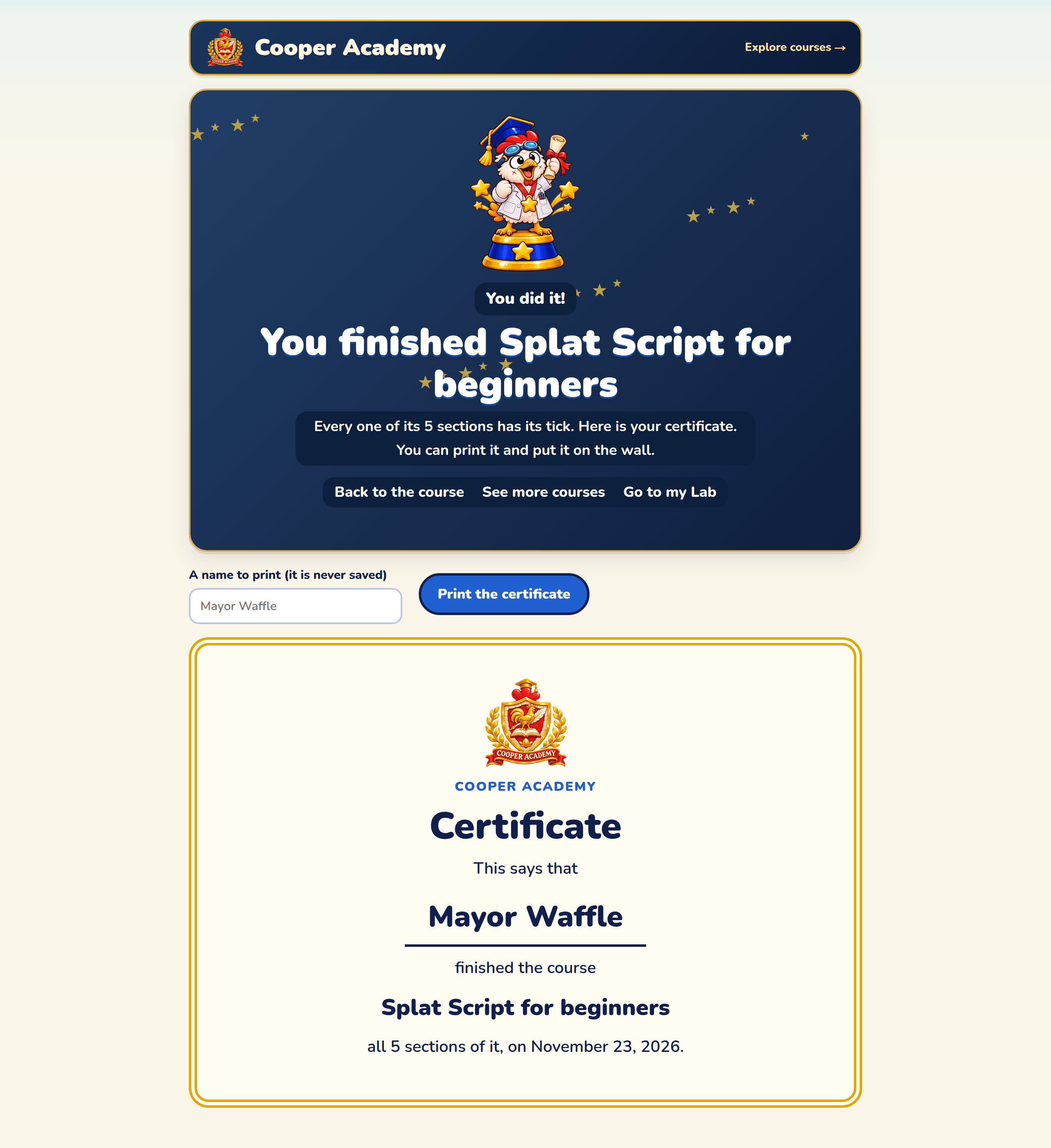
Your certificate
The certificate shows your Lab name, the course and the day you finished. Press Print the certificate to print it.
A grown-up can type a real name in A name to print first. That name is only for the print. It is never saved.
Trophies
Courses give you trophies for My Shelf in your Lab.
| Trophy | How you earn it |
|---|---|
| Chapter Champ | Finish every section of a chapter. |
| Academy Graduate | Finish every section of a course. |
| Home Row Hero | Type 1,000 right letters in typing games. |
| Speedy Fingers | Type 20 words a minute in a typing game, with at least 90 % right. |
| Boss Typer | Beat a typing boss. |
Typing games in every course, and on the typing games page, count toward the typing trophies. Speed only counts from a longer round, with at least 50 letters and 10 different words, and never from letter rain.
Optional sections don't count for either trophy.
When a course changes
The person who wrote a course can publish a newer version of it. You stay on the version you started, so nothing moves under you.
A note at the top tells you when a newer version is out. Press its button to move up. Your ticks come with you.
For grown-ups
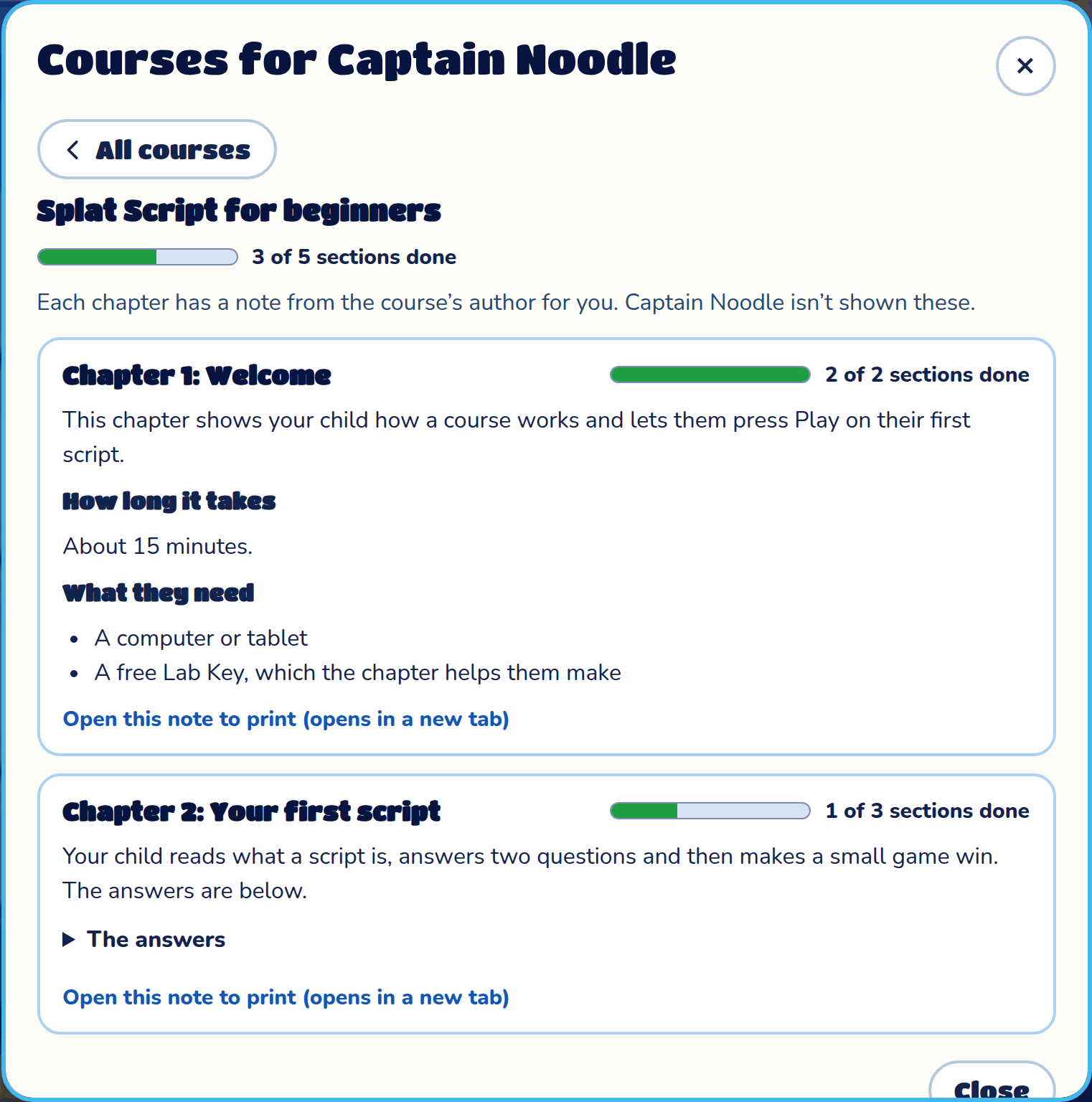
Every chapter can have a note for you from the course's author. It says what the chapter teaches and how long it takes, and it has the answers to the chapter's quizzes and challenges. Children are never shown these notes.
A child's courses
On your Account page, open Child profiles and press Courses beside a child. The window lists each course the child has started and how far they are.
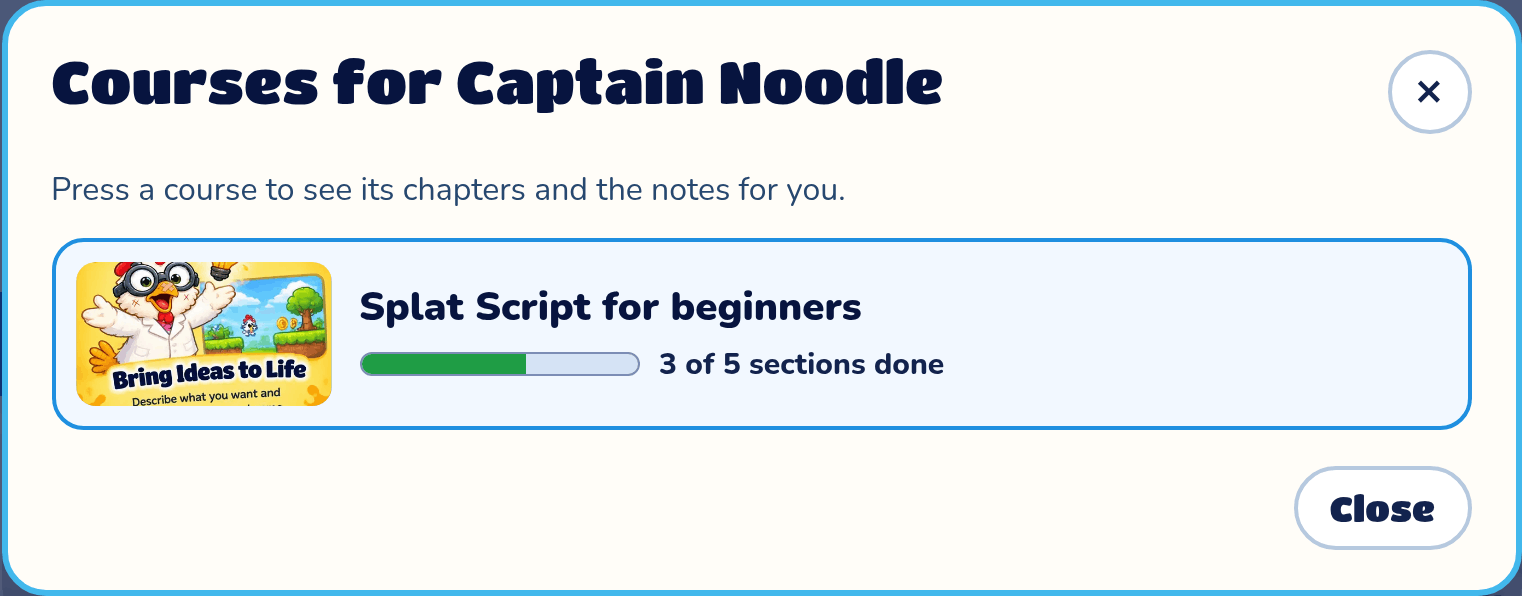
Press a course to see its chapters. Each chapter shows the child's progress and the author's note for you. The answers opens the answers, and a link opens the note on a page you can print.
The progress page
On the left of the Cooper Academy page, under For grown-ups, is a button called See progress. It opens one page with every course you and your children are taking, and the day each section was finished.