A course teaches something in Cooper Academy, in chapters and short sections. This page is for the people who write them. If you want to take a course, see Cooper Academy .
Course writers are creators. You need a grown-up's account with the creator flag, and Splat Labs has to switch course writing on for it. A child profile can't write courses.
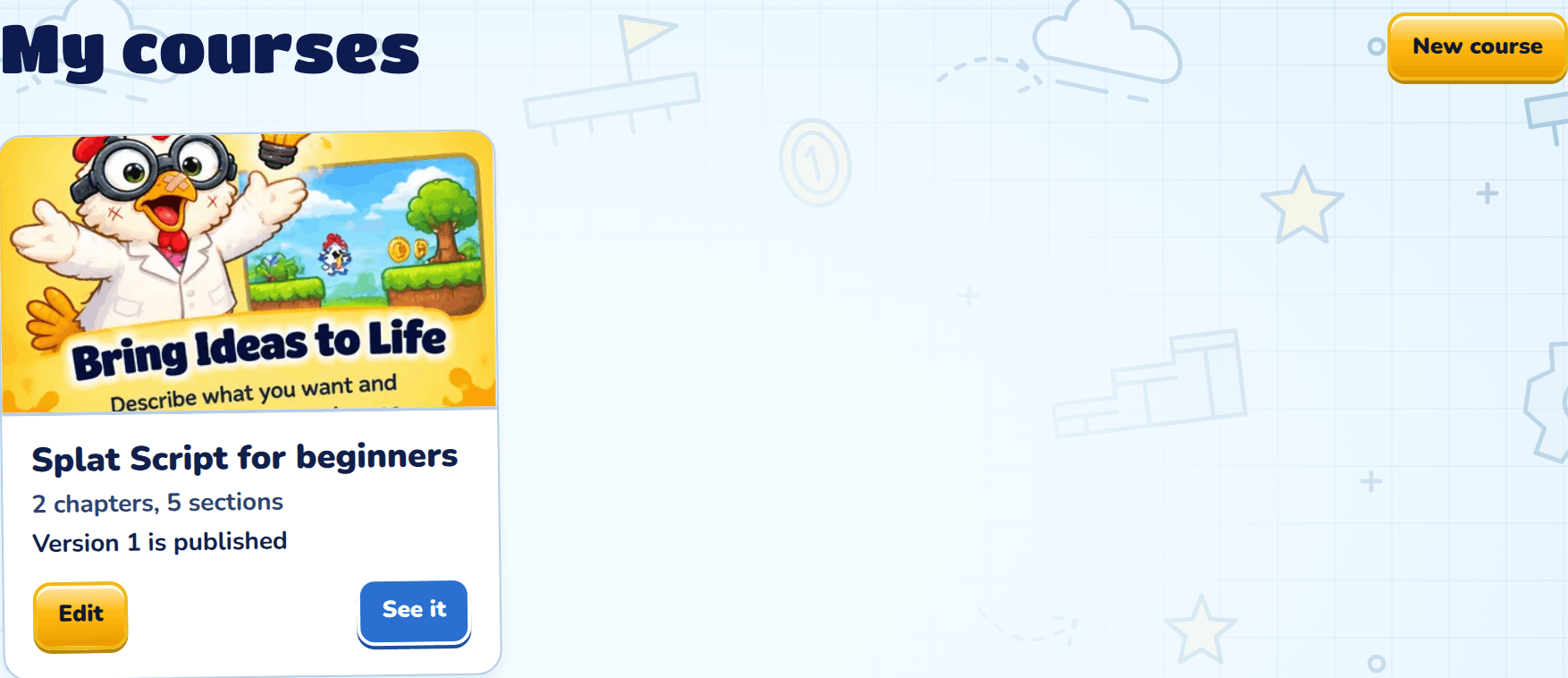
Once it is on, your Lab has a section called My courses . The Cooper Academy page has one too, on the left, with the same cards.
My courses in your Lab shows each course you are writing as a card. The card says how many chapters and sections it has, and where it is on its way to students.
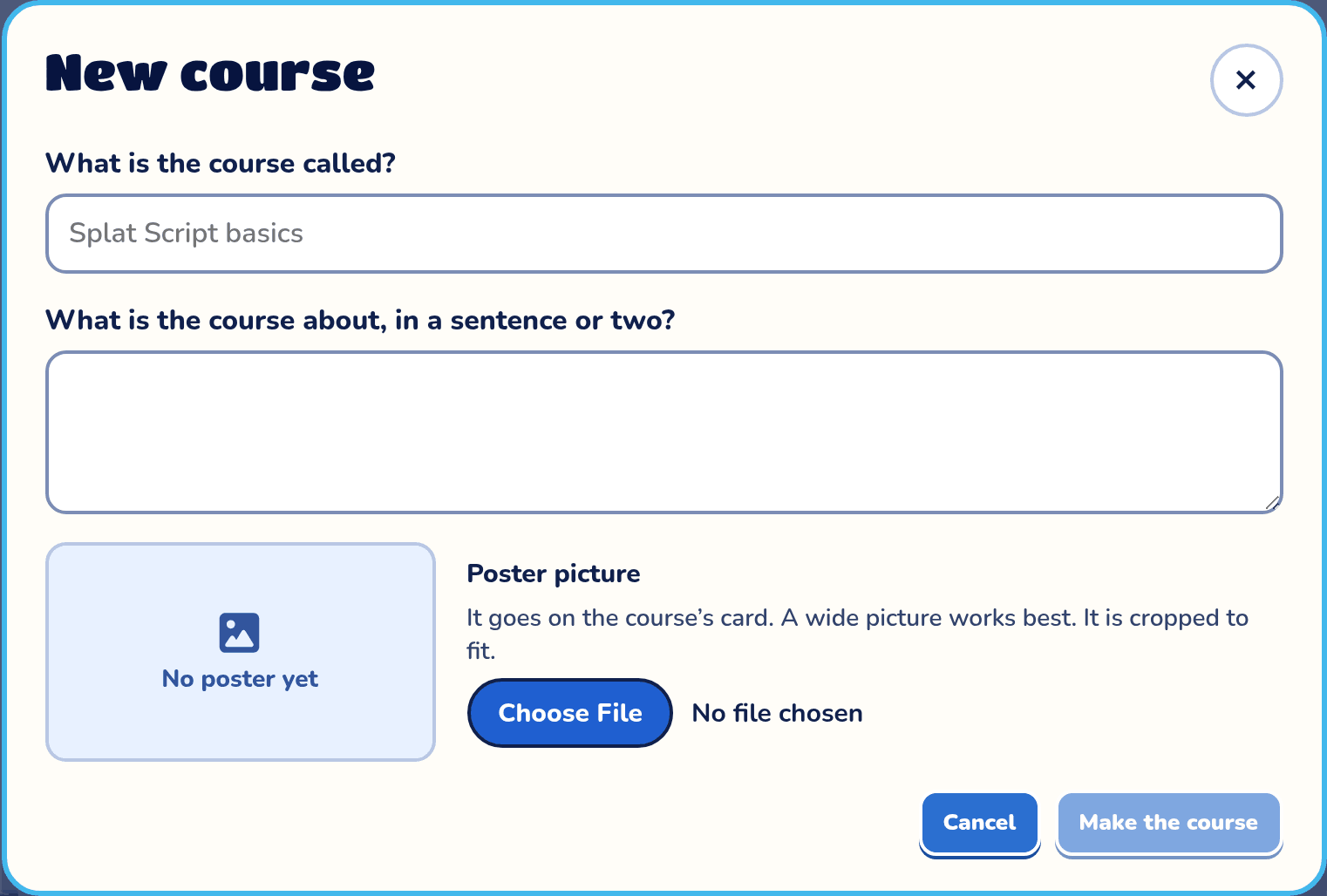
Press New course . A window asks three things, and it needs all three.
Press Make the course . It opens in the course builder with one chapter and one section, ready to write.
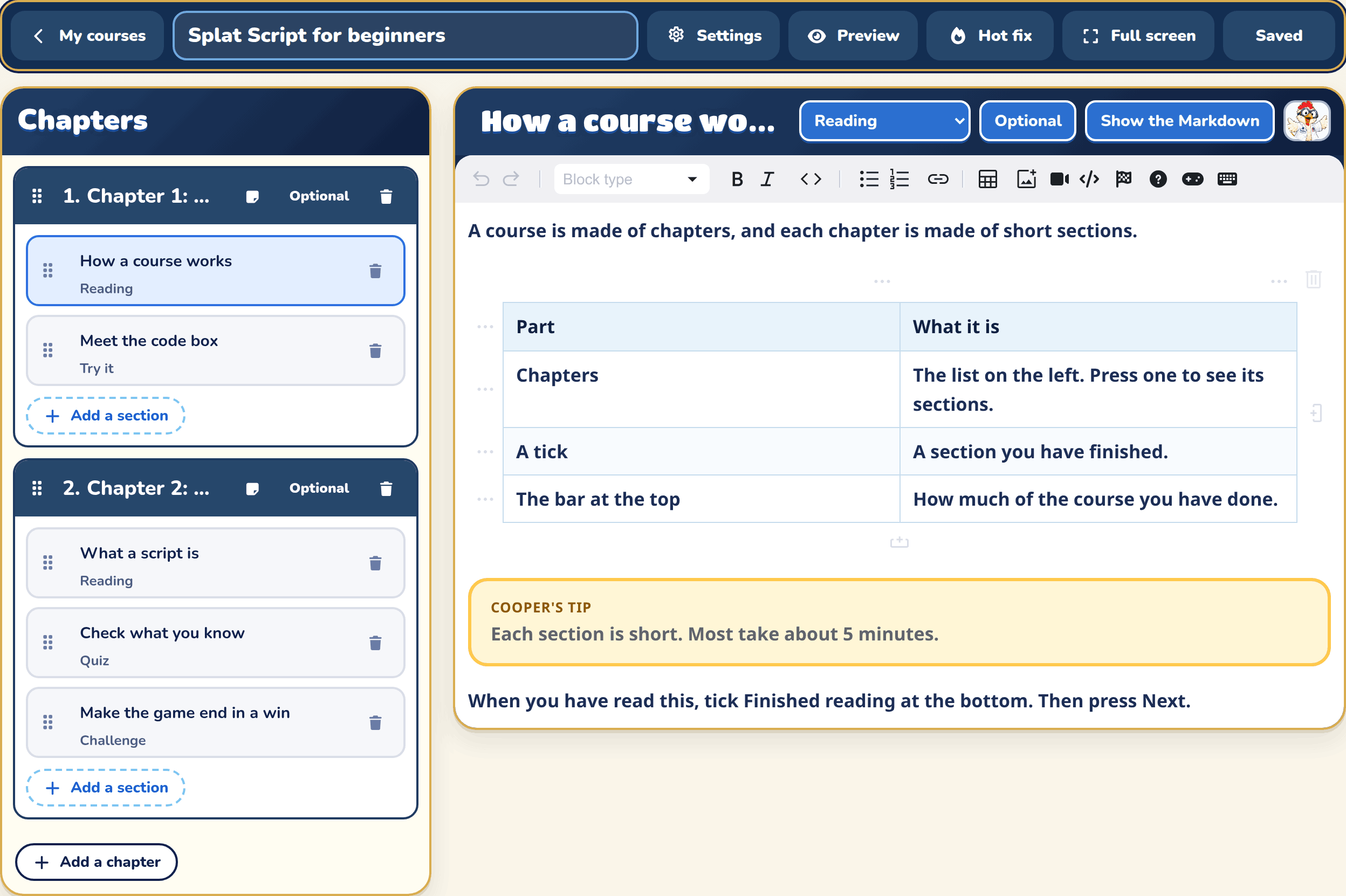
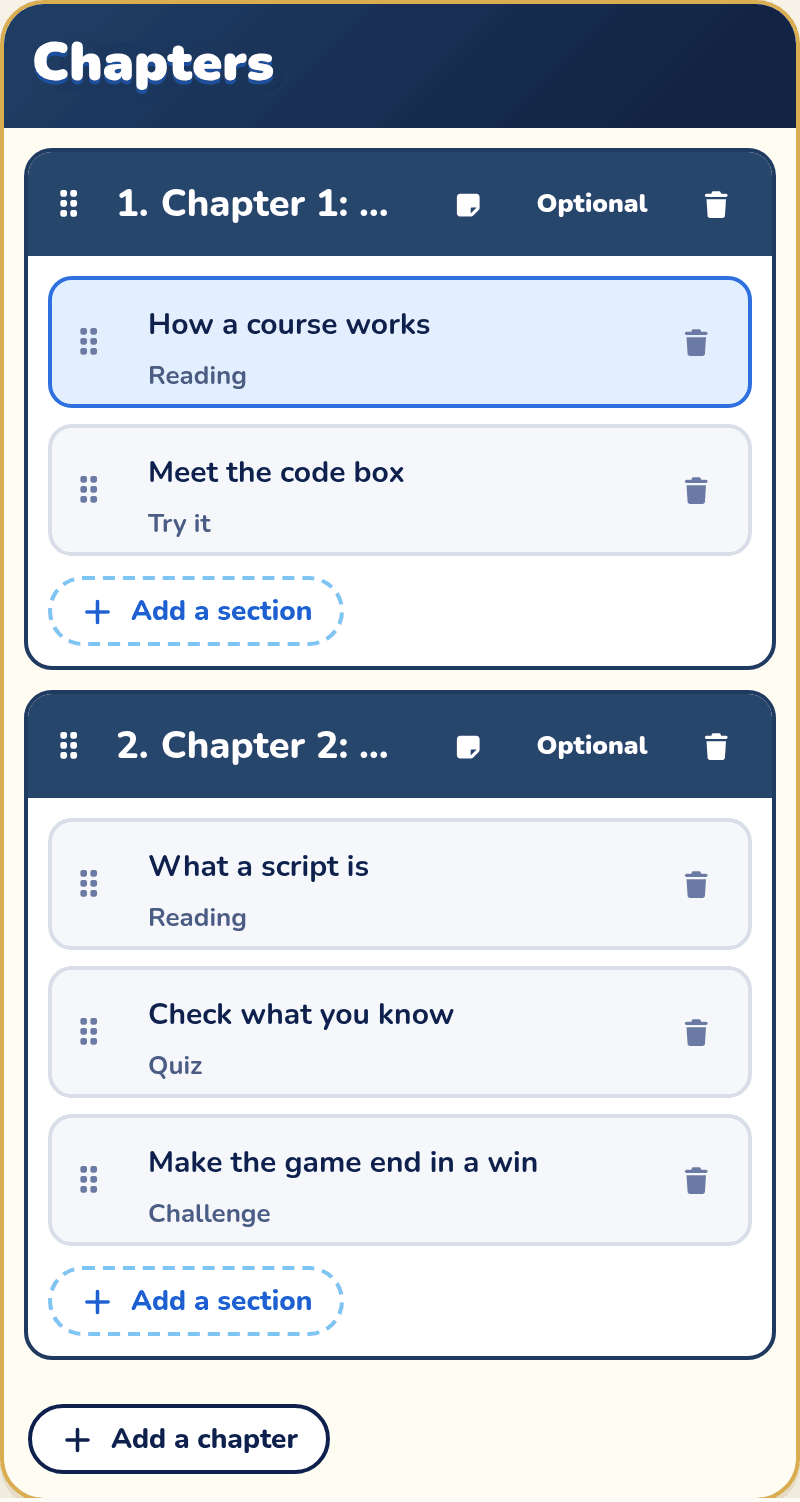
The builder looks like the course page your students get. The Chapters list is on the left and the open section is on the right.
Your work saves by itself a moment after you stop typing. The last box reads Saved* while there are changes still to save, and Saved when there are none.
Preview shows the real course page with what is in the builder right now, even if it isn't saved or published. Only you can open a preview. Ticks you make in a preview aren't kept.
Deleting or renaming is safe for students already taking the course. Their ticks follow a section, whatever it is called and wherever it moves.
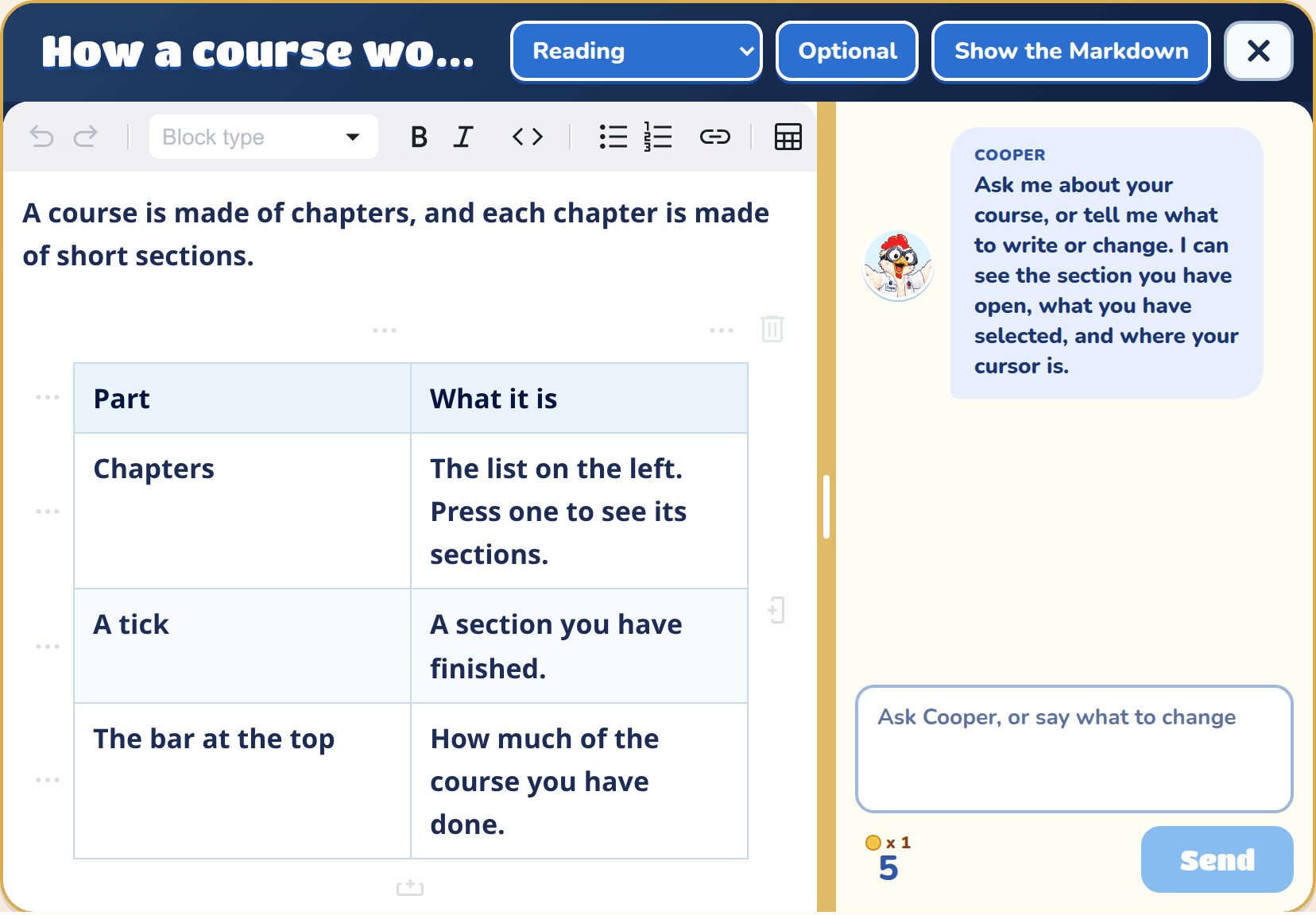
The top of the open section has its name, its kind, and Show the Markdown . Click the name to change it.
The kind says how a student finishes the section. Pick the kind that matches what you put in it.
Cooper's tip
The builder doesn't check that the kind matches. A Try it section with no script, a Quiz with no quiz, or a Challenge with no tests can never be finished, so students can't finish the course.
Press Optional , beside the kind, to make a section optional. An optional section has no tick box, only Back and Next . Students can read it or skip it, and they finish the course without it.
To make a whole chapter optional, press Optional on the chapter's row in the list on the left. Every section in it is then optional, and its sections' own Optional buttons are locked on. A chapter of extra reading at the end of a course is a good use for it.
When a student ticks the last section that isn't optional, Next takes them to the finished page and their certificate, even if optional sections are still ahead. That page offers the optional sections to read next. A course needs at least one section that isn't optional, and a Sign up section can't be optional.
Type the section in the editor. The toolbar has the usual tools first: undo, the kind of block, bold, italic, lists, links, tables and pictures. After those come the tools that are special to courses.
Show the Markdown swaps the editor for the section's plain Markdown. Use it to paste a section in, or to fix something the editor won't let you reach.
Press the Cooper button, to the right of Show the Markdown . A chat with Cooper opens beside the editor. Drag the bar between them to make the chat wider or narrower. Press the button again to close it.
Cooper can see the section you have open, the words you have selected, and where your cursor is. So you can say "make this shorter" or "add a quiz here".
Cooper can change any section, not only the open one. He can also add, rename, move and delete chapters and sections.
Asking a question is free. A message that changes the course costs Cooper coins, once, however much it changes. The price shows beside the Send button.
Undo Cooper's changes shows under his answer. It takes back everything that message changed. It goes away once you change something yourself.
Cooper's changes go into your draft like your own typing. Read what he wrote before you publish.
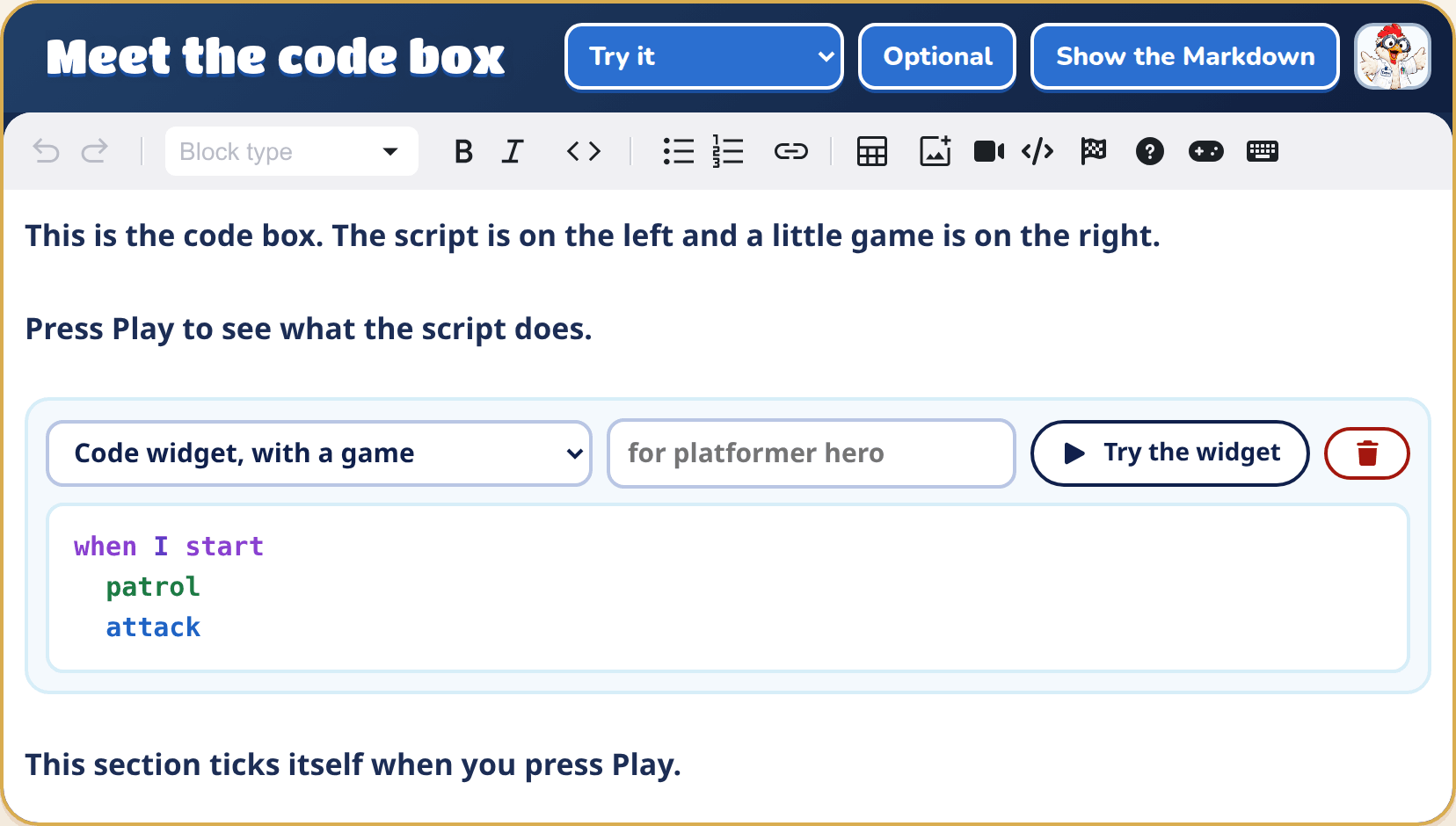
A script sits in a box of its own. The list at its top left says how the student sees it: as a code box with a game, as a script to read, or as plain text. Try the widget plays it without leaving the builder.
The box beside the list says who the script is for, such as for platformer enemy . Add as and a character's name to choose who shows in the little game, as in for platformer enemy as slime . A Platformer has slime and bubble in every biome. Leave it off and a Platformer shows the boar.
One hit beats a Platformer enemy in a code box, so when I get hit never runs and its health is always full. Add with 3 hits to the end, as in for platformer enemy as slime with 3 hits , and it takes three.
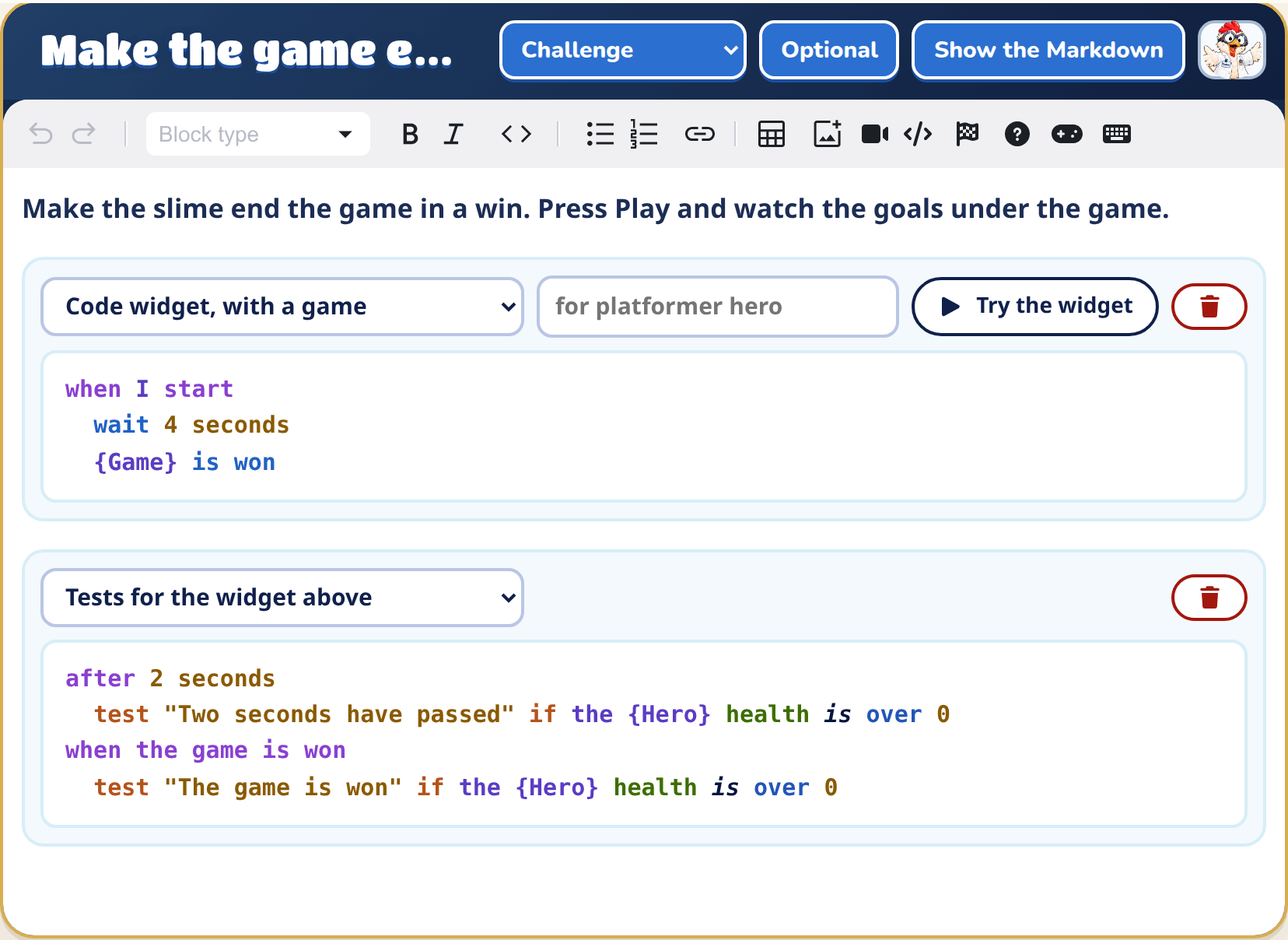
Tests go right under a script. Each test line names a goal and says when it counts as passed. The student sees the goals under the game, and each gets a tick as their script makes it pass.
How to write test lines is in Testing a game .
Write each question on a line of its own, with its answers under it.
A game button gives the student a game in their own Lab to work on. It can make a new empty game, or copy one of your own games as a starter. A copied game brings its addons with it.
Games made this way are free for the student. They don't count against the games or addons their plan allows.
A game button can also show the game builder itself, right there in the section. The student reads a step and does it in the same place, with no going away and coming back.
In the game button's box, pick Shows the builder, here on the page . Then give it the id of the game button that made the student's game.
With the same id, the builder opens the same game. With an id of its own, the first press makes a new game.
The Addon Lab can show right there in a section too, so the student draws their addon without leaving the course. Add it with the puzzle piece button in the editor's toolbar, or pick Addon Lab, here on the page in a box's menu.
The first time, the student answers the Addon Lab's questions in it to make an addon. That addon stays theirs for this widget, and it opens with it after that. It is one of their own addons, like any they make, so it counts against the addons their plan allows.
A typing game teaches typing. The student types to play, and their hero runs, jumps and catches coins. Every game starts with their fingers on the home keys and a press of the space bar.
Pick the game in the list at the top of its box. Try the game plays it without leaving the builder.
Each line is a setting: its name, a colon, then its value. Lists of words or sentences go one to a line, under words: or sentences: , each starting with a dash. Everything after the colon or dash is typed exactly as written.
id: home-row-run
keys: asdf jkl
goal: 15 wordsThe words come from our own list of words for kids. With keys , the builder warns you about any word or sentence of yours that uses a key outside them.
Start the next line of a sentence with two spaces. The student presses Enter there. On any other setting, such as a long description , a line that starts with spaces just carries on the one above.
A typing game can go in a Try it section, which ticks when the student starts it, or a Challenge, which ticks when they reach its goal.
When a step names a button, show the button. A student then sees what to look for, and isn't guessing.
Put the picture straight after the words that name it. In Show the Markdown , a step looks like this:
Press the **Game** button , under the map.The picture sits in the line of words, as tall as the line. On a line of its own, it shows at its full size.
Adventure Picture What it is Type this Game reset 
Adventure · object · script id Picture What it is Type this ID for scripts 
Adventure · settings · ground · height Picture What it is Type this Lower the ground  Raise the ground 
Adventure · story Picture What it is Type this Story Read or change your game's story. Story Your story × Once upon a time Long ago, Clucky Farm sparkled under the light of the Star. ◀ ● · · · · ▶ 🐔 Tap an underlined word to change it. 🎲 Shuffle Done  Tell the story Your story is told when a player first plays. ON 
Adventure · story · book Picture What it is Type this Story 
Adventure · story · tell Picture What it is Type this Tell the story 
Artillery · map · hero power Picture What it is Type this Hero power percentage 
Artillery · object Picture What it is Type this Glue  Pinned 
Attack Picture What it is Type this Add attack gamepad button  Add attack key  Attack 
Other Picture What it is Type this Bookmark Fall through  Boss music  Brush   Game name   Help tips  Level name  Map control tools  Map zoom  Fullscreen Open game Share  Opening Screen  Script log   Edit history  Win music 
Boss music Picture What it is Type this Listen to the songs for Boss music 
Brush and object settings Picture What it is Type this All brushes 
Build tools Picture What it is Type this Arrange  Behavior  Characters  Find a brush  Build tools  Inventory  Objects  Objects  Track  Sounds  Sprites  Terrain 
Build tools · objects Picture What it is Type this Biome 
Build tools · racing objects Picture What it is Type this Objects 
Build tools · racing track Picture What it is Type this Biome  Track 
Control row Picture What it is Type this Pause game  Play game  Sound and volume 
Create your game Picture What it is Type this Create your game 
Find Picture What it is Type this A door, key or lock  Close the search  Find  Or an item 
Game actions Picture What it is Type this Add bookmark  Capture image  Capture video  Copy  Cut  Insert blocks  Move here  Paste  Remove blocks  Update thumbnail 
Game controls Picture What it is Type this Find a door, key, lock or item  Hero's bag for testing  Put the hero in the middle of the level  Racer  Settings: keyboard, sound and accessibility  Settle pieces 
Game settings Picture What it is Type this Close settings  Game Settings  Help tips 
Game trophy Picture What it is Type this Trophy 
Insert blocks Picture What it is Type this Cancel  Close insert blocks  Insert blocks  Insert  Number of blocks 
Jump Picture What it is Type this Add jump gamepad button  Add jump key  Jump  Remove ↑ from jump  Remove Space from jump 
Keyboard gamepad Picture What it is Type this Close keyboard and gamepad  Keyboard & gamepad 
Level 1 settings Picture What it is Type this Delete level  Download map image  Re-roll map 
Level music Picture What it is Type this Listen to the songs for Music  Music 
Level name Picture What it is Type this Generate 
Level settings Picture What it is Type this Level settings 
Level trophy Picture What it is Type this Trophy 
Levels Picture What it is Type this ⠿ 1 Green Hills  + Add level 
Map settings Picture What it is Type this Close map settings  Map Settings  Help tips 
Map size Picture What it is Type this Columns  Rows 
Map tools Picture What it is Type this Erase  Move  Select 
Map zoom Picture What it is Type this Reset zoom  Zoom in  Zoom out 
Material Picture What it is Type this Asphalt  Concrete  Dirt  Ice  Mud  Rubber  Sand  Slot car  Snow  Toy track 
Maze · map · view Picture What it is Type this View columns  View rows 
Move down Picture What it is Type this Add move down gamepad button  Add move down key  Move down  Remove ↓ from move down  Remove S from move down 
Move left Picture What it is Type this Add move left gamepad button  Add move left key  Move left  Remove A from move left  Remove ← from move left 
Move right Picture What it is Type this Add move right gamepad button  Add move right key  Move right  Remove D from move right  Remove → from move right 
Move up Picture What it is Type this Add move up gamepad button  Add move up key  Move up 
Object settings Picture What it is Type this Arrange  Attack  Character and scripts  Character scripting  Copy and delete  How it moves  ID  Movement  Save as character  Settings  Talk and trade  When defeated 
Open game Picture What it is Type this Fullscreen  Open game (opens in a new tab)  Share play link 
Paint Picture What it is Type this Brush  Circle  Crayon  Eraser  Fill  Hide paint  Line  Pencil  Select — move, resize, turn or flip part of the picture  Square  Text  Upload a picture to put on the map 
Pick your racer Picture What it is Type this Close without changing racer  Pick your racer!  Next racer  Previous racer  Use this one 
Platformer · terrain Picture What it is Type this Fall through 
Platformer · terrain · first frame Picture What it is Type this Earlier animation frame  Later animation frame 
Preview Picture What it is Type this Close these notes  Column ruler: click to put the hero in that column  Object settings for selected track  Show me  Turn the map left  Turn the map right 
Publication Picture What it is Type this Published 
Racing · map · laps Picture What it is Type this Fewer laps  More laps 
Racing · map · rain Picture What it is Type this Raining 
Racing · rules · auto steer Picture What it is Type this Auto-steering 
Racing · rules Picture What it is Type this Combat  Off the road The road's edges keep every car on the track. OFF 
Racing · rules · off road Picture What it is Type this Off the road 
Racing · rules · start eggs Picture What it is Type this Throwing eggs each lap 
Rail Picture What it is Type this Behavior  Find a brush  Objects  Sounds  Sprites  Terrain  Track 
Reset Picture What it is Type this Enemy reset: everything but the hero  Full reset 
Script log Picture What it is Type this Clear  Copy 
Scripts Picture What it is Type this Block families  Families  Game script  Global script  Hero script  Tests 
Scripts · window Picture What it is Type this Action  Add to this or take a part off  Close character script  Close object script  Family  Find a word  Format  Full screen  Go to {Hero} on the map  Help  Help tips  Keys  Make the words a toolbar  Reset  Save  Setting  Share  Start from  Trigger 
Scripts · window · character script Picture What it is Type this Character Script 
Scripts · window · object script Picture What it is Type this Object Script 
Settings button Picture What it is Type this Chat with Cooper  Close chat with Cooper  Game settings  Map settings 
Shards to find Picture What it is Type this Fewer  More 
Share Picture What it is Type this Close share dialog  Copy link 
Share · play link Picture What it is Type this Play link 
Show the script as Picture What it is Type this Blocks  Code 
Starting lives Picture What it is Type this Fewer lives  More lives 
Story page Picture What it is Type this Clucky Farm 
Turn the page Picture What it is Type this Next page  Previous page 
Undo redo Picture What it is Type this Redo  Undo 
What do you want to make Picture What it is Type this What do you want to make? 
Win music Picture What it is Type this Listen to the songs for Win music 
World 1 Picture What it is Type this 1 Green Hills 
World map Picture What it is Type this Add a world here 
World maps Picture What it is Type this Add a hidden world 
Worlds Picture What it is Type this Add a world 
Your story Picture What it is Type this Close the story  Your story  🎲 Shuffle 
These are the buttons of a code box, and of the Script Playground.
Action words Picture What it is Type this Close the words 
Other Picture What it is Type this Add to this or take a part off  Copy  Embed  Expand  Game  Less  More  Share  Splat Labs 
Game zoom Picture What it is Type this Reset zoom  Zoom in  Zoom out 
Game Picture What it is Type this Biome  Character  Game settings  Hero  Keys  Play this script  Show the game  Stop 
Keyboard shortcuts Picture What it is Type this Close the shortcuts  Keyboard shortcuts 
Public scripts Picture What it is Type this Public Scripts 
Scripts Picture What it is Type this Add something to the game  Character  Game  Hero  Level 
Show the script as Picture What it is Type this Blocks  Code 
Words you can use Picture What it is Type this Action: Happens once  Behavior: What it keeps doing  Choice: Choosing what to do  Learn: Your own functions  Loop: Repeating steps  Setting: Changes me  Trigger: When a rule starts  Variable: Remembers in @variables 
Are we making an enemy or a boss Picture What it is Type this Are we making an enemy or a boss? 
Build tools Picture What it is Type this Accessories  Bosses  Enemies  My Sprites  Weapons  Wings  Backgrounds  Built-in  Effects  Music  My Sprites  Weathers  Adventure enemies  Adventure objects  Adventure villagers  My Sprites  Platformer enemies 
Build tools · maker accessories Picture What it is Type this Accessories 
Build tools · maker body parts Picture What it is Type this Body parts 
Build tools · maker bosses Picture What it is Type this Bosses 
Build tools · maker enemies Picture What it is Type this Enemies 
Build tools · maker my sprites Picture What it is Type this My Sprites 
Build tools · maker weapons Picture What it is Type this Weapons 
Build tools · maker wings Picture What it is Type this Wings 
Build tools · screen backgrounds Picture What it is Type this Backgrounds 
Build tools · screen builtin Picture What it is Type this Built-in 
Build tools · screen effects Picture What it is Type this Effects 
Build tools · screen music Picture What it is Type this Music 
Build tools · screen sprites Picture What it is Type this My Sprites 
Build tools · screen weathers Picture What it is Type this Weathers 
Build tools · sprite adventure enemies Picture What it is Type this Adventure enemies 
Build tools · sprite adventure objects Picture What it is Type this Adventure objects 
Build tools · sprite adventure villagers Picture What it is Type this Adventure villagers 
Build tools · sprite mine Picture What it is Type this My Sprites 
Build tools · sprite platformer enemies Picture What it is Type this Platformer enemies 
Build tools · sprite platformer objects Picture What it is Type this Platformer objects  World 
Car Picture What it is Type this Paint  Engine 
Car · paint Picture What it is Type this Accent colour  Body colour  Trim colour 
Car · parts Picture What it is Type this Arrange  Chassis  Engine  Shocks  Tires  Transmission 
Car · parts · things to add Picture What it is Type this Things to add 
Car · preview Picture What it is Type this Chat with Cooper 
Car · stats · build budget Picture What it is Type this Build budget 
Chat Picture What it is Type this 2 Cooper coins when Cooper changes something, questions are free. 0 left this month  Chat with Cooper 
Chat · composer Picture What it is Type this Message Cooper  Send 
Color Picture What it is Type this Cancel  Done  Help tips  Hex  Hue  Pick a color from the picture  In this picture 
Color · pick a color Picture What it is Type this Pick a color 
Create your addon Picture What it is Type this Create your addon 
Editor Picture What it is Type this Spin left  Spin right 
Frame 2 Picture What it is Type this Delete  Insert after 
Frames Picture What it is Type this Frames 
Guides Picture What it is Type this G1 Row − 26 +  Remove all  Snapping A guide you drag snaps onto the block lines. 
Guides · position Picture What it is Type this Move G1 row back a pixel  Move G1 row on a pixel  Move G2 column back a pixel  Move G2 column on a pixel  Remove guide G1  Remove guide G2 
Header Picture What it is Type this Addon settings  Character script  Export  Guides  SPRITE  Hills coin  Redo  Redo poster edit  Save  Share  Undo  Undo poster edit  Zoom 
Header · zoom Picture What it is Type this Reset zoom  Zoom in  Zoom out 
Other Picture What it is Type this Help tips 
Layers Picture What it is Type this Far  Middle  Near  Remove Far layer image  Remove Middle layer image  Remove Near layer image  Show Far layer  Show Middle layer  Show Near layer  Upload Far layer image  Upload Middle layer image  Upload Near layer image 
Maker controls Picture What it is Type this Move  Pause  Play 
Maker Picture What it is Type this Effects  Frame 1 lasts seconds  Repeats 
Maker · frame Picture What it is Type this Frame 1 lastsseconds  Frame 2 lastsseconds 
Maker · paint tools Picture What it is Type this Colors 
Maker · piece actions · 1 mossback boar Picture What it is Type this 1. Mossback Boar 
Maker · piece actions Picture What it is Type this Close 1. mossback boar  Copy  Flip  Help tips  Remove 
Maker · piece animation Picture What it is Type this In this frame it  Start it over in this frame 
Maker · piece name Picture What it is Type this Name in scripts 
Maker · piece order Picture What it is Type this Back  Forward 
Maker · piece Picture What it is Type this Bigger  Down  Left  Right  Smaller  Turn left  Turn right  Up 
Maker · pieces Picture What it is Type this Arrange  Pieces 
Maker · pose Picture What it is Type this Delete the pose Defeated  Delete the pose Idle  Delete the pose Move 
Maker · poses Picture What it is Type this Add a pose 
Maker · tools Picture What it is Type this Brush  Chat with Cooper  Circle  Crayon  Eraser  Fill  Line  Onion skin — see the frame before, faintly  Pencil  Select — move, resize, turn or flip part of the picture  Square  Text 
Paint Picture What it is Type this Brush  Chat with Cooper  Circle  Close chat with Cooper  Crayon  Eraser  Fill  Hand — move artwork  Line  Pencil  Select — move, resize, turn or flip part of the picture  Square  Text  Upload a picture or a sprite sheet 
Screen controls Picture What it is Type this Back a frame  Back to the start  Forward a frame  Move  Play 
Screen Picture What it is Type this Background  The hero  Weather 
Screen · drawers Picture What it is Type this Hide the background while editing  Remove the background  Remove the music 
Screen · drawers · things to add Picture What it is Type this Things to add 
Screen · frame time Picture What it is Type this Frame 1 time, in seconds  Frame 2 time, in seconds  Frame 3 time, in seconds  New layer 
Screen · layer panel Picture What it is Type this Bigger  Bigger letters  Close cooper  Close the hero  Close title  Close vix  Down  Fewer spins  Flip  Help tips  Layer name  Left  Less see-through  More see-through  More spins  Outline  Right  Smaller  Smaller letters  Turn left  Turn right  Up 
Screen · layer panel · cooper Picture What it is Type this Cooper 
Screen · layer panel · the hero Picture What it is Type this The Hero 
Screen · layer panel · title Picture What it is Type this Title 
Screen · layer panel · vix Picture What it is Type this Vix 
Screen · layer Picture What it is Type this Cooper  Cooper Games  Cooper Games's glide settings  Delete Cooper  Delete Cooper Games  Delete Door  Delete House  Delete The hero  Delete Title  Delete Vix  Door  Door's glide settings  Hide Cooper Games while editing  Hide Cooper while editing  Hide Door while editing  Hide House while editing  Hide The hero while editing  Hide Title while editing  Hide Vix while editing  House  House's glide settings  Lock Cooper  Lock Cooper Games  Lock Door  Lock House  Lock The hero  Lock Title  Lock Vix  Settings for Cooper  Settings for Cooper Games  Settings for Door  Settings for House  Settings for The hero  Settings for Title  Settings for Vix  The hero  The hero's glide settings  Title  Title's glide settings  Vix  Vix's glide settings 
Screen · layers Picture What it is Type this Frame  Hide every layer while editing  Lock every layer 
Screen · move settings Picture What it is Type this Ease in: Steady  Ease out: Bouncy  Glide: On  Grow and turn from: Middle  Path: Straight  Title's glide takes, in seconds  Turn: Follow the numbers 
Screen · moves Picture What it is Type this Bounce  Fade in  Fade out  Fly away  Pop in  Shrink away  Slide in from the bottom  Slide in from the left  Slide in from the right  Slide in from the top  Spin  Wobble 
Screen · paint Picture What it is Type this Brush  Chat with Cooper  Circle  Crayon  Eraser  Fill  Line  Pencil  Select — move, resize, turn or flip part of the picture  Square  Text  Upload a picture as a new layer 
Screen · text Picture What it is Type this Bigger letters  Cancel  Close text  Done  Text  Help tips  Outline  Smaller letters 
Screen · weather Picture What it is Type this Remove the weather 
Settings Picture What it is Type this Cancel  Help tips  Name  Save 
Sky color Picture What it is Type this Bright blue  Forest green  Midnight blue  Night purple  Pale ice blue  Plum black  Sky blue  Storm gray  Sunny gold  Sunset orange 
Sky tools Picture What it is Type this Move  Preview scrolling  Reset layer  Sky color 
Sky · color palette Picture What it is Type this Close sky color palette  Move sky color palette 
Sprite controls Picture What it is Type this Move  Play 
Sprite · add Picture What it is Type this Arrange 
Sprite · add · things to add Picture What it is Type this Things to add 
Sprite Picture What it is Type this PX 
Sprite · rulers Picture What it is Type this Add horizontal guide from the top ruler 
What colours should it be Picture What it is Type this What colours should it be? 
What do you want to make Picture What it is Type this What do you want to make? 
What should we call it Picture What it is Type this What should we call it? 
Which sound pack should it match Picture What it is Type this Which sound pack should it match? 
Whose kart are we painting Picture What it is Type this Whose kart are we painting? 
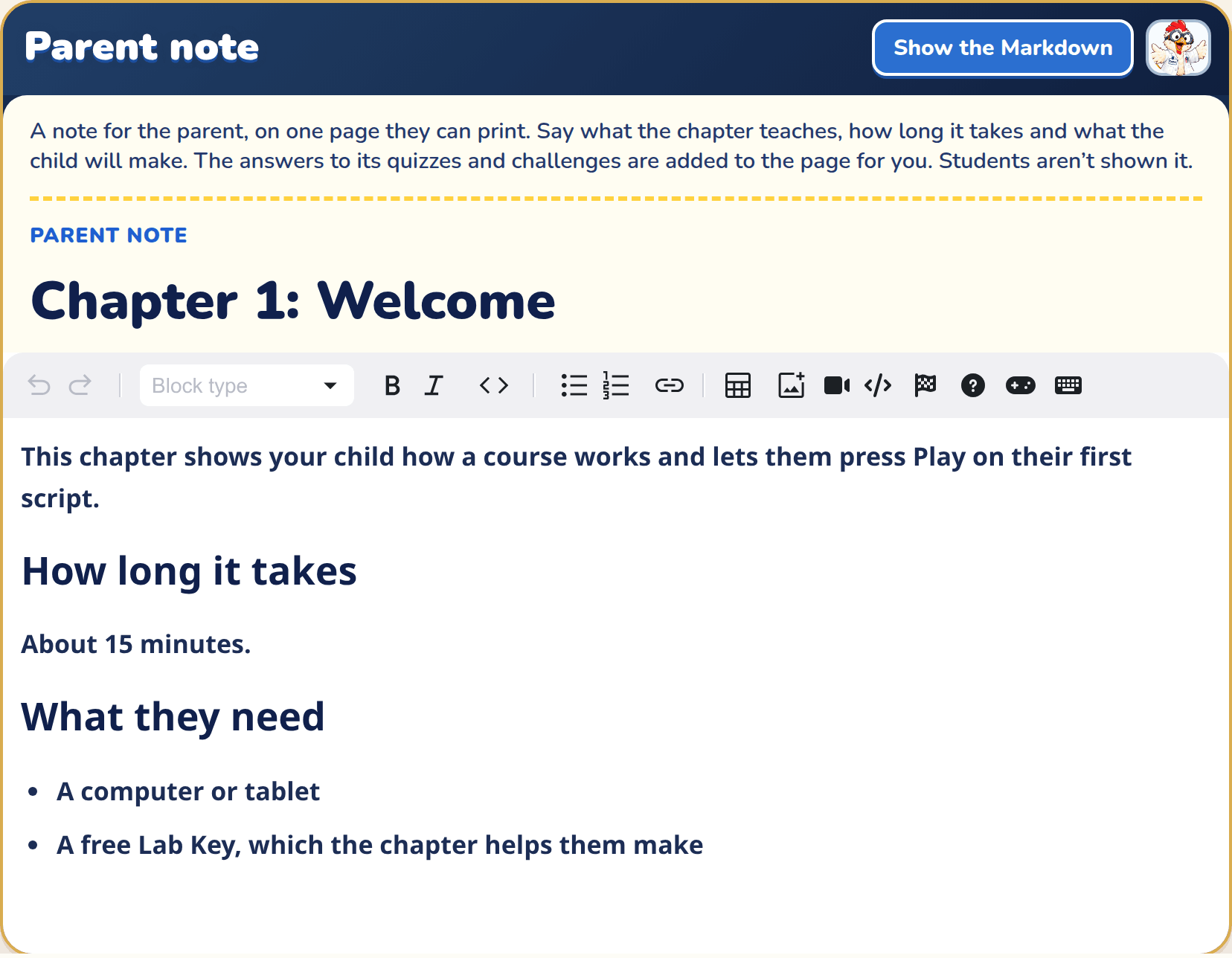
Each chapter can have a note for parents. Say what the chapter teaches, how long it takes and what the child will make. Students are never shown it.
Press the note button on a chapter's bar to write its note. The answers to the chapter's quizzes and challenges are added to the parent's page for you.
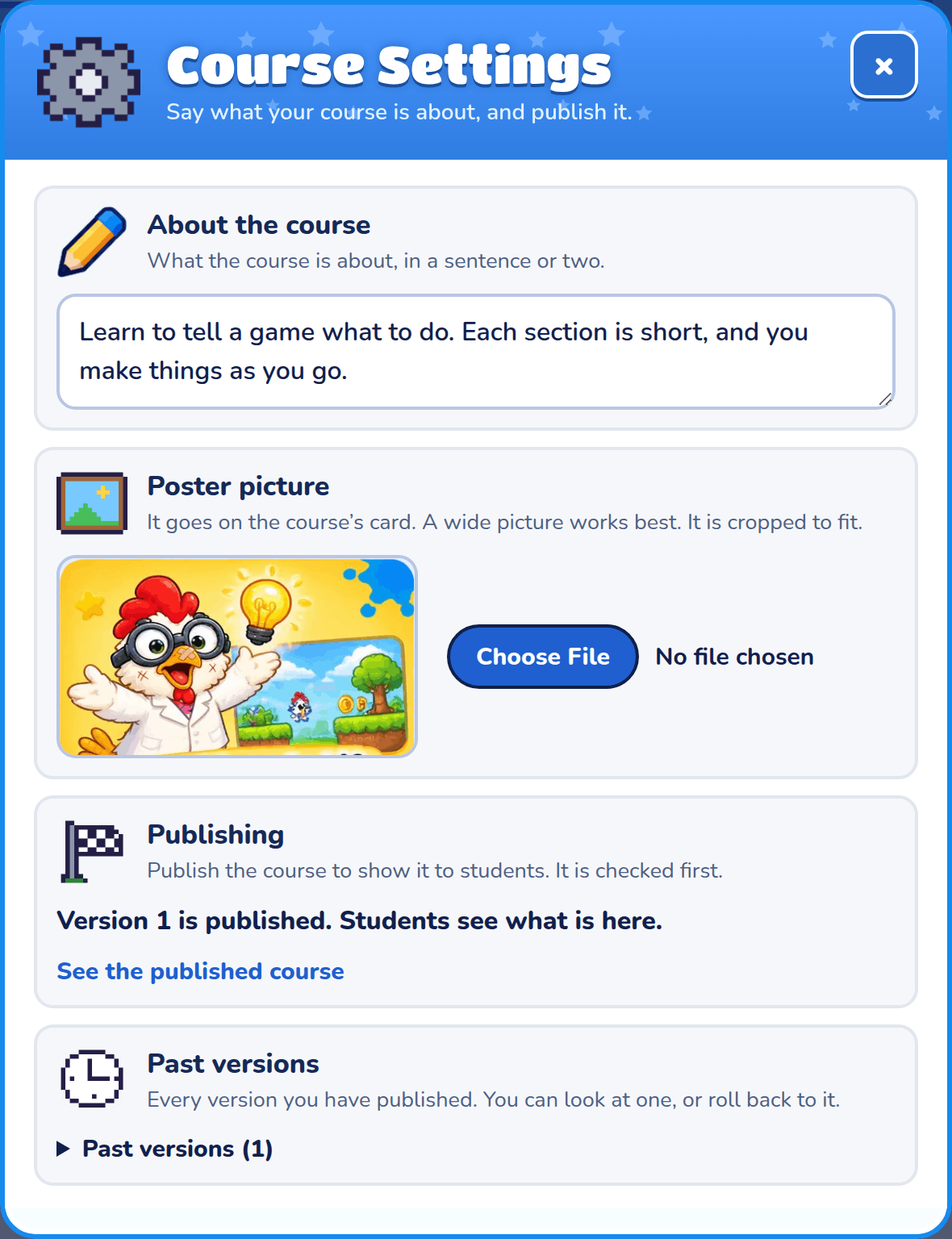
Press Settings in the bar.
Press Publish to send the course to be checked. It needs at least one section and a poster. Its words and poster are checked first, and a reviewer looks at anything the check can't judge, such as videos and links to other sites.
When it passes, it becomes the course's next version and shows in Cooper Academy. If the reviewer asks for changes, their note shows on the Publishing card.
A published course also counts as your newest public work for the creators' publishing rule .
Every time a course is published it gets a new version number. A student stays on the version they started, so your changes never move under them. They are told a newer version is out, and can move up and keep their ticks.
Past versions lists every version with its date.
After a rollback, new students get the copy, students already taking the course stay where they are, and your draft becomes the old version.
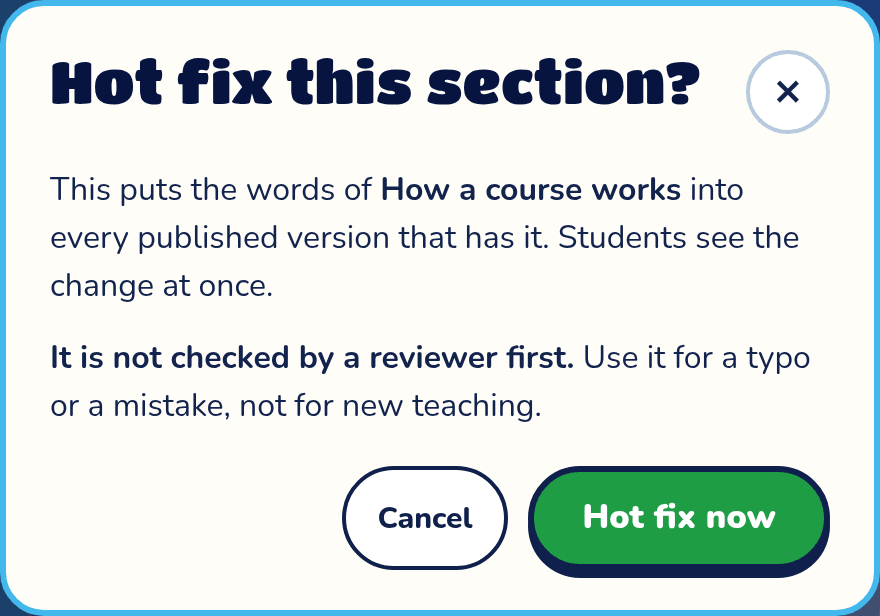
A hot fix is for a typo or a mistake that students should not have to wait for. It puts the open section's words into every published version that has that section. Students see the change at once.
Press Hot fix in the bar. It warns you first, because a hot fix is not checked by a reviewer.
Use Publish for new teaching. Use Hot fix only to put something right.